

KIER + Procore: Budget

KIER Custom Budget View Overview
- Navigate to the project's Budget tool.
- Click the Budget tab.
- Click the View menu and choose KIER's custom Procore ERP Job Cost Detail Budget from the list.
KIER's Procore ERP Job Cost Detail Budget View
The illustration below shows you the default layout for the 'Procore ERP Job Cost Detail Budget' view, as it looks when assigned to a project's Budget tool.

Budget Columns & Calculations
The following table details the default column and layout of the 'Procore ERP Job Cost Detail Budget' view.
| Column Name | Column Type | Column Format | Description |
|---|---|---|---|
| Description | Standard | n/a | Shows the project's budget code and budget code description. Depending on your budget code, this shows the division, cost code, and cost type associated with the budget line item. |
| Original Budget Amount | Standard | Currency | Shows the original budget amount for the budget line item. |
| Approved COs |
Source (Prime Contract) |
n/a | This visible column shows the Prime Contract change orders (PCCOs) in the Approved status. This column is also used to calculate the Revised Budget, Projected Budget and the Forecast to Complete columns. |
| Revised Budget | Calculated | Currency | This visible column shows the total amount of any Budget Modifications + Approved COs. This column is also used to calculate the 'Forecast to Complete' value in the budget line item. |
| Pending Budget Changes | Source | Currency | This visible column shows the amounts from pending prime contract change orders in Draft or Pending statuses for the budget line item. |
| Projected Budget | Calculated | Currency | This visible column Calculates the value of the Revised Budget + Pending Budget Changes values. |
| Committed Costs | Source | Currency | This visible column shows the commitment costs for subcontracts in the Approved and Complete statuses, purchase orders in the Approved status, and change orders in the Approved status. |
| AP Commitment Costs Detail | Source | Currency | This visible column shows the subcontractor invoices that have been approved through Timberscan and processed in our accounting department. |
| Un-paid Committed Cost | Calculated | Source | This visible column shows the difference between the Committed Cost column and the AP Commitment Costs Detail column. |
| Direct Cost Details | Source | Currency | This visible column shows direct costs in the Approved status. This includes payroll costs, invoices for temp services & credit card expenses. |
| Job to Date Costs | Calculated | Currency | This visible column shows Direct Costs + Subcontractor Invoices. |
| Pending Cost Changes |
Source (Commitment) |
Currency | This visible column shows subcontracts in the Out for Signature, Draft, & Pending statuses, purchase order contracts in the Processing, Submitted, Partially Received, and Received Status, and change orders in the Pending - statuses. |
| Change Event ROM | Source | Currency | This visible column all ROM estimates in your change events. The value that appears in this column on a budget line item is not yet associated with a PCO, CCO, RFQ, or a Non-Commitment Cost. |
| Job to Date Costs Detail | Source | Currency | This visible column shows all approved direct costs including: invoices, expenses, payroll & subcontractor invoices. |
| Current % Complete | Calculated | Percentage | This visible column divides the Job to Date Cost Detail Column by the Projected Budget column to calculate the % complete. |
| Projected Costs | Calculated | Currency | This visible column shows Committed Costs + Direct Costs + Pending Cost Changes+Change Event ROM. This column is also used to calculate the 'Forecast to Complete' value in the budget line item. |
| Forecast to Complete | Standard | Currency | This visible column is a calculation of the Projected Budget - Project Costs. You can configure the 'Forecast to Complete' setting to Automatic Calculation, Manual Entry, or Monitored Resources on a per-line-item basis. A lightning bolt  icon in the 'Forecast to Complete' column indicates the automatic net-zero calculation has been applied. KIER's Forecasting Best Practices. icon in the 'Forecast to Complete' column indicates the automatic net-zero calculation has been applied. KIER's Forecasting Best Practices. |
| Estimated Cost at Completion | Calculated | Currency | This visible column calculates the Projected Costs + Forecast to Complete. |
| Projected Over/Under | Calculated | Currency | This visible column calculates the Projected Budget - Estimated Cost at Completion. |
Cost Code types:
-
There are 5 different cost types within each cost code. Cost types are a way to identify and classify your project’s costs. They are also used to generate Job Cost Summary Reports in Procore. Each cost type has a purpose and will be interfaced by the estimating department.
o (S) Subcontract – This is for all subcontracts and will reflect the actual amount of the commitment to the subcontractor.
o (L) Labor – This is for Kier Superintendents, Foremen, Punch Foreman, Project Engineers, etc. If there is a budget in a cost code in Div. 2 – 16 with a category for labor, it is for Kier Employees.
o (M) Material – This is for Purchase Orders/Supply only commitments.
o (O) Other – In Division 1 – this is used for phones, fuel and other expenses. In Division 2 -16, this is a budget. This could be for materials that do not require a PO or for something that is anticipated but not covered in a subcontract. General Labor is coded here for third parties.
o (E) Equipment – On a GMP contract, this is where you will find any internal contingency. This money was made in buy-out, and operations/estimating has identified as a contingency.
Further Information
Budget
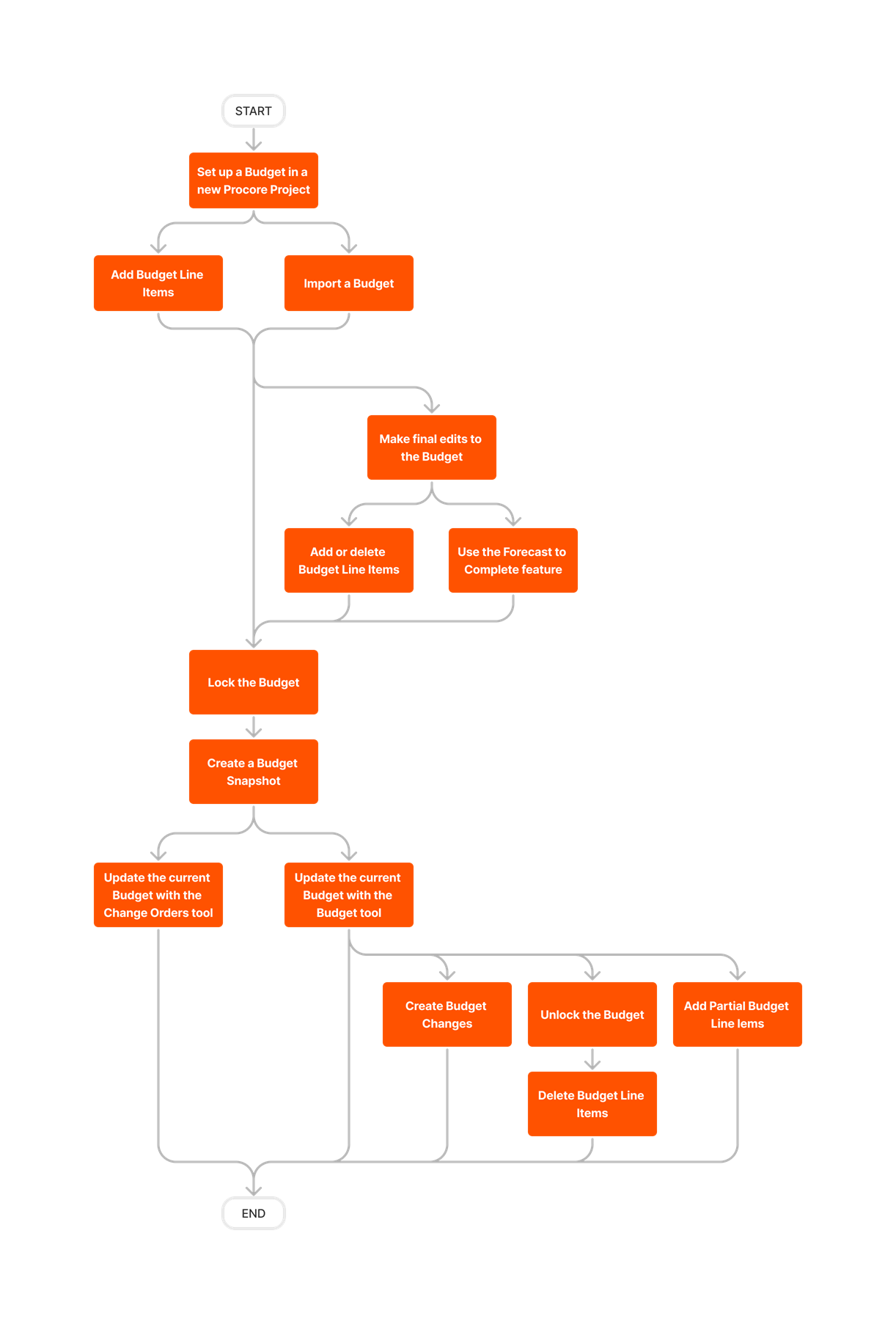


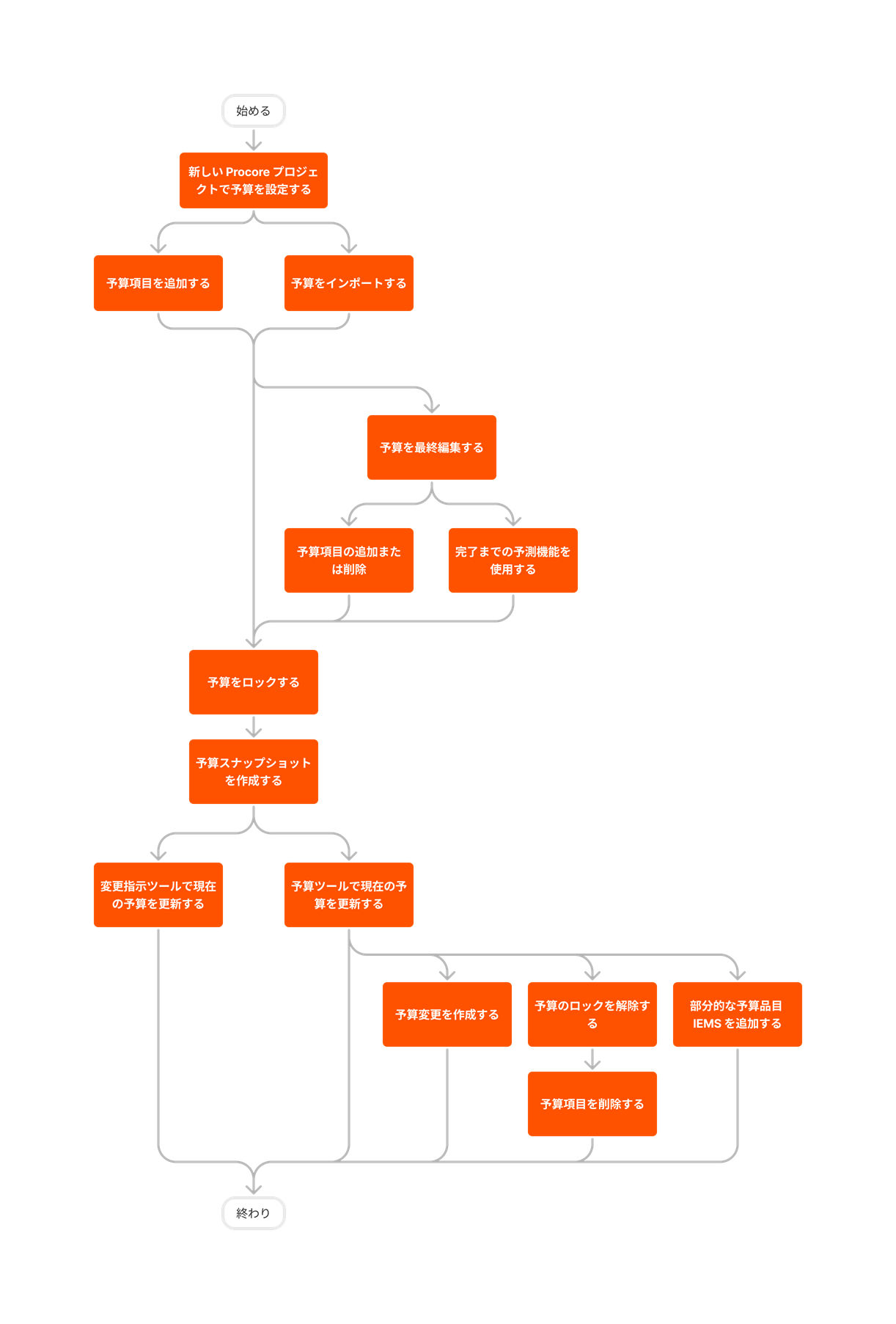


Add a Budget View for Real-Time Labor Costing
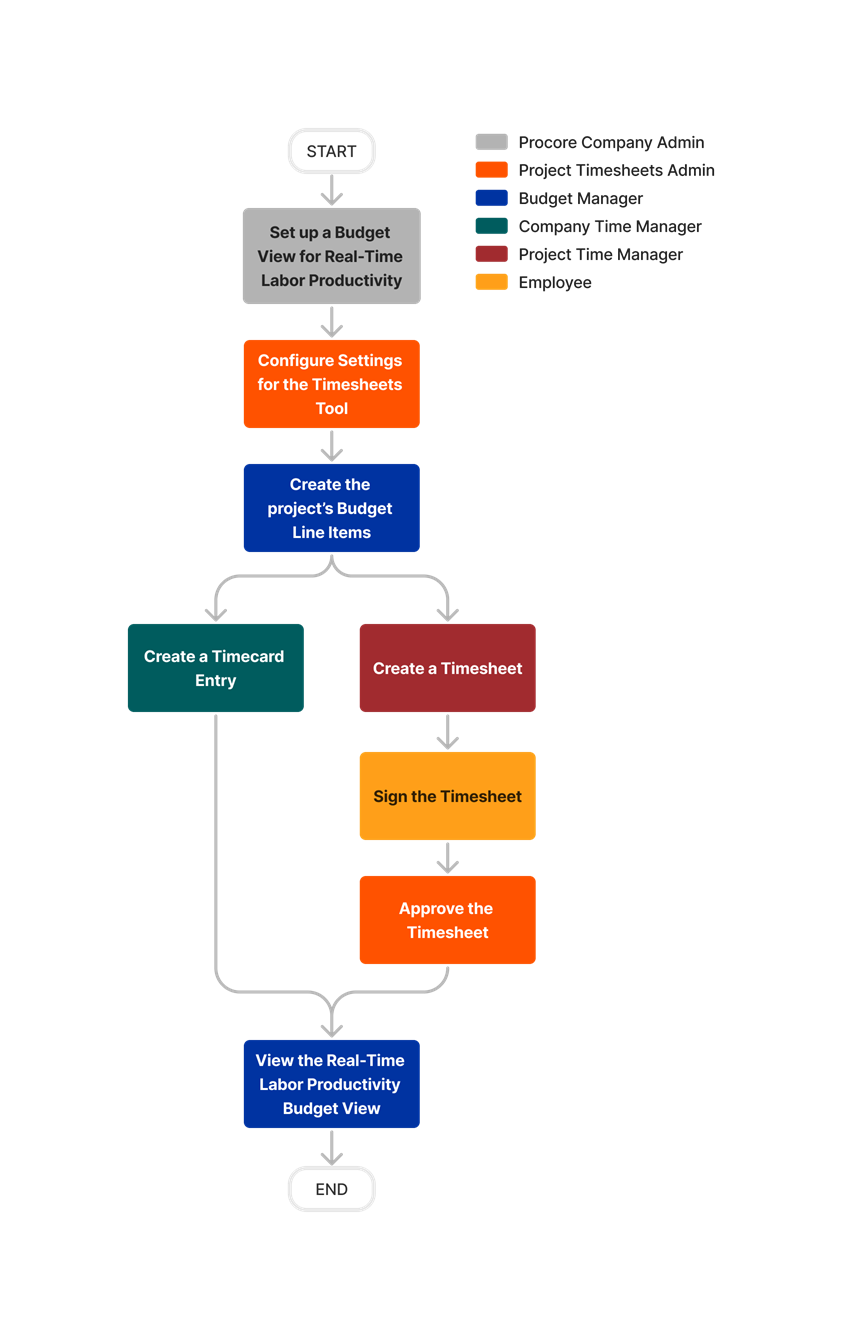


Set Up the 'Procore Labor Productivity Cost' Budget View
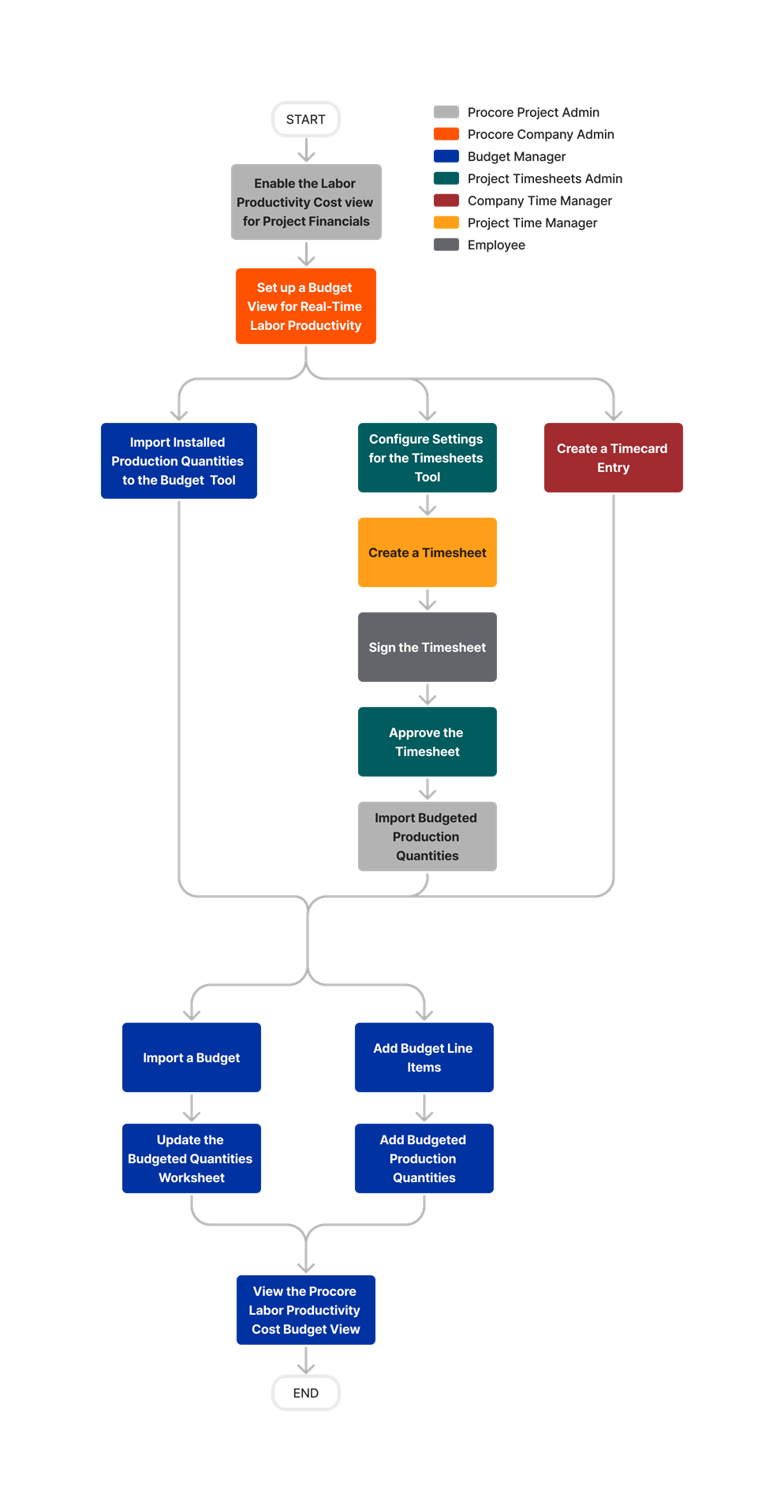


Budget
The following table highlights which user permissions are required to perform the described user action.
 + : Indicates that one or more granular permissions are available for the task. See the relevant tutorial or Grant Granular Permissions in a Project Permissions Template for more information.
 : Indicates your company's Procore account must be configured to work with an integrated ERP system.
1 This task also requires 'Admin' permissions on the project's Client Contracts, Funding, or Prime Contracts tool.
2 Also requires 'Admin' permissions on the Company level Reports tool.
3 The Reports tool must be an active Project Tool. See Add and Remove Project Tools.
Below are the notable changes to the project's Budget tool.
Recent Changes
Budget and Forecasting Views Carry Over from Project Templates (05/11/2026)
Procore now enables the automatic carryover of budget and forecasting views from project templates to new projects. Company administrators can create and assign specific budget and forecasting views directly to a project template. When this template is applied to new projects, the designated views are carried over automatically. This feature ensures financial reporting consistency and eliminates the need for manual view assignment during project setup. To learn more, see Carry Over Budget and Forecasting Views from a Project Template.
Modernized Forecasting Table (Beta) (05/04/2026)
Procore has introduced a modernized Forecasting table within the Forecasting tab of the Budget tool. This table provides a refreshed interface and significant performance improvements for large datasets, ensuring a more fluid and intuitive forecasting process. To enable this feature at the company level or project level, join the 'Modernized Forecasting Table' beta program in Procore Explore.
Key Enhancements
-
Optimized Interface & Performance:
-
New Navigation:
-
The 'Group' menu has been renamed to Select a column to group and relocated to the right side, above the table. See Apply the View, Snapshot, Group, and Filter Options on a Budget View.
-
The 'Filter' menu has been renamed to Filters and is now a side panel on the left, above the table. The 'Clear Filters' button has been renamed to Clear All Filters.
-
-
Faster Loading: To boost performance for large budgets, grouped views now default to a collapsed state.
-
-
Streamlined Bulk Actions:
Note: The following changes are discussed in detail in Apply Advanced Forecasting Curves.-
Accurate Selection: The bulk selection checkbox (next to the Description field) now correctly captures all line items in a single click.
-
Edit Panel: Apply a Start Date, End Date, and Curve to line items in bulk via a new Edit Values side panel, replacing the previous top-menu workflow.
-
-
Improved Manual Forecasting:
-
Manual Curve: A Manual option in the Curve drop-down menu has been added to reduce friction in applying a manual spread of values. See Apply Advanced Forecasting Curves.
-
Hover-to-Edit: Hover over any cell to identify if the values can be edited.
-
-
Enhanced Navigation & Focus:
-
Keyboard Shortcuts: Press Tab to move cell-by-cell without updating the row, or Enter to save changes and update.
-
Row Highlighting: The active row is now visually highlighted as you scroll, making it easier to track your place in complex budgets.
-
-
Dynamic Forecast To Complete Column:
Note: The following changes are discussed in detail in Use the 'Forecast to Complete' Feature.-
Rapid Calculation Selection: Use the new drop-down menu in the column to quickly select a calculation method.
-
Direct Panel Access: Access the 'Forecast To Complete' panel by clicking on any linked amount or by selecting Monitored Resources or Itemized Manual Entry from the drop-down menu in the column.
-
Navigation Update: The horizontal ellipsis
 icon used to access the panel has been removed.
-
-
Redesigned Forecast To Complete Panel:
Note: The following changes are discussed in detail in Use the 'Forecast to Complete' Feature.-
Flexible Workspace: The panel can be docked to the bottom or the side of the table.
-
Updated Calculation Methods:
-
The 'Lump Sum Entry' calculation method has been renamed to Lump Sum Manual Entry.
-
The 'Manual Entry' calculation method has been renamed to Itemized Manual Entry.
-
-
Modernized Budget Table: Flexible Forecast Panel (Beta) (05/01/2026)
Procore has updated the modernized Budget table in the Budget tool with a redesigned, flexible 'Forecast To Complete' panel. You can now dock this panel to the bottom or the side of your table. This feature provides greater control over how you view your data, delivering a more intuitive forecasting experience. For more details, see Use the 'Forecast to Complete' Feature. To enable the enhanced Budget table at the company level or project level, join the 'Modernized Budget Table Experience' beta program in Procore Explore.
Centralized Budget Snapshots Comparison and Standardized View for the Modernized Budget Table (Beta) (04/01/2026)
Procore has updated the modernized Budget table to centralize variance analysis of line items between budget snapshots and standardize column visibility. The updated 'Configure' panel allows you to enable or disable comparison or variance data for the entire budget view, replacing the need to manage these data for individual columns. Additionally, the ability to manually show, hide, pin, or rearrange columns within the Budget table has been removed to maintain the standard column layout defined by your company administrator. See Analyze Line Item Variance Between Budget Snapshots (Beta).
New 'Type' Field on Budget Changes (02/17/2026)
Use our new 'Type' field in Budget Changes to efficiently categorize, track, and report on different classifications of fund transfers such as contingencies, allowances, or buyouts. These categories are now visible directly within your Budget Change list views and main Budget columns, making it easier than ever to filter financial data and run detailed reports without the need for custom data sets. To join the beta, see Manage Features with Procore Explore.
Edit Budget Snapshots for greater flexibility (02/09/2026)
You can now edit the name, type, and description of your budget snapshots directly from the Snapshot banner in the Budget. This update eliminates the need to delete and recreate snapshots when details change and allows you to convert snapshots between Ad Hoc and Project Status (PSS) types at any time, ensuring your data is correctly categorized for project or company-level reporting. Notably, converting to a PSS from Ad Hoc automatically sets the status to Approved, streamlining the transition for previously reviewed records. To learn more, see Budget and Snapshots User Guide.
BUDGET Navigation IMPROVEMENTS (11/10/2025)
Procore has migrated the Budget tool to a new architecture to deliver a unified customer experience. This update introduces features that eliminate the sidebar navigation on the Budget and Forecasting pages. All actions – including Create, Import, and Reports are now consolidated in the header for consistent navigation.
Beta Modernized Budget Table Experience (10/27/2025)
Procore is launching an upgrade to our budget table experience that brings a modern look and feel, more flexibility and an easier way to work with your project's budget. This update gives you better filtering, grouping, and table controls, plus streamlined actions like keyboard navigation and the ability to multi-select and copy values across rows. Clicking into a value now opens the side panel for details, replacing the modal view. Additionally, you can pin critical columns to keep key metrics in view. To join the beta, see Manage Features with Procore Explore.
'Status' Filter for Owner Invoices Now Generally Available (08/15/2025)
Procore's new 'Status' filter for 'Owner Invoice' in budget views is now generally available. When an administrator adds the 'Owner Invoice' column to a budget view, your users can now filter budget items by owner invoice status: Draft, Under Review, Revise & Resubmit, and Approved. To learn more, see Set up a New Budget View.
Budget Code Attributes for Work Breakdown Structure Now Generally Available (08/11/2025)
Procore has introduced the ability to create and assign attributes at the budget code level, enhancing flexibility and customization for users. The Budget tool now supports attribute grouping and filtering, as well as budget export capabilities. This program can be enabled by a user with 'Admin' permissions on the Company Admin tool using Procore Explore. If you don't have Procore Explore, contact your Procore point of contact. To learn more, see About Budget Code Attributes.
Modernized Change History Experience in Budget Tool (08/11/2025)
The user interface for the Budget tool’s Change History page has been modernized to provide a more seamless, user-friendly experience. There is no change to functionality. However, the table has been updated, users can now select cost code, cost type, and sub job filters from drop-down lists or click the Filters button to open a list of filters in the side panel. There is no change to functionality. See View and Filter the Change History of the Budget.
Project Status Snapshots is Now Generally Available (08/11/2025)
Procore is pleased to introduce Project Status Snapshots, which streamlines recurring budget forecasting and status reporting with dedicated budget snapshot types. It also provides instant variance analysis and centralized management for improved project oversight. For details, see About Project Status Snapshots for the Budget Tool. This feature works with the new Company Level Project Status Snapshots tool.
Beta New RFQ Status filter on the Budget's Change Event ROM (07/28/2025)
Configure your budget with a new RFQ status filter for Change Event ROM columns, enhancing the accuracy of cost forecasting by distinguishing between committed and potential costs. The RFQ Status filter allows users to configure which RFQ statuses, such as 'Pending' or 'Approved', display ROM values, eliminating cost duplication in forecasts. The Status Filter feature, available through Procore Explore, must be enabled by a user with 'Admin' level permissions to the Company Admin tool. To learn more, see Set up a New Budget View.
Beta Project Status Snapshots Open Beta (05/12/2025)
Procore is pleased to announce the start of the Project Status Snapshots open beta program. To join the beta, see Manage Features with Procore Explore. To learn more about the feature, see Budget & Forecast Snapshots: User Guide and the Company level Project Status Snapshots tool.
New 'Notes' Column for Line Items in Budget and Forecasting Views (5/12/2025)
Teams can now add a Notes column to budget and forecast views. This gives your team essential context about specific line items to improve decision-making. Notes are visible within Procore in views, exports, reports, and snapshots. This feature must be enabled at the Company level by a user with 'Admin' level permissions on the Company Admin tool using Procore Explore or by contacting your Procore point of contact. For details, see About Budget Notes.
Beta Try Out a New 'Status' Filter for Owner Invoices in Procore's Budget Views (05/12/2025)
Procore invites you to try out a new 'Status' filter that works with the 'Owner Invoice' source column on a budget view, letting budget view users filter budget line items by owner invoice status: Draft, Under Review, Revise & Resubmit, and Approved. To participate in this beta program, contact your Procore point of contact. To learn more, see Set up a New Budget View.
Enabled Workflows Data for Budget Changes for Procore Custom Solutions (05/12/2025)
For teams using custom forms created by Procore Custom Solutions, Procore introduced the capability to enable workflows data for budget changes, streamlining the budget management process by integrating workflow data directly into custom PDF reports. This enhancement improved the accuracy and efficiency of budget tracking and reporting, providing construction stakeholders with a comprehensive view of budget changes and their associated workflows.
Beta Budget Code Attributes for Work Breakdown Structure (04/25/2025)
Procore has introduced the ability to create and assign attributes at the budget code level, enhancing flexibility and customization for users. The Budget tool now supports attribute grouping and filtering, as well as budget export capabilities. This program can be enabled by a user with 'Admin' permissions on the Company Admin tool using Procore Explore. If you don't have Procore Explore, contact your Procore point of contact. To learn more, see About Budget Code Attributes.
CONFIGURABLE RED TEXT ON BUDGET LINE ITEMS (11/11/2024)
With this release, a new setting is introduced that allows users to control whether budget line items appear in red when any of their values are negative. This feature provides flexibility for users who prefer not to have line items highlighted in red. When the setting is turned ON, negative values will be displayed in red text on both the budget and PDF, as is currently the case. When the setting is turned OFF, all text will appear in black, except for hyperlinks, regardless of negative values.
View Labor Productivity Tracking with Flexible Work Breakdown Structure (06/17/2024)
You can leverage flexible Work Breakdown Structure (WBS) when budgeting the resource hours and associated cost as well as a production plan based on units to install for production quantities. Flexible WBS allows your team to budget, track time and units installed in Timesheets, and report at the right level of granularity, for an enhanced real time labor productivity cost Budget View. See Resource Tracking and Project Financials: Setup Guide.
New Configuration Setting for Automatic Change Event Creation (05/13/2024)
A configuration setting has been added to the Budget tool that will allow users the choice to turn off the automatic creation of new change events when budget changes are required to have change event association. When the new setting is turned on, budget change adjustments without a manually selected change event line item association will trigger the automatic creation of a new change event when saved. When it is turned off, budget changes cannot be saved without associating a change event line item to each adjustment.