Procore

RFI's


Overview

  1. Navigate to the project's RFIs tool.
  2. Click the Items tab.
  3. You can click within applicable fields to make edits within the list view table. 
    OR
  4. Locate the desired RFI in the list. 
    Notes:
    • To search for or filter the list to locate a specific RFI, see Search for and Filter RFIs
    • You can only edit an RFI's question when the RFI is in the 'Open' status.
    • You cannot edit RFIs that have been sent to the Recycle Bin. See Delete an RFI.
  5. Then choose one of these options:
    • Click Edit. This opens the RFI in edit mode. 
      edit-rfi.png
      OR
    • Click View. This opens the RFI in view mode. Then click Edit.
      view-rfi.png
       
  6. Modify the fields as follows:
    • Number*. This is a required field when a user with 'Admin' level permission on the RFI tool creates an RFI in the Open status. It is NOT required when users with 'Standard' level permission create a Draft RFI (see What is a 'Draft' RFI?).
      Notes:

    • Due Date. Enter or select a date from the calendar for the RFI response to be due. This field is only visible and available to users with 'Admin' level permissions on the project's RFIs tool.
      Note: The 'Due Date' field is automatically populated based on the default number of days specified on the RFIs tool's Configure Settings page. See Configure Advanced Settings: RFIs. The due date also respects which days are set as 'working days' for the project. See Set Project Working Days.

    • Subject*. Provide a descriptive title for the RFI. The RFI's subject is displayed as the RFI's title in the list view.

    • Status. Shows the status of the RFI (for example, Draft, Open, Closed, or Closed-Draft). 

    • Assignees. Select one or more users to be responsible for responding to the RFI. Mark the Make Response Required checkbox next to an Assignee's name to make their response to the RFI required. Note: Assignees with the current Ball In Court responsibility on an RFI can add other users as Assignees to the RFI or forward the RFI to another user for their review. See Add Assignees to an RFI as an Assignee on an RFI and Forward an RFI for Review.

    • RFI Manager*. Select an RFI Manager from the drop-down list. See What is the RFI Manager role?
      Notes:

      • By default, the name of designated RFI Manager appears here. See Designate the Default RFI Manager for a Project's RFIs.
      • If you are a user with 'Admin' level permission on the RFIs tool, you may select yourself or another user with 'Admin' level permission from the list. 
    • Distribution. Add users with 'Read-Only level permission or higher to the RFI's distribution list. Depending on the user's permission level, they can respond to the RFI using at least one of several methods. For details, see Respond to an RFI.

    • Created By. Shows the name of the user who created the RFI.

    • Date Initiated. Records the date the RFI was placed into the 'Open' status. This field is blank when an RFI is in 'Draft' status. 

    • Received From. Select the person from whom the RFI question was received from the drop-down list. 

    • Responsible Contractor. This field is automatically prefilled with the company that is associated with the user selected in the 'Received From' field.

    • Drawing Number: You can manually input a drawing number into this field. However, the recommended process to associate an RFI to a drawing is to Link an RFI to a Drawing.

    • Spec Section. Select the relevant section from your specification book. See Where do the selections from the 'Specification Sections' drop-down list come from?

    • Location. Select the location pertaining to the RFI from the drop-down list. 
      Note: If Procore is configured to allow users to create locations (see Allow or Disallow Users to Create Locations Within a Tool), you can click the Create a New Location button at the bottom of the list. 

    • Sub Job*. Select a sub job from the drop-down list. For this list to be available, the sub jobs feature must be enabled. See Enable Sub Jobs on Projects for WBS.

    • Schedule Impact. Select one of the following options from the drop-down list. 

      • Yes. Select this option if you know the number of days by which the schedule will be impacted. Then enter a number in the Days box to indicate the total number of calendar days.
      • Yes (Unknown). Select this option if you know the schedule will be impacted, but the number of days is not known. 
      • No. Select this option if there is no impact to the schedule. 
      • TBD. Select this option if you have yet to determine if there is a schedule impact. 
      • N/A. Select this option if an impact to the schedule is not applicable to this RFI. 
    • Cost Code. Select a cost code for the RFI. This links the RFI to the cost code, which is helpful later, should the RFI's scope of work affect the project's budget and result in a change order. See Create a Potential Change Order for a Prime Contract.

    • Cost Impact. Select one of the following options from the drop-down list. 

      • Yes. Select this option if you know the amount by which the cost will be impacted. Then enter a number in the $ box to indicate the cost impact.
      • Yes (Unknown). Select this option if you know the cost will be impacted, but the amount is not know. 
      • No. Select this option if there is no impact to the cost. 
      • TBD. Select this option if you have yet to determine if there is a cost impact. 
      • N/A. Select this option if the cost impact is not applicable to this RFI. 
    • Reference. An optional field that can serve as a helpful reference tag. 

    • Private. Select Yes or No from the drop-down list. Yes indicates the RFI(s) will be marked Private. No indicates the RFI(s) will NOT be marked Private. 

    • Custom Fields. If a user with 'Admin' level permission on the RFIs tool has configured custom fields to appear in your RFIs tool, those will appear in the creation page as shown. See Configure Settings: RFIs.

    • Question*. If you are creating the RFI, input the question. If you are editing the RFI, modify it. Note: It is recommended that your question always document any additional background information that is required from the person assigned to submit an answer.

    • Attach Files. Click the Attach Files link to upload a file from your computer or select an existing file from one of the supported Procore tools (e.g., Photos, Drawings, Forms,  Documents, or Document Management). Alternatively, you can also use a drag-and-drop operation to upload attachments from your computer.

  7. Click Update.

Further Information

Requests-for-Information (RFIs) can help a project run smoothly and on schedule, but they can also cause delays which can mean cost overruns and lost profit. Procore knows that timely RFI management is the key to good schedule management and overall project success.


  • Keep RFIs organized and accessible
  • Answer RFIs by email
  • Quickly turn RFIs into actions
  • Record a history of all RFIs

There are no items that match your search query.

 Tip

To browse and search all Procore training videos, visit our video library.

Web

Create an RFI
 
Create an RFI Revision
 
View an RFI
 
Respond to an RFI
 
Close an RFI
 

Mobile

Create an RFI (Mobile) - Field Worker
 
Create an RFI (Mobile) - Subcontractor as Collaborator
 

OUTDATED VIDEOS - Removed from Support Site and Certifications

Configure RFI Settings


Create an RFI - Specialty Contractor


Architect - Respond to an RFI


Video content may not accurately reflect the current state of the system, and/or it may be out of date.

Field Worker - Create an RFI (Mobile)


Video content may not accurately reflect the current state of the system, and/or it may be out of date.

Specialty Contractor as Client - Create an RFI


Video content may not accurately reflect the current state of the system, and/or it may be out of date.

Subcontractor - Create RFIs (Mobile)


Video content may not accurately reflect the current state of the system, and/or it may be out of date.

Configure RFIs Settings


Video content may not accurately reflect the current state of the system, and/or it may be out of date.

Specialty Contractor as Client - Close an RFI


Video content may not accurately reflect the current state of the system, and/or it may be out of date.

Owner - Create an RFI


Video content may not accurately reflect the current state of the system, and/or it may be out of date.

Owner - Close an RFI


Video content may not accurately reflect the current state of the system, and/or it may be out of date.

Superintendent - RFIs


Video content may not accurately reflect the current state of the system, and/or it may be out of date.

Architect - Overview


Video content may not accurately reflect the current state of the system, and/or it may be out of date.

Web

Configure RFI Settings
 
Create an RFI
 
Close an RFI
 

Mobile

Create an RFI (Mobile) - Field Worker
 

OUTDATED VIDEOS - Removed from Support Site and Certifications

Field Worker - Create an RFI (Mobile)


Video content may not accurately reflect the current state of the system, and/or it may be out of date.

Web

Create an RFI
 
Respond to an RFI
 
Configure RFI Settings
 
Close an RFI
 

Mobile

Create an RFI (Mobile) - Field Worker
 

OUTDATED VIDEOS - Removed from Support Site and Certifications

Field Worker - Create an RFI (Mobile)


Video content may not accurately reflect the current state of the system, and/or it may be out of date.

Web

Create an RFI
 
Respond to an RFI
 
Configure RFI Settings
 
Close an RFI
 

Mobile

Create an RFI (Mobile) - Field Worker
 

Web

Create an RFI
 
Configure RFI Settings
 
Respond to an RFI
 
Close an RFI
 

Mobile

Create an RFI (Mobile) - Field Worker
 

OUTDATED VIDEOS - Removed from Support Site and Certifications

Field Worker - Create an RFI (Mobile)


Video content may not accurately reflect the current state of the system, and/or it may be out of date.

Web

Configure RFI Settings
 
Create an RFI
 
Close an RFI
 

Mobile

Create an RFI (Mobile) - Field Worker
 

OUTDATED VIDEOS - Removed from Support Site and Certifications

Configure RFIs Settings


Video content may not accurately reflect the current state of the system, and/or it may be out of date.

Field Worker - Create an RFI (Mobile)


Video content may not accurately reflect the current state of the system, and/or it may be out of date.

Create an RFI
 
Respond to an RFI
 
Close an RFI
 

OUTDATED VIDEOS - Removed from Support Site and Certifications


Web

Create an RFI
 
Close an RFI
 
Configure RFI Settings
 

Mobile

Create an RFI (Mobile) - Field Worker
 

OUTDATED VIDEOS - Removed from Support Site and Certifications

Field Worker - Create an RFI (Mobile)


Video content may not accurately reflect the current state of the system, and/or it may be out of date.

Web

Configure RFI Settings
 
Create an RFI
 
Close an RFI
 

Mobile

Create an RFI (Mobile) - Field Worker
 

OUTDATED VIDEOS - Removed from Support Site and Certifications

Field Worker - Create an RFI (Mobile)


Video content may not accurately reflect the current state of the system, and/or it may be out of date.

Web

Configure RFI Settings
 
Create an RFI
 
Close an RFI
 

Mobile

Create an RFI (Mobile) - Field Worker
 

OUTDATED VIDEOS - Removed from Support Site and Certifications

Field Worker - Create an RFI (Mobile)


Video content may not accurately reflect the current state of the system, and/or it may be out of date.

Web

Create an RFI
 
Create an RFI Revision
 
View an RFI
 
Respond to an RFI
 
Close an RFI
 

Mobile

Create an RFI (Mobile) - Field Worker
 
Create an RFI (Mobile) - Subcontractor as Collaborator
 

OUTDATED VIDEOS - Removed from Support Site and Certifications

Configure RFI Settings


Create an RFI - Specialty Contractor


Architect - Respond to an RFI


Video content may not accurately reflect the current state of the system, and/or it may be out of date.

Field Worker - Create an RFI (Mobile)


Video content may not accurately reflect the current state of the system, and/or it may be out of date.

Specialty Contractor as Client - Create an RFI


Video content may not accurately reflect the current state of the system, and/or it may be out of date.

Subcontractor - Create RFIs (Mobile)


Video content may not accurately reflect the current state of the system, and/or it may be out of date.

Configure RFIs Settings


Video content may not accurately reflect the current state of the system, and/or it may be out of date.

Specialty Contractor as Client - Close an RFI


Video content may not accurately reflect the current state of the system, and/or it may be out of date.

Owner - Create an RFI


Video content may not accurately reflect the current state of the system, and/or it may be out of date.

Owner - Close an RFI


Video content may not accurately reflect the current state of the system, and/or it may be out of date.

Superintendent - RFIs


Video content may not accurately reflect the current state of the system, and/or it may be out of date.

Architect - Overview


Video content may not accurately reflect the current state of the system, and/or it may be out of date.

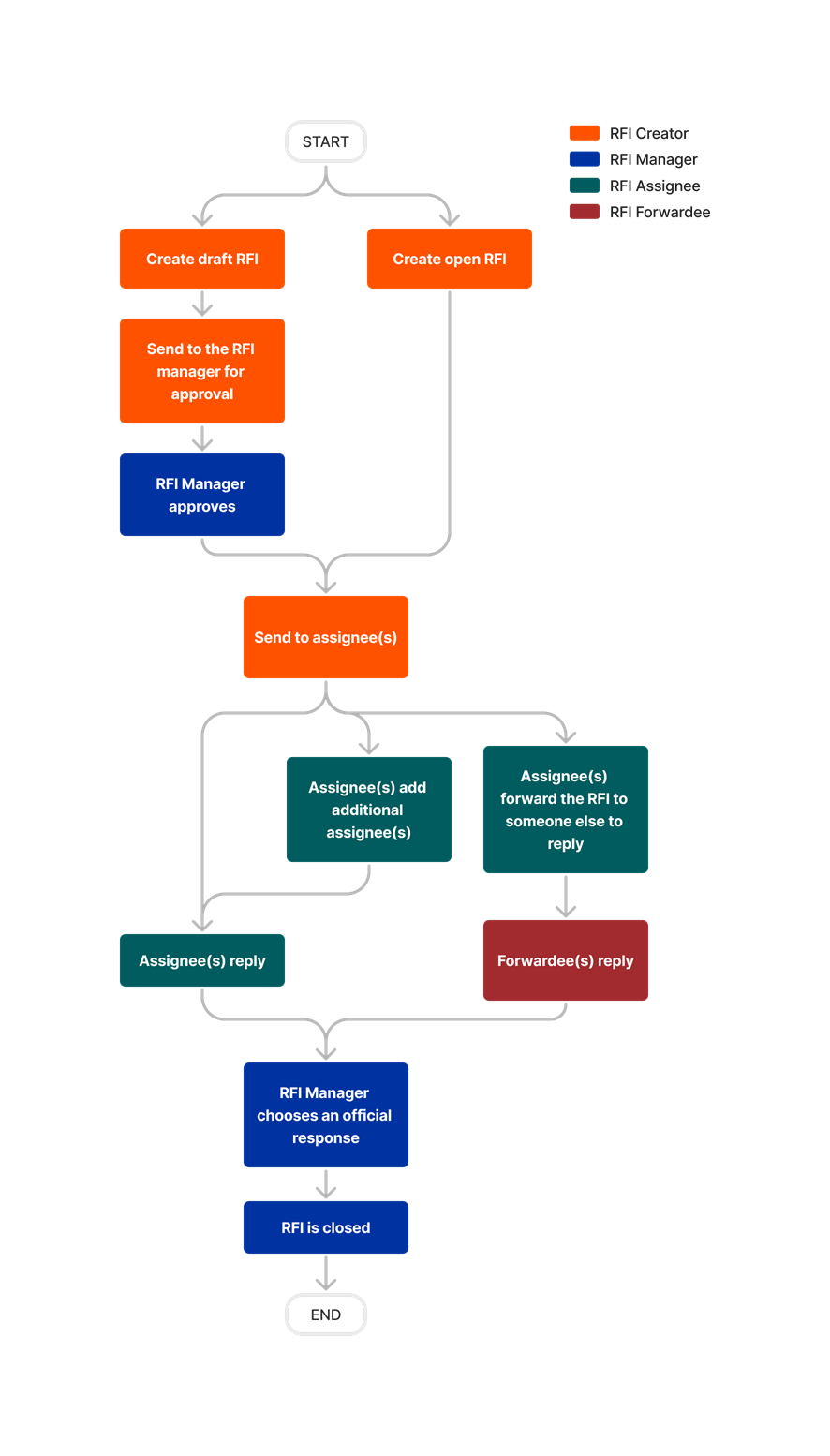
diagram_rfis_tool-overview.png

diagram_rfis_tool-overview_de-de.png

diagram_rfis_tool-overview_en-au.png

diagram_rfis_tool-overview_en-ca.png

diagram_rfis_tool-overview_en-gb.png

diagram_rfis_tool-overview_es-es.png

diagram_rfis_tool-overview_es-la.png

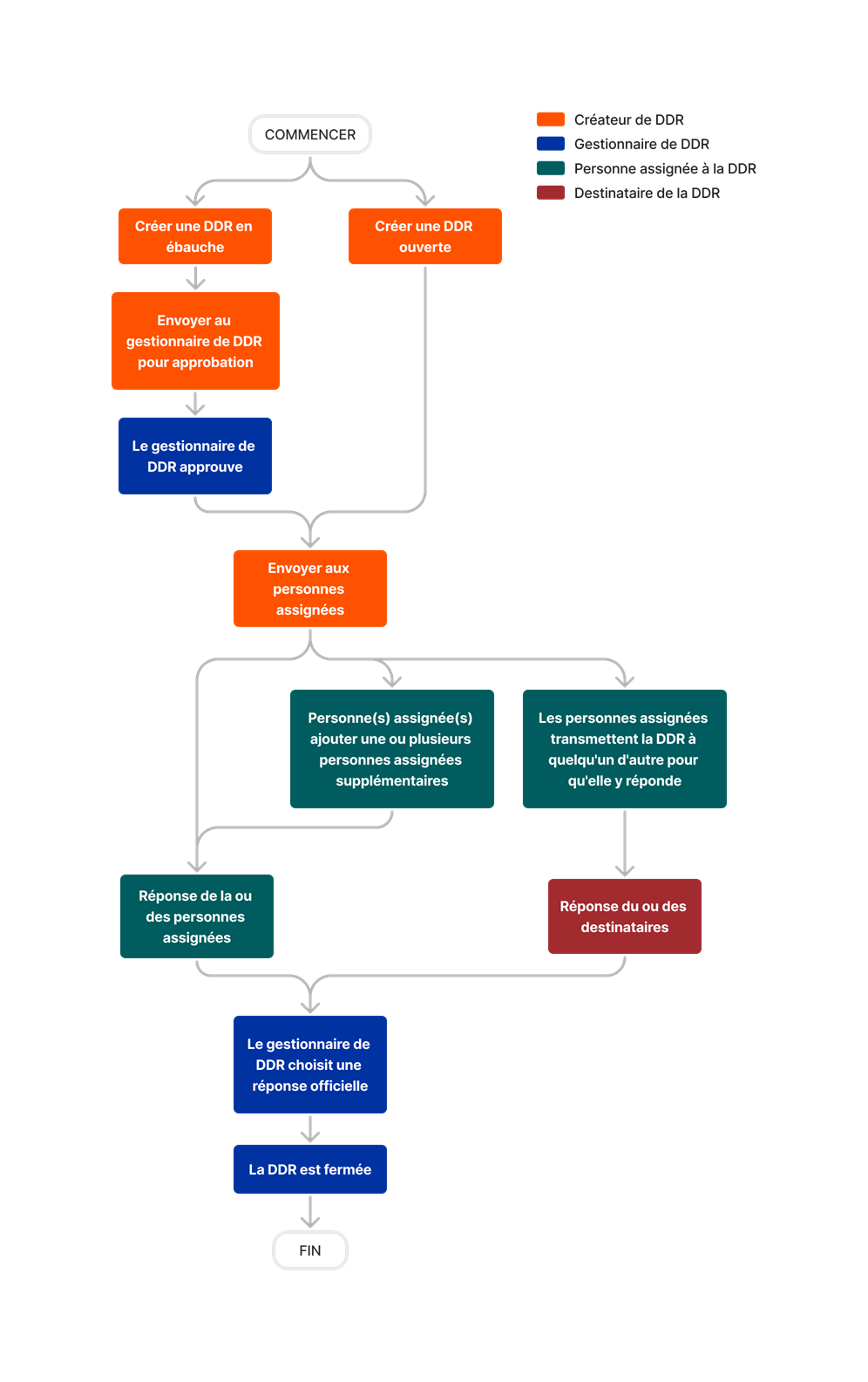
diagram_rfis_tool-overview_fr-ca.png

diagram_rfis_tool-overview_fr-fr.png

diagram_rfis_tool-overview_ja-jp.png

diagram_rfis_tool-overview_pt-br.png

diagram_rfis_tool-overview_zh-sg.png

diagram_rfis_tool-overview.png

RFIs

Learn which user permissions are required to take the described actions in this tool.

 Important

Some actions that impact this tool are done in other Procore tools. See the User Permissions Matrix for the full list of actions taken in all other tools.

   The action is available on Procore's Web, iOS, and/or Android application. Click to view the article.

icon-mindtouch-table-check.png Users can take the action with this permission level.

icon-mindtouch-table-check.png Users can take this action with this permission level AND one or more additional requirements, like granular permissions.

What granular permissions are available for the project's RFIs tool?

Action None Read Only Standard Admin Notes

Add a Related Item to an RFI

 Web

      check-green2.png  

Add Assignees to an RFI as an Assignee on an RFI

 Web


icon-mindtouch-table-check.png

icon-mindtouch-table-check.png

The user adding the assignee must first be designated as an 'Assignee' and must be the current 'Ball In Court' person.

Change the Status of an RFI

 Web     iOS     Android


icon-mindtouch-table-check.png

  • Act as RFI Manager
     

icon-mindtouch-table-check.png

  • Act as RFI Manager
check-green2.png

Users with the 'Act as RFI Manager' granular permission must also have one of the following attributes:

  • Be assigned as the 'RFI Manager' on the RFI
  • Be the RFI's creator

Choose an "Official Response" for an RFI

 Web     iOS     Android


icon-mindtouch-table-check.png

  • Act as RFI Manager
    OR
  • Mark Official Responses

icon-mindtouch-table-check.png

  • Act as RFI Manager
    OR
  • Mark Official Responses
check-green2.png
  • Users with the 'Act as RFI Manager' granular permission must also have one of the following attributes:
    • Be assigned as the 'RFI Manager' on the RFI
    • Be the RFI's creator
  • Users with the Mark Official Responses' granular permisison must also have one of the following attributes:
    • Be the RFI's creator
    • Be an Assignee
    • Be Distribution List Member

Close an RFI

 Web     iOS     Android


icon-mindtouch-table-check.png

  • Act as RFI Manager
     

icon-mindtouch-table-check.png

  • Act as RFI Manager
check-green2.png
  • Users with the 'Act as RFI Manager' granular permission must also have one of the following attributes:
    • Be assigned as the 'RFI Manager' on the RFI
    • Be the RFI's creator
  • This action can be performed offline. Tasks performed offline are synced with Procore once a network connection has been reestablished.

Configure Settings: RFIs

 Web

      check-green2.png  

Create a Change Event from an RFI

 Web     iOS     Android


icon-mindtouch-table-check.png

icon-mindtouch-table-check.png

  • Users also need 'Standard' level permissions or higher on the project's Change Events tool.
  • This item can be viewed or edited offline provided that the item was previously viewed and cached on your mobile device. Tasks performed offline are synced with Procore once a network connection has been reestablished.

Create a Potential Change Order from an RFI

 Web


icon-mindtouch-table-check.png

To create a Potential Change Order from an RFI, the following must also be true:

  • The RFI is created.
  • The prime contract must be in the 'Approved' status.
  • The Change Events tool must be disabled on the project, and the Prime Contracts tool must be configured for two (2) or three (3) tier change orders.

Create an Instruction from an RFI

 Web


icon-mindtouch-table-check.png

icon-mindtouch-table-check.png

icon-mindtouch-table-check.png

Users must also have 'Standard' level permissions or higher on the project's Instructions tool.

Create a Draft RFI

 Web     iOS     Android

    check-green2.png check-green2.png This action can be performed offline. Tasks performed offline are synced with Procore once a network connection has been reestablished.

Create an RFI 

 Web     iOS     Android


icon-mindtouch-table-check.png

  • Act as RFI Manager
check-green2.png This action can be performed offline. Tasks performed offline are synced with Procore once a network connection has been reestablished.

Create and View a Custom RFI Report

 Web

    check-green2.png check-green2.png  

Create RFIs on a Drawing

 Web     iOS     Android


icon-mindtouch-table-check.png


icon-mindtouch-table-check.png

Users must also have 'Standard' level permissions or higher to the project's Drawings tool.

Customize the Column Display in the RFIs Tool

 Web

  check-green2.png check-green2.png check-green2.png  

Delete a Response to an RFI

 Web

      check-green2.png  

Delete an RFI

 Web

      check-green2.png  

Designate the Default RFI Manager for a Project's RFIs

 Web

      check-green2.png  

Download RFI Attachments

 iOS

  check-green2.png check-green2.png check-green2.png  

Edit a Custom RFI Report You Created

 Web

    check-green2.png check-green2.png  

Edit Any Custom RFI Report

 Web

      check-green2.png  

Export an RFI

 Web

  check-green2.png check-green2.png check-green2.png  

Export the RFIs List to CSV or PDF

 Web

  check-green2.png check-green2.png check-green2.png  

Edit a Draft RFI You Created

 Web     iOS     Android

    check-green2.png check-green2.png This item can be viewed or edited offline provided that the item was previously viewed and cached on your mobile device. Tasks performed offline are synced with Procore once a network connection has been reestablished.

Edit an RFI 

 Web     iOS     Android


icon-mindtouch-table-check.png

  • Act as RFI Manager
     

icon-mindtouch-table-check.png

  • Act as RFI Manager
check-green2.png
  • Users with the 'Act as RFI Manager' granular permission must also have one of the following attributes:
    • Be assigned as the 'RFI Manager' on the RFI
    • Be the RFI's creator
  • This item can be viewed or edited offline provided that the item was previously viewed and cached on your mobile device. Tasks performed offline are synced with Procore once a network connection has been reestablished.

Forward an RFI by Email

 Web     iOS     Android

    check-green2.png check-green2.png  

Forward an RFI for Review

 Web


icon-mindtouch-table-check.png

icon-mindtouch-table-check.png

Users must also be designated as an Assignee for the RFI and be the current Ball In Court person.

Link Existing RFIs on a Drawing

 Web     iOS     Android


icon-mindtouch-table-check.png

icon-mindtouch-table-check.png

icon-mindtouch-table-check.png

Users must also have 'Standard' level permissions or higher to the project's Drawings tool.

Perform Bulk Actions on RFIs

 Web

      check-green2.png  

Reopen an RFI

 Web     iOS     Android


icon-mindtouch-table-check.png

  • Act as RFI Manager
     

icon-mindtouch-table-check.png

  • Act as RFI Manager
check-green2.png

Users with the 'Act as RFI Manager' granular permission must also have one of the following attributes:

  • Be assigned as the 'RFI Manager' on the RFI
  • Be the RFI's creator

Respond to an RFI

 Web     iOS     Android


icon-mindtouch-table-check.png

check-green2.png Users with 'Standard' level permissions without a granular permission must also be an Assignee or a Distribution List member for the RFI.

Respond to an RFI

 Web     iOS     Android


icon-mindtouch-table-check.png

  • Act as RFI Manager
     

icon-mindtouch-table-check.png

  • Act as RFI Manager
check-green2.png
  • 'Read Only' users with the 'Act as RFI Manager' granular permission must also be assigned as the 'RFI Manager' on the RFI
  • 'Standard' users with the 'Act as RFI Manager' granular permission must also have one of the following attributes:
    • Be assigned as the 'RFI Manager' on the RFI
    • Be the RFI's creator
    • Be an Assignee
    • Be a Distribution List Member
  • This action can be performed offline. Tasks performed offline are synced with Procore once a network connection has been reestablished.

Resize the Column Width in the RFIs Log

 Web

  check-green2.png check-green2.png check-green2.png  

Retrieve an RFI from the Recycle Bin

 Web

      check-green2.png  

Revise an RFI (Beta)

Web


icon-mindtouch-table-check.png

  • Act as RFI Manager
check-green2.png


Search for and Filter RFIs

 Web     iOS     Android

  check-green2.png check-green2.png check-green2.png This item can be viewed or edited offline provided that the item was previously viewed and cached on your mobile device. Tasks performed offline are synced with Procore once a network connection has been reestablished.

Share a Custom RFI Report

 Web

      check-green2.png  

Shift the Ball in Court on a RFI 

 Web


icon-mindtouch-table-check.png

  • Act as RFI Manager
     

icon-mindtouch-table-check.png

  • Act as RFI Manager
check-green2.png

Users with the 'Act as RFI Manager' granular permission must also have one of the following attributes:

  • Be assigned as the 'RFI Manager' on the RFI
  • Be the RFI's creator

View Private RFIs Associated with Users in Your Same Company

 Web     iOS     Android


icon-mindtouch-table-check.png

  • View Private RFIs Associated with Users within Same Company
     

icon-mindtouch-table-check.png

  • View Private RFIs Associated with Users within Same Company
check-green2.png
  • Additional roles may be required to view certain kinds of RFIs. See What user roles can view which types of RFIs?
  • This item can be viewed or edited offline provided that the item was previously viewed and cached on your mobile device. Tasks performed offline are synced with Procore once a network connection has been reestablished.

View RFIs

 Web     iOS     Android


icon-mindtouch-table-check.png
 

icon-mindtouch-table-check.png

check-green2.png
  • Additional roles may be required to view certain kinds of RFIs. See What user roles can view which types of RFIs?
  • This item can be viewed or edited offline provided that the item was previously viewed and cached on your mobile device. Tasks performed offline are synced with Procore once a network connection has been reestablished.

View the Distribution History of a Custom RFI Report

 Web

      check-green2.png  

Below are the notable changes to the project's RFIs tool. 

Recent Changes

Draft RFI Agent now in open beta (09/23/2025)

Procore has introduced the AI-powered Draft RFI Agent, designed to assist users in drafting RFIs efficiently by generating the subject, question, cost and schedule impact fields based on simple text input. The Draft RFI Agent reduces manual effort, improves clarity, and prevents unnecessary RFIs. 

RFI REVisions for rfis now Generally Available (09/22/2025)

Procore has added the ability to issue revisions to RFIs within the RFI tool. This functionality provides a clear, straightforward process for updating RFIs that have already been closed. To learn more, see Revise an RFI

Enhanced RFI Export Functionality (08/19/2025)

Procore has improved the RFI export feature to preserve user-applied customizations in the list view. The RFI tool now ensures that filters, sorting, column order, and custom field columns are accurately reflected in PDF and CSV exports. To learn more, see Export RFIs to CSV or PDF.

Saved views for rfis now generally available (05/22/2025)

Procore has introduced the ability to save views within the RFI tool, allowing users with appropriate permissions to configure views at the user, project, and company levels. Saved Views ensures that teams remain aligned and focused by providing customized views, reducing the time spent searching for data. To learn more, see Create, Edit, or Delete Saved Views for RFIs

RFI inline editing now available (07/22/2025)

Procore introduced new inline editing capabilities within the RFI list view, allowing users to update key fields directly in the list table without opening each RFI individually. To learn more, see Edit an RFI

RFI REVisions for rfis now in open beta (07/22/2025)

Procore has added the ability to issue revisions to RFIs within the RFI tool. This functionality provides a clear, straightforward process for updating RFIs that have already been closed. To learn more, see Revise an RFI

Saved views for rfis now in open beta (05/22/2025)

Procore has introduced the ability to save views within the RFI tool, allowing users with appropriate permissions to configure views at the user, project, and company levels. Saved Views ensures that teams remain aligned and focused by providing customized views, reducing the time spent searching for data. To learn more, see Create, Edit, or Delete Saved Views for RFIs

New 'Closed-Draft' Status for RFIS (03/18/2025)

A new status is now available for RFIs that enhances the ability to gain insight into your project data with granularity and accuracy. The 'Closed-Draft' status is automatically assigned to RFIs when they are closed directly from a 'Draft' state. When you reopen a 'Closed-Draft' RFI, it will automatically shift back to 'Draft' status. The 'Closed-Draft' status is only applied in this scenario, and can't be manually assigned to an RFI.

Modernized List View for RFIs is now generally available (03/03/2025)

The modernized RFIs list view is gradually moving from Open Beta to Generally Available over a period of two weeks. Enjoy enhanced filtering and sorting capabilities, as well as a more consistent and optimized experience when viewing your RFIs list in Procore.

RFIs maintain their 'Open' status when moved to the Recycle Bin (01/27/2025)

When deleting an RFI to move it to the recycle bin, items in an 'Open' status previously were changed to a 'Recycled' status. Now items that were in an 'Open' status will keep that status after they are moved to the recycle bin. You can still filter and report on RFIs based on whether or not they are in the recycle bin.

Modernized RFI configuration settings view (08/22/2024)

The RFIs Tool Configure Settings pages have been updated with a modernized, more intuitive layout. There is no change in behaviors or capabilities.