

KIER + Procore: Change Events

Department │ Operations
Internal Process and Standard Operating Procedure: Change Events
***KIER Construction requires all cost changes to be documented within 48 hours***
Background

A change event is any change that affects the original scope of a construction project. It can also be an event that causes a change to the project schedule or results in unexpected costs. In Procore, creating a change event provides your project's team members and stakeholders with the ability to prepare for a cost change before it becomes an actual cost.
EXAMPLE 1: CREATE A CHANGE EVENT TO ESTABLISH A CHANGE ORDER
A change event can come from many sources and is an event that establishes the change order process. Examples include:
- Accommodating an owner's request.
- Accounting for a design flaw.
- Addressing an unforeseen issue caused by a vague document or specification.
EXAMPLE 2: CREATE A CHANGE EVENT TO DOCUMENT A BACKCHARGE
A change event can also be used to document a project condition that resulted in a backcharge. The intent of a backcharge is to recover the unforeseen expenses incurred when performing corrective actions that a party was contractually obligated to perform.
To ensure that you have fully documented the conditions that resulted in the backcharge, you can create a change event. Common scenarios for documenting backcharges this way include:
- Repairing something that a subcontractor damaged.
- Cleaning up an area that the subcontractor was obligated to clean.
- Replacing defective materials provided by the subcontractor.
- Reinstalling an incorrect installation performed by a subcontractor.
- Bringing a neglected issue into compliance with safety regulations.
- Providing unforeseen equipment rental and use costs.
After a change event is created, you can then send a Request for Quote (RFQ) to your subcontractors. Subcontractors can then respond to RFQs (or a general contractor can enter a response to an RFQ on the subcontractor's behalf). Included in the RFQ response is all the required documentation related to the change event's potential cost and schedule impact. After your subcontractor's RFQs responses are reviewed, your project team has the information it needs to proceed with creating a Potential Change Order (PCO).
Things to Consider
- Required User Permissions:
- 'Standard' level permissions or higher on the project's Change Events tool.
- Limitations:
- A change event 'Number' is limited to a maximum of ten (1) characters.
-
Alternate ways to create change events:
- To learn how to use other Procore platforms and tools to create a change event, see Which Procore tools can I use to create a change event?
Steps
Create a New Change Event
- Choose from these options:
- Open the Project Tools menu and click the Create Circle
 .
.
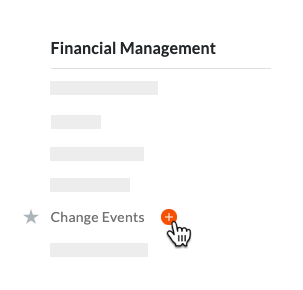
OR - Navigate to the project's Change Events tool. Then click the Create button.

- Open the Project Tools menu and click the Create Circle
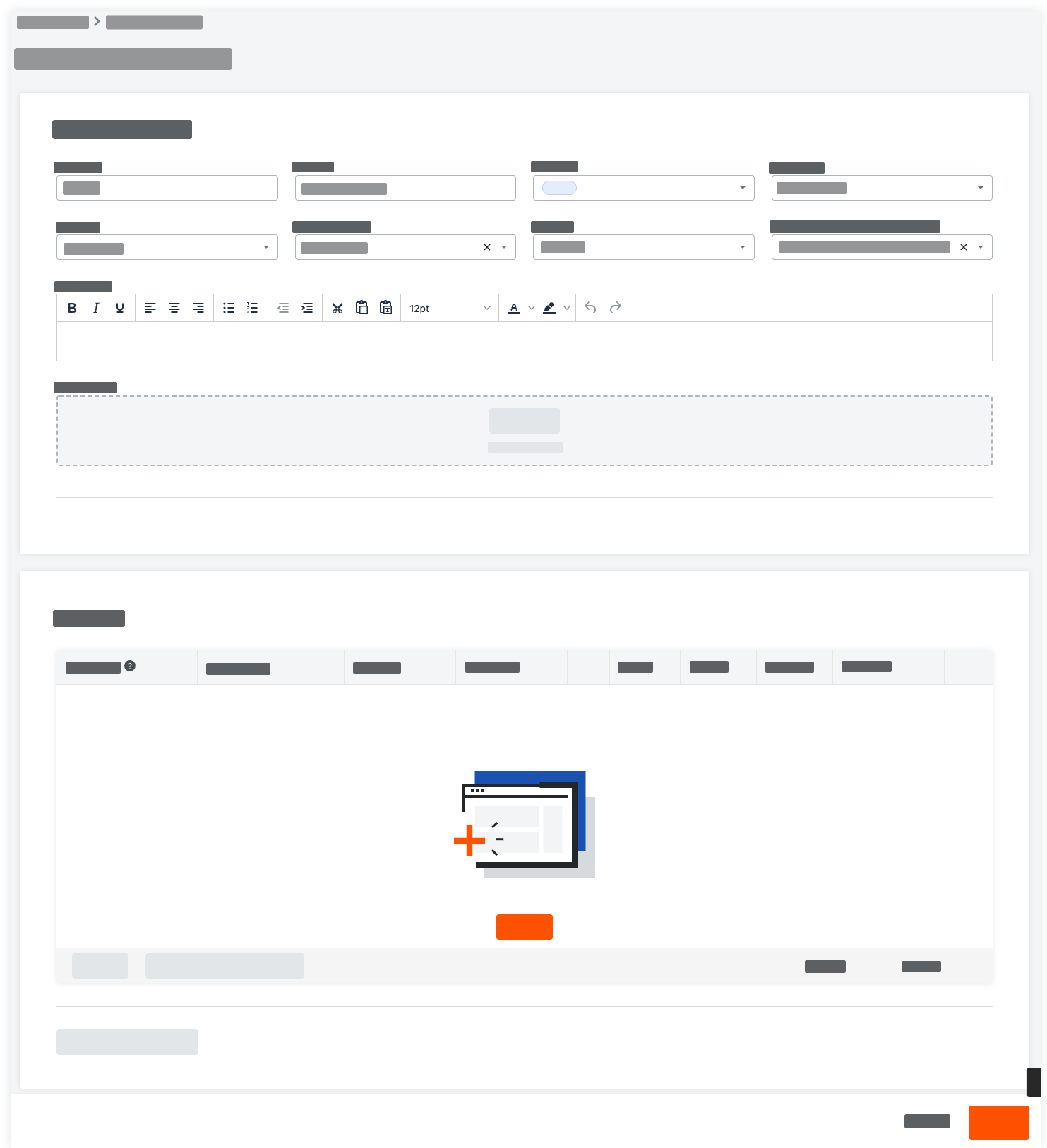
- In the 'New Change Event' page, enter the following:
- Origin
Select the Procore tool and item from which your change event originates. - Change Event Number
Procore automatically assigns new numbers to change events in ascending sequential order. - Title
Enter a descriptive title for the change event. - Status: Select a status for the change event from the drop-down list
- Origin
|
Status |
Definition |
|
Closed |
This status indicates that the change event and all related items such as RFQs and change orders are complete |
|
Open |
(Procore’s Default) This status indicates the change event is open and Procore users are actively managing items related to the change event. For example, a budget modification, Potential Change Order (PCO), ROM, and/or Request for Quote (RFQ). |
|
Out for Pricing |
This indicates that RFQs have been requested. |
|
Pending |
This status indicates the change event is waiting to be reviewed. |
|
Pending Owner Approval |
This status indicates the change event is waiting to be reviewed by the owner. |
|
Pending PM Review |
This status indicates the change event is waiting to be reviewed by the project manager. |
|
Void |
This status indicates no change resulted from the change event. To view voided events, select Void or All (Include Void) from the Add Filters menu on the Change Events list page. |
- Scope
Select Out of Scope. - Expecting Revenue
Select YES or NO. If YES, select one of the options from the Line Item Revenue Source field. If NO, Revenue ROM amounts will be set to zero (0). - Line Item Revenue Source
Select one of the options from the list: Match with latest cost, No revenue expected, or Quantity x Unit Cost. - Type
Select one of the following from the drop-down menu:
|
Backcharge |
A Backcharge is an amount of money that a PM holds back from a subcontractor to recover any costs incurred due to the subcontractor performing incomplete or defective work. |
|
Internal |
Internal (IWO) means that KIER is paying for the change with an internal budget, internal contingency, or by back-charge from one subcontractor to another. |
|
Owner Change |
Owner is paying for the change and a PCO/PCCO will be formalized and sent to the Owner. |
|
Transfer |
A Transfer refers to a change in ownership for the performance of work. |
- Change Reason
Select a reason for the change from the drop-down menu:
|
Allowance |
An Allowance is an amount of money that has been set aside in a construction contract’s original sum to cover the costs of paying for known items that were not specified in detail in the contract. |
|
Backcharge |
A Backcharge is an amount of money that a PM holds back from a subcontractor to recover any costs incurred due to the subcontractor performing incomplete or defective work. |
|
Buyout |
Buyout refers to a cost for a commitment that was included in the original budget but was not bought out until after the handoff meeting with the Estimating Department or when a subcontractor is brought on to supplement another sub after default. |
|
Client Reason |
A Client Request refers to a change in the performance of work initiated by a request from the construction project’s client. |
|
Design Development |
Design Development |
|
Existing Condition |
An Existing Condition refers to a change that occurs where design plans must be modified due to existing conditions at the job site. |
|
Field Directive |
Field Directive instructs subcontractors to complete additional work, correct unacceptable work, provide clarification about the work, or perform emergency work. |
|
Internal Work Order |
Internal Work Order (IWO) means that KIER is paying for the change with an internal budget, internal contingency, or by back-charge from one subcontractor to another. |
|
Scope Gap |
The term scope gap refers to an instance where there is a gap in understanding of project expectations. It is a fundamental lack of clarity and understanding of project goals, deliverables, and expectations. |
|
Winter Conditions |
Winter conditions refer to specific budget line items added to accommodate increased fuel, material, and labor expenses related to activities during the coldest months of the year. Weather delay days, concrete blankets, fuel for heaters, hot water, chemical additives, tenting, etc. |
- Description
Describe the event that may result in a change in costs. - Attachments
Attach any relevant files. - Prime Contract (For Markup Estimates)
Select the contract containing the markup settings you want to use to calculate the markup on the Rough Order of Magnitude (ROM) values. Procore automatically selects the contract with the lowest number.
- Click Save.
Procore saves the new change event.
Add Change Event Line Items
- Navigate to the project's Change Events tool.
- Choose from these options:
- Click the Detail tab. Then find the change event to update and click Edit.
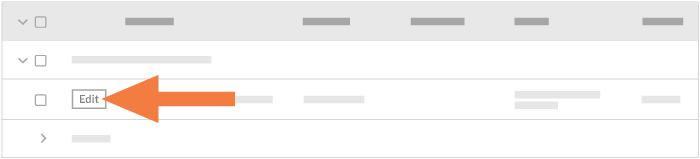
OR - Follow the steps in Create Change Events.
- Click the Detail tab. Then find the change event to update and click Edit.
- In the 'Edit Change Event' page, scroll to the 'Line Items' card.
- Choose from these options:
- To add one (1) new line item on the change event, click Add Line.
OR - To add line items in bulk using line items from all of the project's commitments in the 'Approved' status, click Add Lines for All Commitments.
OR - To import line items from a CSV file, see Import Change Event Line Items from a CSV File.
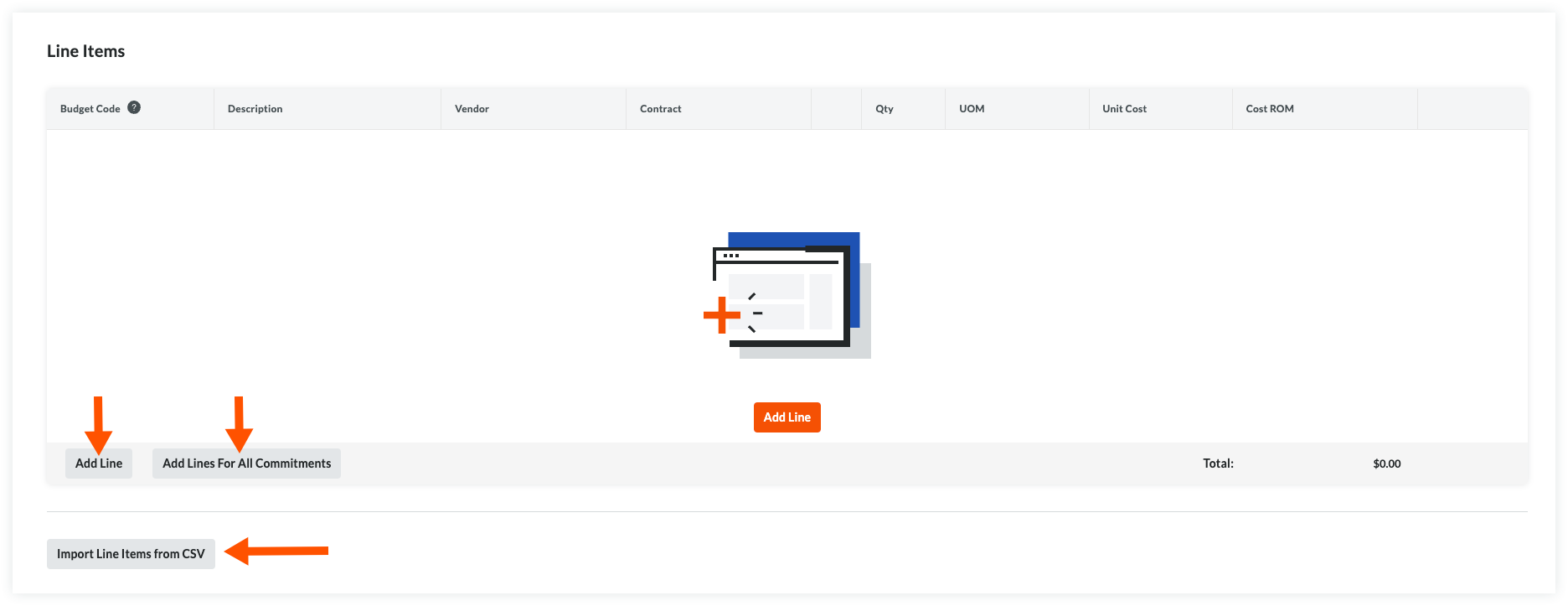
- To add one (1) new line item on the change event, click Add Line.
- Complete the line item data entry as follows:
- Budget Code
Select a budget code - Description
Enter a description for the line item. - Vendor
Select the vendor's company name from the drop-down menu. - Contract
Select the impacted purchase order or subcontract from the drop-down menu. See Create a Purchase Order or Create a Subcontract. - Qty
Enter a numeric value in this box to indicate the number of units that correspond to the unit of measurement that you specify. - UOM
Select a Unit of Measure (UOM) from the drop-down list. To learn about the default selections in this list, see Which units of measure are included in Procore's master list? and Add a Unit of Measure to the Unit of Measure Master List. - Unit Cost
Enter the monetary cost in this box to indicate the cost per unit of measurement. - Cost ROM
Enter a numeric estimation of the cost's Rough Order of Magnitude (ROM).- If you follow those steps to show the ROM value in the budget, and the change event line item ends up having no cost, you will need to zero out the ROM or close the change event to remove it from the budget
- Budget Code
- Click Update.
NOTE
If the budget code was not included on the project's original budget, a confirmation message appears for you to confirm that you want Procore to add these line items to the budget. Procore adds the new line item(s) to the project's budget and a question mark  appears next to each partial budget line item. To learn more, see What is a partial budget line item? and Add a Partial Budget Line Item.
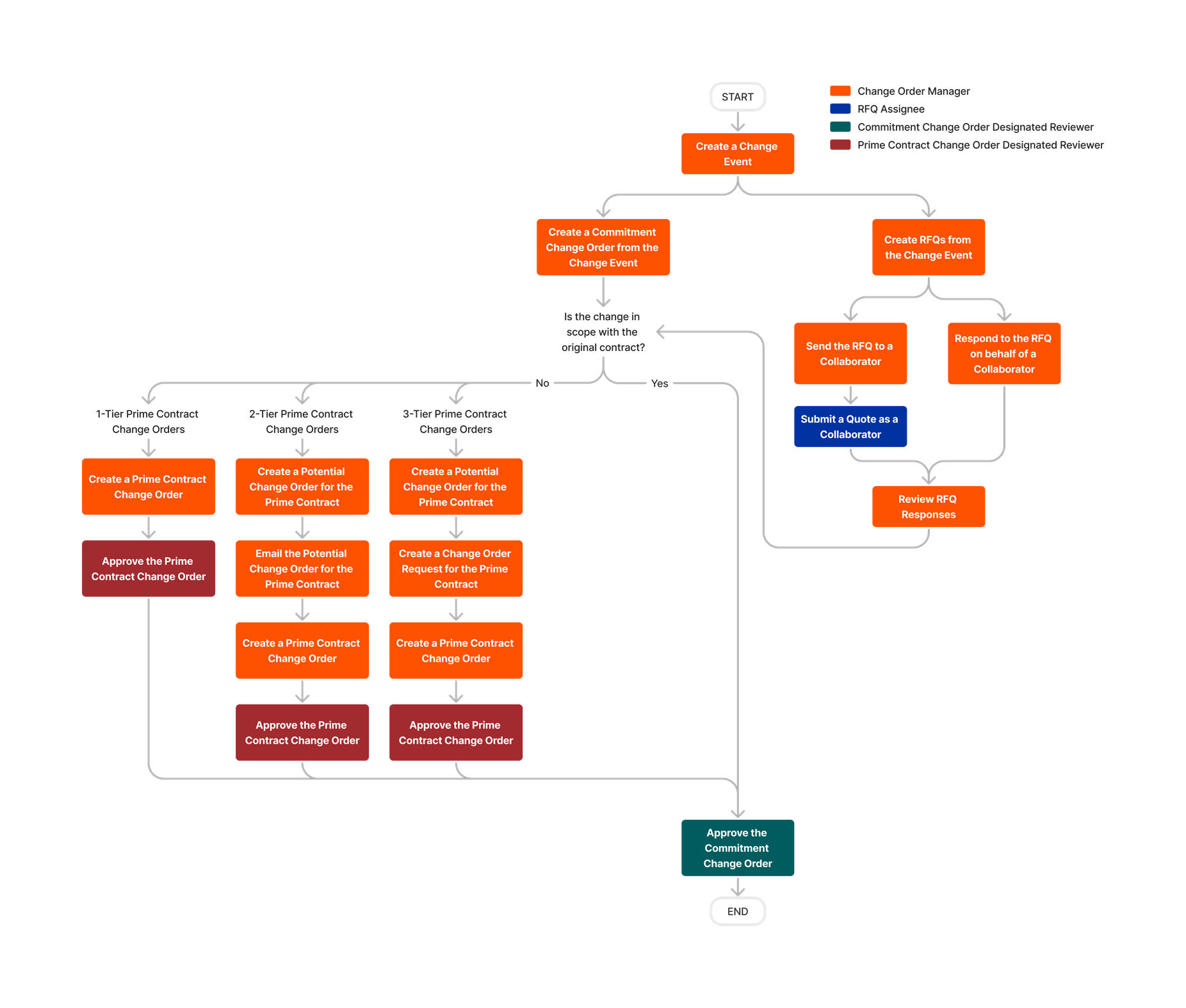
Prime Contracts


Funding
Limited Release
 The Funding tool is available as a limited release for Procore customers in the United States who have implemented the Procore for Owners point-of-view dictionary. To learn more, see What tool names and terms are different in Procore for general contractors, owners, and specialty contractors?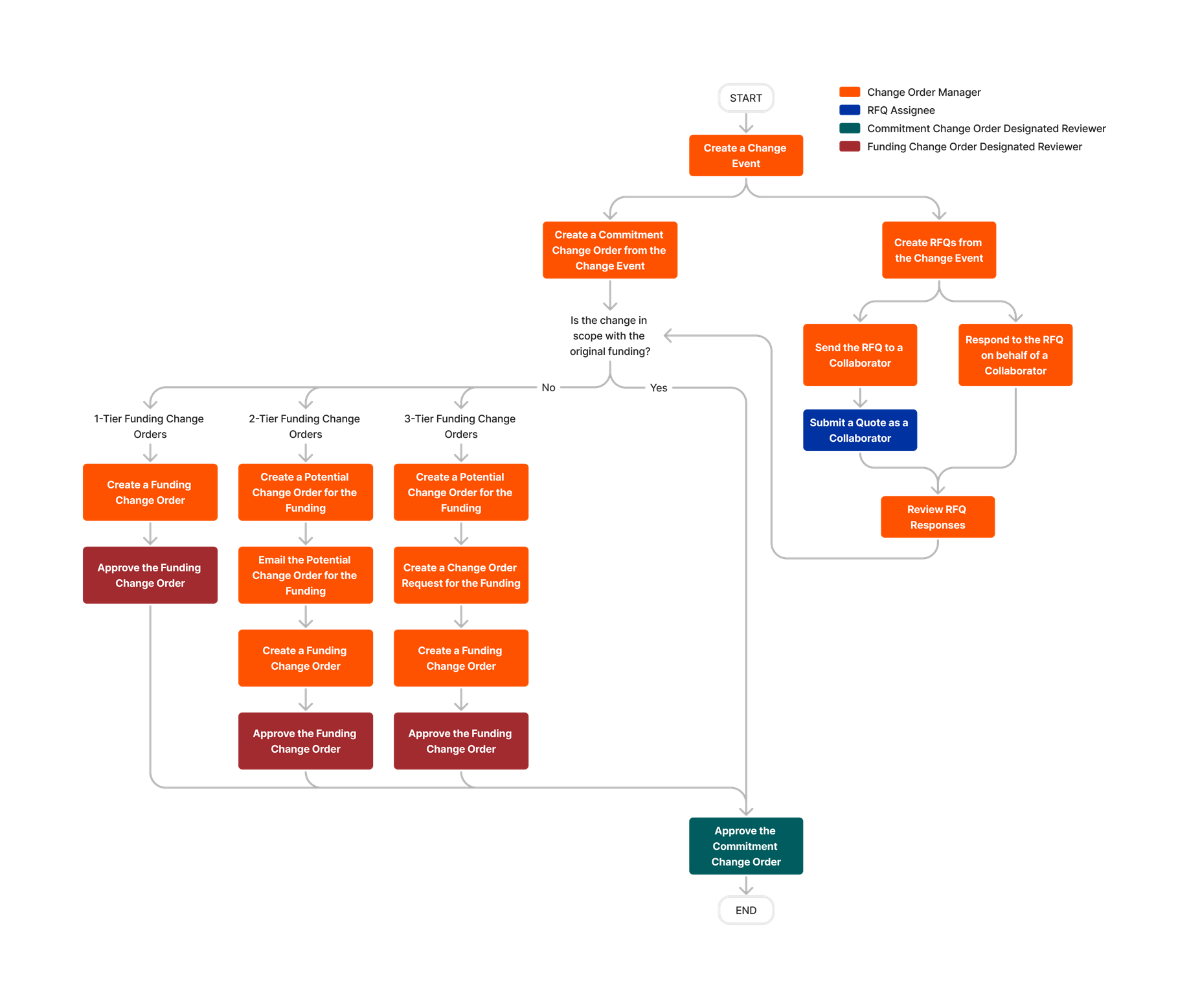
Client Contracts
Limited Release
The Client Contracts tool is available as a limited release for Procore customers in the United States who have implemented the Procore for Specialty Contractors point-of-view dictionary. To learn more, see What tool names and terms are different in Procore for general contractors, owners, and specialty contractors?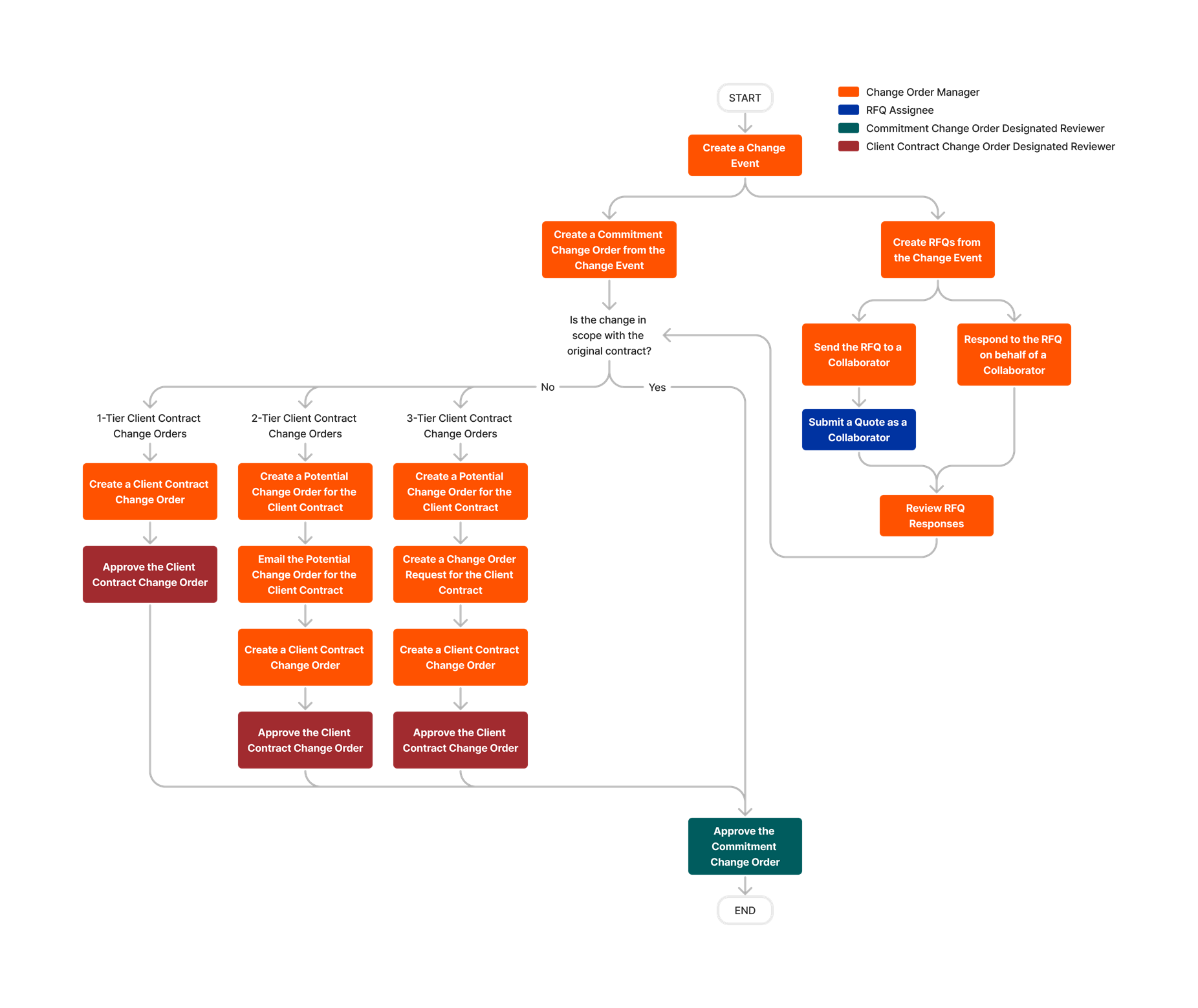
Change Events Permissions
The following table highlights which user permissions are required to perform the described user action.
 - Denotes an action that is supported by Procore for Android or Procore for iOS.

1 These tasks also require additional permissions on other tools in Procore. For more information, view the "Things to Consider" section in the tutorial for that action.
2 Users with 'Standard' permission can only delete the change events they create.
3 Users with 'Standard' permission can only edit the change events they create.
4 Users also need 'Standard' or 'Admin' level permissions on the Commitments tool.
5 Collaborators can submit a quote only if they receive an RFQ email notification. To be eligible to receive an email, the collaborator's user account must be granted 'Standard' level permissions on the project's Commitments tool and designated as the 'Assignee' on the RFQ. For details, see Assign and Send an RFQ to a Collaborator and Submit a Quote as a Collaborator.
Below are the notable changes to the project's Change Events tool.
Recent Changes
Change Events - RFQs NGX Update (05/11/2026)
Procore is introducing the modernized Experience of Request for Quotes (RFQs) within the Change Events tool. This enhancement features a modernized, intuitive interface with a refreshed UI and an optimized layout to improve navigation and visibility, ensuring the RFQ functionality into alignment with the unified Procore platform experience.
Change Events - Custom and Configurable Fieldsets (05/11/2026)
The Fieldsets and Custom Fields page within Company Admin for Change Events has been updated with a modern, intuitive design. This update focuses on improving the look and feel of the page while preserving all existing functionality, ensuring a consistent and cohesive administrative experience across the platform.
Modernized Change Events Recycle Bin Experience (02/09/2026)
Procore has modernized the Change Events Recycle Bin user interface with Next Generation Experience (NGX), delivering a modern, intuitive and high-performing experience. The new design is more consistent and user-friendly. There are no changes to the existing functionality.
Modernized Change Events List View (02/09/2026)
Procore has officially transitioned the Change Events list to a modernized view to make your experience faster and more intuitive. You can now see more information at a glance with descriptions placed directly under titles, while our new grouped filters make finding exactly what you need simpler than ever. Additionally, we’ve improved the performance to ensure a smoother experience. To learn how to use the Change Events tool, see Change Events.
Updated Vendor field in Change Events (11/10/2025)
The Change Events tool now uses updated redirect behavior for 'Vendor' links to improve navigation and user experience. The tool now directs users with appropriate permissions to the project level Directory entry for the Vendor, streamlining access to relevant information. Users without access now see the vendor name as plain text only.
Prime Contract for Markup Estimates Column Added to Change Events List View (11/10/2025)
The Change Events list view now includes the "Prime Contract for Markup Estimates" field as a configurable column, allowing you to display this information directly in the table. You can now show or hide this column through the Configure panel and include the field in CSV and PDF exports.
Enhanced Change Events Management with No Line Items Table (08/11/2025)
Procore has introduced a new tab in the Change Events tool that displays change events that do not have any line items associated with them. This eliminates the previous behavior where they were hidden from view and difficult to locate.
Configure Default Change Reason to Empty for New Change Events (08/11/2025)
Procore is excited to announce a new feature available in Procore Explore: the default setting for the 'Change Reason' field on new change events can now be set to null. Users must actively select the reason, ensuring accurate records. This saves time by removing the need to delete pre-filled information and also helps to improve data accuracy when using Change Events with the ERP Integrations tool. This feature must be enabled at the Company level by a user with 'Admin' level permissions on the Company Admin tool using Procore Explore or by contacting your Procore point of contact. To learn more, see Create Change Events.
Modernized Pages in Change Events Tool (08/11/2025)
The user interface for the Related Items, Comments, Email, Change History, and Advanced Settings page in the Project level Change Events tool has been modernized to provide a more seamless, user-friendly experience.
Configure Default Change Reason to Empty for New Change Events (08/11/2025)
Procore is excited to announce a new feature available in Procore Explore: the default setting for the 'Change Reason' field on new change events is now set to null. Users must actively select the reason, ensuring accurate records. This saves time by removing the need to delete pre-filled information and also helps to improve data accuracy when using Change Events with the ERP Integrations tool. This feature must be enabled at the Company level by a user with 'Admin' level permissions on the Company Admin tool using Procore Explore or by contacting your Procore point of contact. To learn more, see Create Change Events.
Open Linked Items from other Procore Tools in a New Tab (08/11/2025)
Procore improved the navigation experience in the Change Events list view by establishing a new pattern for links to Procore items. Users can now click the  icon to open the Procore object in a new browser tab, ensuring users maintain their current place within the tool. See View the Change Events Line Items View.
Enhanced file uploads with Broader Format Support (05/12/2025)
Procore introduced the capability to upload additional file types to to change events, aligning the supported file types with other Project level tools, such as Submittals. This improves document management efficiency. The supported file types include: .bmp, .csv, .eml .gif, .jpg, .pdf, .rar, .rtf .sta, .tif, .tiff, .txt, .wpd, .xer, .xps, .zef, .zip, application/*, audio/*, text/*, and video/. To learn how to upload a file as an attachment, see Create Change Events or Edit Change Events.
Latest Cost Setting for Change Order Requests in Change Events (05/12/2025)
Procore introduced a new setting in the Change Events tool that allows Change Order requests to follow the Latest Cost instead of the Latest Price, enhancing flexibility and accuracy in financial management. The new Latest Cost setting lets users maintain up-to-date financial records, improving decision-making and project outcomes. To learn more, see Configure Settings: Change Events.
Modernized change Events Tool (04/18/2025)
The Change Events Tool user interface has been modernized to provide a more seamless, user-friendly experience. There is no change to functionality.