
Procore

Specifications

ACMECONSTRUCTION_SMALL.gifOverview

  1. Navigate to the project's Specifications tool.

  2. From the Specifications tab, locate the specification you want to view.

  3. Click Info next to the specification section to reveal general information and any revisions.
    Note: To open the actual file of the specification section in Procore's PDF viewer, see Open Specifications.
    Once opened in the viewer, you can use keyboard shortcuts (such as pressing Left or Right arrow keys to change pages or Z to zoom) to navigate the document. Press Shift + ? to view the full hotkey menu. Click the keyboard icon in the bottom right corner (or press ?) to display the full keyboard shortcuts menu. See What keyboard shortcuts are available in the Unified Viewer?

  4. By default, the General tab appears. The following sections are visible on the General tab:

    • General Information
      The following information is revealed for the specification section:

      • Number​: The specification section number found in the specification book.

      • Revision: The current revision number of the specification book. By default, Procore assigns the first revision number as 0 and subsequent revisions as 1, 2, 3, etc.
        Note: The revision number ordering scheme depends on the project's configuration settings. To view revision details, see Specification Section Revisions.

      • Issued Date: The date that the specification section was issued for the project by the design team.

      • Set: The 'set the specification' section was originally added to when Uploading Specifications.
        Note: This field cannot be edited.

      • Specification Section Obsolete: If the specification section has been marked as obsolete, a 'Yes' will appear in this field. See Mark Specifications as Obsolete.

      • Description: The title of the specification section found in the specification book.

      • Division: The 'division the specification section' is categorized.

      • Received Date: The date the specification section was received by the GC, company, or project team.

    • Specification Section Revisions
      The following columns are displayed to summarize any revisions that have been uploaded:

      • Revision

      • Issued Date

      • Received Date

      • Set

  5. Depending on your permission level, the following tabs are also available to view:

    • Download Log

    • Related Items

    • Emails

    • Change History

Download Log

Click the Download Log tab to view details about specification section downloads. It shows the number of times the specification section was downloaded, when the download occurred, and by whom. To view this tab, you must have 'Admin' level permissions to the project's Specifications tool.

Click the Related Items tab to view a list of all related items added by the Specification administrator (see Add a Related Item to a Specification). To view more detail about an item, click the link next to the desired description.

Emails

Click the Emails tab to view the email history for the specification section. See Email Specifications.

Change History

Click the Change History tab to view a historical summary of specification section modifications. This shows the date and time of each change and who made the change. It also shows the original value (changed from) and new value (changed to), if applicable.

Additional Steps

Helpful Tips

Gray Training Session Videos

Further Information
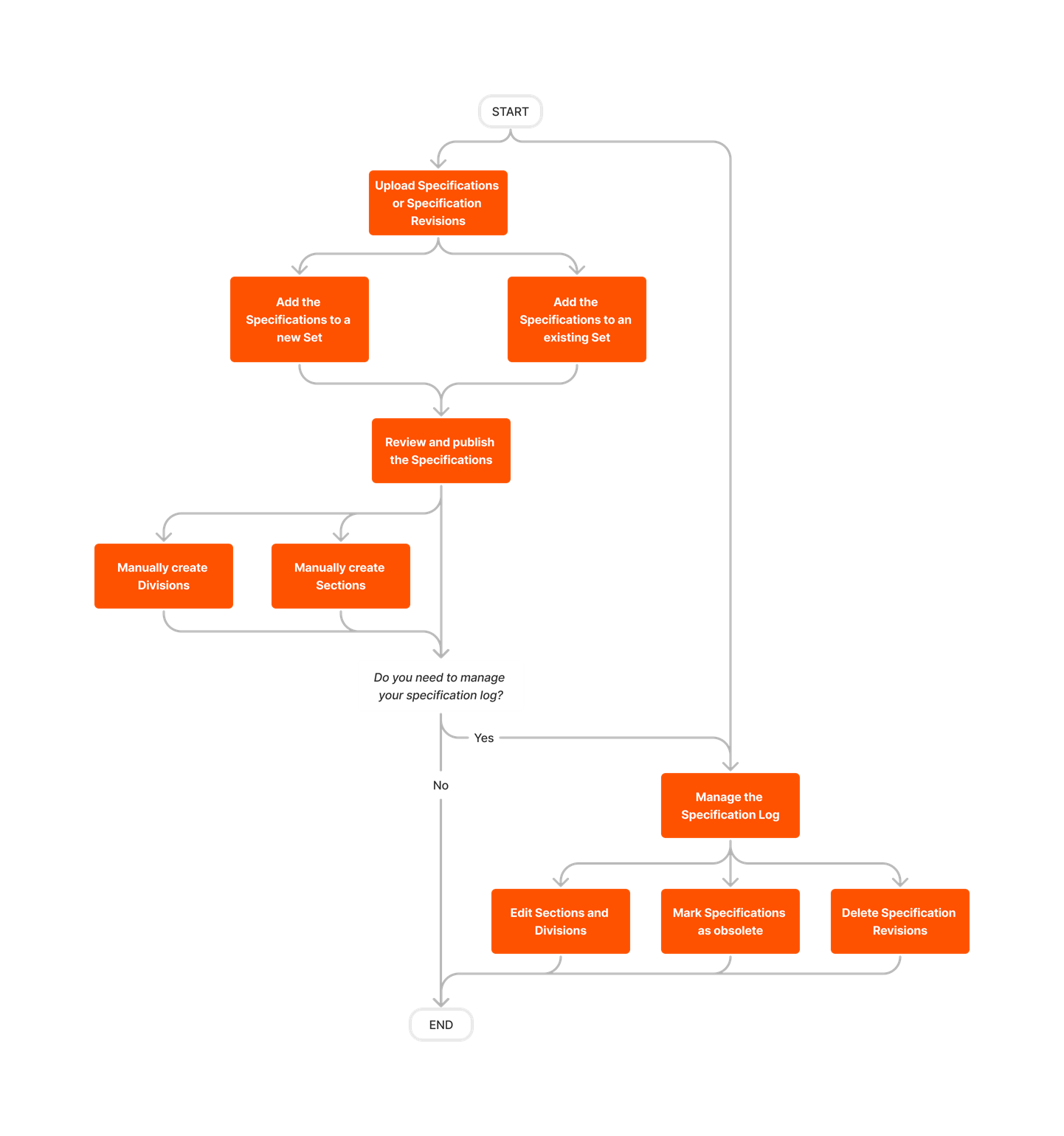
The Specifications tool enables you to manage and archive all specs and revisions to ensure that the project team members always work off of the specs with real-time access. You can access the current set of specifications from your mobile device in the field or from the office computer.


  • Upload your specifications quickly by using Optical Character Recognition (OCR) to fill in information in a timely manner
  • View Spec Section PDFs on demand
  • Find keywords with contextual search
  • Make edits in bulk
  • Automatically save all revisions

There are no items that match your search query.

 Tip

To browse and search all Procore training videos, visit our video library.

Configure Specification Settings
 
Upload a Spec Book
 
View Specifications - Subcontractor as Collaborator
 
Manage Specifications
 

OUTDATED VIDEOS - Removed from Support Site and Certifications

View Specifications (Mobile)


Configure Specification Settings


Specification Management


Video content may not accurately reflect the current state of the system, and/or it may be out of date.

Configure Specifications


Video content may not accurately reflect the current state of the system, and/or it may be out of date.

Submittal Builder


Video content may not accurately reflect the current state of the system, and/or it may be out of date.

Subcontractor - View Specifications


Video content may not accurately reflect the current state of the system, and/or it may be out of date.

Field Worker - View Specifications (Mobile)


Video content may not accurately reflect the current state of the system, and/or it may be out of date.

Upload Specifications


Video content may not accurately reflect the current state of the system, and/or it may be out of date.

Owner - View Specifications


Video content may not accurately reflect the current state of the system, and/or it may be out of date.

Specialty Contractor as Client - Upload Spec Book


Video content may not accurately reflect the current state of the system, and/or it may be out of date.

Owner - Manage Specifications


Video content may not accurately reflect the current state of the system, and/or it may be out of date.

Owner - Upload Spec Book


Video content may not accurately reflect the current state of the system, and/or it may be out of date.

Superintendent - Specifications


Video content may not accurately reflect the current state of the system, and/or it may be out of date.

Configure Specification Settings
 
Upload a Spec Book
 
Manage Specifications
 
Upload a Spec Book
 
Manage Specifications
 
Configure Specification Settings
 
Upload a Spec Book
 
Manage Specifications
 
Configure Specifications Settings
 
Upload a Spec Book
 
Manage Specifications
 
Configure Specifications Settings
 
Configure Specification Settings
 
Upload a Spec Book
 
Manage Specifications
 

OUTDATED VIDEOS - Removed from Support Site and Certifications

Upload Specifications


Video content may not accurately reflect the current state of the system, and/or it may be out of date.

Specification Management


Video content may not accurately reflect the current state of the system, and/or it may be out of date.

Configure Specifications


Video content may not accurately reflect the current state of the system, and/or it may be out of date.

Upload a Spec Book
 
Manage Specifications
 

OUTDATED VIDEOS - Removed from Support Site and Certifications

Upload a Spec Book
 
Manage Specifications
 
Configure Specification Settings
 
Configure Specification Settings
 
Upload a Spec Book
 
Manage Specifications
 
Configure Specification Settings
 
Upload a Spec Book
 
Manage Specifications
 
Configure Specification Settings
 
Upload a Spec Book
 
View Specifications - Subcontractor as Collaborator
 
Manage Specifications
 

OUTDATED VIDEOS - Removed from Support Site and Certifications

View Specifications (Mobile)


Configure Specification Settings


Specification Management


Video content may not accurately reflect the current state of the system, and/or it may be out of date.

Configure Specifications


Video content may not accurately reflect the current state of the system, and/or it may be out of date.

Submittal Builder


Video content may not accurately reflect the current state of the system, and/or it may be out of date.

Subcontractor - View Specifications


Video content may not accurately reflect the current state of the system, and/or it may be out of date.

Field Worker - View Specifications (Mobile)


Video content may not accurately reflect the current state of the system, and/or it may be out of date.

Upload Specifications


Video content may not accurately reflect the current state of the system, and/or it may be out of date.

Owner - View Specifications


Video content may not accurately reflect the current state of the system, and/or it may be out of date.

Specialty Contractor as Client - Upload Spec Book


Video content may not accurately reflect the current state of the system, and/or it may be out of date.

Owner - Manage Specifications


Video content may not accurately reflect the current state of the system, and/or it may be out of date.

Owner - Upload Spec Book


Video content may not accurately reflect the current state of the system, and/or it may be out of date.

Superintendent - Specifications


Video content may not accurately reflect the current state of the system, and/or it may be out of date.

diagram_specifications_tool-overview.png

diagram_specifications_tool-overview_de-de.png

diagram_specifications_tool-overview_en-au.png

diagram_specifications_tool-overview_en-ca.png

diagram_specifications_tool-overview_en-gb.png

diagram_specifications_tool-overview_es-es.png

diagram_specifications_tool-overview_es-la.png

diagram_specifications_tool-overview_fr-ca.png

diagram_specifications_tool-overview_fr-fr.png

diagram_specifications_tool-overview_ja-jp.png

diagram_specifications_tool-overview_pt-br.png

diagram_specifications_tool-overview_zh-sg.png

diagram_specifications_tool-overview.png

Specifications

Learn which user permissions are required to take the described actions in this tool.

 Important

Some actions that impact this tool are done in other Procore tools.

 |  |  The action is available on Procore's Web, iOS, and/or Android application.

icon-mindtouch-table-check.png Users can take the action with this permission level.

icon-mindtouch-table-check.png Users can take this action with this permission level AND one or more additional requirements, like granular permissions.

Specifications Tutorials
Action

None

Read Only

Standard

Admin

Notes

Configure Specifications Tool
Web


Icon Mindtouch Table Check

This permission also governs users' ability to create and manage Specification Areas.

Create Specification Sets
Web


Icon Mindtouch Table Check


Delete Pending Uploads
Web


Icon Mindtouch Table Check Gp

  • Delete Pending Uploads

Icon Mindtouch Table Check Gp

  • Delete Pending Uploads

Icon Mindtouch Table Check


Delete Specifications
Web


Icon Mindtouch Table Check


Download Specifications
Web


Icon Mindtouch Table Check

Icon Mindtouch Table Check

Icon Mindtouch Table Check


Edit, create, and delete public markup layers

Web


Optional

Optional

Icon Mindtouch Table Check

Allows users to publish, edit, and delete public markups on specification PDFs in the Unified Viewer.

Email Specifications
Web| iOS| Android


Icon Mindtouch Table Check

Icon Mindtouch Table Check


Export Specifications
Web


Icon Mindtouch Table Check

Icon Mindtouch Table Check

Icon Mindtouch Table Check


Manually Create Divisions
Web


Icon Mindtouch Table Check


Manually Create Specifications
Web


Icon Mindtouch Table Check


Review Specifications
Web


Icon Mindtouch Table Check


Publish Specifications
Web


Icon Mindtouch Table Check


Relate Items
Web


Icon Mindtouch Table Check


Show All Uploads
Web


Icon Mindtouch Table Check

This permission allows users to see pending specification uploads initiated by other users.

Update Specifications
Web


Icon Mindtouch Table Check


Upload Specifications
Web


Icon Mindtouch Table Check


View Change History
Web


Icon Mindtouch Table Check


View Deleted Specifications
Web


Icon Mindtouch Table Check


View All Revisions
Web


Icon Mindtouch Table Check

Icon Mindtouch Table Check

Icon Mindtouch Table Check


View Specifications
Web| iOS| Android


Icon Mindtouch Table Check

Icon Mindtouch Table Check

Icon Mindtouch Table Check


Below are the notable changes to the project's Specifications tool. 

Recent Changes

Connected Items Pinning for Specifications (09/15/2026)

Procore expanded the 'Connected Items' pinning capability to the Specifications tool on the web, allowing users to spatially link items directly to specific sections within the viewer. This feature enabled project teams to pin and view Coordination Issues, Observations, RFIs, Inspections, and Punch List items, ensuring durable traceability that persists across document revisions. To learn more, see Pinning and Connected Items in the Specifications Tool.

compare specification revisions and documents (08/18/2026)

Procore upgraded the Specifications tool leverage the new Unified Viewer. This allows teams to compare two specification revisions or two separate specification documents directly on the platform without relying on external comparison tools. Reviewers can evaluate changes using Overlay mode with color-coded different highlights or Side by Side mode for dual-pane viewing, complete with alignment controls and toggles like Show/Hide Differences to inspect text changes. Additionally, reviewers can create public or private markups on specification documents and download specification files with or without visible markups.

annotate pdf files with public and private markup layers (08/18/2026)

Procore updated the Specifications tool to support the Unified Viewer markup toolbar on the web application, enabling project teams to annotate specification PDF files directly within Procore. Project teams can organize annotations into private markup layers (visible only to the author) or publish them as public markup layers for team-wide collaboration. Markups created on the web application are currently available in read-only mode on mobile. To support broader review workflows, project permission templates now include a granular permission (Edit, create, and delete public markup layers) that allows 'Read Only' and 'Standard' level permissions to publish public markups on specifications. Reviewers can also download specification PDFs with or without visible markups and track download activity in the Specification's Download Log.

view markups on mobile (08/18/2026)

Procore has updated the Specifications tool on the Procore mobile app for both iOS and Android to enable markup viewing through the Unified Viewer. Field teams viewing specification sections on mobile devices can now see public and private markups created on the Procore web application directly within the mobile PDF viewer canvas. 

compare documents and revisions on mobile (08/18/2026)

Procore updated the Specifications tool on the Procore mobile app for both iOS and Android to support document comparison within the mobile viewer canvas. Field teams can now compare two specification revisions or separate specification sections directly on their mobile devices without returning to a desktop computer. Reviewers can analyze changes using Overlay mode to superimpose documents with visual layout comparison or Tabbed mode to switch seamlessly between base and comparison documents to identify updates on-site. 

Documents and Specifications Admin Pages Enhanced for Improved Performance (05/19/2026)

Procore has upgraded the Company Admin Pages for both the Documents and Specifications tools to deliver a more consistent and efficient user experience. The Admin Pages retained their familiar UI and functionality, ensuring uninterrupted user workflows while providing enhanced responsiveness and reliability.

Enhanced Sync and Offload Experience on Mobile (04/21/2026)

Procore has upgraded the Specifications tool for mobile apps (iOS and Android). A global Sync button has been introduced, allowing users to sync all specifications at once. The tool also provides a streamlined option to offload downloaded specifications from an entire area with a single click, enhancing efficiency and document control in the field. For iOS, see Sync Specifications (iOS) and Remove Downloaded Specifications (iOS). For Android, see Sync Specifications (Android) and Remove Downloaded Specifications (Android).

Download by Division or Individually on Mobile (03/17/2026)

Procore now offers enhanced download options in the Specifications tool for both iOS and Android. Mobile users can now download individual specifications or entire divisions within any specification area. This update provides the flexibility to save device space and reduce data usage by allowing you to download and view the specifications you need. 

New AI-Powered Submittal Generator (03/17/2026) 

Procore is launching an improved Submittal Builder that gives you fast, accurate submittals with minimal manual effort. This feature leverages AI to draft a robust list of submittals while also predicting each submittal type and title. You can easily run the enhanced Submittal Builder by selecting spec sections from the Specifications tool. This version of the builder is available in English to Enhanced and Premier Procore accounts in the United States, Canada, and Australia. See Submittal Builder with AI: Generate Submittals from Specifications.

Unified Specification Listing for Mobile (09/23/2025)

Procore has unified the specification listing on both iOS and Android platforms, ensuring consistency whether the Specifications by Area feature is enabled or disabled. The Specification Picker, used by multiple tools such as Observations, RFIs, and Inspections, has also been standardized to deliver a consistent user experience.

Modernized Experience (09/23/2025)

Procore has modernized the Specifications tool by updating the old Settings page and Specifications by Area page with updated design patterns, offering a more modern look and feel without any loss of functionality.

New Granular Permissions for Specifications (07/22/2025)

Procore has introduced new granular permissions to the Specifications tool, allowing for more precise control over user actions within the tool. The Specifications tool now supports more than a dozen new actions that can be configured within permission templates, providing enhanced flexibility and control. To learn more, see Specifications Permissions.

Modernized Mobile PDF Rendering (06/27/2025)

Procore has enhanced mobile PDF rendering for the Specifications tool for iOS and Android. The Apryse Viewer now provides a modern viewing experience, preparing the tool for future markup features.

ORGANIZE SPECIFICATIONS BY AREA FOR WEB AND MOBILE (05/19/2025)

Admins can now organize project specifications by building or project phase by turning on the Specifications by Area feature. Separate specification areas make it easier to find the correct specification, especially when there are multiple specifications with the same title or number. Learn more about how Admins can add, edit, or delete specification areas after enabling the feature.

This feature update is available on Procore Mobile apps on iOS and Android.

Modernized layout for specifications tool on web (12/16/2024)

The main page of Procore’s Specifications tool now matches other Procore tools with a modernized and intuitive interface. All the same tasks and features are available, and some appear only when you need them such as the edit, download, and delete menu appearing once you select list item(s).

Look for all your same buttons and features integrated into the main page instead of listed in a right-side panel. For example, instead of clicking the orange Manually Create Specs Sections button, click the white icon-plus-2.png ​​​​​​Create Specification button. See Manually Create Specification Sections to see the new interface and get navigational support.