Procore

KIER + Procore: Observations

clipboard_e2807ee5c821668aa3759ac59e5484c09.png

Overview

  1. Navigate to the Project level Observations tool.
  2.  Click +Create Observation.
  3. Enter the following information:​
    • Type: Choose the type that best categorizes the observation. The type will help you filter and report based on the type of observation. It will not have any effect on which fields will appear when creating an observation. See What are the default Observation types used for? (Note: Users with the appropriate permissions can customize the selections that appear in this list. See Add Company Level Observation Types and Add Project Level Observation Types.) 
    • No: The number of observations will automatically populate with the next number based on the number of observations you and your team have created. You may edit this as needed. This number can be a duplicate of one already assigned to another observation item in your project.
    • Title:  Title the observation to announce the general topic.
    • Status: Set the status of the observation from the following options:
      • Initiated:  When you create the observation, it will be set to "initiated." This means that the observation has been established in Procore and is awaiting the assignee to respond.
      • Ready for Review: Once the assignee has acted upon the observation (whether by fixing the deficiency, by addressing the safety issue, etc.), they will respond to the observation by changing the status to "Ready for Review." This notifies the creator via email that the observation is ready for the creator to review.
      • Not Accepted: Once the creator has reviewed the work, they might mark it as "Not Accepted." This means that the creator has deemed the work as not resolved. The observation is put back into the assignee's court. 
      • Closed: Once the creator has reviewed the work, they might mark it as "Closed." This means that the creator has deemed the work as resolved and approved, and has closed out the item.
    • Priority: Select a priority for the observation from the following options:
      Note: This will not change how or where the observation will display. It will, however, tell the responsible party how urgent the item is.
      • Low
      • Medium 
      • High
      • Urgent
    • Trade: Select the relevant trade for this observation. It signifies which trade is involved in resolving the observation. Trades are set at the company level admin tab under trade configuration. See Add or Delete Trades.
    • Assignee: Select the user who will complete the work required from the observation. 
      Notes:
      • The 'Assignee' must have 'Standard' or 'Admin' permissions on the Observations tool.
      • 'Standard' users can assign observations to an 'Admin' user, or another 'Standard' level user if they have been granted the 'Can Assign Standard Users to Observations' granular permission. 
    • Due Date: Enter or select a date from the calendar for the observation to be due.
      Note: The 'Due Date' field is automatically populated based on the default number of days specified on the Observations tool's Configure Settings page. See Configure Advanced Settings: Observations. The due date also respects which days are set as 'working days' for the project. See Set Project Working Days.
    • Spec Section: Select the specification section associated with the observation.
    • Location: Select the location the observation is found in. How do I add a multi-tiered location to an item?
    • Distribution: Add people to the distribution list who you would like to receive update emails when the observation's status changes or when someone leaves a comment.
      Note: If there are people who you would like to always be on the distribution list for observations, you can add them to the default distribution list in the configuration settings.
    • Private: Mark the checkbox if you would like this observation to be viewable by Observation Admin users, the assignee, and the people on the distribution list.
    • Contributing Condition: Select a contributing condition associated with the observation. See Add Root Cause Analysis Fields.
    • Contributing Behavior: Select a contributing behavior associated with the observation.  See Add Root Cause Analysis Fields.
    • Hazard: Select a hazard associated with the observation. See Add Root Cause Analysis Fields.
    • Description: Add a description for the observation detailing relevant information needed to report on or complete the work.
    • Attachments: Attach relevant information like a photo or a warranty document by clicking Attach File(s) to select a file from Procore or your local computer, or by dragging and dropping into the gray box.
      Note: See Add a Photo to an Observation so that it Populates in the Photos Tool.
  4. Click Create.
  5. When you return to the main Observations page, click Send Item in the banner above the Observations log page to send a digest email to the assignees, members of the distribution list, and creators of all of the observations that have yet to be sent. The Observation's 'Date Notified' will be set to the date the Send Item button was clicked.
    Note: In order to see this banner, the observation must have an assignee.
 

Video content may not accurately reflect the current state of the system, and/or it may be out of date.

Further Information

Observations can encompass scopes of work including quality, safety, commissioning, warranty, and work to complete. This tool is used to assign tasks to other project team members at any phase in the project lifecycle.


  • Create, manage, attach drawings/photos, and assign observations to users from a mobile device or computer
  • Set a due date, distribute observations, and send email notifications to responsible parties
  • Give assignees the ability to view, respond to, and complete observations from a mobile device in the field
  • Monitor and track observations by status and type
  • Maintain a real-time history and activity feeds of all actions
  • Easily link with Locations in order to filter within a project for specific reporting

There are no items that match your search query.

 Tip

To browse and search all Procore training videos, visit our video library.

Web

Configure Observation Settings
 
Add Observation Templates
 
Manage Observations
 
Create an Observations Report
 

Mobile

Create an Observation (Mobile)
 
Create an Observation (Mobile) - Field Worker
 
View Observations (Mobile) - Subcontractor as Collaborator
 
Respond to an Observation (Mobile)
 
Respond to an Observation (Mobile) - Field Worker
 
Resolve Observations (Mobile) - Subcontractor as Collaborator
 

OUTDATED VIDEOS - Removed from Support Site and Certifications

Create an Observation (Mobile) - Specialty Contractor
 
Configure Observation Settings
 
Add Observation Templates - Specialty Contractor
 
Respond to an Observation (Mobile) - Specialty Contractor
 

Configure Observations


Video content may not accurately reflect the current state of the system, and/or it may be out of date.

Subcontractor - View Observations (Mobile)


Video content may not accurately reflect the current state of the system, and/or it may be out of date.

Subcontractor - Resolve Observations (Mobile)


Video content may not accurately reflect the current state of the system, and/or it may be out of date.

Specialty Contractor as Client - Add Observation Templates


Video content may not accurately reflect the current state of the system, and/or it may be out of date.

Specialty Contractor as Client - Create an Observation (Mobile)


Video content may not accurately reflect the current state of the system, and/or it may be out of date.

Specialty Contractor as Client - Respond to an Observation (Mobile)


Video content may not accurately reflect the current state of the system, and/or it may be out of date.

Field Worker - Create an Observation (Mobile)


Video content may not accurately reflect the current state of the system, and/or it may be out of date.

Field Worker - Respond to an Observation(Mobile)


Video content may not accurately reflect the current state of the system, and/or it may be out of date.

Create Observations


Video content may not accurately reflect the current state of the system, and/or it may be out of date.

Owner - Add Observation Templates


Video content may not accurately reflect the current state of the system, and/or it may be out of date.

Owner - Configure the Observations Tool


Video content may not accurately reflect the current state of the system, and/or it may be out of date.

Owner - Create an Observation


Video content may not accurately reflect the current state of the system, and/or it may be out of date.

Superintendent - Add Observation Templates


Video content may not accurately reflect the current state of the system, and/or it may be out of date.

Superintendent - Create an Observation (Mobile)


Video content may not accurately reflect the current state of the system, and/or it may be out of date.

Superintendent - Close an Observation (Mobile)


Video content may not accurately reflect the current state of the system, and/or it may be out of date.

Web

Add Observation Templates
 

Mobile

Create an Observation (Mobile)
 
Create an Observation (Mobile) - Field Worker
 
Respond to an Observation (Mobile) - Field Worker
 

OUTDATED VIDEOS - Removed from Support Site and Certifications

Configure Observation Settings


Video content may not accurately reflect the current state of the system, and/or it may be out of date.

Field Worker - Create an Observation (Mobile)


Video content may not accurately reflect the current state of the system, and/or it may be out of date.

Field Worker - Respond to an Observation (Mobile)


Video content may not accurately reflect the current state of the system, and/or it may be out of date.

Web

Add Observation Templates
 

Mobile

Create an Observation (Mobile)
 
Create an Observation (Mobile) - Field Worker
 
Respond to an Observation (Mobile) - Field Worker
 

OUTDATED VIDEOS - Removed from Support Site and Certifications

Configure Observation Settings


Video content may not accurately reflect the current state of the system, and/or it may be out of date.

Field Worker - Create an Observation (Mobile)


Video content may not accurately reflect the current state of the system, and/or it may be out of date.

Field Worker - Respond to an Observation (Mobile)


Video content may not accurately reflect the current state of the system, and/or it may be out of date.

Web

Add Observation Templates
 

Mobile

Create an Observation (Mobile)
 
Create an Observation (Mobile) - Field Worker
 
Respond to an Observation (Mobile) - Field Worker
 

OUTDATED VIDEOS - Removed from Support Site and Certifications

Configure Observation Settings


Video content may not accurately reflect the current state of the system, and/or it may be out of date.

Field Worker - Create an Observation (Mobile)


Video content may not accurately reflect the current state of the system, and/or it may be out of date.

Field Worker - Respond an Observation (Mobile)


Video content may not accurately reflect the current state of the system, and/or it may be out of date.

Web

Add Observation Templates
 

Mobile

Create an Observation (Mobile)
 
Create an Observation (Mobile) - Field Worker
 
Respond to an Observation (Mobile) - Field Worker
 

OUTDATED VIDEOS - Removed from Support Site and Certifications

Create Observations


Video content may not accurately reflect the current state of the system, and/or it may be out of date.

Configure Observations


Video content may not accurately reflect the current state of the system, and/or it may be out of date.

Field Worker - Create an Observation (Mobile)


Video content may not accurately reflect the current state of the system, and/or it may be out of date.

Field Worker - Respond to an Observation (Mobile)


Video content may not accurately reflect the current state of the system, and/or it may be out of date.

Web

Add Observation Templates
 

Mobile

Create an Observation (Mobile)
 
Create an Observation (Mobile) - Field Worker
 
Respond to an Observation (Mobile) - Field Worker
 

OUTDATED VIDEOS - Removed from Support Site and Certifications

Create Observations


Video content may not accurately reflect the current state of the system, and/or it may be out of date.

Configure Observations


Video content may not accurately reflect the current state of the system, and/or it may be out of date.

Field Worker - Create an Observation (Mobile)


Video content may not accurately reflect the current state of the system, and/or it may be out of date.

Field Worker - Respond to an Observation (Mobile)


Video content may not accurately reflect the current state of the system, and/or it may be out of date.

Web

Add Observation Templates
 

Mobile

Create an Observation (Mobile)
 
Create an Observation (Mobile) - Field Worker
 
Respond to an Observation (Mobile) - Field Worker
 

OUTDATED VIDEOS - Removed from Support Site and Certifications

Configure Observation Settings


Video content may not accurately reflect the current state of the system, and/or it may be out of date.

Field Worker - Create an Observation (Mobile)


Video content may not accurately reflect the current state of the system, and/or it may be out of date.

Field Worker - Respond to an Observation (Mobile)


Video content may not accurately reflect the current state of the system, and/or it may be out of date.

Web

Add Observation Templates
 

Mobile

Create an Observation (Mobile)
 
Create an Observation (Mobile) - Field Worker
 
Respond to an Observation (Mobile) - Field Worker
 

OUTDATED VIDEOS - Removed from Support Site and Certifications

Field Worker - Create an Observation (Mobile)


Video content may not accurately reflect the current state of the system, and/or it may be out of date.

Configure Observation Settings


Video content may not accurately reflect the current state of the system, and/or it may be out of date.

Field Worker - Respond to an Observation (Mobile)


Video content may not accurately reflect the current state of the system, and/or it may be out of date.

Web

Configure Observation Settings
 
Add Observation Templates
 
Manage Observations
 
Create an Observations Report
 

Mobile

Create an Observation (Mobile)
 
Create an Observation (Mobile) - Field Worker
 
View Observations (Mobile) - Subcontractor as Collaborator
 
Respond to an Observation (Mobile)
 
Respond to an Observation (Mobile) - Field Worker
 
Resolve Observations (Mobile) - Subcontractor as Collaborator
 

OUTDATED VIDEOS - Removed from Support Site and Certifications

Create an Observation (Mobile) - Specialty Contractor
 
Configure Observation Settings
 
Add Observation Templates - Specialty Contractor
 
Respond to an Observation (Mobile) - Specialty Contractor
 

Configure Observations


Video content may not accurately reflect the current state of the system, and/or it may be out of date.

Subcontractor - View Observations (Mobile)


Video content may not accurately reflect the current state of the system, and/or it may be out of date.

Subcontractor - Resolve Observations (Mobile)


Video content may not accurately reflect the current state of the system, and/or it may be out of date.

Specialty Contractor as Client - Add Observation Templates


Video content may not accurately reflect the current state of the system, and/or it may be out of date.

Specialty Contractor as Client - Create an Observation (Mobile)


Video content may not accurately reflect the current state of the system, and/or it may be out of date.

Specialty Contractor as Client - Respond to an Observation (Mobile)


Video content may not accurately reflect the current state of the system, and/or it may be out of date.

Field Worker - Create an Observation (Mobile)


Video content may not accurately reflect the current state of the system, and/or it may be out of date.

Field Worker - Respond to an Observation(Mobile)


Video content may not accurately reflect the current state of the system, and/or it may be out of date.

Create Observations


Video content may not accurately reflect the current state of the system, and/or it may be out of date.

Owner - Add Observation Templates


Video content may not accurately reflect the current state of the system, and/or it may be out of date.

Owner - Configure the Observations Tool


Video content may not accurately reflect the current state of the system, and/or it may be out of date.

Owner - Create an Observation


Video content may not accurately reflect the current state of the system, and/or it may be out of date.

Superintendent - Add Observation Templates


Video content may not accurately reflect the current state of the system, and/or it may be out of date.

Superintendent - Create an Observation (Mobile)


Video content may not accurately reflect the current state of the system, and/or it may be out of date.

Superintendent - Close an Observation (Mobile)


Video content may not accurately reflect the current state of the system, and/or it may be out of date.

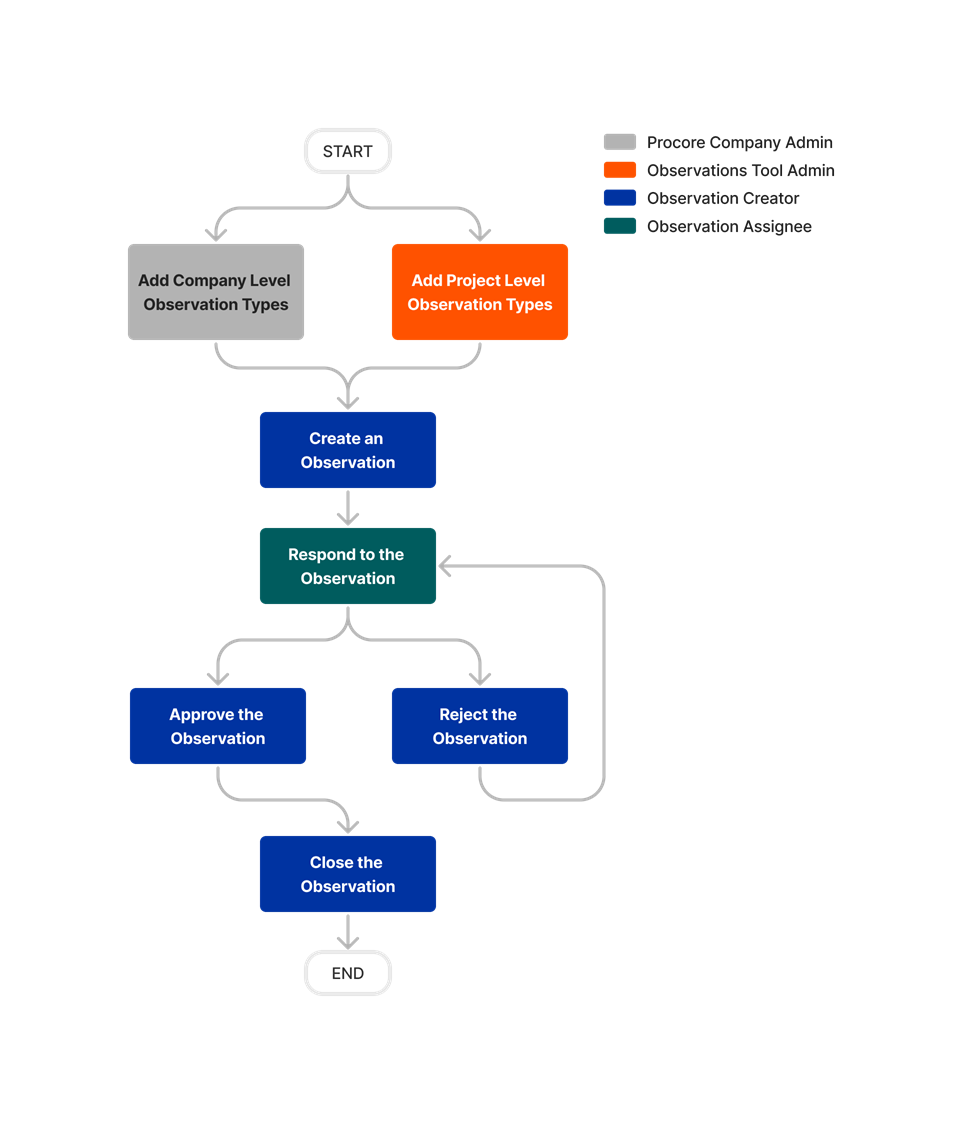
diagram_observations_tool-overview.png

diagram_observations_tool-overview_de-de.png

diagram_observations_tool-overview_en-au.png

diagram_observations_tool-overview_en-ca.png

diagram_observations_tool-overview_en-gb.png

diagram_observations_tool-overview_es-es.png

diagram_observations_tool-overview_es-la.png

diagram_observations_tool-overview_fr-ca.png

diagram_observations_tool-overview_fr-fr.png

diagram_observations_tool-overview_ja-jp.png

diagram_observations_tool-overview_pt-br.png

diagram_observations_tool-overview_zh-sg.png

diagram_observations_tool-overview.png

Observations

Learn which user permissions are required to take the described actions in this tool.

Permissions

The action is available on Procore's Web, iOS, and/or Android application.

icon-mindtouch-table-check.png Users can take the action with this permission level.

icon-mindtouch-table-check-gp.png Users can take this action with this permission level AND one or more additional requirements, like granular permissions.

What granular permissions are available for the Project level Observations tool?

Observations Tutorials
Action

None

Read Only

Standard

Admin

Notes

Add a Comment to an Observation
Web iOS Android


icon-mindtouch-table-check-gp.png

  • Comment on an Observation

icon-mindtouch-table-check.png

icon-mindtouch-table-check.png


Add a Related Item to an Observation
Web


icon-mindtouch-table-check.png


Add Project Level Observation Types
Web


icon-mindtouch-table-check-gp.png

  • Add Project Level Observation Types

icon-mindtouch-table-check-gp.png

  • Add Project Level Observation Types

icon-mindtouch-table-check.png

Company level Observation Types are managed at the Company level Admin tool.

Can Be Included on the Distribution List


icon-mindtouch-table-check.png

icon-mindtouch-table-check.png

icon-mindtouch-table-check.png


Close Observation and Comment
Web iOS Android


icon-mindtouch-table-check-gp.png

  • Close Observation and Comment

icon-mindtouch-table-check.png

icon-mindtouch-table-check.png


Configure Advanced Settings: Observations
Web


icon-mindtouch-table-check-gp.png

  • Configure Advanced Settings: Observations

icon-mindtouch-table-check-gp.png

  • Configure Advanced Settings: Observations

icon-mindtouch-table-check.png


Create Custom Incident Statuses
Web


icon-mindtouch-table-check-gp.png

Custom Incident Statuses are managed at the Company level Admin tool.

Create Custom Observation Categories
Web


icon-mindtouch-table-check-gp.png

Custom Observation Categories are managed at the Company level Admin tool.

Create an Observation
Web iOS Android


icon-mindtouch-table-check-gp.png

  • Create an Observation

icon-mindtouch-table-check.png

icon-mindtouch-table-check.png

  • Observations creators can edit observations they created and change status to any status, close, and comment on their observation line items.

  • ‘Read’ and 'Standard' users can only assign observations to an 'Admin' user unless they have been granted the granular permission 'Can Assign Standard and Eligible Read Only Users to Observations', which allows them to assign observations to other eligible users.

Create an Observation from an Inspection
Web iOS Android


icon-mindtouch-table-check-gp.png

  • Create an Observation from an Inspection

icon-mindtouch-table-check.png

icon-mindtouch-table-check.png

'Standard' users will also need 'Standard' permission to the Inspections tool.

Create a Project Level Observation Template
Web


icon-mindtouch-table-check-gp.png

  • Create a Project Level Observation Template

icon-mindtouch-table-check-gp.png

  • Create a Project Level Observation Template

icon-mindtouch-table-check.png


Customize the Column Display in the Observations Tool
Web


icon-mindtouch-table-check.png

icon-mindtouch-table-check.png

icon-mindtouch-table-check.png


Delete and Retrieve Observations
Web


icon-mindtouch-table-check-gp.png

  • Delete and Retrieve Observations

icon-mindtouch-table-check-gp.png

  • Delete and Retrieve Observations

icon-mindtouch-table-check.png


Delete Project Level Observation Templates
Web


icon-mindtouch-table-check-gp.png

  • Delete Project Level Observation Templates

icon-mindtouch-table-check-gp.png

  • Delete Project Level Observation Templates

icon-mindtouch-table-check.png


Delete Project Level Observation Types
Web


icon-mindtouch-table-check-gp.png

  • Delete Project Level Observation Types

icon-mindtouch-table-check-gp.png

  • Delete Project Level Observation Types

icon-mindtouch-table-check.png

Company level Observation Types are managed at the Company level Admin tool.

Edit Project Level Observation Templates
Web


icon-mindtouch-table-check-gp.png

  • Edit Project Level Observation Templates

icon-mindtouch-table-check-gp.png

  • Edit Project Level Observation Templates

icon-mindtouch-table-check.png

Company level Observation Types are managed at the Company level Admin tool.

Edit Project Level Observation Types
Web


icon-mindtouch-table-check-gp.png

  • Edit Project Level Observation Types

icon-mindtouch-table-check-gp.png

  • Edit Project Level Observation Types

icon-mindtouch-table-check.png


Edit Observations
Web iOS Android


icon-mindtouch-table-check-gp.png

  • Edit Observations

icon-mindtouch-table-check-gp.png

  • Edit Observations

icon-mindtouch-table-check.png


Email an Observation
Web


icon-mindtouch-table-check-gp.png

  • Email an Observation

icon-mindtouch-table-check-gp.png

  • Email an Observation

icon-mindtouch-table-check-gp.png

  • Email an Observation


Email All Observations
Web iOS Android


icon-mindtouch-table-check-gp.png

  • Email all Observations

icon-mindtouch-table-check-gp.png

  • Email all Observations

icon-mindtouch-table-check.png


Email My Observations
Web


icon-mindtouch-table-check-gp.png

  • Email my Observations

icon-mindtouch-table-check.png

icon-mindtouch-table-check.png


Export Observations as a PDF or CSV
Web


icon-mindtouch-table-check.png

icon-mindtouch-table-check.png

icon-mindtouch-table-check.png


Respond as Observation Assignee
Web iOS Android


icon-mindtouch-table-check.png

icon-mindtouch-table-check.png


Search for and Filter Observations
Web iOS Android


icon-mindtouch-table-check.png

icon-mindtouch-table-check.png

icon-mindtouch-table-check.png


Update Observation Status to 'Ready for Review' and Comment
Web iOS Android


icon-mindtouch-table-check.png

icon-mindtouch-table-check-gp.png

  • Update Observation Status to Ready for Review and Comment

icon-mindtouch-table-check.png

'Read Only' and 'Standard' users with the granular permission can update the status to 'Ready for Review'.

Update Open Observation Status and Comment
Web iOS Android


icon-mindtouch-table-check-gp.png

  • Update Open Observation Status and Comment

icon-mindtouch-table-check-gp.png

  • Update Open Observation Status and Comment

icon-mindtouch-table-check.png


View the Activity Stream of an Observation Web


icon-mindtouch-table-check.png

icon-mindtouch-table-check.png

icon-mindtouch-table-check.png


View Change History
Web


icon-mindtouch-table-check-gp.png

  • View Change History

icon-mindtouch-table-check.png

icon-mindtouch-table-check.png


View Observation Tool
Web iOS Android


icon-mindtouch-table-check-gp.png

  • View Observation Tool

icon-mindtouch-table-check-gp.png

  • View Observation Tool

icon-mindtouch-table-check.png


View Observations (Not Private)
Web iOS Android


icon-mindtouch-table-check.png

icon-mindtouch-table-check.png

icon-mindtouch-table-check.png


View Observations (Private)
Web iOS Android


icon-mindtouch-table-check-gp.png

  • View Private Observations

icon-mindtouch-table-check-gp.png

  • View Private Observations

icon-mindtouch-table-check.png

'Read Only' and 'Standard' lever users can view private observations without the granular permission if they are the Observation's CreatorAssignee, or on the Distribution List.

View Observation Insights
Web


icon-mindtouch-table-check-gp.png

  • View Project Observation Insights

icon-mindtouch-table-check-gp.png

  • View Project Observation Insights

icon-mindtouch-table-check.png


View Observations for Users within the Same Company (Private)
Web iOS Android


icon-mindtouch-table-check-gp.png

  • View Private Observations Associated to Users within the Same Company

icon-mindtouch-table-check-gp.png

  • View Private Observations Associated to Users within the Same Company

icon-mindtouch-table-check.png

For users with the granular permission, you or a user at your company must be the Observation's CreatorAssignee, or on the Distribution List.

View Observations by Type
Web iOS Android


icon-mindtouch-table-check.png

icon-mindtouch-table-check.png

icon-mindtouch-table-check.png


Below are the notable changes to the project's Observations tool. 

Recent Changes

observations - New Granular Permissions Now Available (11/18/2025)

Procore introduced granular permissions for the Observations tool, enabling organizations to tailor user access beyond the traditional Read Only, Standard, and Admin roles. Observations granular permissions allows customers to assign specific capabilities, such as creating observations or assigning users outside their company, to better align with unique security requirements. To learn more, see What granular permissions are available for the project's Observation tool?

separate observations into quality and safety categories (11/18/2025) 

Procore has added the ability to permanently divide all existing observations into separate Quality Inspections and Safety Observations. Before this change, all observations were consolidated under one view. By separating them, Quality and Safety groups can focus exclusively on their relevant data and information, creating a better user experience. See Separate Quality Observations from Safety Observations

Modernized Observations Experience (03/25/2025)

The Observations Tool user interface has been modernized to provide a more seamless, user-friendly experience. The modernized experience is also available when creating Observations from Incident Actions, Inspection Items, and Coordination Issues. There is no change to functionality.