

KIER + Procore: Photos
- Last updated
- Save as PDF

Overview
Drag-and-Drop Photos to Upload
- Navigate to your project's Photos tool.
- Drag a photo from your computer's file tree or desktop and drop it into the Photos tool anywhere on the page.
Note: Photos will be uploaded to the location in the Photos tool which you are viewing. - Fill out the fields in the upload modal as necessary.
- Date: This field will automatically populate with the dates that the photos were taken. If the capture information was not recorded when the photo was taken, the photos will default to today's date.
- Location: Select a location associated with the photo(s).
- Album: Select which album into which you want to upload the photos.
- Trade: Select the trade associated with the photo(s).
- Private: Mark the checkbox if you want to hide the photo(s) from anyone but users with 'Admin' level permissions on the Photos tool.
- Add to Daily Log: Mark the checkbox if you want these photos to be uploaded into the Daily Log for the day the photos were taken (or today's date if capture information was not recorded).
- Click Upload Photos.
Select Photos to Upload
- Navigate to your project's Photos tool.
- Click the Upload button.
- Browse your computer's file tree.
- Select files from your local computer.
- Click Open.
- Fill out the fields in the upload modal as necessary.
- Date: This field will automatically populate with the dates that the photos were taken. If the capture information was not recorded when the photo was taken, the photos will default to today's date.
- Location: Select a location associated with the photo(s).
- Album: Select which album into which you want to upload the photos.
- Trade: Select the trade associated with the photo(s).
- Private: Mark the checkbox if you want to hide the photo(s) from anyone but users with 'Admin' level permissions on the Photos tool.
- Add to Daily Log: Mark the checkbox if you want these photos to be uploaded into the Daily Log for the day the photos were taken (or today's date if capture information was not recorded).
- Click Upload Photos.
|
|
Further Information
The Photos tool enables you to easily capture, store, and share your project photos in a secure online archive. You can use your smartphone or tablet to quickly take a progress photo, add markups, and instantly share it with other team members.
- Capture and upload photos from your smartphone, tablet or computer
- Store an unlimited number of digital photos and organize them by category
- Automatically backup your photos
- Grant access to photos to all or specific team members
- Mark up your photos with details and comments in the field from a mobile device
Popular Tutorials (view all)
Top FAQ (view all)
There are no items that match your search query.
- Add Photos to a Drawing from the Camera (iOS)
- Add a Comment to a Photo (iOS)
- Add a Location to a Photo (iOS)
- Bulk Edit Photos (iOS)
- Capture a Photo with Insta360 Camera (iOS)
- Create Before and After Photos (iOS)
- Create Items from Photos (iOS)
- Create a Photo Album (iOS)
- Delete Photos (iOS)
- Download a Photo (iOS)
- Drag and Drop Images into Procore's Photos Tool (iOS)
- Edit a Photo's Information (iOS)
- Email a Photo (iOS)
- Mark Up a Photo (iOS)
- Mention Someone in a Photo Comment (iOS)
- Search for and Filter Photos (iOS)
- Send Photos from the Photos tool to the Daily Log (iOS)
- Sort Photo Albums (iOS)
- Take and Add Photos to an Album (iOS)
- View Photos (iOS)
- Add a Comment to a Photo (Android)
- Add a Location to a Photo (Android)
- Bulk Edit Photos (Android)
- Capture a Photo with Insta360 Camera (Android)
- Create Before and After Photos (Android)
- Create Items from Photos (Android)
- Create a Photo Album (Android)
- Delete Photos (Android)
- Download a Photo (Android)
- Edit a Photo's Information (Android)
- Email a Photo (Android)
- Mark Up a Photo (Android)
- Mention Someone in a Photo Comment (Android)
- Search for and Filter Photos (Android)
- Sort Photo Albums (Android)
- Take and Add Photos to an Album (Android)
- View Photos (Android)
Tip
To browse and search all Procore training videos, visit our video library.
Web
Upload Photos
Manage Photos
Mobile
Photos Overview (Mobile)
OUTDATED VIDEOS - Removed from Support Site and Certifications
Configure Photo Settings
Configure Photos
Video content may not accurately reflect the current state of the system, and/or it may be out of date.
Photos Mobile
Video content may not accurately reflect the current state of the system, and/or it may be out of date.
Photo Management
Video content may not accurately reflect the current state of the system, and/or it may be out of date.
Specialty Contractor as Client - Upload Photos
Video content may not accurately reflect the current state of the system, and/or it may be out of date.
Specialty Contractor as Client - Photos (Mobile)
Video content may not accurately reflect the current state of the system, and/or it may be out of date.
Owner - Manage Photos
Video content may not accurately reflect the current state of the system, and/or it may be out of date.
Owner - Photos Mobile
Video content may not accurately reflect the current state of the system, and/or it may be out of date.
Owner - Upload Photos
Video content may not accurately reflect the current state of the system, and/or it may be out of date.
Superintendent - Photos (Web)
Video content may not accurately reflect the current state of the system, and/or it may be out of date.
Superintendent - Photos (Mobile)
Video content may not accurately reflect the current state of the system, and/or it may be out of date.
Web
Upload Photos
Manage Photos
Mobile
Photos Overview (Mobile)
OUTDATED VIDEOS - Removed from Support Site and Certifications
Overview (Mobile)
Video content may not accurately reflect the current state of the system, and/or it may be out of date.
Web
Upload Photos
Manage Photos
Mobile
Photos Overview (Mobile)
OUTDATED VIDEOS - Removed from Support Site and Certifications
Photos: Manage Photos
Video content may not accurately reflect the current state of the system, and/or it may be out of date.
Photos: Overview (Mobile)
Video content may not accurately reflect the current state of the system, and/or it may be out of date.
Photos: Upload Photos
Video content may not accurately reflect the current state of the system, and/or it may be out of date.
Web
Upload Photos
Manage Photos
Mobile
Photos Overview (Mobile)
OUTDATED VIDEOS - Removed from Support Site and Certifications
Photos: Overview (Mobile)
Video content may not accurately reflect the current state of the system, and/or it may be out of date.
Web
Upload Photos
Manage Photos
Mobile
Photos Overview (Mobile)
OUTDATED VIDEOS - Removed from Support Site and Certifications
Photos: Overview (Mobile)
Video content may not accurately reflect the current state of the system, and/or it may be out of date.
Web
Configure Photo Settings
Upload Photos
Manage Photos
Mobile
Photos Overview (Mobile)
OUTDATED VIDEOS - Removed from Support Site and Certifications
Photo Management
Video content may not accurately reflect the current state of the system, and/or it may be out of date.
Configure Photos
Video content may not accurately reflect the current state of the system, and/or it may be out of date.
Photos Mobile
Video content may not accurately reflect the current state of the system, and/or it may be out of date.
Web
Upload Photos
Manage Photos
Mobile
Photos Overview (Mobile)
OUTDATED VIDEOS - Removed from Support Site and Certifications
Web
Upload Photos
Manage Photos
Mobile
Photos Overview (Mobile)
OUTDATED VIDEOS - Removed from Support Site and Certifications
Photos - Manage Photos
Video content may not accurately reflect the current state of the system, and/or it may be out of date.
Photos - Upload Photos
Video content may not accurately reflect the current state of the system, and/or it may be out of date.
Photos - Overview (Mobile)
Video content may not accurately reflect the current state of the system, and/or it may be out of date.
Web
Upload Photos
Manage Photos
Mobile
Photos Overview (Mobile)
OUTDATED VIDEOS - Removed from Support Site and Certifications
Photos: Overview (Mobile)
Video content may not accurately reflect the current state of the system, and/or it may be out of date.
Web
Upload Photos
Manage Photos
Mobile
Photos Overview (Mobile)
Web
Upload Photos
Manage Photos
Mobile
Photos Overview (Mobile)
OUTDATED VIDEOS - Removed from Support Site and Certifications
Configure Photo Settings
Configure Photos
Video content may not accurately reflect the current state of the system, and/or it may be out of date.
Photos Mobile
Video content may not accurately reflect the current state of the system, and/or it may be out of date.
Photo Management
Video content may not accurately reflect the current state of the system, and/or it may be out of date.
Specialty Contractor as Client - Upload Photos
Video content may not accurately reflect the current state of the system, and/or it may be out of date.
Specialty Contractor as Client - Photos (Mobile)
Video content may not accurately reflect the current state of the system, and/or it may be out of date.
Owner - Manage Photos
Video content may not accurately reflect the current state of the system, and/or it may be out of date.
Owner - Photos Mobile
Video content may not accurately reflect the current state of the system, and/or it may be out of date.
Owner - Upload Photos
Video content may not accurately reflect the current state of the system, and/or it may be out of date.
Superintendent - Photos (Web)
Video content may not accurately reflect the current state of the system, and/or it may be out of date.
Superintendent - Photos (Mobile)
Video content may not accurately reflect the current state of the system, and/or it may be out of date.
- Can I mark all photos 'Private' in the project's Photos tool?
- How do I change my web browser's default email client for mailto links?
- What are multi-tiered locations?
- What are the GH Phipps Default Punch List TYPE(s)
- What does the "Search" box in the Photos tool search for?
- What granular permissions are available for the project's Photos tool?
- What is Procore's Recycle Bin?
- What standard trades are available in Procore?
- What tools are supported by Maps in Procore?
- When do the download links in emails sent from Procore expire?
- When does Procore track my location in the Procore mobile app?
- Where can I find the email address to send daily logs, photos, documents, and emails to Procore?
- Which Microsoft Excel file versions can be attached to items in Procore?
- Which Procore tools support granular permissions?
- Who can send emails and files into Procore?
- Why do I receive Action-Oriented Emails for Photos?
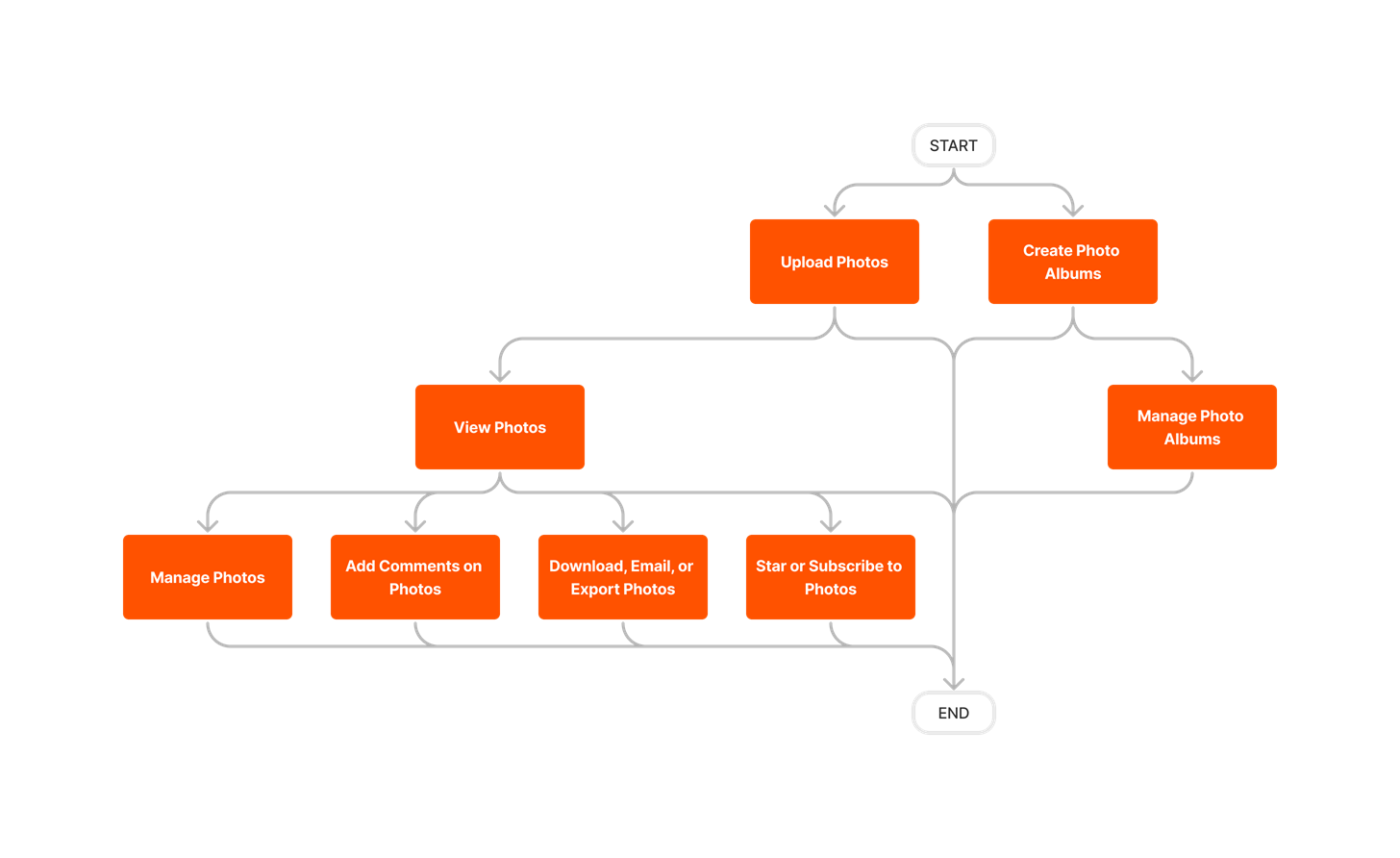


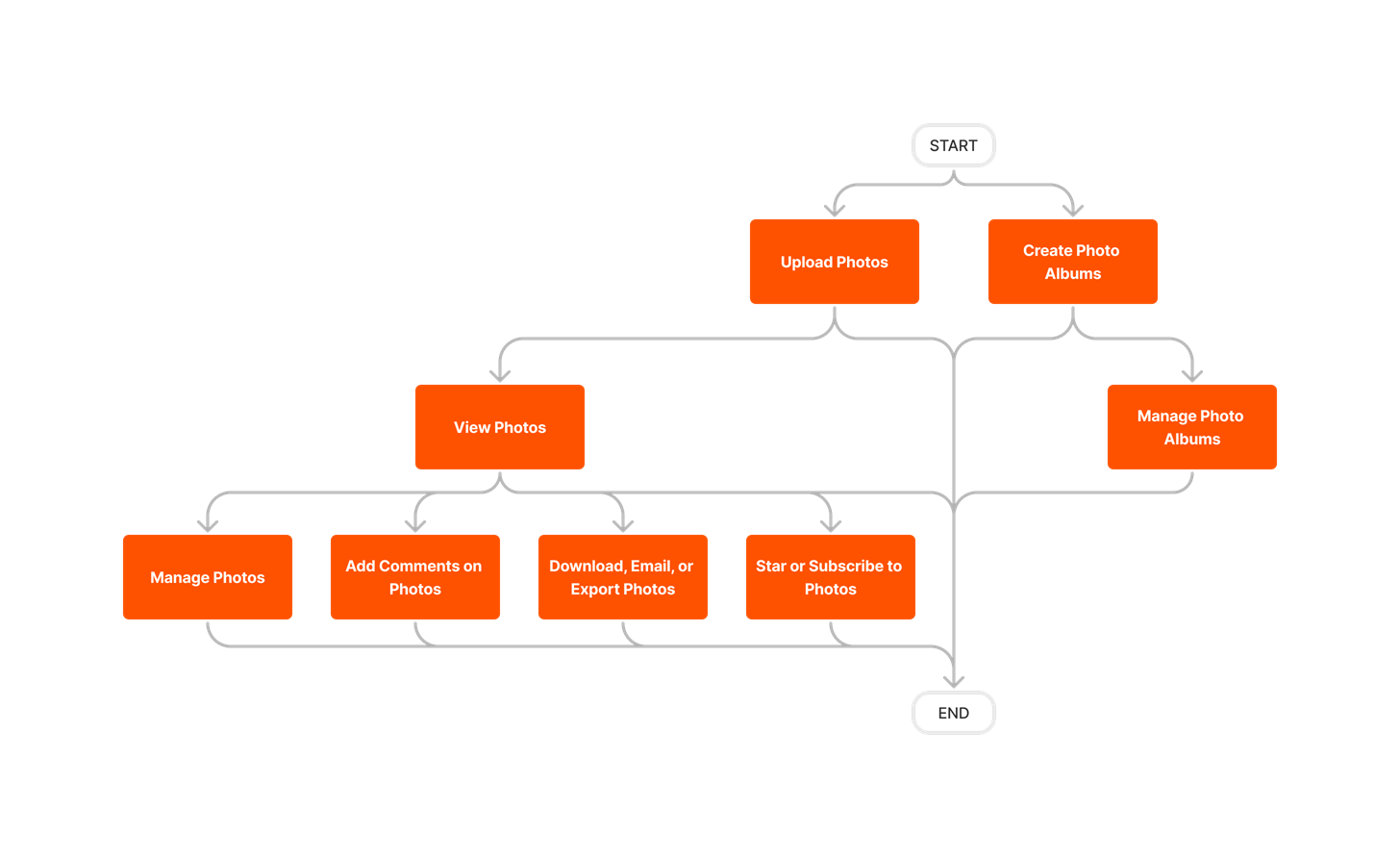


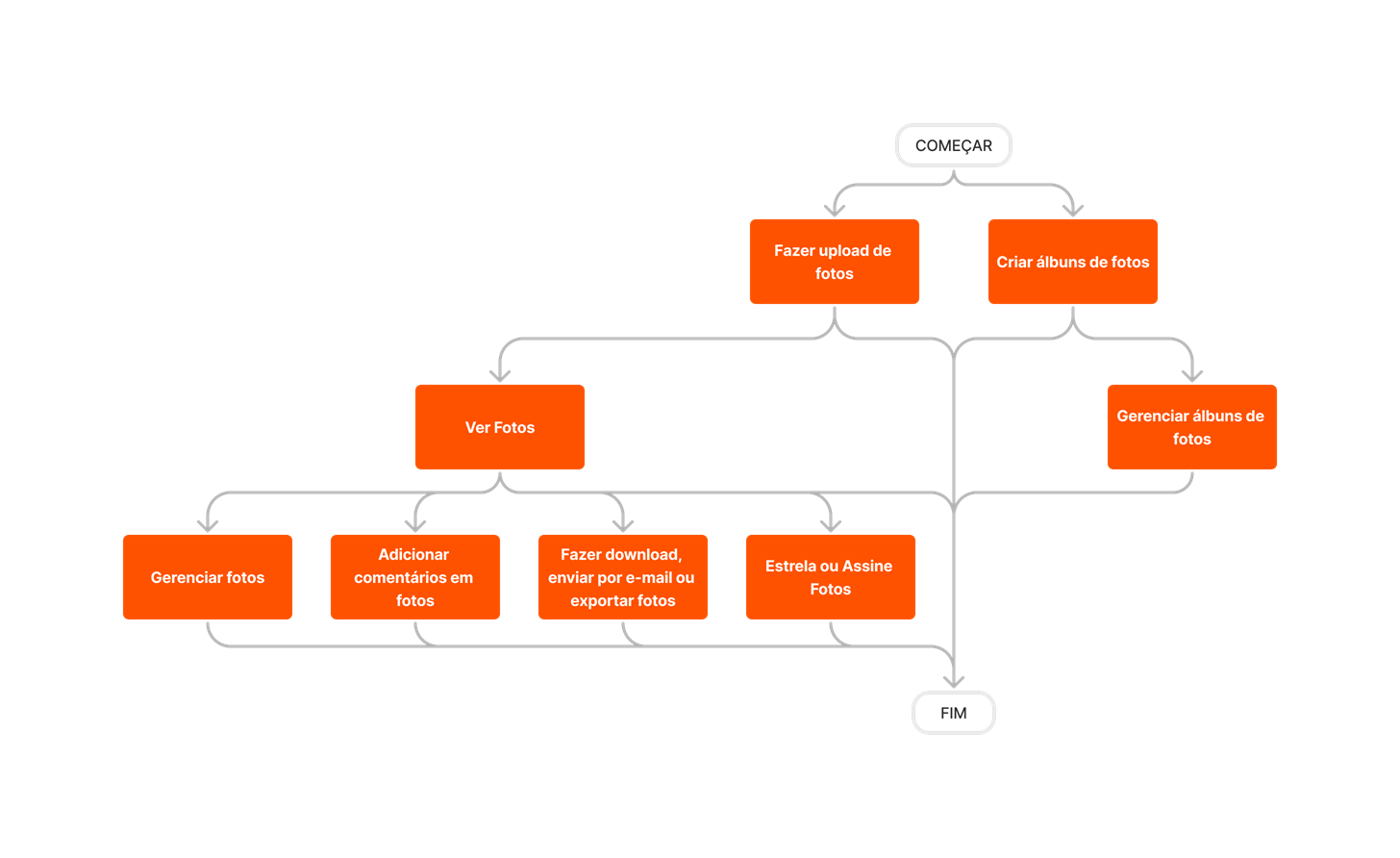

Photos
The following table highlights which user permissions are required to perform the described user action.
 : Denotes an action supported in Procore's iOS and/or Android application.
 + : Indicates that one or more granular permissions are available for the task. See the relevant tutorial or Grant Granular Permissions in a Project Permissions Template for more information.
1 Users with 'Standard' level permissions on the project's Photos tool may only bulk edit photo descriptions.
Below are the notable changes to the project's Photos tool.
Recent Changes
Added Internal Share Links to Albums and Photos (06/16/2026)
You can now quickly copy and share direct links to specific photo albums and individual photos within the Photos tool (Web). This link sharing functionality streamlines internal collaboration by letting team members point each other to exact visual assets without manual attachments. This enhancement includes the following capabilities:
-
Album view – Hover over an album name to see a "Copy Album Link" option.
-
Modernized Photo Viewer – A "Copy Link" action in the header generates a direct link to the current photo.
-
Copied links can be pasted into internal emails or chats, taking recipients straight to the relevant asset and its metadata.
Note: These share links are for internal use only. Access is restricted to authorized users with existing permissions within the Procore account. Attempting to open a link without access will redirect to the login page. Public or external sharing of images and albums is not supported. To learn more, see Share Links to Specific Albums and Photos Internally.
Modernized Photo Information Page in Mobile Apps (05/19/2026)
Procore has redesigned the Photo Information page in mobile apps (iOS and Android) into a clean, user-friendly experience that makes key project data easy to see and update. The Photo Information page contains modular, clearly labeled sections, such as Project Data, Privacy, Photo Data, and Map Data. It supports a single, intuitive swipe or tap entry point to view and edit all photo information. This enhancement reduces friction so field teams are more likely to tag and label photos correctly, improving searchability and long-term project documentation. It eliminates redundant navigation paths, making it faster to add or edit crucial contexts like Trade, Location, Album, and Description. It establishes a flexible design framework for future integrations and enhancements without reworking the entire page. To learn more, see View Photos (iOS) and View Photos (Android).
Supported Insta360 Camera Integration for Mobile Apps (04/21/2026)
Procore’s mobile apps (Android and iOS) now support native 360° photo capture with Insta360 cameras. This enhancement replaces the previous fragmented workflow of using third‑party apps and manual uploads, making it much easier to capture comprehensive, immersive site documentation. Field teams can pair an Insta360 camera directly to the Procore mobile app via Bluetooth. They can view a live preview from the Insta360 camera inside the Procore app. They can capture 360° photos that are automatically added to the Procore photo session tray, without leaving the app or using a separate camera application. See Capture a Photo with Insta360 Camera (iOS) and Capture a Photo with Insta360 Camera (Android).
Modernized Photo Viewer Available (04/21/2026)
Procore has redesigned the photo viewer in the Photos tool (web) into a modern, dual-pane experience that makes photo context easier to see and edit. The new split-view layout supports Project Information panel on the left and Actions & Conversations panel on the right. Both panels are fully collapsible for flexible screen space. It supports inline editing for all key fields (such as Album, Location, and Trade) and a flexible, non-distorting description area that actually grows with your notes. You can now click the text, edit in place, and stay on the same page.
The new view improves discoverability by surfacing key metadata by default instead of hiding it in menus. It separates photo-specific technical data from project context, so you can scan information at a glance. It reduces friction and clicks for labeling photos and updating context. To learn more, see View Photos.
Supported Infinite Scroll and Shift-Click for Gallery Management (04/21/2026)
Procore has enhanced the Photos tool (web) to make large photo sets much easier to manage. You can now manage gallery faster by using the following options:
-
Infinite scrolling and lazy loading allow you to quickly browse and load hundreds or thousands of photos in a single, continuous view—no more clicking through multiple pages.
-
Shift-click selection lets you select a continuous range of photos at once, instead of clicking each photo individually.
These enhancements bring the Photos gallery in line with modern user experience (UX) standards, significantly reducing the time and effort required for bulk actions like reporting, downloading, and organizing large project photo libraries. They have also improved the speed and efficiency of critical documentation tasks. To learn more, see Bulk Edit Photos and Move Photos.
EMAIL MODERNIZATION (03/17/2026)
Procore has modernized the Photos tool–related email notifications. This update applies across Web, iOS, and Android in all regions. All emails related to the Photo tool now follow a new, consistent design system that notifies users on the following events - User @ mentions in photo comments, new photo uploads, and photos shared via email. Project teams can quickly understand what happened, perform clear call-to-actions, and jump directly into the relevant area of Procore to follow up or continue their work. The updated email layouts are easier to scan and interact with across all devices, enhancing reachability. See Why do I receive Action-Oriented Emails for Photos? for more information.
Instant Location Stamping Enabled for Photos in Mobile Apps (02/10/2026)
You can now instantly stamp your photos with the current location using the Stamp menu in the mobile app camera (iOS and Android). The currently set location is automatically added to any photo taken within the app. This location stamp feature ensures that every photo captured within the app includes precise location details, supporting traceability and reporting requirements.
Previously, you exported photos manually and used third-party tools to add location labels. This workaround resulted in significant lost productivity. The new location stamp feature streamlines the process, saving time and reducing errors. Project stakeholders, including owners and municipal entities, can now reduce the time they spend on reporting. See Stamp a Photo with the Current Location (iOS) and Stamp a Photo with the Current Location (Android).
Supported 360° Photo Viewing on Mobile Apps (11/19/2025)
Procore has added a native, interactive 360° image viewer to the Photos tool within the Procore mobile apps (iOS and Android). The Photos tool now supports a seamless, full-screen 360° image viewing experience. Field teams can view, pan, and zoom high-resolution 360° images without leaving the app. The 360° image viewer eliminates the need to switch to third-party applications and saves time. It also streamlines workflows and increases field efficiency. See View Photos (iOS) and View Photos (Android).
Note: Currently, the 360° image view is supported only for new photos on the mobile apps (as of November 2025).
analyze photos with assist (10/23/2025)
Procore has introduced the Analyze Photos with Assist feature in the Photos tool, allowing users to select multiple photos and generate AI-powered summaries. The Analyze with Assist feature enables teams to quickly summarize progress and safety insights from jobsite images, helping stakeholders stay informed and manage risks proactively.
Modernized Photos: Redesigned Settings (10/07/2025)
The Photos Settings page has been redesigned to align with Procore's modernized user experience for a more intuitive feel. The settings are separated into clear categories to create a more seamless understanding of the Photo Settings. See Configure Advanced Settings: Photo.
Maps for Photos - Generally Available (01/08/2025)
Procore Maps enables users to view photos and other tool items on a map, query them by location, and link to the items across various tools. Procore Maps enhances project execution by providing a comprehensive visual tool that integrates seamlessly with other Procore functionalities, facilitating better planning, execution, and monitoring of construction projects. See Procore Maps.