
Procore

KIER + Procore: Change Orders

Create a Prime Potential Change Order from a Change Event (PCO):

Objective

To create a potential change order for a prime contract from a change event.

Background

If your project owner prefers and KIER configures your project to use a two (2) tier change order structure, the change event process requires you to create a potential change order. Then, you will create the PCCO from the Prime Contract tool. When you create a PCO, the Schedule of Values (SOV) will populate with the Latest Price values.

Steps

  • Navigate to the project's Change Events tool.
  • In the table, mark the checkboxes for one (1) or more change event line item(s) to include in the new potential change order. 
     Note: Procore creates the potential change order's Schedule of Values (SOV) using the selected change event line item(s). 
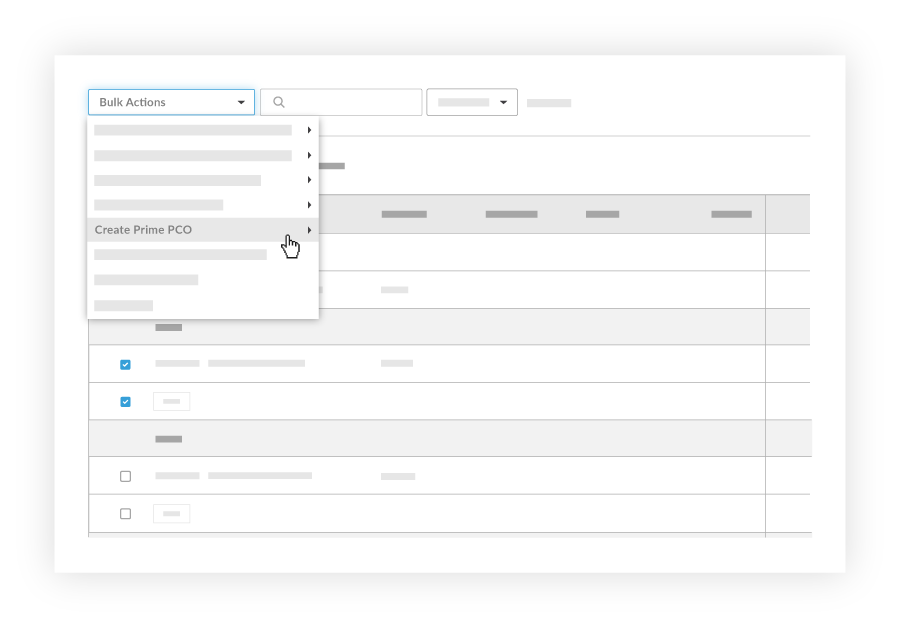
  • Click the Bulk Actions menu and choose the Create Prime PCO option. Then choose the appropriate contract option from the sub menu. 
    create-prime-pco.png
  • In the 'New Potential Change Order' page, complete the following data entry:
    • Sign with DocuSign®
      If you have enabled the Procore + DocuSign® integration (see Enable or Disable the DocuSign® Integration on a Procore Project), a checkmark appears in this box by default. If you do NOT want to collect signatures with DocuSign®, remove the mark.

       Tip
      How do you collect signatures with DocuSign? After the data entry for the item is complete, send an email directive to your PA.  Your PA will send the PCO out for signature.  After the signature process is complete, Procore automatically changes the status of the item to 'Approved' and marks the item as 'Executed'. To learn more, see DocuSign®.
    • #
      Accept the default number, enter a new number, or create a custom numbering scheme for this change order and future ones. 

       Notes
      • Procore automatically assigns the item a new number in sequential order. For example; 001, 002, 003, and so on.
      • To use a custom numbering scheme, enter any set of alphanumeric characters. Procore automatically assigns new numbers in sequential order using your custom scheme. 
    • Date Created. Shows the date the change order was created. 

    • Revision
      If you revise a change order later, you can enter the revision number here.

    • Contract Company
      Shows the name of the contract company selected in the contract. 

    • Contract
      Automatically includes a link to the contract associated with this change order. 

    • Title
      Enter a descriptive name here. 

    • Status
      Select the current status of the change order. Procore automatically places the change order in the 'Draft' status. To learn more, see What are the default statuses for change orders in Procore?

    • Prime Contract Change Order 
      Choose one (1) of these option buttons: 

      • None. You can update this selection at a later time. 
      • Add to Existing. Choose this option to link the new potential change order to an existing change order.
      • Create New. Choose this option to link the new potential change order to a new change order.
    • Change Reason. This field automatically populates the change reason from the selected change event.

    • Private
      Mark this checkbox if you want the item to be private. This means it is only visible to users with 'Admin' level permissions on the contract (or funding). 

    • Description
      Enter a more detailed description of the change order. 

    • Executed
      Mark this checkbox after the change order is fully executed.

    • Signed Change Order Received Date
      This field is blank on a new change order. After the signed change order is received, select the date from the calendar control. 

    • Request Received From
      Select the appropriate project user from the drop-down list. 

    • Location. Select a multi-tiered location from this list. If your Project Administrator has enabled the multi-tiered location functionality on the project, you may also be able to create a new location to add the master list of project locations. To learn more, see How do I add a multi-tiered location to an item?

    • Schedule Impact
      If this change order is expected to impact the construction project's schedule, enter the estimated number of additional days this would add to the schedule. 

    • Field Change
      Mark this check the checkbox if the potential change order is the result of a field change. 

    • Reference
      Add any details about the potential change order in this field. 

    • Paid in Full
      Mark this check box if you have received payment for this change.

    • Attachments

      • Click Attach File(s) and select the files to add from your computer or another Procore tool.  OR

        • Use a drag-and-drop operation on your computer to add the file attachments to Procore. 
  • Click Create. 
     Notes
    • The Associated Line Item drop-down list only appears if your company's Procore account is integrated with an integrated ERP system and the Prime Contracts tool is active on the project.
    • When adding line items to the change order's schedule of values, you must select an Associated Line Item for each new line item. You can designate one (1) associated line item or use the same associated line item for multiple line items. Choosing to create a new line item to associate will automatically create a new zero (0) dollar line item on the contract's original SOV.

Create a Prime Contract Change Order (PCCO):

Objective

To create a Prime Contract Change Order (PCCO).

Background

In Procore, a Prime Contract Change Order (PCCO) is a change order that affects the prime contract. A two-tier change order setup typically consists of a bundle of Potential Change Orders (PCOs) that must be approved by the Owner. 

Steps

  1. Navigate to the project's Prime Contracts tool.
  2. Locate the prime contract to work with. Then click its Number link. 
  3. Click Create Prime Contract CO.
    create-prime-contract-change-order.png
  4. Complete the following fields:
    • Sign with DocuSign®
      We have enabled the Procore + DocuSign® integration so a checkmark appears in this box by default. If you do NOT want to collect signatures with DocuSign®, remove the mark.

    • #
      Accept the default number, enter a new number, or create a custom numbering scheme for this change order and future ones. 

    • Date Created
      Shows the date and time the change order was created in Procore. You cannot change this date.

    • Revision
      If you revise a change order later, you can enter the revision number here.

    • Created By
      Procore automatically populates this field with the name of the user who created the change order. 

    • Title
      The title of the PCCO should include the PCCO # and the PCO # that is included.  Examples:  PCCO #001: PCO #001 & PCO #002 (if you are including multiple PCOs in one PCCO).  PCCO #001: PCO #001 – Title of PCO #001 (if you are only including one PCO)

    • Status
      Select the current status of the change order. Procore automatically places the change order in the 'Draft' status. 

NOTE: The status of the PCCO will change the status of any PCOs linked to the PCCO.

  • Description
    Enter a more detailed description of the change order. 

  • Schedule Impact
    If this change order is expected to impact the construction project's schedule, enter the estimated number of additional days this would add to the schedule. 

  • Revised Substantial Completion Date
    If the change order modifies the substantial completion date for the contract, select that date from the calendar control. 

  • Depending on the change order tier settings of the Prime Contract's tool, one (1) of these list boxes will appear:
  1. Choose one (1) of these options:
    • To create the change order, click Create.
      OR
    • To create the change order and send email notifications, click Create & Email
      OR
    • If you are using the Procore + DocuSign® integration to collect signatures, click Complete with DocuSign. To learn more, see DocuSign®.


Further Information

Over the course of a construction project, there are a wide variety of reasons that can require you to create a change order. Change orders can also be initiated by a variety of entities, such as your project's funding source, a project owner, contractor, subcontractor, and more. 

Examples

Below are common reasons that might lead you to create a change order over the course of a project:

  • Design changes
  • Drawing errors and omissions
  • Inaccurate or incomplete specifications
  • Unexpected job site conditions
  • Material and crew substitutions

To create a change order in a Procore project, you must be granted the appropriate permissions on the client contract, commitment, funding, or prime contract that is changing. In addition, the steps you follow depend on your project's configuration settings:

The Change Orders tool streamlines and improves critical steps in the otherwise manual change management process so no potential cost impact slips through the cracks. See how easy this tool makes it to facilitate faster approvals, streamline communication, and eliminate the need to proceed at risk—without paper and time-consuming trips from the jobsite to the back office.

There are no items that match your search query.

Configuration Tasks: Change Orders Tool
 Tip

To browse and search all Procore training videos, visit our video library.

Web

Configure Change Event Settings
 
Manage Change Orders
 
Create a Change Event - General Contractor
 
Create a Change Event - Owner
 
Create a Change Event - Specialty Contractor
 
Create a Commitment Change Order - General Contractor
 
Create a Commitment Change Order - Owner
 
Create a Commitment Change Order - Specialty Contractor
 
Create Bulk Commitment Change Orders from a Change Event
 
Create a Prime Contract Change Order - General Contractor
 
Create a Funding Change Order - Owner
 
Create a Client Contract Change Order - Specialty Contractor
 
Create a Prime PCO - Owner
 
Review PCCOs - Owner
 
Submit a Field Initiated Change Order as a Collaborator
 
Create and Send RFQs
 
Create and Send RFQs - Owner
 
Respond to an RFQ - Owner
 
Respond to an RFQ on Behalf of a Collaborator
 
Update Change Orders
 
Allow Collaborators to Submit a Field Initiated Change Order
 

Mobile

Create a Change Event (Mobile) - Field Worker
 
Add a Line Item to a Change Event (Mobile) - Field Worker


OUTDATED VIDEOS - Removed from Support Site and Certifications

Create a Client Contract CO - Specialty Contractor
 

Specialty Contractor - Create a Client Contract CO


Create a Prime PCO


Owner - Respond to an RFQ


Owner - Review Prime Contract COs


Owner - Create and Send an RFQ


Create an RFQ


Owner - Create a Prime PCO


Specialty Contractor - Create an CCO


Owner - Create an CCO


Create an CCO


Field Worker - Add a Line Item to a Change Event (Mobile)


Field Worker - Create a Change Event (Mobile)


Owner - Create a Change Event


Specialty Contractor as a Client - Create a Change Event


Create Change Events


Specialty contractor as a Client - Respond to an RFQ on Behalf of a Subcontractor


Video content may not accurately reflect the current state of the system, and/or it may be out of date.

OUTDATED VIDEOS - Removed from Support Site and Certifications

Create a Commitment Change Order (CCO)


Video content may not accurately reflect the current state of the system, and/or it may be out of date.

Specialty Contractor - Create a Commitment Change Order (CCO)


Video content may not accurately reflect the current state of the system, and/or it may be out of date.

Owner - Create a Commitment Change Order (CCO)


Video content may not accurately reflect the current state of the system, and/or it may be out of date.

Create a Prime PCO


Video content may not accurately reflect the current state of the system, and/or it may be out of date.

Update Change Orders


Video content may not accurately reflect the current state of the system, and/or it may be out of date.

Specialty contractor as Client - Create a Prime PCO


Video content may not accurately reflect the current state of the system, and/or it may be out of date.

Owner - Create a Prime PCO


Video content may not accurately reflect the current state of the system, and/or it may be out of date.

Owner - Review Prime Contract COs


Video content may not accurately reflect the current state of the system, and/or it may be out of date.

Portfolio Financials - Approving or Rejecting a Change Order


Video content may not accurately reflect the current state of the system, and/or it may be out of date.

Portfolio Financials - Sending a Change Order For Approval


Video content may not accurately reflect the current state of the system, and/or it may be out of date.

Web

Create a Change Event - General Contractor
 
Create a Commitment Change Order - General Contractor
 
Create a Prime Contract Change Order - General Contractor
 
Create and Send RFQs
 
Respond to an RFQ on Behalf of a Collaborator
 

Mobile

Create a Change Event (Mobile) - Field Worker
 
Add a Line Item to a Change Event (Mobile) - Field Worker
 

OUTDATED VIDEOS - Removed from Support Site and Certifications

Field Worker - Create a Change Event (Mobile)


Video content may not accurately reflect the current state of the system, and/or it may be out of date.

Field Worker - Add a Line Item to a Change Event (Mobile)


Video content may not accurately reflect the current state of the system, and/or it may be out of date.

Web

Create a Change Event - General Contractor
 
Create a Commitment Change Order - General Contractor
 
Create a Prime Contract Change Order - General Contractor
 
Create and Send RFQs
 
Respond to an RFQ on Behalf of a Collaborator
 

Mobile

Create a Change Event (Mobile) - Field Worker
 
Add a Line Item to a Change Event (Mobile) - Field Worker
 

OUTDATED VIDEOS - Removed from Support Site and Certifications

Field Worker - Create a Change Event (Mobile)


Video content may not accurately reflect the current state of the system, and/or it may be out of date.

Field Worker - Add a Line Item to a Change Event (Mobile)


Video content may not accurately reflect the current state of the system, and/or it may be out of date.

Web

Create a Change Event - General Contractor
 
Create a Commitment Change Order - General Contractor
 
Create a Prime Contract Change Order - General Contractor
 
Create and Send RFQs
 
Respond to an RFQ on Behalf of a Collaborator
 

Mobile

Create a Change Event (Mobile) - Field Worker
 
Add a Line Item to a Change Event (Mobile) - Field Worker
 

Web

Create a Change Event - General Contractor
 
Create a Commitment Change Order - General Contractor
 
Create a Prime Contract Change Order - General Contractor
 
Create and Send RFQs
 
Respond to an RFQ on Behalf of a Collaborator
 

Mobile

Create a Change Event (Mobile) - Field Worker
 
Add a Line Item to a Change Event (Mobile) - Field Worker
 

OUTDATED VIDEOS - Removed from Support Site and Certifications

Field Worker - Create a Change Event (Mobile)


Video content may not accurately reflect the current state of the system, and/or it may be out of date.

Field Worker - Add a Line Item to a Change Event (Mobile)


Video content may not accurately reflect the current state of the system, and/or it may be out of date.

Web

Create a Change Event - General Contractor
 
Create a Commitment Change Order - General Contractor
 
Create a Prime Contract Change Order - General Contractor
 
Create and Send RFQs
 
Respond to an RFQ on Behalf of a Collaborator
 
Update Change Orders
 

Mobile

Create a Change Event (Mobile) - Field Worker
 
Add a Line Item to a Change Event (Mobile) - Field Worker
 

OUTDATED VIDEOS - Removed from Support Site and Certifications

Field Worker - Add a Line Item to a Change Event (Mobile)


Field Worker - Create a Change Event (Mobile)


Create Change Events


Create a Prime PCO


Create an CCO


Web

Create a Change Event - General Contractor
 
Create a Commitment Change Order - General Contractor
 
Create a Prime Contract Change Order - General Contractor
 
Create and Send RFQs
 
Respond to an RFQ on Behalf of a Collaborator
 
Update Change Orders
 

Mobile

Create a Change Event (Mobile) - Field Worker
 
Add a Line Item to a Change Event (Mobile) - Field Worker
 

OUTDATED VIDEOS - Removed from Support Site and Certifications

Create Change Events


Video content may not accurately reflect the current state of the system, and/or it may be out of date.

Create a Prime PCO


Video content may not accurately reflect the current state of the system, and/or it may be out of date.

Create an CCO


Video content may not accurately reflect the current state of the system, and/or it may be out of date.

Field Worker - Add a Line Item to a Change Event (Mobile)


Video content may not accurately reflect the current state of the system, and/or it may be out of date.

Field Worker - Create a Change Event (Mobile)


Video content may not accurately reflect the current state of the system, and/or it may be out of date.

Web

Create a Change Event - General Contractor
 
Create a Commitment Change Order - General Contractor
 
Create a Prime Contract Change Order - General Contractor
 
Create and Send RFQs
 
Respond to an RFQ on Behalf of a Collaborator
 

Mobile

Create a Change Event (Mobile) - Field Worker
 
Add a Line Item to a Change Event (Mobile) - Field Worker
 

OUTDATED VIDEOS - Removed from Support Site and Certifications

Field Worker - Add a Line Item to a Change Event (Mobile)


Video content may not accurately reflect the current state of the system, and/or it may be out of date.

Field Worker - Create a Change Event (Mobile)


Video content may not accurately reflect the current state of the system, and/or it may be out of date.

Web

Create a Change Event - General Contractor
 
Create a Commitment Change Order - General Contractor
 
Create a Prime Contract Change Order - General Contractor
 
Create and Send RFQs
 
Respond to an RFQ on Behalf of a Collaborator
 

Mobile

Create a Change Event (Mobile) - Field Worker
 
Add a Line Item to a Change Event (Mobile) - Field Worker
 

OUTDATED VIDEOS - Removed from Support Site and Certifications

Create a Change Event


Video content may not accurately reflect the current state of the system, and/or it may be out of date.

Create a Commitment Change Order


Video content may not accurately reflect the current state of the system, and/or it may be out of date.

Create a Prime Contract Change Order


Video content may not accurately reflect the current state of the system, and/or it may be out of date.

Field Worker - Add a Line Item to a Change Event (Mobile)


Video content may not accurately reflect the current state of the system, and/or it may be out of date.

Field Worker - Create a Change Event (Mobile)


Video content may not accurately reflect the current state of the system, and/or it may be out of date.

Web

Configure Change Event Settings
 
Manage Change Orders
 
Create a Change Event - General Contractor
 
Create a Change Event - Owner
 
Create a Change Event - Specialty Contractor
 
Create a Commitment Change Order - General Contractor
 
Create a Commitment Change Order - Owner
 
Create a Commitment Change Order - Specialty Contractor
 
Create Bulk Commitment Change Orders from a Change Event
 
Create a Prime Contract Change Order - General Contractor
 
Create a Funding Change Order - Owner
 
Create a Client Contract Change Order - Specialty Contractor
 
Create a Prime PCO - Owner
 
Review PCCOs - Owner
 
Submit a Field Initiated Change Order as a Collaborator
 
Create and Send RFQs
 
Create and Send RFQs - Owner
 
Respond to an RFQ - Owner
 
Respond to an RFQ on Behalf of a Collaborator
 
Update Change Orders
 
Allow Collaborators to Submit a Field Initiated Change Order
 

Mobile

Create a Change Event (Mobile) - Field Worker
 
Add a Line Item to a Change Event (Mobile) - Field Worker


OUTDATED VIDEOS - Removed from Support Site and Certifications

Create a Client Contract CO - Specialty Contractor
 

Specialty Contractor - Create a Client Contract CO


Create a Prime PCO


Owner - Respond to an RFQ


Owner - Review Prime Contract COs


Owner - Create and Send an RFQ


Create an RFQ


Owner - Create a Prime PCO


Specialty Contractor - Create an CCO


Owner - Create an CCO


Create an CCO


Field Worker - Add a Line Item to a Change Event (Mobile)


Field Worker - Create a Change Event (Mobile)


Owner - Create a Change Event


Specialty Contractor as a Client - Create a Change Event


Create Change Events


Specialty contractor as a Client - Respond to an RFQ on Behalf of a Subcontractor


Video content may not accurately reflect the current state of the system, and/or it may be out of date.

OUTDATED VIDEOS - Removed from Support Site and Certifications

Create a Commitment Change Order (CCO)


Video content may not accurately reflect the current state of the system, and/or it may be out of date.

Specialty Contractor - Create a Commitment Change Order (CCO)


Video content may not accurately reflect the current state of the system, and/or it may be out of date.

Owner - Create a Commitment Change Order (CCO)


Video content may not accurately reflect the current state of the system, and/or it may be out of date.

Create a Prime PCO


Video content may not accurately reflect the current state of the system, and/or it may be out of date.

Update Change Orders


Video content may not accurately reflect the current state of the system, and/or it may be out of date.

Specialty contractor as Client - Create a Prime PCO


Video content may not accurately reflect the current state of the system, and/or it may be out of date.

Owner - Create a Prime PCO


Video content may not accurately reflect the current state of the system, and/or it may be out of date.

Owner - Review Prime Contract COs


Video content may not accurately reflect the current state of the system, and/or it may be out of date.

Portfolio Financials - Approving or Rejecting a Change Order


Video content may not accurately reflect the current state of the system, and/or it may be out of date.

Portfolio Financials - Sending a Change Order For Approval


Video content may not accurately reflect the current state of the system, and/or it may be out of date.

 Note
The Change Orders tool uses the workflows defined for the Change Events tool. See Change Events - Workflow Diagrams.

Change Order Tiers

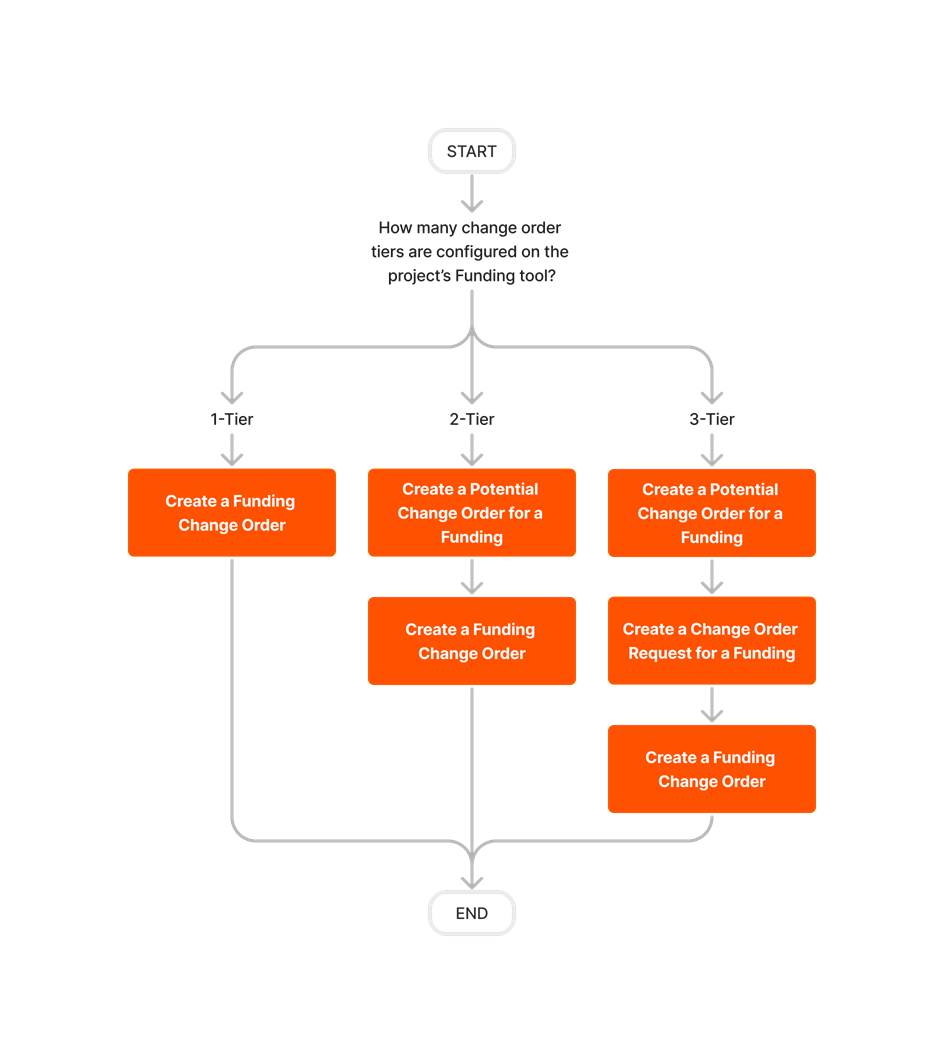
The steps that you use to create a change order depend on the change order tier setting configured on the Procore project tool used to create the original contract. To learn more, see What are the different change order tier settings in Project Financials?

Client Contract Change Order Tiers

diagram_change-orders_client-contract-change-orders.png

Commitment Change Order Tiers

diagram_change-orders_commitment-change-orders.png

diagram_change-orders_commitment-change-orders_de-de.png

diagram_change-orders_commitment-change-orders_en-au.png

diagram_change-orders_commitment-change-orders_en-ca.png

diagram_change-orders_commitment-change-orders_en-gb.png

diagram_change-orders_commitment-change-orders_es-es.png

diagram_change-orders_commitment-change-orders_es-la.png

diagram_change-orders_commitment-change-orders_fr-ca.png

diagram_change-orders_commitment-change-orders_fr-fr.png

diagram_change-orders_commitment-change-orders_pt-br.png

diagram_change-orders_commitment-change-orders_ja-jp.png

diagram_change-orders_commitment-change-orders_zh-sg.png

diagram_change-orders_commitment-change-orders.png

Funding Change Order Tiers
diagram_change-orders_funding-change-orders.png

Prime Contract Change Order Tiers

diagram_change-orders_prime-contract-change-orders.png

diagram_change-orders_prime-contract-change-orders_de-de.png

diagram_change-orders_prime-contract-change-orders_en-au.png

diagram_change-orders_prime-contract-change-orders_en-ca.png

diagram_change-orders_prime-contract-change-orders_en-gb.png

diagram_change-orders_prime-contract-change-orders_es-es.png

diagram_change-orders_prime-contract-change-orders_es-la.png

diagram_change-orders_prime-contract-change-orders_fr-ca.png

diagram_change-orders_prime-contract-change-orders_fr-fr.png

diagram_change-orders_prime-contract-change-orders_ja-jp.png

diagram_change-orders_prime-contract-change-orders_pt-br.png

diagram_change-orders_prime-contract-change-orders_zh-sg.png

diagram_change-orders_prime-contract-change-orders.png

Change Orders

The following table highlights which user permissions are required to perform the described user action.

Task None Read Only Standard Admin
Add a Related Item to a Commitment Change Order     icon-mindtouch-table-check.png icon-mindtouch-table-check.png
Add a Related Item to a Prime Contract Change Order       icon-mindtouch-table-check.png
Approve or Reject Commitment Change Orders 1     icon-mindtouch-table-check.png icon-mindtouch-table-check.png
Configure Advanced Settings: Change Orders       icon-mindtouch-table-check.png
Create a PDF of a Change Order   icon-mindtouch-table-check.png icon-mindtouch-table-check.png icon-mindtouch-table-check.png
Edit a Change Order 2       icon-mindtouch-table-check.png
Email Forward a Change Order     icon-mindtouch-table-check.png icon-mindtouch-table-check.png
Review and Respond to Commitment Change Orders   icon-mindtouch-table-check.png icon-mindtouch-table-check.png icon-mindtouch-table-check.png
View Change Orders 3,4   icon-mindtouch-table-check.png icon-mindtouch-table-check.png icon-mindtouch-table-check.png

1 To perform this task as a user with 'Standard' level permissions on the Change Orders tool, you must be the 'Designated Reviewer' on the change order. See Create a Commitment Change Order.

2 Users with 'Admin' level permissions on the project's Change Orders tool must be granted additional tool permissions: (1) To edit a Commitment Change Order (CCO), 'Admin' level permissions on the project's Commitments tool, and/or (2) to edit a Prime Contract Change Order (PCCO), 'Admin' level permissions on the project's Prime Contracts tool. Additional factors may also apply. For details, see Edit a Change Order.  

Users with 'Read Only' or 'Standard' level permissions on the project's Change Orders tool can view change orders for contracts not marked 'Private.' If a contract is marked 'Private,' users must be added to the 'Private' drop-down list on the contract.

4 Users with 'Admin' level permissions to the project's Change Orders tool can also view change orders for contracts not marked 'Private'. If a contract is marked 'Private', users either be (A) added to the 'Private' drop-down list on the contract or (B) assigned  'Admin' level permissions on the Commitments and/or Prime Contracts tool. 

Admin Tool

The following table highlights which user permissions are required in the project's Admin tool to perform the described user action.

Task None Read Only Standard Admin
Enable the Change Orders Tool       icon-mindtouch-table-check.png


Below are the notable changes to the project's Change Orders tool. 

Recent Changes

Next Gen Experience List View (02/17/2026)

The modernized list view for Change Orders provides a faster, more intuitive interface for managing project changes at scale. This enhancement significantly improves performance and responsiveness, allowing financial teams to navigate and search large volumes of data with ease. By aligning with Procore’s updated UI standards, this enhanced view streamlines workflows and lays the foundation for advanced filtering and reporting, helping users maintain tighter financial control and better track project risk. To enroll in the beta, see Manage Features with Procore Explore.

Claimable Variations (11/10/2025)

Procore is introducing the Claimable Variations feature to all customers. This feature adds a new 'Pending - billable' status for Change Orders. Contractors in all regions can now quickly acknowledge unapproved Change Orders and include these amounts on their invoices. The capability was originally developed to help contractors in ANZ, CAN, and UKI comply with local payment laws. Claimable Variations works with both Commitments and Prime Contracts, but only supports single-tier Change Orders. Using this feature, the system automatically updates invoices to group the items by Change Order status and clearly show all billed variations in the summary.

Signature Required Column Now Available in Change Orders Tool (05/12/2025)

Procore added a 'Signature Required' column to the Change Orders tool. When users link their DocuSign© account to a Procore project, this column works just like it does in the Prime Contracts tab, eliminating the need to search through the Change History tab on a commitment or prime contract determine the change order's signature status. To learn how this column works, see When does the 'Signature Required' column in the Change Orders tool display the signer's name?