Procore

Schedule

Overview

The following views are available for the Project level Schedule tool:

List

  1. Navigate to the project's Schedule tool.
  2. Click the List tab.
    You will see a list of all scheduled tasks, as well as their resource, WBS, start and finish date, and percentage complete. You can also switch between viewing Schedule Tasks and Calendar Items by clicking the toggle at the top of the list. 
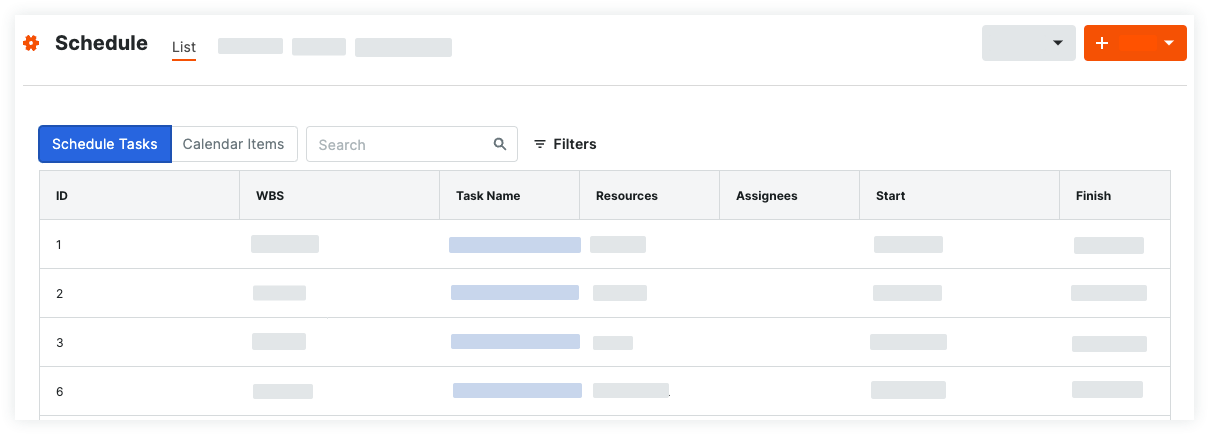
    schedule-list-view.png

Calendar

The Calendar view gives you the options to look at a schedule from a day, week, or month view. 

Day View
  1. Navigate to the project's Schedule tool.
  2. Click the Calendar tab.
  3. Select Day from the Day, Week, Month toggle.
    You will see a list of all tasks scheduled for that day, as well as the resource, the start and finish date and the percentage complete for each task. 
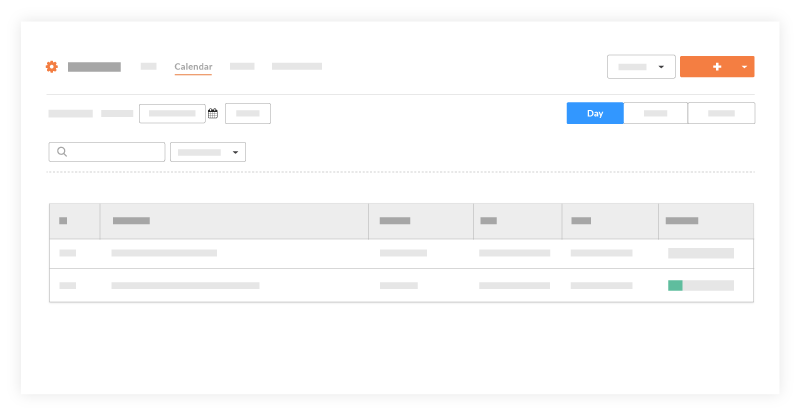
    view-schedule-day.png

Week View
  1. Navigate to the project's Schedule tool.
  2. Click the Calendar tab. 
  3. Select  Week from the Day, Week, Month toggle.
    You will see the week's calendar with all completed tasks, tasks in progress, and critical paths for that week. 
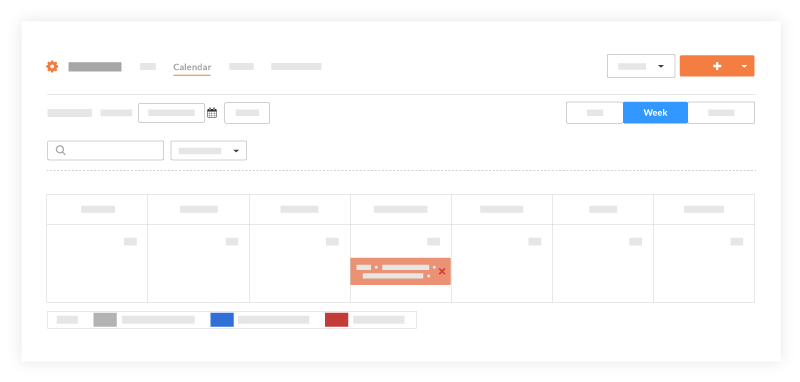
    view-schedule-week.png
Month View
  1. Navigate to the project's Schedule tool.
  2. Click the Calendar tab.
  3. Select Month from the toggle.
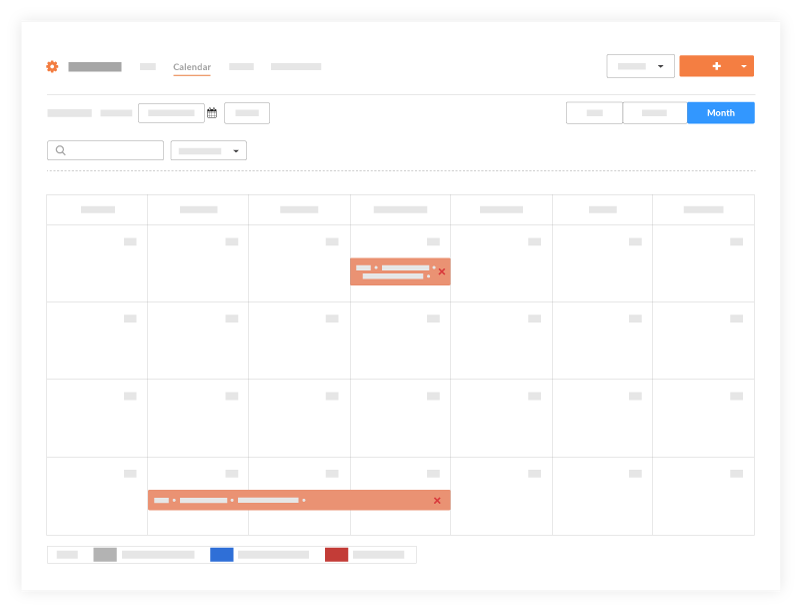
    You will see the month's calendar with all completed tasks, tasks in progress, and critical paths for that month.
    view-schedule-month.png

Gantt View

  1. Navigate to the project's Schedule tool.
  2. Click the Gantt tab. See View a Gantt Schedule.
    You will see a Gantt chart with horizontal bars that illustrate the amount of work done relative to the amount of time given to complete that task. The bars on the chart are based on your schedule logic. See Update a Project Schedule File.
    Note: When Percent (%) Complete is enabled, the color of the bars will have a lower saturation of color to indicate the percentage that is complete.

    The following options are available when viewing a Gantt chart:
  • Configure Columns: Allows you to filter what columns are shown on the Gantt chart. Configured columns can also be sorted numerically or alphabetically depending on the field type.
  • View Toggles: Allows you to filter what you want to show on the Gantt chart (critical paths, % complete, dependencies, etc.)
  • Filter Options: Allows you to filter what you want to see on the Gantt chart. If you only want to see Critical Paths from a certain date range use the filter options to adjust the Gantt. 
  • Zoom Levels: Allows you to zoom in and out of the Gantt chart. 

view-schedule-gantt-chart.png

Lookaheads

  1. Navigate to the project's Schedule tool.
  2. Click the Lookaheads tab.
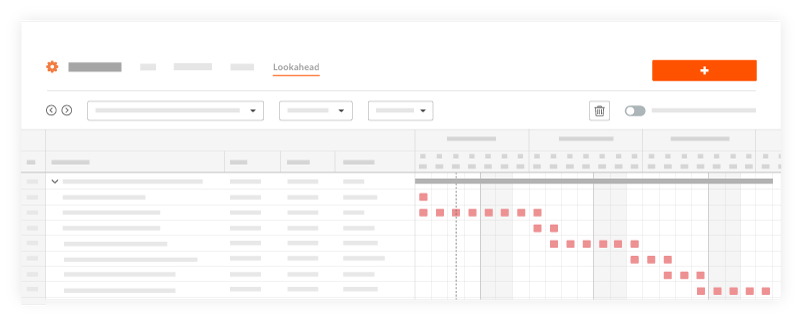
    You will see a lookahead showing the date range you selected. A Lookahead can be created to range from one to six weeks. See View Lookahead Schedules
    The following colors and symbols can be seen on a lookahead:

    clipboard_e21322923cc681d818b6f955f466f5c99.png
    • Blue: Non-Critical
    • Red: Critical 
    • Grey Hatch Pattern: Baselines compare to master schedule
    • Hazard Symbol: Date differs from the master schedule
    • Configure Columns: Allows you to filter what columns are shown on the lookahead.
    • Filter Options: Allows you to filter what you want to see on the Gantt chart. If you only want to see Critical Paths from a certain date range use the filter options to adjust the Lookahead. 
    • Compare to Latest Master: Compares Lookaheads to items on the last master schedule updated in Procore. 
    • Delete lookahead icon-delete-trash.png: Click the trash icon to delete lookaheads you've created. 
view-schedule-lookahead.png

Further Information

 Legacy Content
This page details the legacy schedule experience. A modernized scheduling experience is also available. 

The Schedule tool enables you to keep your team up-to-date by giving them a real-time view of the current project schedule. You can create, edit, and share schedules, along with integrating your Primavera P6 or MS Project schedules.

  • Import existing schedules created in Microsoft Project, Primavera P6, and the MPX file format
  • Create and assign public or private calendar items to Procore users and project contacts
  • Evaluate all of a project's scheduled tasks or narrow the field in view by day, week, month or as a Gantt chart
  • Track, view, and monitor progress by resource group or for individuals

There are no items that match your search query.

Schedule Reports
 Note
See Procore Imports for additional videos related to the Schedule tool.
 Tip

To browse and search all Procore training videos, visit our video library.

Web

Procore Drive
 
View a Schedule
 

Mobile

View a Schedule (Mobile)
 

OUTDATED VIDEOS - Removed from Support Site and Certifications

View a Schedule (Web + Mobile) - Subcontractor as Collaborator
 
Configure Schedule Settings
 
Import Schedule Tasks
 

View the Schedule


Video content may not accurately reflect the current state of the system, and/or it may be out of date.

Procore Drive Schedule


Video content may not accurately reflect the current state of the system, and/or it may be out of date.

Subcontractor - View a Project Schedule (Web/Mobile)


Video content may not accurately reflect the current state of the system, and/or it may be out of date.

Field Worker - View the Schedule (Mobile)


Video content may not accurately reflect the current state of the system, and/or it may be out of date.

Configure Schedule


Video content may not accurately reflect the current state of the system, and/or it may be out of date.

Procore Drive Schedule - Landing Page Video


Video content may not accurately reflect the current state of the system, and/or it may be out of date.

Specialty Contractor as Client - View Schedule


Video content may not accurately reflect the current state of the system, and/or it may be out of date.

Specialty Contractor as Client - Configure Schedule


Video content may not accurately reflect the current state of the system, and/or it may be out of date.

Specialty Contractor as Client - Procore Drive


Video content may not accurately reflect the current state of the system, and/or it may be out of date.

Owner - View the Schedule


Video content may not accurately reflect the current state of the system, and/or it may be out of date.

Superintendent - Schedule


Video content may not accurately reflect the current state of the system, and/or it may be out of date.

Procore Drive
 
View a Schedule
 
Procore Drive
 
View a Schedule
 
Procore Drive
 
View a Schedule
 
Procore Drive
 
View a Schedule
 
Configure Schedule Settings
 
Procore Drive
 
View a Schedule
 

OUTDATED VIDEOS - Removed from Support Site and Certifications

Configure Schedule


Video content may not accurately reflect the current state of the system, and/or it may be out of date.

View the Schedule


Video content may not accurately reflect the current state of the system, and/or it may be out of date.

Procore Drive Schedule


Video content may not accurately reflect the current state of the system, and/or it may be out of date.

Web

Procore Drive
 
View a Schedule
 

OUTDATED VIDEOS - Removed from Support Site and Certifications

 
Procore Drive
 
View a Schedule
 
Procore Drive
 
View a Schedule
 
Procore Drive
 
View a Schedule
 

Web

Procore Drive
 
View a Schedule
 

Mobile

View a Schedule (Mobile)
 

OUTDATED VIDEOS - Removed from Support Site and Certifications

View a Schedule (Web + Mobile) - Subcontractor as Collaborator
 
Configure Schedule Settings
 
Import Schedule Tasks
 

View the Schedule


Video content may not accurately reflect the current state of the system, and/or it may be out of date.

Procore Drive Schedule


Video content may not accurately reflect the current state of the system, and/or it may be out of date.

Subcontractor - View a Project Schedule (Web/Mobile)


Video content may not accurately reflect the current state of the system, and/or it may be out of date.

Field Worker - View the Schedule (Mobile)


Video content may not accurately reflect the current state of the system, and/or it may be out of date.

Configure Schedule


Video content may not accurately reflect the current state of the system, and/or it may be out of date.

Procore Drive Schedule - Landing Page Video


Video content may not accurately reflect the current state of the system, and/or it may be out of date.

Specialty Contractor as Client - View Schedule


Video content may not accurately reflect the current state of the system, and/or it may be out of date.

Specialty Contractor as Client - Configure Schedule


Video content may not accurately reflect the current state of the system, and/or it may be out of date.

Specialty Contractor as Client - Procore Drive


Video content may not accurately reflect the current state of the system, and/or it may be out of date.

Owner - View the Schedule


Video content may not accurately reflect the current state of the system, and/or it may be out of date.

Superintendent - Schedule


Video content may not accurately reflect the current state of the system, and/or it may be out of date.

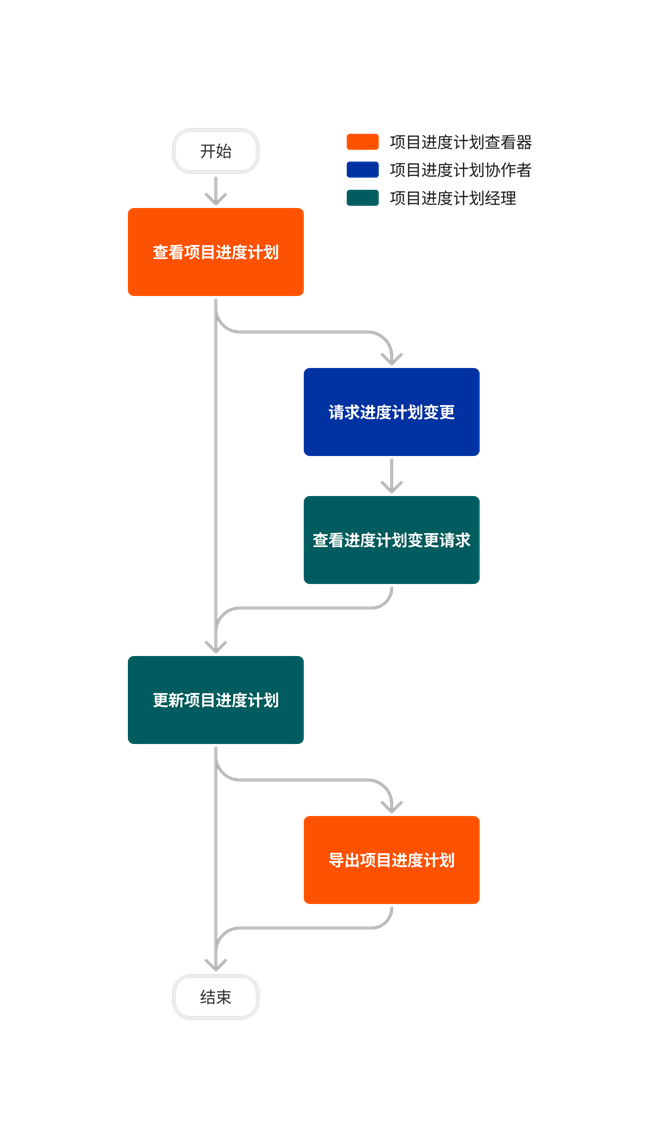
diagram_schedule_project-level_tool-overview.png

diagram_schedule_project-level_tool-overview_de-de.png

diagram_schedule_project-level_tool-overview_en-au.png

diagram_schedule_project-level_tool-overview_en-ca.png

diagram_schedule_project-level_tool-overview_en-gb.png

diagram_schedule_project-level_tool-overview_es-es.png

diagram_schedule_project-level_tool-overview_es-la.png

diagram_schedule_project-level_tool-overview_fr-ca.png

diagram_schedule_project-level_tool-overview_fr-fr.png

diagram_schedule_project-level_tool-overview_ja-jp.png

diagram_schedule_project-level_tool-overview_pt-br.png

diagram_schedule_project-level_tool-overview_zh-sg.png

diagram_schedule_project-level_tool-overview.png

Schedule

Learn which user permissions are required to take the described actions in this tool.

 Important

Some actions that impact this tool are done in other Procore tools. See the User Permissions Matrix for the full list of actions taken in all other tools.

Permissions 

   The action is available on Procore's Web, iOS, and/or Android application. Click to view the article.

icon-mindtouch-table-check.png Users can take the action with this permission level.

icon-mindtouch-table-check.png Users can take this action with this permission level AND one or more additional requirements, like granular permissions.

What granular permissions are available for the Project level Schedule tool?

Action None Read Only Standard Admin Notes

Add Related Items to a Scheduled Task

 Web

      icon-mindtouch-table-check.png  

Configure Advanced Settings: Schedule

 Web

      icon-mindtouch-table-check.png  

Configure Schedule Notification Emails

 Web


icon-mindtouch-table-check.png

Users also need 'Admin' level permission to the project's Directory tool.

Configure the Project Level Schedule Tool for Primavera P6

 Web

      icon-mindtouch-table-check.png  

Clear an Integrated Schedule

 Web

      icon-mindtouch-table-check.png  

Create a Calendar Item

 Web

    icon-mindtouch-table-check.png icon-mindtouch-table-check.png  

Create Lookahead

 Web


icon-mindtouch-table-check.png

  • Create Lookaheads

icon-mindtouch-table-check.png

  • Create Lookaheads
icon-mindtouch-table-check.png  

Create Lookahead Tasks

 Web


icon-mindtouch-table-check.png

  • Create Lookahead Tasks
     

icon-mindtouch-table-check.png

  • Create Lookahead Tasks
icon-mindtouch-table-check.png  

Delete Calendar Item

 Web

      icon-mindtouch-table-check.png  

Delete Lookahead

 Web


icon-mindtouch-table-check.png

  • Delete Lookaheads

icon-mindtouch-table-check.png

  • Delete Lookaheads
icon-mindtouch-table-check.png  

Delete Lookahead Tasks

 Web


icon-mindtouch-table-check.png

  • Delete Lookahead Tasks

icon-mindtouch-table-check.png

  • Delete Lookahead Tasks
icon-mindtouch-table-check.png  

Edit Any Calendar Item

 Web

      icon-mindtouch-table-check.png  

Edit a Calendar Item You Created

 Web

    icon-mindtouch-table-check.png icon-mindtouch-table-check.png  

Edit Lookahead Task

 Web


icon-mindtouch-table-check.png

  • Update Lookahead Tasks

icon-mindtouch-table-check.png

  • Update Lookahead Tasks
icon-mindtouch-table-check.png On a mobile device, this action can be performed offline if the item was previously viewed and cached on your mobile device. Tasks performed offline sync with Procore when a network connection is reestablished.

Export a Project Schedule

 Web

    icon-mindtouch-table-check.png icon-mindtouch-table-check.png  

Request a Schedule Change

 Web

    icon-mindtouch-table-check.png icon-mindtouch-table-check.png  

Search and Filter for Scheduled Tasks

 Web     iOS     Android

  icon-mindtouch-table-check.png icon-mindtouch-table-check.png icon-mindtouch-table-check.png  

Send Recurring Project and Resource Schedules

 Web

      icon-mindtouch-table-check.png  

Update a Project Schedule File

 Web

      icon-mindtouch-table-check.png  

Update Lookahead Tasks

 Web


icon-mindtouch-table-check.png

  • Update Lookahead Tasks

icon-mindtouch-table-check.png

  • Update Lookahead Tasks
icon-mindtouch-table-check.png  

Update Task Completion Percentage

 Web     iOS     Android


icon-mindtouch-table-check.png

  • Update Task Completion Percentage

icon-mindtouch-table-check.png

  • Update Task Completion Percentage
icon-mindtouch-table-check.png  

Upload a Project Schedule File to Procore's Web Application

 Web

      icon-mindtouch-table-check.png  

Upload an Asta Powerproject Schedule

 Web

      icon-mindtouch-table-check.png  

View a Project Schedule

 Web     iOS     Android

  icon-mindtouch-table-check.png icon-mindtouch-table-check.png icon-mindtouch-table-check.png  

View a Scheduled Task

 Web     iOS     Android

  icon-mindtouch-table-check.png icon-mindtouch-table-check.png icon-mindtouch-table-check.png  

View Lookahead

 Web

  icon-mindtouch-table-check.png icon-mindtouch-table-check.png icon-mindtouch-table-check.png  

View the Change History of Lookaheads

 Web


icon-mindtouch-table-check.png

  • View the Change History of a Lookahead

icon-mindtouch-table-check.png

  • View the Change History of a Lookahead
icon-mindtouch-table-check.png  


Below are the notable changes to the Project level Schedule tool. 

Recent Changes

New lookahead schedule Options (01/08/2024)

Procore has updated the project level Schedule tool to now give you the option to create a follow-up lookahead that only pulls tasks from your schedule while ignoring the previous lookahead information. Previously, Procore pulled in tasks and changes from the previous lookahead as well. See Create a Lookahead Schedule.

Project Level schedule settings modernization (12/21/2023)

Procore has made several design changes to the project level Schedule tool settings. Changes include a modernized navigation menu, new tabs that provide a more simplified and consistent experience, and updated user permission settings. See Schedule: Project Level Schedule Settings Modernization for more detail. 

Modernized Calendar View (05/17/2023)

Procore has updated the the Project level Schedule tool with a modernized calendar view, filters, and create and edit experience. Learn more in the Announcement and see, Create a Calendar Item, and Search for and Filter Calendar Tasks.