

Home

Overview
The Project Home page delivers important information about the project to which you have been granted access permission. It is divided into sections that allow you to quickly pinpoint items that have been assigned to you and/or require action.
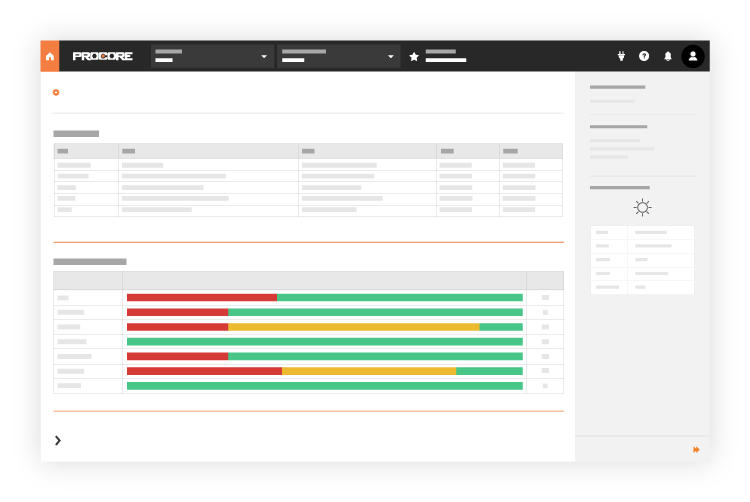
The Home page consists of the following sections, which must be configured by a user with 'Admin' level permission to the Project Directory (see Configure Advanced Settings: Project Home). Some of the features listed below will also require specific Procore tools to be active on the project, as well as additional access permission to Procore tools:
- Project Message
- Project Team
- Project Dates
- Project Overview
- My Open Items
- Recently Changed Items
- Today's Schedule
- Project Milestones
- My Dashboards
- Project Address
- Project Weather
- Project Links
Project Message
A user with 'Admin' level permission to the Project Home page can create and update a persistent project message. This message displays on the Project Home page as shown in the illustration below. To learn more about the message you can create, see Manage the Project Message for the Project Home Page.

Project Team
If a user with 'Admin' level permission to the Project Home page wants to display project roles and contact information for the project's team members, they have the option of adding a list of team members to the Home page. See Manage the Project Team Roles for the Project Home Page.

Project Dates
If your company's Procore Administrator has configured Project Dates for use with Procore, custom dates can be set to appear in the Project Dates section of the Project Home page. For details, see How do I display a list of project dates on the Home page? and Add New Project Dates.

Project Overview
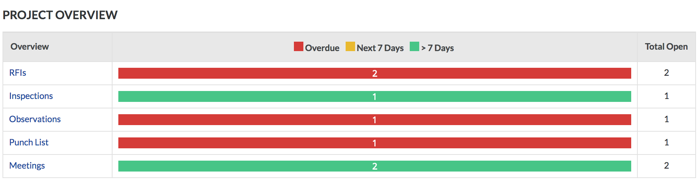
This section reveals a tool-by-tool overview of the open items for each active tool on the project. It shows the total number of open items and includes a bar chart that summarizes which items are overdue, which items are coming due over the next 7 days, and which items are due in more than 7 days. To learn more about your options, see View the Project Overview.
Note: If your Procore user account has been granted the appropriate access permissions, you can also view information about a project by running the Projects Overview Report. See View a Report.
My Open Items
This section lists any open items that have been assigned to you in any active tool on the Procore project. For each item, the table lists your open items by Item Type, Details, Status, and the Due Date (Note: For a due date to appear, the item's creator must assign the item a due date).

Recently Changed Items
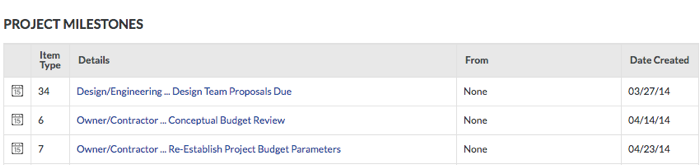
This section lists any items that have recently changed in any active tool on the project. For each item, the table lists the Item Type, Details, From, and Date Created. To view more information about an item from a specific project tool, one of the links in the Details column. Note: Your user account must be granted the appropriate level of permission for the corresponding tool in order to view or gain access to tool-specific details.

Today's Schedule
If the Project level Schedule tool (see Schedule) has been enabled on the project (see Add or Remove Tools on a Project) and your project schedule identifies your tasks, a user with 'Admin' level permission to the Project Home page can turn the display of the 'Today's Schedule' section ON or OFF. See Configure Advanced Settings: Project Home.

Project Milestones
If the Project level Schedule tool (see Schedule) has been enabled on the project (see Add and Remove Project Tools) and tasks on your imported Project schedule have been marked as project milestones, a user with 'Admin' level permission to the Project Home page can turn the display of the 'Project Milestones' section ON or OFF. See Configure Advanced Settings: Project Home.
SUPERUSER ONLY
The following Superuser-only tutorials related to 'Project Milestones' are also available for Procore employees:
My Dashboards
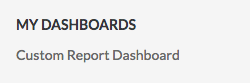
If you have been granted access permission to the Project level Reports tool (see Reports), you can create, edit, and publish report visualizations. For details about the dashboards feature, see Create a Dashboard.
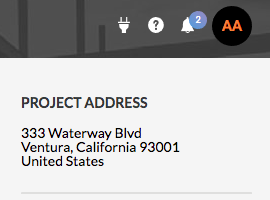
Project Address
This section shows the address for the project. Typically, when a project is created, the project's creator enters the physical address of the job site address. See Add a New Project or Add and Edit General Project Information.
Project Weather
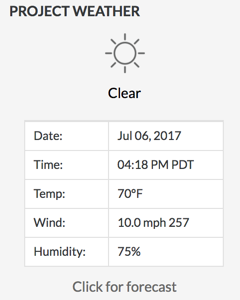
This section shows a weather forecast of current weather conditions at the project's address (see Which weather providers are supported by Procore?). Typically, when a project is first created, the project's creator enters the physical address of the job site address. See Add a New Project or Add and Edit General Project Information. Note: If the Project Weather section is not displaying a forecast as expected, see Why isn't my project weather working?
Project Links
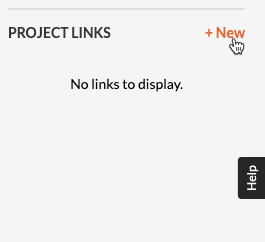
Click +New to add a hyperlink and URL for any website or page related to the project. Then click Save. See Manage Project Links on the Project Home Page.
Further Information
Learn which user permissions are required to take the described actions in this tool.
Important
Some actions that impact this tool are done in other Procore tools. Users can take the action with this permission level.
 Users can take this action with this permission level AND one or more additional requirements, like granular permissions.
Note
Users with 'Admin' permission to the project's Home tool can send announcements from Procore's mobile app on iOS and Android. See Announcements (iOS) and Announcements (Android).|
Action |
None |
Read Only |
Standard |
Admin |
Notes |
|---|---|---|---|---|---|
|
Add a Project Photo to the Home |
|
Users need 'Admin' level permissions to the project's Photos tool. |
|||
|
Add Favorites to the Project Tools Menu |
|
|
|
||
|
Change the Project Address |
|
Users need one of the following permissions to the project's Admin tool:
|
|||
|
Change Your Login ID Email Address for Your Procore User Account |
|
|
|
||
|
Configure Advanced Settings: Project Home |
|
||||
|
Manage Project Dates for the Project Home Page |
|
||||
|
Manage Project Links on the Project Home Page |
|
||||
|
Manage the Project Message for the Project Home Page |
|
||||
|
Manage the Project Message for the Project Home Page |
|
|
|
Users must also have one of the following permissions to the Project Directory tool:
|
|
|
Show or Hide Project Weather on the Project Home Page |
|
||||
|
View the Home Page |
|
|
|
||
|
View My Open Items from the Project Overview in the Project's Home page |
|
|
|
||
|
View Project Weather on the Home Page |
|
|
|
||
|
View Recently Changed Items on a Project |
|
|
|