Procore

Incidents

Overview

  1. Navigate to the project's Incidents tool.
  2. Click the Incidents tab.
  3. Click +Create.
  4. Add the following information, as applicable:
    • In the 'Incident Information' section:
      • Title. Enter a descriptive name to describe the incident.
      • Distribution. Enter the users whom you want to give access to the incident in Procore. 
        Note: Users added to this list will be sent an email notification when the incident is created. To send the incident to team members later, see Email Incidents.
      • Location. Select the location where the incident occurred from the list.
      • Event Date. Select the date the incident occurred.
      • Event Time. Select the time the incident occurred.
        OR
      • Time Unknown. Mark this checkbox if the time the incident occurred is unknown.
      • Recordable. Mark this checkbox if this incident is legally classified as a recordable incident by a regulatory agency or governing body.
      • Private. Mark this checkbox to designate the incident as 'Private'. Private incidents are only visible to their creators, users added to the Distribution list, and users with 'Admin' level permissions on the project's Incidents tool.
      • Description. Enter a detailed description of the incident. 
      • Attachments. Attach any relevant files.
    • In the 'Investigation Information' section: 
      • Hazard. Select the hazard the person affected was involved with (e.g., Caught In).
      • Contributing Condition. Select the condition that contributed to the incident (e.g., Defective Equipment).
      • Contributing Behavior. Select the behavior that contributed to the incident (e.g., Distraction).
  5. Click Create
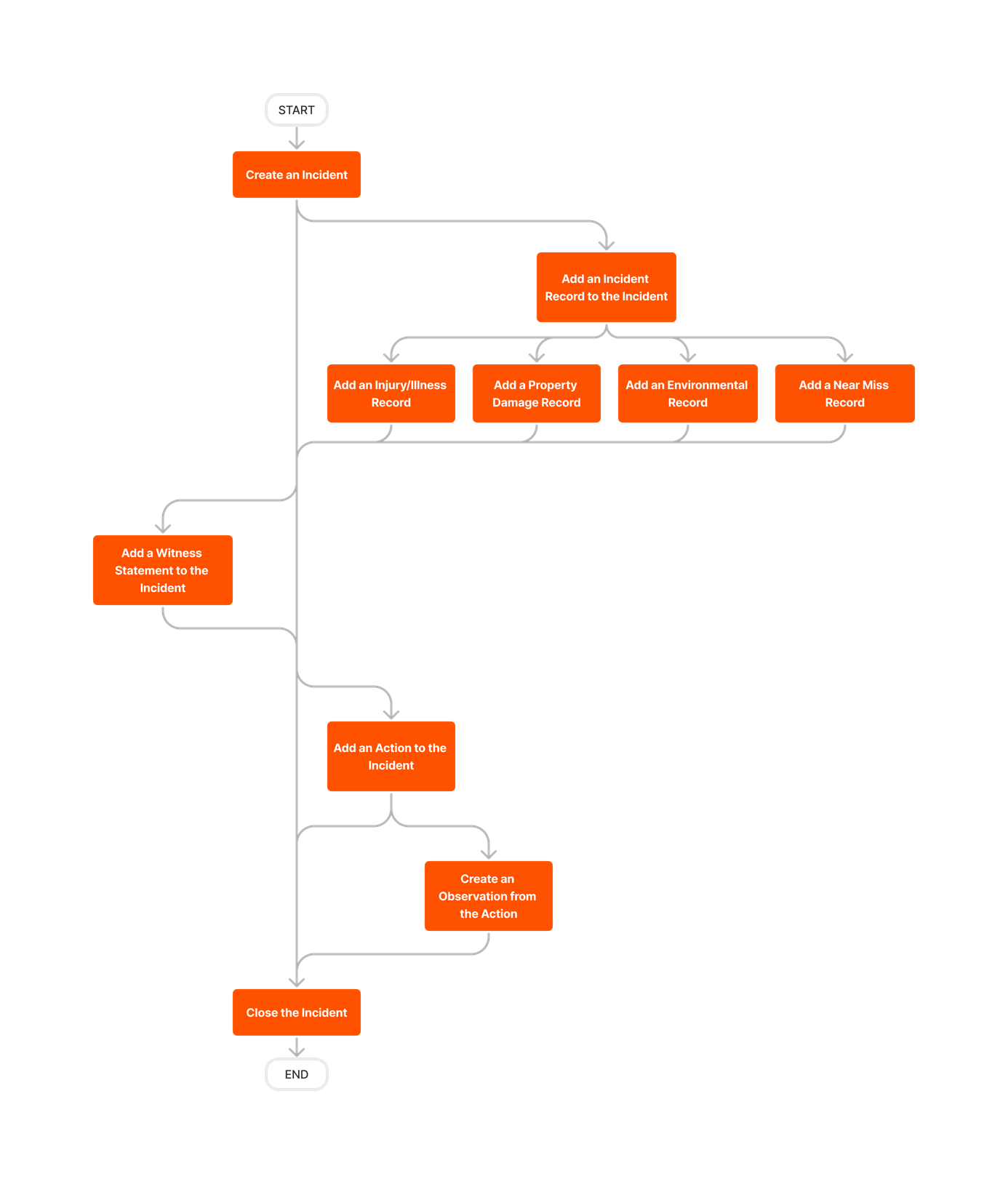
  6. Optional: Add a record, witness statement, or action to the incident after it has been created.
 

Video content may not accurately reflect the current state of the system, and/or it may be out of date.

Further Information

The Incidents tool keeps track of safety-related issues so your team can manage risk, identify trends, and harness valuable data to better understand how to prevent unfortunate incidents in the future.


  • Track hazards, contributing conditions and behavior, person(s) involved, and the paper history associated with each incident throughout the lifecycle of your project
  • Report on trends to identify common hazards and behavior to facilitate the creation of a safer jobsite
  • Capture incident data in real-time and update as more information becomes available
  • Customize severity levels and which team members get alerted

There are no items that match your search query.

 Tip

To browse and search all Procore training videos, visit our video library.

Web

Create an Incident
 
Create an Incidents Report
 

Mobile

Create an Incident (Mobile)
 
Create an Incident (Mobile) - Field Worker
 

OUTDATED VIDEOS - Removed from Support Site and Certifications

Configure Incident Settings
 
Configure Incident Settings - Specialty Contractor
 
Create an Incident (Mobile) - Specialty Contractor
 

Field Worker - Create an Incident (Mobile)


Create Incidents (Mobile)


Specialty Contractor as Client - Configure Incidents


Configure Incidents


Create Incidents


Video content may not accurately reflect the current state of the system, and/or it may be out of date.

Owner - Create an Incident (Mobile)


Video content may not accurately reflect the current state of the system, and/or it may be out of date.

Owner - Configure the Incidents Tool


Video content may not accurately reflect the current state of the system, and/or it may be out of date.

Superintendent - Create an Incident


Video content may not accurately reflect the current state of the system, and/or it may be out of date.

Superintendent - Configure Incident Settings


Video content may not accurately reflect the current state of the system, and/or it may be out of date.

Create an Incident (Mobile)
 
Create an Incident (Mobile) - Field Worker
 

OUTDATED VIDEOS - Removed from Support Site and Certifications

Field Worker - Create an Incident (Mobile)


Video content may not accurately reflect the current state of the system, and/or it may be out of date.

Configure Incident Settings


Video content may not accurately reflect the current state of the system, and/or it may be out of date.

Create an Incident (Mobile)
 
Create an Incident (Mobile) - Field Worker
 

OUTDATED VIDEOS - Removed from Support Site and Certifications

Field Worker - Create an Incident (Mobile)


Video content may not accurately reflect the current state of the system, and/or it may be out of date.

Configure Incident Settings


Video content may not accurately reflect the current state of the system, and/or it may be out of date.

Create an Incident (Mobile)
 
Create an Incident (Mobile) - Field Worker
 

OUTDATED VIDEOS - Removed from Support Site and Certifications

Configure Incident Settings


Video content may not accurately reflect the current state of the system, and/or it may be out of date.

Create an Incident (Mobile)
 
Create an Incident (Mobile) - Field Worker
 

OUTDATED VIDEOS - Removed from Support Site and Certifications

Field Worker - Create an Incident (Mobile)


Video content may not accurately reflect the current state of the system, and/or it may be out of date.

Configure Incident Settings


Video content may not accurately reflect the current state of the system, and/or it may be out of date.

Create an Incident (Mobile)
 
Create an Incident (Mobile) - Field Worker
 

OUTDATED VIDEOS - Removed from Support Site and Certifications

Create Incidents (Mobile)


Video content may not accurately reflect the current state of the system, and/or it may be out of date.

Configure Incidents


Video content may not accurately reflect the current state of the system, and/or it may be out of date.

Field Worker - Create an Incident (Mobile)


Video content may not accurately reflect the current state of the system, and/or it may be out of date.

Create an Incident (Mobile)
 
Create an Incident (Mobile) - Field Worker
 

OUTDATED VIDEOS - Removed from Support Site and Certifications

Create Incidents (Mobile)


Video content may not accurately reflect the current state of the system, and/or it may be out of date.

Configure Incidents


Video content may not accurately reflect the current state of the system, and/or it may be out of date.

Field Worker - Create an Incident (Mobile)


Video content may not accurately reflect the current state of the system, and/or it may be out of date.

Create an Incident (Mobile)
 
Create an Incident (Mobile) - Field Worker
 

OUTDATED VIDEOS - Removed from Support Site and Certifications

Configure Incident Settings


Video content may not accurately reflect the current state of the system, and/or it may be out of date.

Field Worker - Create an Incident (Mobile)


Video content may not accurately reflect the current state of the system, and/or it may be out of date.

Create an Incident (Mobile)
 
Create an Incident (Mobile) - Field Worker
 

OUTDATED VIDEOS - Removed from Support Site and Certifications

Field Worker - Create an Incident (Mobile)


Video content may not accurately reflect the current state of the system, and/or it may be out of date.

Configure Incident Settings


Video content may not accurately reflect the current state of the system, and/or it may be out of date.

Web

Create an Incident
 
Create an Incidents Report
 

Mobile

Create an Incident (Mobile)
 
Create an Incident (Mobile) - Field Worker
 

OUTDATED VIDEOS - Removed from Support Site and Certifications

Configure Incident Settings
 
Configure Incident Settings - Specialty Contractor
 
Create an Incident (Mobile) - Specialty Contractor
 

Field Worker - Create an Incident (Mobile)


Create Incidents (Mobile)


Specialty Contractor as Client - Configure Incidents


Configure Incidents


Create Incidents


Video content may not accurately reflect the current state of the system, and/or it may be out of date.

Owner - Create an Incident (Mobile)


Video content may not accurately reflect the current state of the system, and/or it may be out of date.

Owner - Configure the Incidents Tool


Video content may not accurately reflect the current state of the system, and/or it may be out of date.

Superintendent - Create an Incident


Video content may not accurately reflect the current state of the system, and/or it may be out of date.

Superintendent - Configure Incident Settings


Video content may not accurately reflect the current state of the system, and/or it may be out of date.


diagram_incidents_tool-overview.png

diagram_incidents_tool-overview_de-de.png

diagram_incidents_tool-overview_en-au.png

diagram_incidents_tool-overview_en-ca.png

diagram_incidents_tool-overview_en-gb.png

diagram_incidents_tool-overview_es-es.png

diagram_incidents_tool-overview_es-la.png

diagram_incidents_tool-overview_fr-ca.png

diagram_incidents_tool-overview_fr-fr.png

diagram_incidents_tool-overview_ja-jp.png

diagram_incidents_tool-overview_pt-br.png

diagram_incidents_tool-overview_zh-sg.png

diagram_incidents_tool-overview.png

Learn which user permissions are required to take the described actions in this tool.

 Important
Some actions that impact this tool are done in other Procore tools.

Permissions

| |
The action is available on Procore's Web, iOS, and/or Android application.

Icon Mindtouch Table Check Users can take the action with this permission level.

Icon Mindtouch Table Check Gp Users can take this action with this permission level AND one or more additional requirements, like granular permissions.

Incidents Tutorials
Task

None

Read Only

Standard

Admin


Add Assignees to an Incident
Web| iOS| Android


Icon Mindtouch Table Check Gp

  • Can Assign Standard Users to Incidents

Icon Mindtouch Table Check

Admin users can assign 'Standard' and 'Admin' users to Incidents.

Add a Contact to an Incident
Web| iOS| Android


Icon Mindtouch Table Check Gp

Icon Mindtouch Table Check Gp

User also need 'Read Only' level permissions or higher to the project's Directory tool with the 'Create Contacts' granular permission.

Add a Record to an Incident
Web| iOS| Android


Icon Mindtouch Table Check

Icon Mindtouch Table Check


Add a Related Item to an Incident
Web


Icon Mindtouch Table Check


Add a Witness Statement to an Incident You Created
Web| iOS| Android


Icon Mindtouch Table Check

Icon Mindtouch Table Check


Add an Action to an Incident You Created
Web| iOS| Android


Icon Mindtouch Table Check

Icon Mindtouch Table Check


Add an Action to Any Incident
Web| iOS| Android


Icon Mindtouch Table Check


Add an Environmental Record to an Incident You Created
Web| iOS| Android


Icon Mindtouch Table Check

Icon Mindtouch Table Check


Add an Environmental Record to Any Incident You Created
Web| iOS| Android


Icon Mindtouch Table Check


Add an Injury/Illness Record to an Incident You Created
Web| iOS| Android


Icon Mindtouch Table Check

Icon Mindtouch Table Check


Add an Injury/Illness Record to Any Incident
Web| iOS| Android


Icon Mindtouch Table Check


Add a Near Miss Record to an Incident You Created
Web| iOS| Android


Icon Mindtouch Table Check

Icon Mindtouch Table Check


Add a Near Miss Record to Any Incident
Web| iOS| Android


Icon Mindtouch Table Check


Add a Property Damage Record to an Incident You Created
Web| iOS| Android


Icon Mindtouch Table Check

Icon Mindtouch Table Check


Add a Property Damage Record to Any Incident
Web| iOS| Android


Icon Mindtouch Table Check


Close an Incident You Created
Web| iOS| Android


Icon Mindtouch Table Check

Icon Mindtouch Table Check


Close Any Incident
Web| iOS| Android


Icon Mindtouch Table Check


Configure Advanced Settings: Incidents
Web


Icon Mindtouch Table Check


Configure a Custom Workflow Template for Incidents on a Project
Web


Icon Mindtouch Table Check Gp

  • Configure Advanced Settings: Incidents (Project Level)

  • Configure Company Created Workflow Templates

Icon Mindtouch Table Check Gp

  • Configure Advanced Settings: Incidents (Project Level)

  • Configure Company Created Workflow Templates

Icon Mindtouch Table Check


Create a Custom Workflow Template for Incidents
Web


Icon Mindtouch Table Check Gp

  • To view, create, or edit a custom workflow at the company level, users need 'Admin' level permissions on the Company level Workflows tool.
    OR

  • 'Read Only' or 'Standard' level permissions on the Company level Workflows tool with the 'View Custom Workflows' and 'Create and Edit Workflow Templates' granular permission enabled on your permissions template.

Create a New Location for an Incident
Web| iOS| Android


Icon Mindtouch Table Check Gp

Icon Mindtouch Table Check Gp

The 'Only allow locations to be created in the Location Manager' setting must be disabled in the Locations settings of the project's Admin tool.

Create an Incident
Web| iOS| Android


Icon Mindtouch Table Check

Icon Mindtouch Table Check


Create Conditional Custom Fields
Web


Icon Mindtouch Table Check Gp

Users must also have 'Admin' permissions to the Company level Admin tool.

Create Project-Only Equipment
Web


Icon Mindtouch Table Check Gp

Icon Mindtouch Table Check Gp

Users must also have one of the following permissions to the project's Equipment tool:

  • 'Read Only' with the 'Create Project-Only Equipment' granular permission.

  • 'Standard' or 'Admin'

Delete an Incident
Web


Icon Mindtouch Table Check


Delete an Incident Record
Web


Icon Mindtouch Table Check


Edit a Near Miss Record You Created
Web| iOS| Android


Icon Mindtouch Table Check

Icon Mindtouch Table Check


Edit Any Near Miss Record
Web| iOS| Android


Icon Mindtouch Table Check


Edit an Incident You Created
Web| iOS| Android


Icon Mindtouch Table Check

Icon Mindtouch Table Check


Edit Any Incident
Web| iOS| Android


Icon Mindtouch Table Check


Edit an Injury/Illness Record You Created
Web| iOS| Android


Icon Mindtouch Table Check

Icon Mindtouch Table Check


Edit Any Injury/Illness Record
Web| iOS| Android


Icon Mindtouch Table Check


Email Incidents You Created
Web


Icon Mindtouch Table Check

Icon Mindtouch Table Check


Email Any Incidents
Web


Icon Mindtouch Table Check


Export Incidents as a PDF or CSV
Web


Icon Mindtouch Table Check

Icon Mindtouch Table Check

Icon Mindtouch Table Check


Search and Filter Incidents
Web| iOS| Android


Icon Mindtouch Table Check

Icon Mindtouch Table Check

Icon Mindtouch Table Check


Retrieve an Incident From the Recycle Bin
Web


Icon Mindtouch Table Check


View an Incident (Not Private)
Web| iOS| Android


Icon Mindtouch Table Check

Icon Mindtouch Table Check

Icon Mindtouch Table Check


View an Incident (Private)
Web| iOS| Android


Icon Mindtouch Table Check Gp

Icon Mindtouch Table Check Gp

Icon Mindtouch Table Check

'Read Only' and 'Standard' level users must also be the Incident's CreatorAssigneeAlert Recipient, or a member of the Distribution List.

View Project Incident Insights


Icon Mindtouch Table Check Gp

  • View Project Incident Insights

Icon Mindtouch Table Check Gp

  • View Project Incident Insights

Icon Mindtouch Table Check


Below are the notable changes to the project's Incidents tool. 

Recent Changes

conditional custom fields for incidents (07/21/2026)

Procore introduced conditional custom fields for the General Information section within the incident form, streamlining the incident creation process by displaying only relevant fields to users. Conditional custom fields reduce form completion time and improve data quality by eliminating unnecessary steps and minimizing data entry errors.

CREATE INCIDENTS WITH EQUIPMENT (11/19/2025)

When adding records to incidents, the 'Equipment' field now pulls in equipment records from the Project level Equipment tool. See Create an Incident.

unified observation type selection in incidents (09/23/2025)

Procore has streamlined the process of creating Observations from Incidents by aligning the category/type dropdown in the Incidents tool with the Observations tool. This enhancement ensures a consistent and seamless experience for users, allowing them to easily search for and select the desired Observation category.

modernized incidents Experience (07/15/2025)

The Incidents tool now has a modernized, more intuitive layout and design. There are no changes to functionality. See Incidents to learn more about this tool.