

Edit a Timecard Entry in the Company Level Timesheets Tool
Things to Consider
-
When you edit a signed timesheet, the employee must sign it again.
-
Zero hour entries are supported to enter time off and per diem.
-
To edit an 'Approved' timecard entry, first change its status to 'Pending' or 'Reviewed'.
-
Timecard entries can only be marked as 'Completed' in the Company level Timesheets tool.
-
After a timecard entry has been marked as completed, edits are no longer permitted.
Steps
-
Edit a Single Timecard Entry
-
Bulk Edit Timecard Entries
Edit a Single Timecard Entry
-
Navigate to the company's Timesheets tool.
-
Edit from Details or Summary tab.
-
Click the Details tab
-
Locate the timecard entry to edit.
-
Click the field you want to to update.
-
Updates automatically save.
-
-
Click the Weekly Summary tab.
In Beta
Company Administrators can enable the Company-Level Time Entry beta in Procore Explore. (US 2 | UK)-
Click the caret
 to expand the resource whose timecard you want to edit.
 -
Hover over the resource's summary and click the edit
 icon.
icon. -
Click the edit
icon for the timecard entry.Tip

You can also click the Summary toggle, and click the field you want to edit.
-
-
Click Submit.
-
Click Done.
-
-
Bulk Edit Timecard Entries
-
Navigate to the company's Timesheets tool.
-
Select the time period by clicking the arrows next to the Work Week label.
-
From the Details tab, mark the checkbox next to time entries from the same project.
-
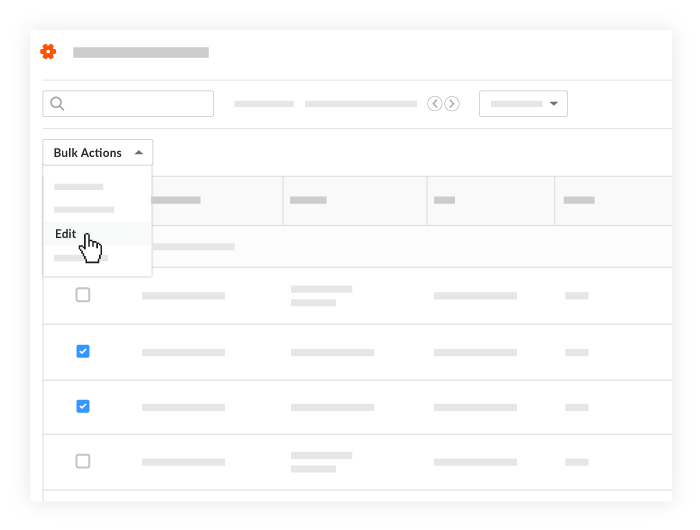
Click Bulk Actions and choose the Edit option.
-
Start Time. Select the desired start time for the shift.
-
Stop Time. Select the desired stop time for the shift.
-
Total Time. Enter the total time your company's Timesheets tool is configured for entry of hours worked.
-
Time Type. Select the time type.
-
-
Click Apply Changes.
-
Click Save Changes.