Procore

Multi-Factor Authentication (MFA)

Welcome

Multi-Factor Authentication (MFA)—also referred to as Two-Factor Authentication (2FA)—adds a critical layer of security to your Procore account. By requiring two distinct forms of identification at login, Procore's MFA solution is designed to protect your sensitive financial and construction data—even if your login credentials are compromised.

Key Features

  • Two-Step Verification: Adds an extra layer of security by requiring two things to log in: Your password (something you know) and a unique code sent to your mobile device (something you have).
  • Mandatory for Procore Pay: Provides additional security measures for users handling sensitive payment data. For details, see Why is MFA mandatory for Procore Pay and how does it work?
  • Company-Wide Security for Standard Procore Users: Procore Administrators can enhance the security their entire Procore organization at once. Because Procore’s MFA applies company-wide, it cannot be limited to specific projects or users.
 

Overview

Procore’s Multi-Factor Authentication (MFA) solutions provide an additional layer of security for your construction and financial data. By requiring a second form of verification when logging into a Procore product, MFA is designed to help mitigate the risk of unauthorized access in the event a user's login credentials become compromised.

Depending on your product, region, and role, Procore offers two distinct MFA solutions:

Procore MFA

 Procore MFA: Regional availability for SMS Verification

Procore supports Authenticator apps everywhere. SMS Verfication is only available in these countries Show/Hide Details  

SMS Verification is available in these countries.

  • Note: SMS Verification for Procore Pay (Payees) is limited to the United States.

  • US
  • Canada
  • Mexico
  • UK
  • Ireland
  • France
  • Germany
  • Spain
  • Italy
  • Australia
  • New Zealand
  • Singapore
  • Hong Kong


Procore MFA is only enabled at the discretion of your company’s Procore Administrator. Once your administrator enables MFA and establishes an enforcement deadline, you will be prompted to set up and use a secondary verification method during the log in process.

Procore Pay MFA

 Regional Availability

flag-us.png Procore Pay icon-external-link.png  is available in the United States. It is designed for General Contractors and Owner-Builders who act as their own General Contractors on a job. Procore Pay extends the Invoice Management icon-external-link.png functionality in the Procore web application to handle the payment process between general and specialty contractors.

Due to the sensitive nature of financial transactions and banking information, MFA is strictly required for all Procore Pay users. Access to Procore Pay features is contingent upon maintaining an active and secure secondary verification method for log in to the Payments tool and before performing sensitive transactions.

This guide outlines the verification methods available—including Authenticator Apps and SMS Verification—and provides step-by-step instructions based on whether your company uses Standard Procore or Procore Pay.


Verification Methods

 Procore MFA: Regional availability for SMS Verification

Procore supports Authenticator apps everywhere. SMS Verfication is only available in these countries Show/Hide Details  

SMS Verification is available in these countries.

  • Note: SMS Verification for Procore Pay (Payees) is limited to the United States.

  • US
  • Canada
  • Mexico
  • UK
  • Ireland
  • France
  • Germany
  • Spain
  • Italy
  • Australia
  • New Zealand
  • Singapore
  • Hong Kong


Help protect your company's data with Procore MFA by requiring users to select one of two verification methods at login. These methods add a security layer beyond passwords to help prevent unauthorized account access.

Method

Available For...

Best For...

How it works...

Key Benefits

Authenticator App

Standard Procore Users

Procore Pay (Payors and Payee Admins)

Users in remote areas, international travelers, or those handling sensitive financial and project data.

A mobile app (like Google Authenticator or Okta) generates a 6-digit code every 30 seconds that you enter to login.

Time-Based Verification: Uses a Time-Based One Time Password (TOTP) to generate a unique 6-digit code that rotates every 30 seconds using your device's internal clock for synchronization.

Superior Protection: Uses an encrypted secret key to help to eliminate potential risks like SIM-swapping or intercepted SMS.

SMS Verification

Standard Procore Users

Procore Pay (Payee Admins)

Users who want a quick, familiar setup without installing additional mobile device software.

Procore sends a unique one-time code to your registered mobile number via SMS text message during login.

Simplicity: No additional app download required.

Familiarity: Functions exactly like standard online banking or retail verification steps.

Things to Consider

 Procore MFA: Regional availability for SMS Verification

Procore supports Authenticator apps everywhere. SMS Verfication is only available in these countries Show/Hide Details  

SMS Verification is available in these countries.

  • Note: SMS Verification for Procore Pay (Payees) is limited to the United States.

  • US
  • Canada
  • Mexico
  • UK
  • Ireland
  • France
  • Germany
  • Spain
  • Italy
  • Australia
  • New Zealand
  • Singapore
  • Hong Kong


Before you begin, have your valid login credentials ready and review your company's specific security requirements for your environment. If your company is using Procore MFA, use the considerations below to manage your enrollment or troubleshoot access.

Need Help Logging In?

If you cannot find your Procore email or password:

  • Check your email: Search your inbox for your invitation to Procore or Procore Pay.
  • Contact your Admin: Reach out to your Company Administrator for login help.

MFA Requirements

Locked Out? (MFA Resets)

If you are locked out, contact the correct team for your account type:

  • Procore Pay Users: Contact Procore Pay: Support directly.
  • Standard Procore Users: Contact your Company Administrator who will verify your identity and perform your reset. See Reset MFA for a Procore User.
  • Single Sign On (SSO) Users: Contact your Internal IT Department. Procore cannot access your company's Identity Provider (IdP) to perform resets.


Enable MFA for Your Company

As your company's Procore Administrator, your first step is to enable MFA for your entire company and choose an enforcement deadline. This is the mandatory enrollment date for your end users. Once MFA is active in your environment, it is your responsibility to manage resets for users who lose device access. See Reset MFA for a User.

 Best Practice: 30-Day Transition Window
Give users 30 days between your announcement and the enforcement deadline. This window lets them set up MFA on their own schedule instead of being forced to do it on a busy day. Share this guide to help them with their first-time setup and subsequent login.

Things to Consider

  • Required User Permissions: 'Admin' level permissions on both the Company Admin and Directory tools.
  • Verification Methods: Users must set up at least one two-factor method (Authenticator App or SMS).
  • Unique Verification Codes: Authenticator codes refresh every 30 seconds. SMS codes expire after 10 minutes.
     Important

    Keep your verification code private. Procore generates a unique code just for you. Never share it with anyone. Procore employees will never ask for it.

  • Limitations for SSO Users:
    • For users on domains targeted for Single Sign-On (SSO), MFA must be configured through your Identity Provider (IdP) (e.g., Azure AD, Okta, Google, etc.).
    • Procore's password reset features do not apply. See Who is responsible for resetting MFA?

Prerequisites

  • Review your Company Directory and mark any stale or terminated users as Inactive. This ensures that the MFA enrollment process is only required for active users and helps prevent unnecessary support overhead. To learn more, see Deactivate User Accounts in the Company Directory.

Steps

  1. Navigate to the Company level Admin tool.
  2. Under Company Settings, click Security Settings.
  3. Click the Multi-Factor Authentication (MFA) tab.
  4. Switch the Require MFA toggle to ON.
  5. Set an MFA Enforcement Deadline. After this date, all users must log in using MFA, according to the Administrator's time zone.
    Example
    If an Administrator in New York (EST) sets the deadline for Friday, enforcement begins for everyone—including international users—immediately after Midnight on Friday morning in New York
  6. Click Save Changes.

     Tip
    Saving these settings doesn't force users to use MFA right away. Instead, enforcement starts on the deadline you choose. You can update this date anytime by saving a new configuration. Users can pre-enroll in MFA before the deadline. For details, see How can I set up MFA before the enforcement deadline?


Reset MFA for a User

 Procore MFA: Regional availability for SMS Verification

Procore supports Authenticator apps everywhere. SMS Verfication is only available in these countries Show/Hide Details  

SMS Verification is available in these countries.

  • Note: SMS Verification for Procore Pay (Payees) is limited to the United States.

  • US
  • Canada
  • Mexico
  • UK
  • Ireland
  • France
  • Germany
  • Spain
  • Italy
  • Australia
  • New Zealand
  • Singapore
  • Hong Kong


If a user loses their MFA device or gets locked out, your company's Procore Administrator may be responsible for resetting your MFA settings. Procore Administrators can reset MFA for any user in their Company Directory, provided the company enforces Procore MFA Company Settings. Once reset, the user must re-enroll in MFA to log back into Procore.

 Important: MFA Reset Eligibility Checklist

Verify a user’s identity before resetting their multi-factor authentication (MFA). You can only perform a reset if the user is in your Company Directory and your company enforces Procore MFA Company Settings.

Important Exceptions:

  • Procore Pay: These users must contact Procore Pay: Support for resets.
  • Single Sign-On (SSO): If your company uses SSO, your IT department manages MFA via your company's Identity Provider (IdP). Procore cannot reset these accounts.

Things to Consider

  • Required User Permissions: 'Admin' level permissions on both the Company Admin and Directory tools.
  • Self-Service MFA Resets: For security purposes, an Administrator cannot reset their own MFA. If you lose access to your authentication device, you must contact another user with Company Admin permissions to perform the reset for you.
  • SSO & Third-Party Logins:
    • If your users log in via a company SSO page (e.g., Azure AD, Okta, Google, etc.), MFA cannot be reset in Procore.
      • External MFA: If the code is requested on an SSO page, contact your IT Department.
      • Procore MFA: If the code is requested on a Procore-branded screen after the SSO login, a Procore Administrator can likely perform the reset.

Steps

  1. Navigate to the Company level Admin tool.
  2. Select Security Settings.
  3. Select the Multi-Factor Authentication (MFA) tab.
  4. Under Reset MFA for Users, click Reset MFA.
  5. Enter the Procore email address exactly as it is listed in the Company Directory.
  6. Mark the I have verified the user's request to reset MFA checkbox to confirm that you have verified the user's identity.
  7. Click Reset MFA.
    MFA is now reset for that user. The user must re-enroll in MFA to log in to Procore.

Early Enrollment in MFA

 Procore MFA: Regional availability for SMS Verification

Procore supports Authenticator apps everywhere. SMS Verfication is only available in these countries Show/Hide Details  

SMS Verification is available in these countries.

  • Note: SMS Verification for Procore Pay (Payees) is limited to the United States.

  • US
  • Canada
  • Mexico
  • UK
  • Ireland
  • France
  • Germany
  • Spain
  • Italy
  • Australia
  • New Zealand
  • Singapore
  • Hong Kong


 Strengthen Your Security: Procore MFA

Multi-Factor Authentication (MFA)—also referred to as Two-Factor Authentication (2FA)—is being rolled out to limited Procore commercial accounts. While MFA is mandatory for Procore Pay users, MFA is available on a limited basis to commercial accounts to provide our clients an extra layer of security. To enable MFA for your organization, ask your Procore Administrator to contact your Procore point of contact.

To provide an additional layer of protection for your company’s Procore project data, your Procore Administrator can enable Multi-Factor Authentication (MFA) and set a mandatory enforcement deadline. This creates an early enrollment period—a flexible window of time that allows you to set up your security method at your own pace before it becomes a requirement. To avoid potential access delays once your company's enforcement deadline hits, you can enroll in MFA early.

Once enrolled in MFA, the login process requires a combination of:

  • Something You Know: Your standard Procore Email and Password.
  • Something You Have: A unique code generated by an Authenticator app or sent by SMS text message (standard carrier messaging and data rates may apply) to your registered mobile device.
 Important

Keep your verification code private. Procore generates a unique code just for you. Never share it with anyone. Procore employees will never ask for it.

Prerequisites

  • You must be in your company's early enrollment period (MFA is enabled and your company's enforcement deadline is in the future).
  • Pick a Verification Method before you enroll. If you choose an Authenticator app, first install a third-party TOTP Authenticator app (like Google or Microsoft Authenticator) on your mobile device. Procore MFA is compatible with most standard TOTP Authenticator apps. Contact your Procore Administrator or refer to your preferred software vendor for installation instructions.

Steps

Enroll in MFA Before the Enforcement Deadline

To enroll in MFA early, use these steps to set up your preferred verification method for the first time.

  1. Go to the Procore web application at: https://login.procore.com .
  2. Go to your Account & Profile avatar and click My Profile Settings.
  3. Click the Password & Security tab.
  4. Under Two-Factor Authentication (2FA), choose your preferred verification method:
    • To enroll in MFA with an Authenticator AppShow/Hide      
      • Follow these steps to enroll in MFA with an Authenticator app:
        • Click Add Authenticator App.

        • Enter your account's current password.

        • Open the Authenticator app on your mobile device.

        • Use the Authenticator app's camera to scan the QR code on the Secure your Account page.

        • Enter the 6-digit code from your authenticator app and click Continue.

    • To enroll in MFA with SMS verificationShow/Hide      
      • Follow these steps to enroll in MFA with SMS verification:

        • Click Add Phone Number.

        • Enter your account's current password.

        • Complete the Select Your Country Code and Enter Your Phone Number fields.

        • Click Send Text Message

        • Enter the 6-digit code sent to your phone and click Continue

  1. Copy or download your new recovery code and secure it in a safe place.
 Warning

Be sure to save your recovery code in a location that is securely accessible from another device. If your MFA device is lost or damaged, you will need your recovery code to set up MFA on a new device. Each recovery code can be used only once. After a recovery code is used, you will have the option to save a new recovery code.

Enroll in MFA with an Authenticator App

 Procore MFA: Regional availability for SMS Verification

Procore supports Authenticator apps everywhere. SMS Verfication is only available in these countries Show/Hide Details  

SMS Verification is available in these countries.

  • Note: SMS Verification for Procore Pay (Payees) is limited to the United States.

  • US
  • Canada
  • Mexico
  • UK
  • Ireland
  • France
  • Germany
  • Spain
  • Italy
  • Australia
  • New Zealand
  • Singapore
  • Hong Kong


 Strengthen Your Security: Procore MFA

Multi-Factor Authentication (MFA)—also referred to as Two-Factor Authentication (2FA)—is being rolled out to limited Procore commercial accounts. While MFA is mandatory for Procore Pay users, MFA is available on a limited basis to commercial accounts to provide our clients an extra layer of security. To enable MFA for your organization, ask your Procore Administrator to contact your Procore point of contact.

With an Authenticator app, the login process requires a combination of:

  1. Something You Know: Your standard Procore Email and Password.
  2. Something You Have: A unique code generated by an Authenticator app on your mobile device.
 Important

Keep your verification code private. Procore generates a unique code just for you. Never share it with anyone. Procore employees will never ask for it

Install an Authenticator App

If you choose an Authenticator app, first install a third-party TOTP Authenticator app (like Google or Microsoft Authenticator) on your mobile device. Procore MFA is compatible with most standard TOTP Authenticator apps. Contact your Procore Administrator or refer to your preferred software vendor for installation instructions.

Secure Your Account with the Authenticator App

First-Time Enrollment

To set up your mobile device for Procore MFA with an Authenticator app, complete these steps:

  1. Go to the Procore web application at: https://login.procore.com.
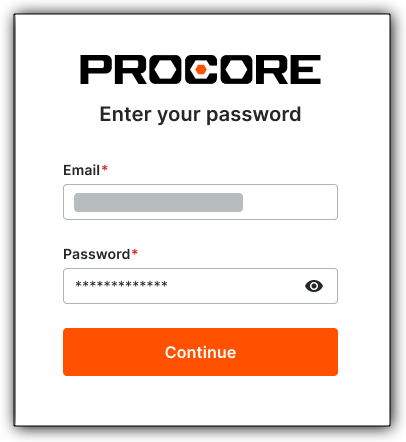
  2. Enter your Procore Email and Password. Then click Continue.
    Login Enter Your Email
     SSO Users: If Applicable

    If your company uses Single Sign-On (SSO), sign in through your Identity Provider's login prompts. Follow the on-screen instructions to finish. For help with sign in or to reset a password, see Who is responsible for resetting MFA for a user. To learn more, see What is Single Sign-On (SSO)?


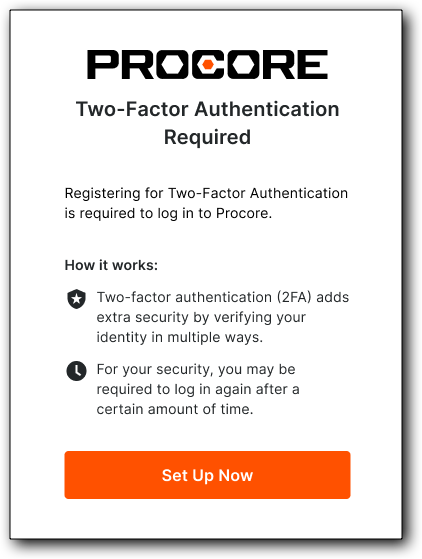
  3. At the Two-Factor Authentication Required page, click Set Up Now.

    The Set Up Now button in the Two-Factor Authentication Required page lets you register for 2FA which is required to log in to Procore.
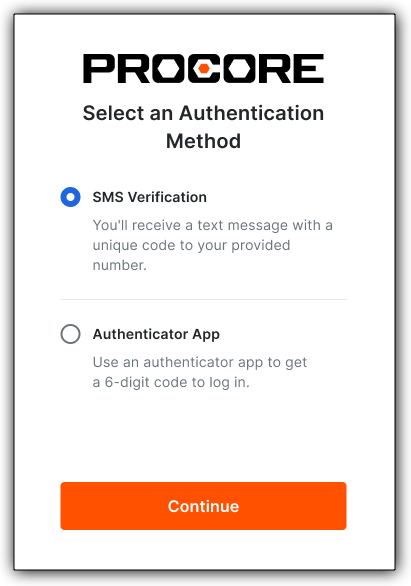
  4. At the Select an Authentication Method page, choose Authenticator App, and click Continue.

    The Authenticator App option in the Select an Authentication Method page lets you use an authenticator app to get a 6-digit code to log in.
  5. At the Secure your Account page, open the Authenticator app on your mobile device.

  6. Use the Authenticator app's camera to scan the QR code on the Secure your Account page.

     Tips
    • Why isn't my phone's camera scanning the QR code? The QR code must be scanned from within the Authenticator app, not with your phone's camera. Open the Authenticator app and use its built-in scanner to capture the code.
    • Setting up MFA on your phone without a computer? Since you can't scan a QR code on the same screen, you must enter the code manually. Tap Trouble Scanning and enter the provided code into your authenticator app.
  7. Enter the 6-digit code from your Authenticator app. Then click Continue.
    Use the Authenticator app's camera to scan the QR code on the Procore page. Then enter the 6-digit code from the Authenticator app in the box on the Set Up Your Authenticator App page before clicking the Continue button.

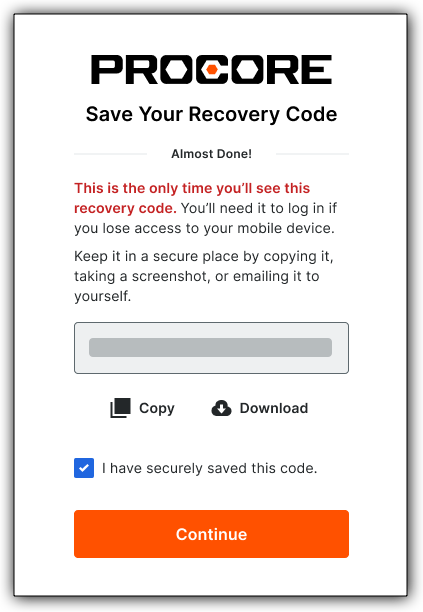
  8. At the Save Your Recovery Code page, copy or download your recovery code and secure it in a safe place.

     Warning

    Be sure to save your recovery code in a location that is securely accessible from another device. If your MFA device is lost or damaged, you will need your recovery code to set up MFA on a new device. Each recovery code can be used only once. After a recovery code is used, you will have the option to save a new recovery code.

    Click the Copy or Download button to save your one-time recovery code for Procore MFA with an Authenticator app. Mark the I Have Securely Saved this Code box before clicking the Continue button..
  9. Mark the I Have Securely Saved This Code check box.

  10. Click Continue to log in to Procore with an Authenticator app for the first time.

 Tip
Ready to log in? To log in next time, locate your account type in the left navigation menu of this guide (e.g., Standard Procore or Procore Pay), then follow the instructions in the 'Log In' tutorial for your role (e.g., Admin, User, Payor, or Payee Admin).


Enroll in MFA with SMS Verification

 Procore MFA: Regional availability for SMS Verification

Procore supports Authenticator apps everywhere. SMS Verfication is only available in these countries Show/Hide Details  

SMS Verification is available in these countries.

  • Note: SMS Verification for Procore Pay (Payees) is limited to the United States.

  • US
  • Canada
  • Mexico
  • UK
  • Ireland
  • France
  • Germany
  • Spain
  • Italy
  • Australia
  • New Zealand
  • Singapore
  • Hong Kong


With SMS Verification, the login process requires a combination of:

  • Something you know: Your standard Procore Email and Password.
  • Something you have: A unique verification code sent by SMS text message to your registered mobile device.
 Important

Keep your verification code private. Procore generates a unique code just for you. Never share it with anyone. Procore employees will never ask for it

 Strengthen Your Security: Procore MFA

Multi-Factor Authentication (MFA)—also referred to as Two-Factor Authentication (2FA)—is being rolled out to limited Procore commercial accounts. While MFA is mandatory for Procore Pay users, MFA is available on a limited basis to commercial accounts to provide our clients an extra layer of security. To enable MFA for your organization, ask your Procore Administrator to contact your Procore point of contact.

Steps

First-Time Enrollment

To register your mobile number for MFA with SMS Verification, complete these steps:

  1. Go to the Procore web application at: https://login.procore.com.
  2. Enter your Procore Email and Password. Then click Continue.
    Login Enter Your Email
     SSO Users: If Applicable

    If your company uses Single Sign-On (SSO), sign in through your Identity Provider's login prompts. Follow the on-screen instructions to finish. For help with sign in or to reset a password, see Who is responsible for resetting MFA for a user. To learn more, see What is Single Sign-On (SSO)?

  3. At the Two-Factor Authentication Required page, click Set Up Now.

    The Set Up Now button in the Two-Factor Authentication Required page lets you register for 2FA which is required to log in to Procore.
  4. At the Select an Authentication Method page, choose SMS Verification, and click Continue.

    The SMS Verification option in the Select an Authentication Method page registers you to receive an SMS text message with a unique code to your provided mobile number.
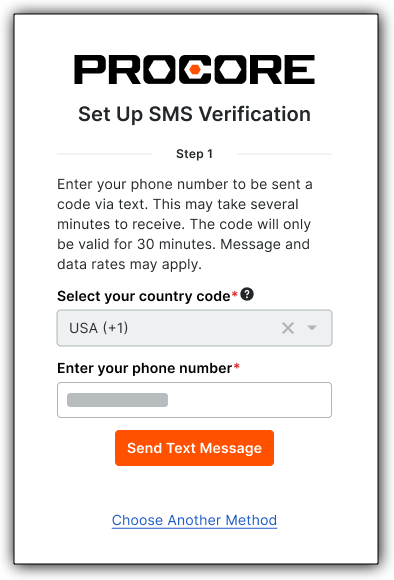
  5. At the Set Up SMS Verification page, complete the Select Your Country Code and Enter Your Phone Number fields. Then click Send Text Message.

    Select your country code and enter your phone number in the Set Up SMS Verification page before clicking the Send Text Message button.
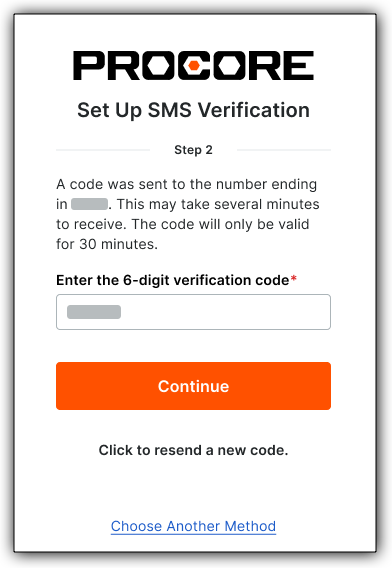
  6. Check your mobile device for your 6-digit verification code. Then type it in the Enter the 6-Digit Verification Code box, and click Continue.

     Important

    Your 6-digit verification code expires in 30 minutes. If you enter an incorrect or expired code, Procore displays an error message. To get a new code, click the Resend New Code link.

    Enter the 6-digit verification code in the Set Up SMS Verification Step 2 page before clicking Continue.
  7. At the Save Your Recovery Code page, copy or download your recovery code and secure it in a safe place.

     Warning
    Be sure to save your recovery code in a location that is securely accessible from another device. If your MFA device is lost or damaged, you will need your recovery code to set up MFA on a new device. Each recovery code can be used only once. After a recovery code is used, you will have the option to save a new recovery code.
    Click the Copy or Download button to save your one-time recovery code for Procore MFA with an Authenticator app. Mark the I Have Securely Saved this Code box before clicking the Continue button.
  8. Mark the I Have Securely Saved This Code check box.
  9. Click Continue to log in with SMS verification for the first time.
 Tip
Ready to log in? To log in next time, locate your account type in the left navigation menu of this guide (e.g., Standard Procore or Procore Pay), then follow the instructions in the 'Log In' tutorial for your role (e.g., Admin, User, Payor, or Payee Admin).


Log in to Procore with MFA

 Procore MFA: Regional availability for SMS Verification

Procore supports Authenticator apps everywhere. SMS Verfication is only available in these countries Show/Hide Details  

SMS Verification is available in these countries.

  • Note: SMS Verification for Procore Pay (Payees) is limited to the United States.

  • US
  • Canada
  • Mexico
  • UK
  • Ireland
  • France
  • Germany
  • Spain
  • Italy
  • Australia
  • New Zealand
  • Singapore
  • Hong Kong


If you are a Standard Procore user who has completed MFA setup, use these steps to log into Procore.

 Important: When You'll Be Challenged

To help ensure your data remains protected, organizations enforcing Procore MFA Settings must verify their identity at the following touchpoints:

  • Procore Web Login: An MFA code is required for every login to the Procore web application.
  • Session Idle Timeout: By default, Procore sessions do not expire due to inactivity. A different setting may be established by your organization during initial Procore implementation. Only your Procore Administrator can submit a request to change the configuration set at implementation. Procore Support cannot modify these settings for individual users. For details, see Enable Security Settings for Logins, Passwords, and Session Timeout Intervals.

Prerequisites

Steps

  1. Go to the Procore web application at https://login.procore.com.
  2. Enter your Procore Email and Password. Then click Continue.
    Login Enter Your Email
  3. Complete your Multi-Factor Authentication (MFA) based on your enrollment:

    • To log in with MFA using an Authenticator appShow/Hide      
      •  SSO Users: If Applicable

        If your company uses Single Sign-On (SSO), sign in through your Identity Provider's login prompts. Follow the on-screen instructions to finish. For help with sign in or to reset a password, see Who is responsible for resetting MFA for a user. To learn more, see What is Single Sign-On (SSO)?

      • At the How Do You Want to Verify Your Identity page, click Authenticator App.

        The Authenticator App option on the How Do You Want to Verify Your Identity page lets you check the app on your mobile device for a unique 6-digit code generated on your device to log in.
      • Open your preferred Authenticator App on your mobile device and look for your 6-digit verification code.

      • Type the code in the Enter Your 6-digit Verification Code box. Then click Continue. If you successfully pass this MFA challenge, you are logged into your company's Procore account.

    • To log in with MFA using SMS Verification Show/Hide      
      •  SSO Users: If Applicable

        If your company uses Single Sign-On (SSO), sign in through your Identity Provider's login prompts. Follow the on-screen instructions to finish. For help with sign in or to reset a password, see Who is responsible for resetting MFA for a user. To learn more, see What is Single Sign-On (SSO)?

      • At the How Do You Want to Verify Your Identity page, click Use a Phone Number.

        Procore identity verification screen with options to use phone number or recovery code, plus support information.
      • Check your mobile device for the 6-digit code delivered via SMS text message.

      • Type the code in the Enter Your 6-digit Verification Code box. Then click Continue.
        If you successfully pass this MFA challenge, you are logged into your company's Procore account.

    • To log in to with MFA using a Recovery CodeShow/Hide      
      •  SSO Users: If Applicable

        If your company uses Single Sign-On (SSO), sign in through your Identity Provider's login prompts. Follow the on-screen instructions to finish. For help with sign in or to reset a password, see Who is responsible for resetting MFA for a user. To learn more, see What is Single Sign-On (SSO)?

      • At the How Do You Want to Verify Your Identity page, click Enter Recovery Code.

         Tip

        This is the 32-digit recovery code that you were asked to store in a safe place during the final step of your MFA setup process. To protect your security, Procore does not know or store your recovery code for you.


      • Copy and paste or type your code in the Enter Recovery Code box. Then click Continue.
        If you successfully pass the MFA challenge, you are logged into your company's Procore account.

        Copy and paste your 32-digit recovery code in the Enter Recover Code box before clicking Continue. This is the recovery code you were given during the final step of the MFA setup process.


Manage Your Own MFA Settings

 Procore MFA: Regional availability for SMS Verification

Procore supports Authenticator apps everywhere. SMS Verfication is only available in these countries Show/Hide Details  

SMS Verification is available in these countries.

  • Note: SMS Verification for Procore Pay (Payees) is limited to the United States.

  • US
  • Canada
  • Mexico
  • UK
  • Ireland
  • France
  • Germany
  • Spain
  • Italy
  • Australia
  • New Zealand
  • Singapore
  • Hong Kong


Manage your own Multi-Factor Authentication (MFA) methods from the Password & Security tab in My Profile Settings. From here, you can add an Authenticator app, add or change your SMS verification phone number, and request a new account recovery code.

Things to Consider

  • Choose Your Security: Enable an Authenticator app, SMS, or both. If both are active, you will select your preferred method at each log-in or challenge.
  • One App Limit: You can switch Authenticator apps at anytime, but only one can be linked to your account.
  • Keep Your Number Current: To avoid account lockouts, update your MFA settings immediately when you change your mobile device, service provider, or phone number
  • Request a New Recovery Code: If you lose your device, your recovery code is the primary and most secure way to regain access independently. Save it in a secure location. Requesting a new recovery code automatically voids any previous ones.

Add or Change Your Authenticator App

  1. Go to the Procore web application at: https://login.procore.com .
  2. Go to your Account & Profile avatar and click My Profile Settings.
  3. Click the Password & Security tab.
  4. Follow these steps:
    1. If adding an app for the first time, click Add Authenticator App.
    2. If you want to change to a different app, click Change Authenticator App.
       Note
      If you see the Always Require 2FA to Log into My Account toggle under Your Account, you cannot change the setting. This toggle is locked.
  5. Follow the on-screen prompts to set up the app. For step-by-step detail, see the enrollment steps for your role.
  6. Copy or download your new recovery code and secure it in a safe place.
     Warning
    Be sure to save your recovery code in a location that is securely accessible from another device. If your MFA device is lost or damaged, you will need your recovery code to set up MFA on a new device. Each recovery code can be used only once. After a recovery code is used, you will have the option to save a new recovery code.

Add or Change Your Phone Number

  1. Go to the Procore web application at: https://login.procore.com.
  2. Go to your Account & Profile avatar and click My Profile Settings.
  3. Click the Password & Security tab.
  4. Click Add Phone Number (if adding your mobile device for the first time) or Change Phone Number (if you already have a phone number set up).
  5. Follow these steps:
    • If adding a new phone number, follow the on-screen prompts to set up a new number.
    • If changing an existing phone number, a 6-digit code is sent to your device. You must enter that code before following the on-screen prompts.
       Note
      If you see the Always Require 2FA to Log into My Account toggle under Your Account, you cannot change the setting. This toggle is locked.

Copy or download your new recovery code and secure it in a safe place.

 Warning
Be sure to save your recovery code in a location that is securely accessible from another device. If your MFA device is lost or damaged, you will need your recovery code to set up MFA on a new device. Each recovery code can be used only once. After a recovery code is used, you will have the option to save a new recovery code.

Request a New Recovery Code

  1. Go to your Account & Profile avatar and click My Profile Settings.
  2. Click the Password & Security tab.
  3. Under Account Recovery Code, click Request New Code.
    Account recovery interface showing SMS authentication option with an orange arrow pointing to a recovery code field
  4. Follow the on-screen prompts to verify your identity. If you more than one verification method is active, choose the method by which you want to receive your code.
  5. Copy or download your new recovery code and secure it in a safe place.
 Warning
Be sure to save your recovery code in a location that is securely accessible from another device. If your MFA device is lost or damaged, you will need your recovery code to set up MFA on a new device. Each recovery code can be used only once. After a recovery code is used, you will have the option to save a new recovery code.


Enroll in MFA with an Authenticator App as a Payor

 General Availability in Select Markets (United States)
flag-us.png Procore Pay icon-external-link.png  is available in the United States. It is designed for General Contractors and Owner-Builders who act as their own General Contractors on a job. Procore Pay extends the Invoice Management icon-external-link.png functionality in the Procore web application to handle the payment process between general and specialty contractors.
 Important

To keep payments secure, all Procore Pay users must use Multi-Factor Authentication (MFA).

  • Payors: An Authenticator App is required to log in.
  • Payees: An Authenticator App is highly recommended for enhanced security, but you have the flexibility to use SMS Verification if preferred.

Prerequisites

Secure Your Account with the Authenticator App

First-Time Enrollment

To set up your mobile device for Procore MFA with an Authenticator app, complete these steps:

  1. Go to the Procore web application at: https://login.procore.com.
  2. Enter your Procore Email and Password. Then click Continue.
    Login Enter Your Email
     SSO Users: If Applicable

    If your company uses Single Sign-On (SSO), sign in through your Identity Provider's login prompts. Follow the on-screen instructions to finish. For help with sign in or to reset a password, see Who is responsible for resetting MFA for a user. To learn more, see What is Single Sign-On (SSO)?


  3. At the Two-Factor Authentication Required page, click Set Up Now.

    The Set Up Now button in the Two-Factor Authentication Required page lets you register for 2FA which is required to log in to Procore.
  4. At the Select an Authentication Method page, choose Authenticator App, and click Continue.

    The Authenticator App option in the Select an Authentication Method page lets you use an authenticator app to get a 6-digit code to log in.
  5. At the Secure your Account page, open the Authenticator app on your mobile device.

  6. Use the Authenticator app's camera to scan the QR code on the Secure your Account page.

     Tips
    • Why isn't my phone's camera scanning the QR code? The QR code must be scanned from within the Authenticator app, not with your phone's camera. Open the Authenticator app and use its built-in scanner to capture the code.
    • Setting up MFA on your phone without a computer? Since you can't scan a QR code on the same screen, you must enter the code manually. Tap Trouble Scanning and enter the provided code into your authenticator app.
  7. Enter the 6-digit code from your Authenticator app. Then click Continue.
    Use the Authenticator app's camera to scan the QR code on the Procore page. Then enter the 6-digit code from the Authenticator app in the box on the Set Up Your Authenticator App page before clicking the Continue button.

  8. At the Save Your Recovery Code page, copy or download your recovery code and secure it in a safe place.

     Warning

    Be sure to save your recovery code in a location that is securely accessible from another device. If your MFA device is lost or damaged, you will need your recovery code to set up MFA on a new device. Each recovery code can be used only once. After a recovery code is used, you will have the option to save a new recovery code.

    Click the Copy or Download button to save your one-time recovery code for Procore MFA with an Authenticator app. Mark the I Have Securely Saved this Code box before clicking the Continue button..
  9. Mark the I Have Securely Saved This Code check box.

  10. Click Continue to log in to Procore with an Authenticator app for the first time.

 Tip
Ready to log in? To log in next time, locate your account type in the left navigation menu of this guide (e.g., Standard Procore or Procore Pay), then follow the instructions in the 'Log In' tutorial for your role (e.g., Admin, User, Payor, or Payee Admin).


Login to Procore Pay with an Authenticator App as a Payor

 General Availability in Select Markets (United States)
flag-us.png Procore Pay icon-external-link.png  is available in the United States. It is designed for General Contractors and Owner-Builders who act as their own General Contractors on a job. Procore Pay extends the Invoice Management icon-external-link.png functionality in the Procore web application to handle the payment process between general and specialty contractors.

For Procore Pay customers, Multi-Factor Authentication (MFA) is not just an option—it is mandatory for any user performing sensitive financial actions or accessing the Payments tool.

 Important: When You'll Be Challenged

To help to secure the financial workflow, Procore Pay users must verify their identity via MFA at these key touchpoints:

  • Procore Entry: Every login to the Procore web application.
  • Payments Tool Entry: Whenever you enter the Payments tool.
  • Financial Transactions: You must provide a code to complete these sensitive actions:
    • Creating or submitting a disbursement.
    • Adding, editing, or deactivating bank accounts.
    • Reviewing or accepting Procore Pay Agreements.
  • Session Inactivity: If the Payments tool remains idle for more than 30 minutes, you will be prompted to re-authenticate to help to prevent unauthorized access.

Prerequisites

Steps

  1. Go to the Procore web application at https://login.procore.com.
  2. Enter your Procore Email and Password. Then click Continue.
    Login Enter Your Email
  3. Complete your Multi-Factor Authentication (MFA) based on your enrollment:

    • To log in with MFA using an Authenticator appShow/Hide      
      •  SSO Users: If Applicable

        If your company uses Single Sign-On (SSO), sign in through your Identity Provider's login prompts. Follow the on-screen instructions to finish. For help with sign in or to reset a password, see Who is responsible for resetting MFA for a user. To learn more, see What is Single Sign-On (SSO)?

      • At the How Do You Want to Verify Your Identity page, click Authenticator App.

        The Authenticator App option on the How Do You Want to Verify Your Identity page lets you check the app on your mobile device for a unique 6-digit code generated on your device to log in.
      • Open your preferred Authenticator App on your mobile device and look for your 6-digit verification code.

      • Type the code in the Enter Your 6-digit Verification Code box. Then click Continue. If you successfully pass this MFA challenge, you are logged into your company's Procore account.

    • To log in with MFA using SMS Verification Show/Hide      
      •  SSO Users: If Applicable

        If your company uses Single Sign-On (SSO), sign in through your Identity Provider's login prompts. Follow the on-screen instructions to finish. For help with sign in or to reset a password, see Who is responsible for resetting MFA for a user. To learn more, see What is Single Sign-On (SSO)?

      • At the How Do You Want to Verify Your Identity page, click Use a Phone Number.

        Procore identity verification screen with options to use phone number or recovery code, plus support information.
      • Check your mobile device for the 6-digit code delivered via SMS text message.

      • Type the code in the Enter Your 6-digit Verification Code box. Then click Continue.
        If you successfully pass this MFA challenge, you are logged into your company's Procore account.

    • To log in to with MFA using a Recovery CodeShow/Hide      
      •  SSO Users: If Applicable

        If your company uses Single Sign-On (SSO), sign in through your Identity Provider's login prompts. Follow the on-screen instructions to finish. For help with sign in or to reset a password, see Who is responsible for resetting MFA for a user. To learn more, see What is Single Sign-On (SSO)?

      • At the How Do You Want to Verify Your Identity page, click Enter Recovery Code.

         Tip

        This is the 32-digit recovery code that you were asked to store in a safe place during the final step of your MFA setup process. To protect your security, Procore does not know or store your recovery code for you.


      • Copy and paste or type your code in the Enter Recovery Code box. Then click Continue.
        If you successfully pass the MFA challenge, you are logged into your company's Procore account.

        Copy and paste your 32-digit recovery code in the Enter Recover Code box before clicking Continue. This is the recovery code you were given during the final step of the MFA setup process.


Enroll in MFA with an Authenticator App as a Payee Admin

 General Availability in Select Markets (United States)
flag-us.png Procore Pay icon-external-link.png  is available in the United States. It is designed for General Contractors and Owner-Builders who act as their own General Contractors on a job. Procore Pay extends the Invoice Management icon-external-link.png functionality in the Procore web application to handle the payment process between general and specialty contractors.

With an Authenticator app, the login process requires a combination of:

  • Something You Know: Your standard Procore Email and Password.
  • Something You Have: A unique code generated by an Authenticator app on your mobile device.
 Important

Keep your verification code private. Procore generates a unique code just for you. Never share it with anyone. Procore employees will never ask for it

 Important

To keep payments secure, all Procore Pay users must use Multi-Factor Authentication (MFA).

  • Payors: An Authenticator App is required to log in.
  • Payees: An Authenticator App is highly recommended for enhanced security, but you have the flexibility to use SMS Verification if preferred.

 Install an Authenticator App

If you choose an Authenticator app, first install a third-party TOTP Authenticator app (like Google or Microsoft Authenticator) on your mobile device. Procore MFA is compatible with most standard TOTP Authenticator apps. Contact your Procore Administrator or refer to your preferred software vendor for installation instructions.

Secure Your Account with the Authenticator App

First-Time Enrollment

To set up your mobile device for Procore MFA with an Authenticator app, complete these steps:

  1. Go to the Procore web application at: https://login.procore.com.
  2. Enter your Procore Email and Password. Then click Continue.
    Login Enter Your Email
     SSO Users: If Applicable

    If your company uses Single Sign-On (SSO), sign in through your Identity Provider's login prompts. Follow the on-screen instructions to finish. For help with sign in or to reset a password, see Who is responsible for resetting MFA for a user. To learn more, see What is Single Sign-On (SSO)?


  3. At the Two-Factor Authentication Required page, click Set Up Now.

    The Set Up Now button in the Two-Factor Authentication Required page lets you register for 2FA which is required to log in to Procore.
  4. At the Select an Authentication Method page, choose Authenticator App, and click Continue.

    The Authenticator App option in the Select an Authentication Method page lets you use an authenticator app to get a 6-digit code to log in.
  5. At the Secure your Account page, open the Authenticator app on your mobile device.

  6. Use the Authenticator app's camera to scan the QR code on the Secure your Account page.

     Tips
    • Why isn't my phone's camera scanning the QR code? The QR code must be scanned from within the Authenticator app, not with your phone's camera. Open the Authenticator app and use its built-in scanner to capture the code.
    • Setting up MFA on your phone without a computer? Since you can't scan a QR code on the same screen, you must enter the code manually. Tap Trouble Scanning and enter the provided code into your authenticator app.
  7. Enter the 6-digit code from your Authenticator app. Then click Continue.
    Use the Authenticator app's camera to scan the QR code on the Procore page. Then enter the 6-digit code from the Authenticator app in the box on the Set Up Your Authenticator App page before clicking the Continue button.

  8. At the Save Your Recovery Code page, copy or download your recovery code and secure it in a safe place.

     Warning

    Be sure to save your recovery code in a location that is securely accessible from another device. If your MFA device is lost or damaged, you will need your recovery code to set up MFA on a new device. Each recovery code can be used only once. After a recovery code is used, you will have the option to save a new recovery code.

    Click the Copy or Download button to save your one-time recovery code for Procore MFA with an Authenticator app. Mark the I Have Securely Saved this Code box before clicking the Continue button..
  9. Mark the I Have Securely Saved This Code check box.

  10. Click Continue to log in to Procore with an Authenticator app for the first time.

 Tip
Ready to log in? To log in next time, locate your account type in the left navigation menu of this guide (e.g., Standard Procore or Procore Pay), then follow the instructions in the 'Log In' tutorial for your role (e.g., Admin, User, Payor, or Payee Admin).


Enroll in MFA with SMS Verification as a Payee Admin

 General Availability in Select Markets (United States)
flag-us.png Procore Pay icon-external-link.png  is available in the United States. It is designed for General Contractors and Owner-Builders who act as their own General Contractors on a job. Procore Pay extends the Invoice Management icon-external-link.png functionality in the Procore web application to handle the payment process between general and specialty contractors.
 Important

To keep payments secure, all Procore Pay users must use Multi-Factor Authentication (MFA).

  • Payors: An Authenticator App is required to log in.
  • Payees: An Authenticator App is highly recommended for enhanced security, but you have the flexibility to use SMS Verification if preferred.

With SMS Verification, the login process requires a combination of:

  • Something you know: Your standard Procore Email and Password.
  • Something you have: A unique verification code sent by SMS text message to your registered mobile device.
 Important

Keep your verification code private. Procore generates a unique code just for you. Never share it with anyone. Procore employees will never ask for it

Steps

First-Time Enrollment

To register your mobile number for MFA with SMS Verification, complete these steps:

  1. Go to the Procore web application at: https://login.procore.com.
  2. Enter your Procore Email and Password. Then click Continue.
    Login Enter Your Email
     SSO Users: If Applicable

    If your company uses Single Sign-On (SSO), sign in through your Identity Provider's login prompts. Follow the on-screen instructions to finish. For help with sign in or to reset a password, see Who is responsible for resetting MFA for a user. To learn more, see What is Single Sign-On (SSO)?

  3. At the Two-Factor Authentication Required page, click Set Up Now.

    The Set Up Now button in the Two-Factor Authentication Required page lets you register for 2FA which is required to log in to Procore.
  4. At the Select an Authentication Method page, choose SMS Verification, and click Continue.

    The SMS Verification option in the Select an Authentication Method page registers you to receive an SMS text message with a unique code to your provided mobile number.
  5. At the Set Up SMS Verification page, complete the Select Your Country Code and Enter Your Phone Number fields. Then click Send Text Message.

    Select your country code and enter your phone number in the Set Up SMS Verification page before clicking the Send Text Message button.
  6. Check your mobile device for your 6-digit verification code. Then type it in the Enter the 6-Digit Verification Code box, and click Continue.

     Important

    Your 6-digit verification code expires in 30 minutes. If you enter an incorrect or expired code, Procore displays an error message. To get a new code, click the Resend New Code link.

    Enter the 6-digit verification code in the Set Up SMS Verification Step 2 page before clicking Continue.
  7. At the Save Your Recovery Code page, copy or download your recovery code and secure it in a safe place.

     Warning
    Be sure to save your recovery code in a location that is securely accessible from another device. If your MFA device is lost or damaged, you will need your recovery code to set up MFA on a new device. Each recovery code can be used only once. After a recovery code is used, you will have the option to save a new recovery code.
    Click the Copy or Download button to save your one-time recovery code for Procore MFA with an Authenticator app. Mark the I Have Securely Saved this Code box before clicking the Continue button.
  8. Mark the I Have Securely Saved This Code check box.
  9. Click Continue to log in with SMS verification for the first time.
 Tip
Ready to log in? To log in next time, locate your account type in the left navigation menu of this guide (e.g., Standard Procore or Procore Pay), then follow the instructions in the 'Log In' tutorial for your role (e.g., Admin, User, Payor, or Payee Admin).


Log in to Procore Pay as a Payee Admin

 General Availability in Select Markets (United States)
flag-us.png Procore Pay icon-external-link.png  is available in the United States. It is designed for General Contractors and Owner-Builders who act as their own General Contractors on a job. Procore Pay extends the Invoice Management icon-external-link.png functionality in the Procore web application to handle the payment process between general and specialty contractors.

After setting up your preferred authentication method, use these steps to log in to Procore Pay as a Payee.

  1. Go to the Procore web application at https://login.procore.com.
  2. Enter your Procore Email and Password. Then click Continue.
    Login Enter Your Email
  3. Complete your Multi-Factor Authentication (MFA) based on your enrollment:

    • To log in with MFA using an Authenticator appShow/Hide      
      •  SSO Users: If Applicable

        If your company uses Single Sign-On (SSO), sign in through your Identity Provider's login prompts. Follow the on-screen instructions to finish. For help with sign in or to reset a password, see Who is responsible for resetting MFA for a user. To learn more, see What is Single Sign-On (SSO)?

      • At the How Do You Want to Verify Your Identity page, click Authenticator App.

        The Authenticator App option on the How Do You Want to Verify Your Identity page lets you check the app on your mobile device for a unique 6-digit code generated on your device to log in.
      • Open your preferred Authenticator App on your mobile device and look for your 6-digit verification code.

      • Type the code in the Enter Your 6-digit Verification Code box. Then click Continue. If you successfully pass this MFA challenge, you are logged into your company's Procore account.

    • To log in with MFA using SMS Verification Show/Hide      
      •  SSO Users: If Applicable

        If your company uses Single Sign-On (SSO), sign in through your Identity Provider's login prompts. Follow the on-screen instructions to finish. For help with sign in or to reset a password, see Who is responsible for resetting MFA for a user. To learn more, see What is Single Sign-On (SSO)?

      • At the How Do You Want to Verify Your Identity page, click Use a Phone Number.

        Procore identity verification screen with options to use phone number or recovery code, plus support information.
      • Check your mobile device for the 6-digit code delivered via SMS text message.

      • Type the code in the Enter Your 6-digit Verification Code box. Then click Continue.
        If you successfully pass this MFA challenge, you are logged into your company's Procore account.

    • To log in to with MFA using a Recovery CodeShow/Hide      
      •  SSO Users: If Applicable

        If your company uses Single Sign-On (SSO), sign in through your Identity Provider's login prompts. Follow the on-screen instructions to finish. For help with sign in or to reset a password, see Who is responsible for resetting MFA for a user. To learn more, see What is Single Sign-On (SSO)?

      • At the How Do You Want to Verify Your Identity page, click Enter Recovery Code.

         Tip

        This is the 32-digit recovery code that you were asked to store in a safe place during the final step of your MFA setup process. To protect your security, Procore does not know or store your recovery code for you.


      • Copy and paste or type your code in the Enter Recovery Code box. Then click Continue.
        If you successfully pass the MFA challenge, you are logged into your company's Procore account.

        Copy and paste your 32-digit recovery code in the Enter Recover Code box before clicking Continue. This is the recovery code you were given during the final step of the MFA setup process.

Manage Your Own MFA Settings as a Payee

 General Availability in Select Markets (United States)
flag-us.png Procore Pay icon-external-link.png  is available in the United States. It is designed for General Contractors and Owner-Builders who act as their own General Contractors on a job. Procore Pay extends the Invoice Management icon-external-link.png functionality in the Procore web application to handle the payment process between general and specialty contractors.

Manage your own Multi-Factor Authentication (MFA) methods from the Password & Security tab in My Profile Settings. From here, you can add an Authenticator app, add or change your SMS verification phone number, and request a new account recovery code.

Things to Consider

  • Choose Your Security: Enable an Authenticator app, SMS, or both. If both are active, you will select your preferred method at each log-in or challenge.
  • One App Limit: You can switch Authenticator apps at anytime, but only one can be linked to your account.
  • Keep Your Number Current: To avoid account lockouts, update your MFA settings immediately when you change your mobile device, service provider, or phone number
  • Request a New Recovery Code: If you lose your device, your recovery code is the primary and most secure way to regain access independently. Save it in a secure location. Requesting a new recovery code automatically voids any previous ones.

Add or Change Your Authenticator App

  1. Go to the Procore web application at: https://login.procore.com .
  2. Go to your Account & Profile avatar and click My Profile Settings.
  3. Click the Password & Security tab.
  4. Follow these steps:
    1. If adding an app for the first time, click Add Authenticator App.
    2. If you want to change to a different app, click Change Authenticator App.
       Note
      If you see the Always Require 2FA to Log into My Account toggle under Your Account, you cannot change the setting. This toggle is locked.
  5. Follow the on-screen prompts to set up the app. For step-by-step detail, see the enrollment steps for your role.
  6. Copy or download your new recovery code and secure it in a safe place.
     Warning
    Be sure to save your recovery code in a location that is securely accessible from another device. If your MFA device is lost or damaged, you will need your recovery code to set up MFA on a new device. Each recovery code can be used only once. After a recovery code is used, you will have the option to save a new recovery code.

Add or Change Your Phone Number

Request a New Recovery Code