

Why am I unable to perform actions in the Procore for Outlook add-in despite a successful login?
Answer
If you can log in to the add-in but encounter errors when attempting to perform operations (such as creating RFIs or saving emails to the Emails tool), the specific cause is usually displayed directly within the add-in's interface.
-
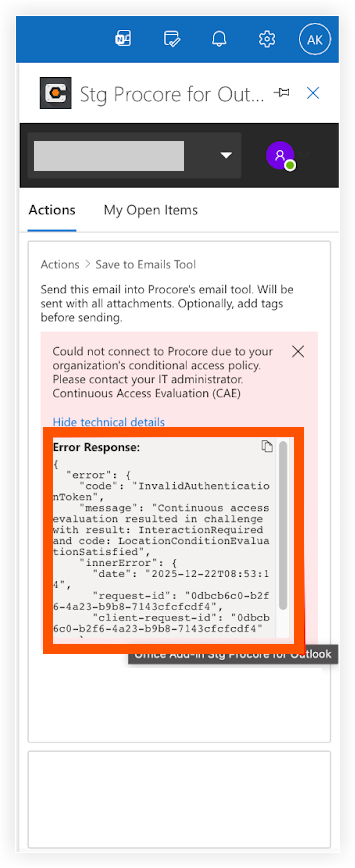
Check the Error Message. When an action fails, a red error banner will appear in the sidebar. In many cases, this is due to your organization's security settings, such as a Conditional Access Policy blocking the connection.
Example Error: Could not connect to Procore due to your organization's conditional access policy. Please contact your IT administrator.
-
View Technical Details. To troubleshoot the specific cause, click Show technical details at the bottom of the error message. This will expand a section containing the specific error codes and JSON response from Microsoft.

-
Resolution. These errors are typically rooted in Microsoft Entra ID (formerly Azure AD) configurations or Continuous Access Evaluation (CAE) protocols.
-
Action: Copy the text from the Error Response box and share it with your IT Administrator.
-
For IT Admins: Refer to Microsoft’s documentation regarding "Conditional Access" and "Continuous Access Evaluation" to mitigate these blocking policies. For details, see Microsoft's Continuous access evaluation support article.
-