

How do I resolve Conditional Access Evaluation errors when using Location-based policies?
Background
Some organizations encounter Conditional Access Evaluation (CAE) errors in the Procore for Outlook add-in even when their users are located in an allowed region.
While Microsoft recommends using IP-based Conditional Access policies for the best stability, some organizations require policies based on Country/Region. The error occurs because Microsoft sometimes fails to correctly classify an incoming IP address to a specific country or region. If the IP cannot be resolved to the allowed country, the policy blocks the user by default. For details, see Microsoft's Continuous access evaluation support article.
Answer
If your organization mandates Country/Region-based policies and you are experiencing blocks, an IT Administrator can resolve this by updating the Named Location configuration in Microsoft Entra ID.
Steps
-
Identify the Policy: Locate the Conditional Access Policy that is blocking the user. In the example below, the policy blocks access but excludes specific networks/locations. For example, India or the US.
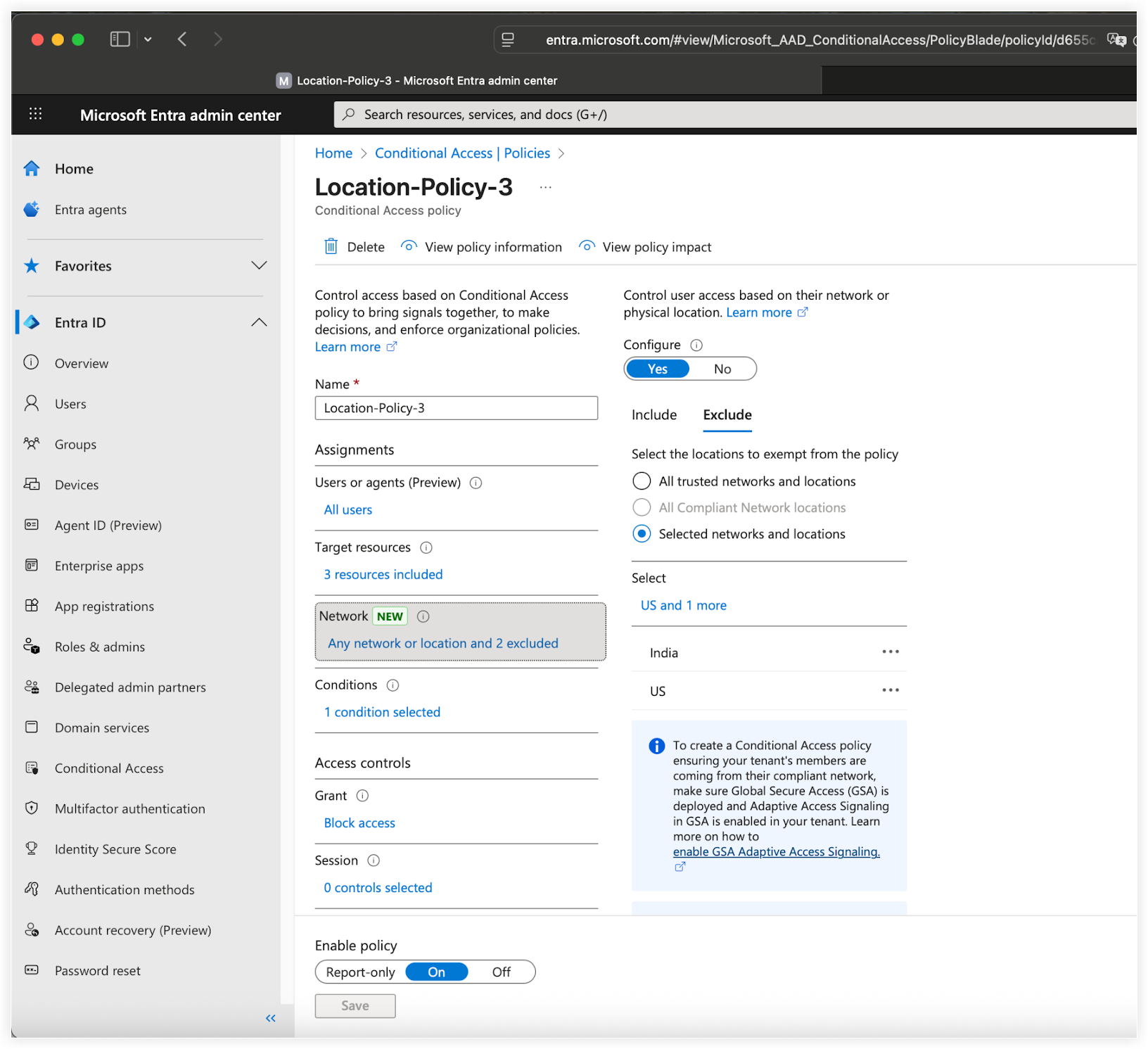
-
Edit Named Locations: Navigate to Microsoft Entra admin center > Protection > Conditional Access > Named locations.
-
Update the Location Definition: Click on the specific country/region location used in your policy's exclusion list. For example, click India. In the configuration panel, mark the Include unknown countries/regions checkbox. For details, see Microsoft's Conditional Access: Network assignment support article.
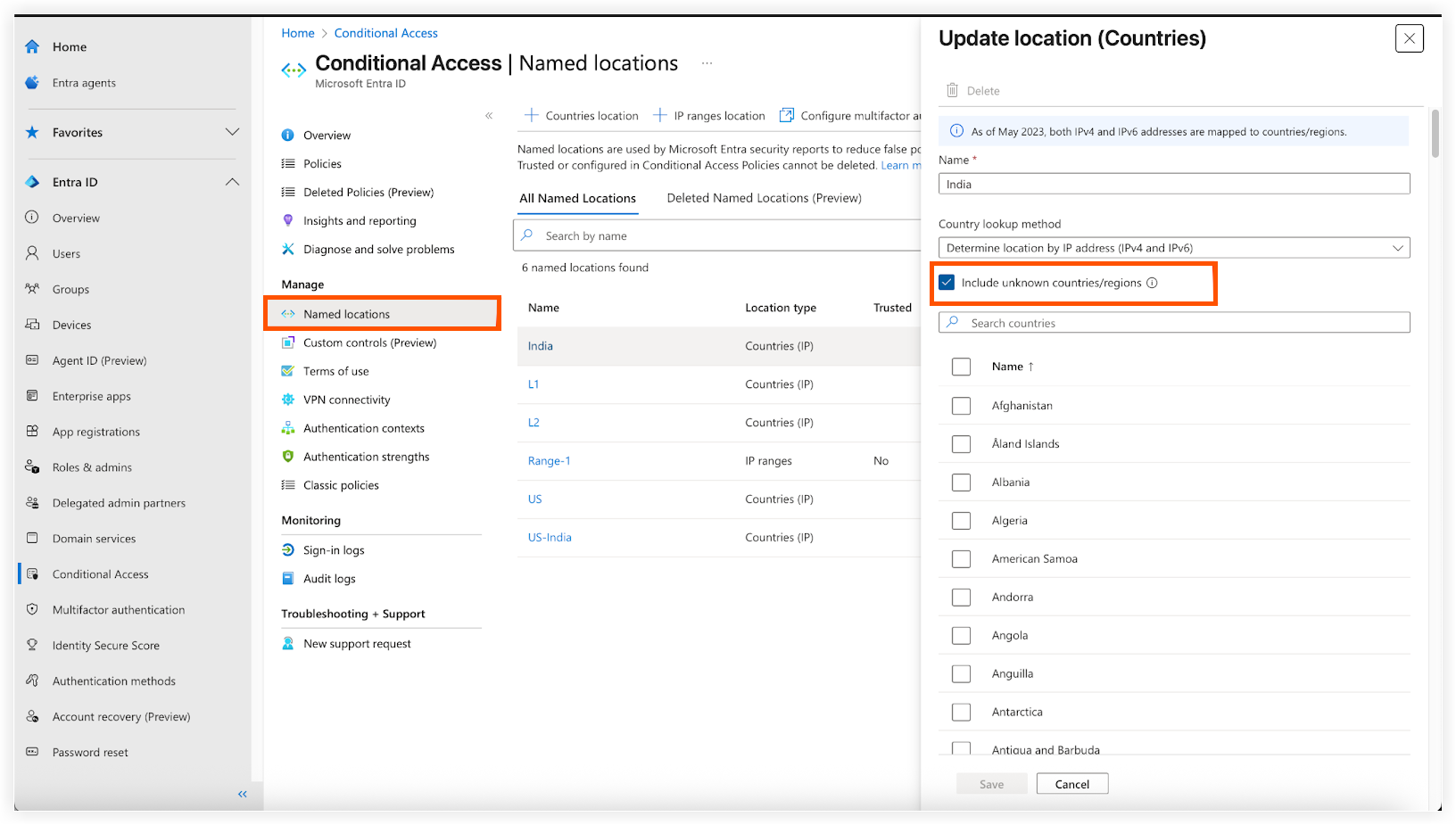
-
Wait for Propagation: After saving this change, wait for 1 to 2 hours before asking the user to retry the Procore for Outlook add-in. The issue should be resolved once the settings propagate.
Note: If the issue persists after these steps, contact Microsoft Support for a root cause analysis, as this indicates a failure in Microsoft's IP geolocation services.