

Create a Submittal Revision
- Navigate to the project's Submittals tool.
This reveals the Submittals page. - In the Submittals log, locate the desired submittal. Then click View.
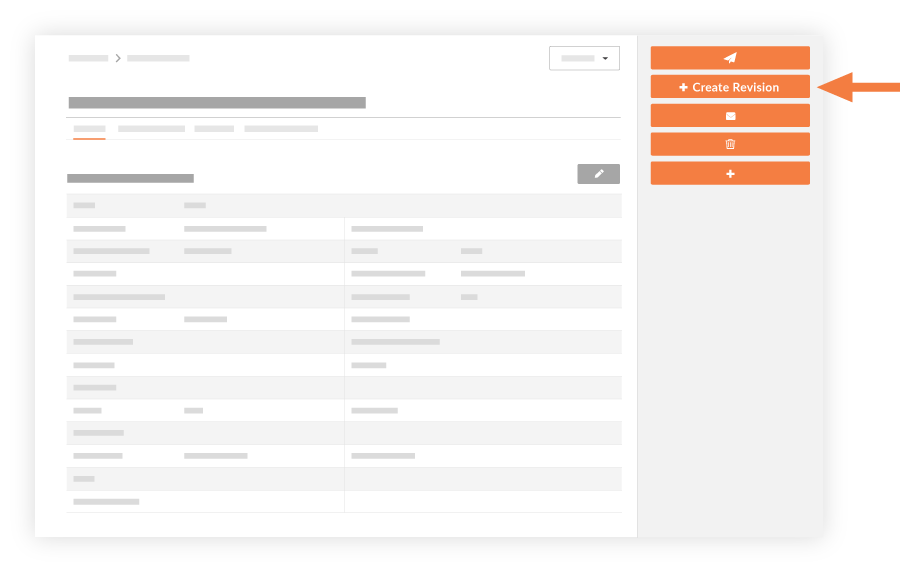
This opens the submittal in view mode. - In the right pane, click Create Revision.
Note: This button is only visible and available when you are viewing the most current revision of a submittal. You can only create a new revision from the most recent one.
This opens the 'Create Revision' page. - Scroll to the 'General Information' area and note that all of the general information from the previous revision is inherited. In addition, the revision number is automatically incremented by one (n +1). In the example below, the previous revision number was 1, so Procore automatically increments the new revision number to 2.
Note: The values in the Number & Revision fields cannot be edited at a later time.

- Revise the following submittal information as needed:
- Note: If the previous revision of the submittal had any file attachments, you will need to reattach them in the new revision, if desired. Attachments are NOT carried over between revisions.
- Choose from the following:
- Create & Send Emails: Use this option to create the new submittal revision and send it to the designated submittal approver(s), as well as all members on the submittal's distribution list (optional).
- Create But Do Not Send Emails: Use this option to only create the new revision but not send any email notification.