

Add Comments to Punch List Items
Things to Consider
-
Required User Permissions:
-
'Standard' level permissions on the project's Punch List tool.
-
Steps
-
Navigate to the project's Punch List tool.
-
Click View next to the item to which you want to add a comment.
Add Comments from the Comments tab
-
Click the Comments tab.
-
Enter your desired comment in the text box.
-
Optional: To add photos or files, click Attach File(s) or drag and drop images directly into the gray Drag and Drop File(s) section.
-
Click Post Comment.
Add Comments from the Activity Feed
-
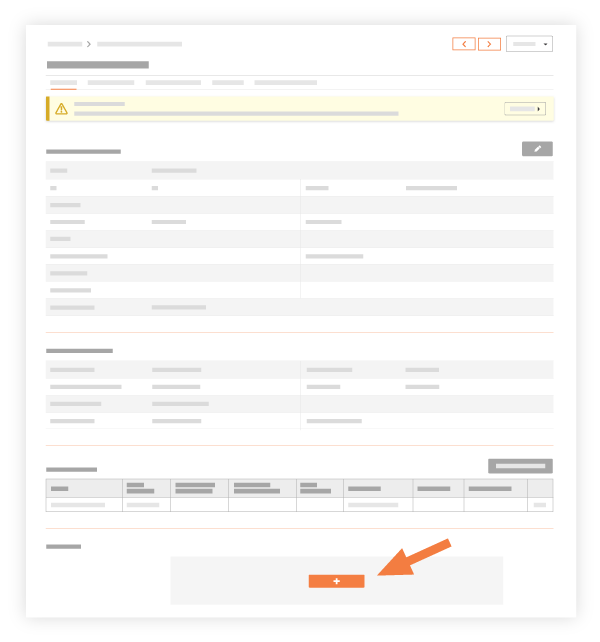
Under the 'Activity' section, click +Comment.
-
To attach a file to a comment:
-
In the Activity Feed, click into the comment box.
-
Click the Attach Files icon.
-
Use the Procore tab to link a file from the Document Management tool.
-
Click Post.
-
-
Enter a comment in to the text box.
-
Click Submit.