

Use Bulk Actions > Apply Workflow in the Submittals Tool
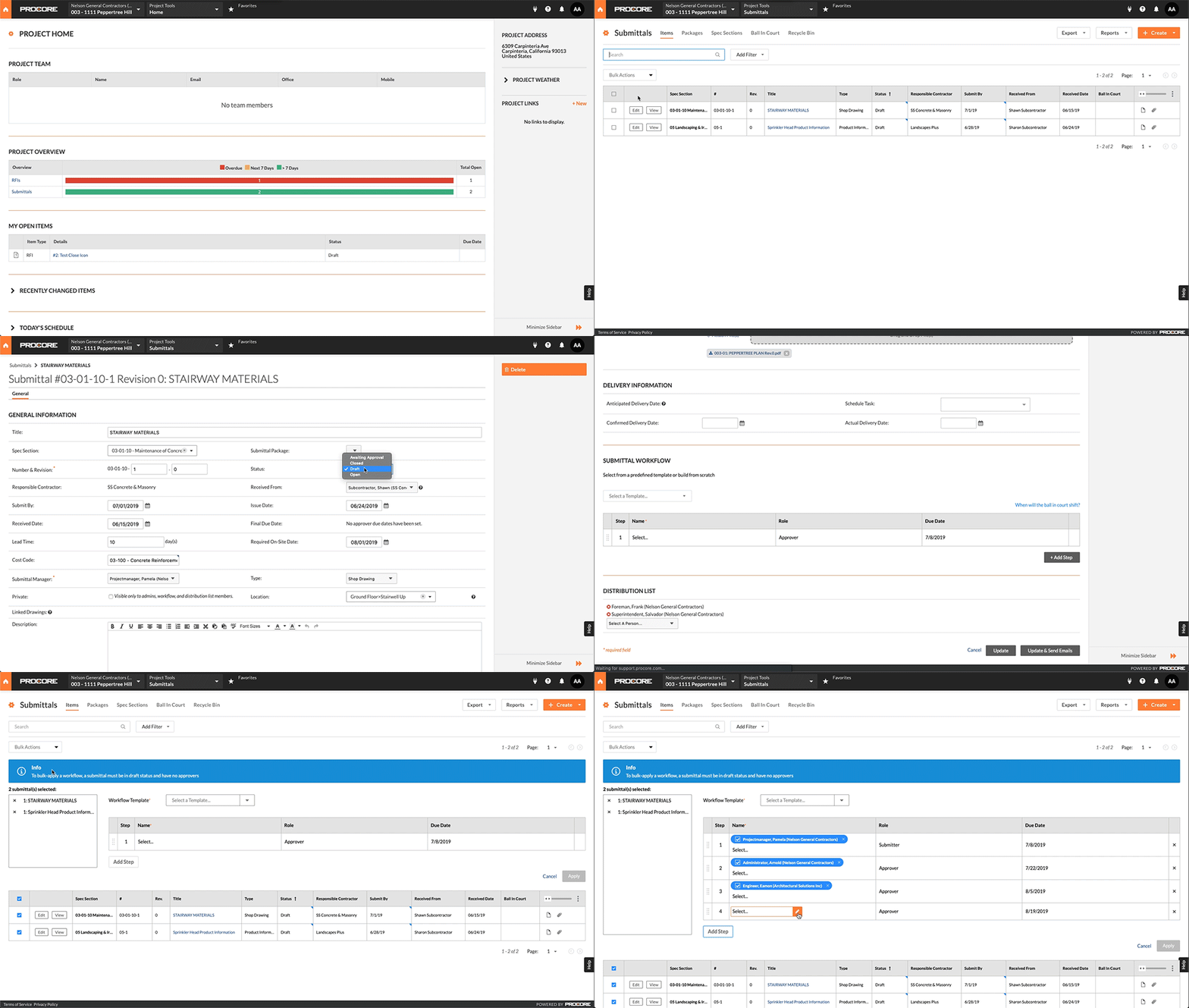
- Navigate to the project's Submittals tool.
This reveals the Items view of the Submittals page. This page lists all of the individual submittals for the project (except for any submittals sent to the Recycle Bin). - Locate the submittals in the 'Draft' status to which you want to apply a submittal workflow:
- To select all of the submittals in the list, mark the checkbox at the top of the left column.
OR - To select one or more of the submittals in the list, mark the check box to the left of each desired submittal.
- To select all of the submittals in the list, mark the checkbox at the top of the left column.
- Choose Bulk Actions > Apply Workflow.
Note: The Bulk Actions menu is supported in the Items, Packages, Spec Sections, and Ball In Court views. It it NOT supported in the Recycle Bin.
This reveals the Bulk Edit page. The 'Selected Submittals' box shows the individual submittals to which your edits will be applied. - Select a submittal workflow template to apply. To learn how to create a template, see Manage Submittal Workflow Templates.
- Edit the submittal workflow on the selected items using these options:
- Click Add Step to add new members to the workflow.
Note: This action does NOT affect the membership on the template. It simply updates the workflow on the selected submittals. - Click the 'x' on a line item to remove the submitter or approver.
Note: To learn more about the other workflow options, see Add a Submitter and Approvers to the Submittal Workflow
- Click Add Step to add new members to the workflow.
- Click Apply Template.
This applies the workflow template to the selected submittals. A GREEN banner appears to confirm the total number of submittals that were successfully edited. A RED banner will appear in the event that the edits are NOT successfully saved.