Getting Started with Document Management - Introduction to the Tool
About the Tool
Procore's Document Management tool is a document management system that automatically organizes your documents according to their attributes. Quickly find the documents you need with confidence that you're opening the latest approved revision and that only people who should see it have access.
This tool is designed for companies needing a unified, configurable solution for managing information and approvals across all stages of a construction project.
With the Document Management tool, companies can:
-
Configure document permissions based on each revision's attributes such as status, type, or discipline.
-
Help team members access, review, approve, and manage documents in a streamlined way from one centralized system.
-
Have the same benefits as gained with the original Documents tool in Procore, while adding features such as document approval workflows with markup, more precise permissions, metadata tagging, and enforceable naming conventions.
View the Features
The Document Management tool currently includes the following features and benefits:
-
A consistent and easy-to-use experience for accessing project files on web and mobile devices through a centralized file repository. See View Documents (Web) | (iOS) | (Android).
-
Streamlined metadata capture using machine learning, saving time and improving organization. See What data can Procore automatically populate when uploading files to the Document Management tool?
-
A single workflow experience for the review and approval of documents, speeding up processes like design reviews. See About Workflows in the Document Management Tool.
-
Granular and flexible document permission groups based on attributes of each document (for example: Status, Type, or Discipline). See Create a Permission Group for the Document Management Tool and View and Manage Document Permissions in the Document Management Tool.
-
Management of information in accordance with international standards such as ISO 19650. See Edit Upload Requirements for the Document Management Tool and Edit the Naming Standard for the Document Management Tool.
-
Efficient organization of documents with "saved views" that allow users to quickly access specific groups of documents at any time. See Create a Saved View in the Document Management Tool. All users can create their own personal views, and users with 'Admin' permissions to the Document Management tool can create views for everyone on the project to use.
-
Proactive document tracking with placeholders: Allows team members to define required files, assign responsibility, and establish due dates before documents are formally uploaded, ensuring project tracking and automatic task management. See Create and Manage Placeholders in the Document Management Tool.
-
Quick access with item pinning: Enables users to pin critical documents and connected items to the top of their views for instant access across project workflows. See About Pinning and Connected Items in the Document Management Tool
-
Streamlined document intake with native SharePoint integration: Collaborators and team members with upload permissions can link files directly from up to five connected Microsoft SharePoint sites/tenants into Document Management Uploads, bypassing manual download and re-upload steps while maintaining centralized project governance via the Integration Manager. See how to Link Files from SharePoint to the Document Management Tool and how to Manage SharePoint Connections in the Integration Manager in the Documents Management Tool.
-
Centralized data loss protection with the Recycle Bin: Prevents permanent data loss by moving deleted files, placeholders, and uploads from both the Documents and Uploads tabs into dedicated Recycle Bin collections (Documents and Placeholders and Uploads). Original file metadata (upload date, uploader, file size, original path) is preserved while enforcing strict permissions so unauthorized users cannot access restricted file data. See Recycle Items in the Document Management Tool.
General Tool Process
Once settings are configured (as explained later in this guide), the general process for using the Document Management tool is the following:
Note
Additional topics such as tool settings and permissions, saved views, and approval workflows are covered later in this guide.
Uploading, Reviewing, And Submitting Documents
Uploading Documents
The Document Management tool uploads documents in a similar way to Procore's original Documents tool. However, the Document Management tool uses machine learning on the contents of the document and file name to automatically populate data, such as the document type, drawing number, and drawing description.
Note: You’ll set up your fields, naming standards, and upload requirements in the next section of this guide.

 VIEW TUTORIAL
Reviewing And Completing Document Attributes
Once uploads process, any remaining required fields are reviewed and completed so they can be submitted to the project for broader access. You will set up these requirements in a later section of this guide.

VIEW TUTORIAL
Submitting and Approving Documents
Documents with required fields completed are submitted to the project so they can be accessed on the 'Documents' tab.

VIEW TUTORIAL
Reviewing Documents with workflows
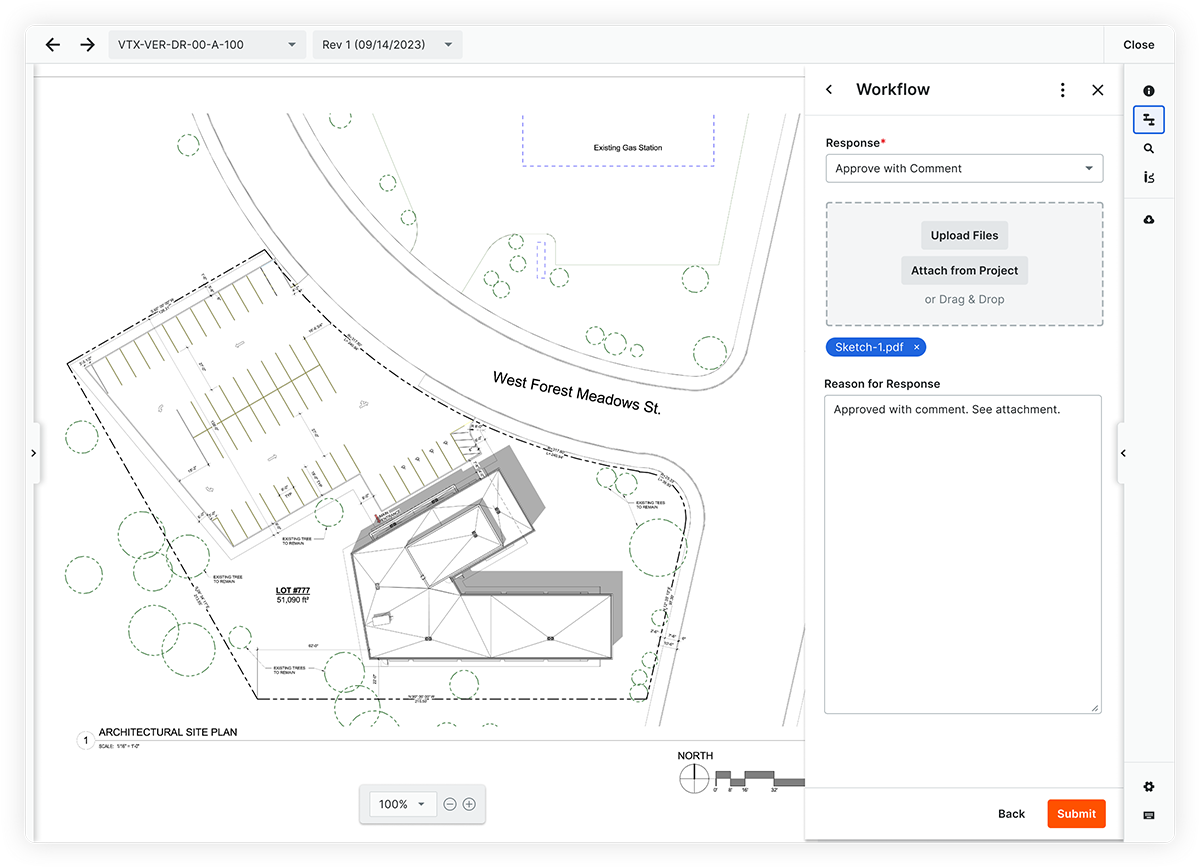
If documents have approval workflows set up with the Workflows tool, users can access them in saved views such as 'Assigned to Me' so they can review, provide comments, and respond with an approval outcome.
VIEW TUTORIAL
Viewing, Downloading, and Sharing Documents
After documents are submitted to the project, people with the appropriate permissions can view, share, and download the documents that they need.
Note: Document permissions are set up later in this guide.
Viewing Documents
Submitted documents are accessed via the ‘Documents’ tab. Document information can be viewed in the table or opened in Procore's document viewer. Depending on how the admin configured the project's collections and which saved view you are viewing, the latest revision within a given document container may be shown by default, but previous revisions can be quickly accessed as well.

VIEW TUTORIAL
Documents are also easily accessed and viewed on Procore's mobile application for iOS and Android.
Downloading Documents
Documents can be downloaded individually from the table or viewer, and in bulk from the table on Procore's web application.

VIEW TUTORIAL
Sharing Documents
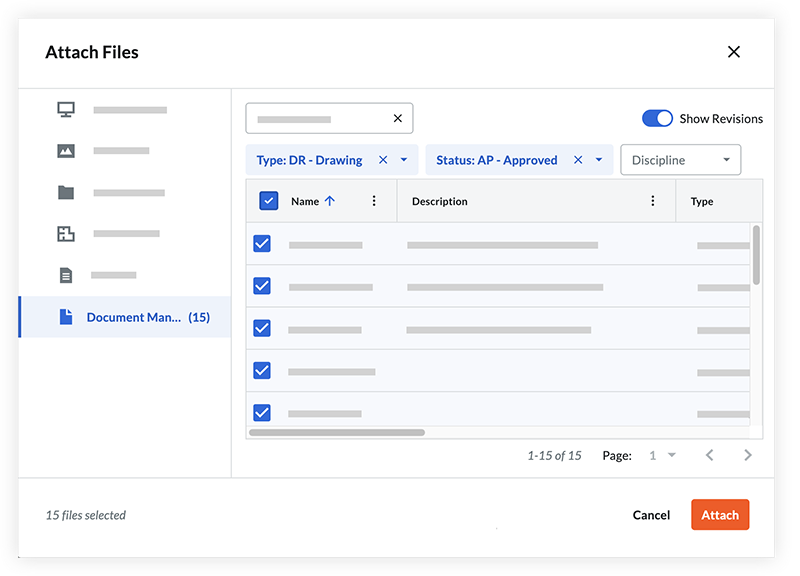
Documents can be added as attachments for items (such as transmittals) in the Correspondence tool.
VIEW TUTORIAL
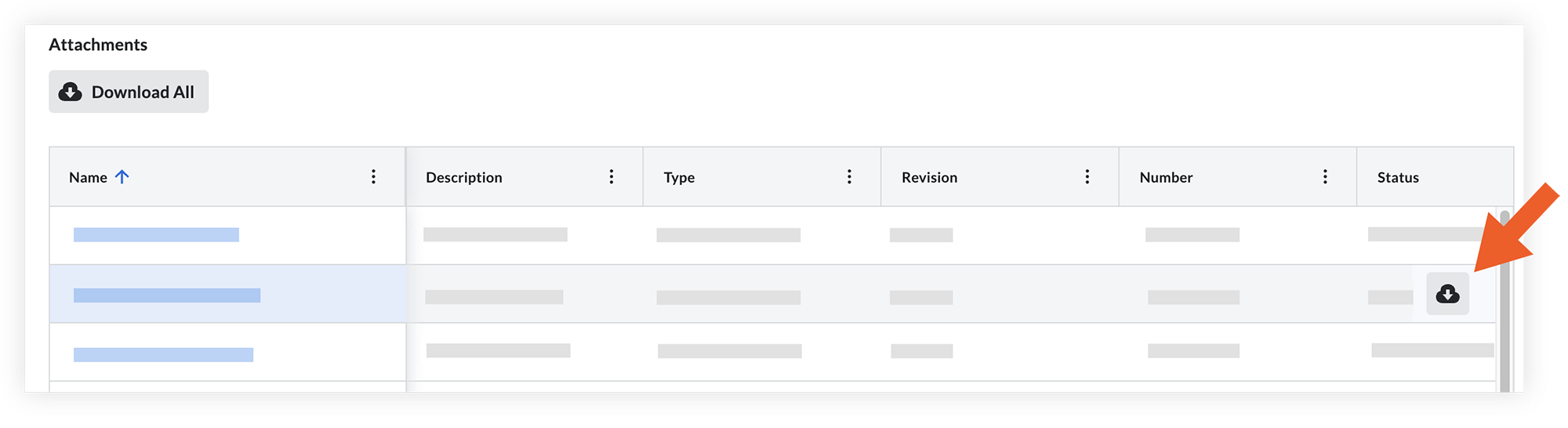
The documents can then be viewed and downloaded by recipients of the correspondence who have permission to those documents in the Document Management tool.
VIEW TUTORIAL


