View and Download Document Management Files in a Correspondence Item
Objective
To view and download Document Management files that have been added to a correspondence item.
Things to Consider
- Required User Permissions:
- You must be part of the correct Document Management tool permission group. See How do permissions work in the Document Management tool?
- 'Read Only' level permissions or higher on the correspondence type.
Note: Depending on the correspondence item's status and privacy settings, users may also need to be assigned specific roles or granular permissions in order to view the item.
- Additional Information:
- If you don't have permission to an attached file, please contact the creator of the correspondence so that they can assign you to the correct Document Management permission group.
Steps
View and Download from an Email or PDF
- Open the email or PDF export with the correspondence item.
Note: The 'Attachments' section lists the correspondence item's attachments, along with each file's revision identifier and status at the time of transmittal. - Click the name of the attachment you want to view.
- Log into Procore.
- From the Document Management viewer, you can take the following actions:
- If you are not viewing the latest revision of the file, a banner appears at the top so you can click on Go to Latest Revision.
- Click the download
 icon.
icon.
- If the file has been annotated, choose Download with Markup or Download without Markup.
- Click Close to exit the viewer.
View and Download from the Procore Correspondence Tool
- Navigate to the project's Correspondence tool and click the correspondence item you want to view.
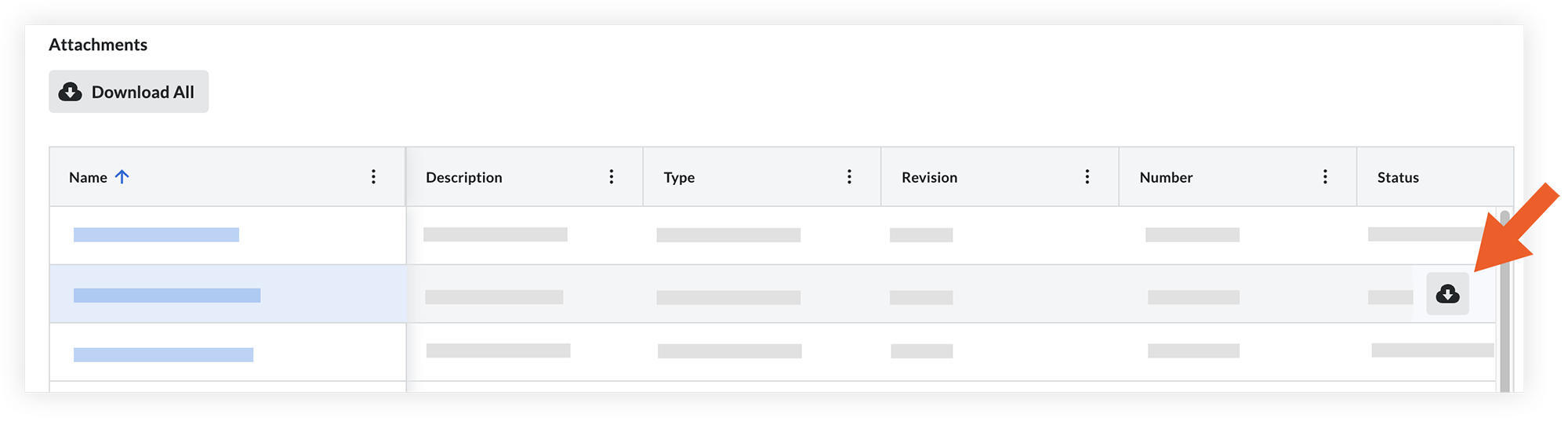
- Scroll to the 'Attachments' section to view all documents that have been attached. Documents are shown in a data table with the relevant information. You can adjust your view of the documents list as needed:
- To sort the documents by a specific attribute (such as 'Name' or 'Type'), click the colum name.
- To pin or adjust the size of a column, click the vertical ellipsis
 icon for a column and select an option.
- To view a document, click the file name.
This opens the document in the Document Management viewer.- To download the document from the viewer, click the download icon.
- When you're done viewing the document, click Close to exit the viewer.
- To download the document from the viewer, click the download
- To download all documents, click Download All above the table.
OR
To download a document from the table, hover over the file's row and click the download icon.
Note
If you see a lock  icon next to an attachment name, it means that you don't currently have access to that document.
You'll need to contact the creator of the correspondence so that they can assign you to the correct permission group for the Document Management tool. After permission has been granted, you'll be able to view and download the document.