

View the Change History of an Early Pay Program as a Payor (Beta)
Objective
To view the change history for an Early Pay Program as a payor.
Background
When Payments Admins add, update, assign, deactivate, or remove an Early Pay Program, Procore Pay records the action in the Change History tab. These records help your team follow up on any questions related to a program.
Things to Consider
Prerequisites
Steps
- Navigate to the Company level Payments tool.
- Click the Payments Settings
 icon.
icon. - Click the Payment Processing tab.
- Click Early Pay Programs.
- Under Early Pay Programs, locate the program to modify.
- Click the Manage button to open the desired program.
- Click Change History.
This reveals the Change History tab.
Click here to learn about the table.
Change History
The table on the Change History tab logs all of the changes to an Early Pay Program. A record is added when a user adds, updates, assigns, deactivates, or removes an Early Pay Program.
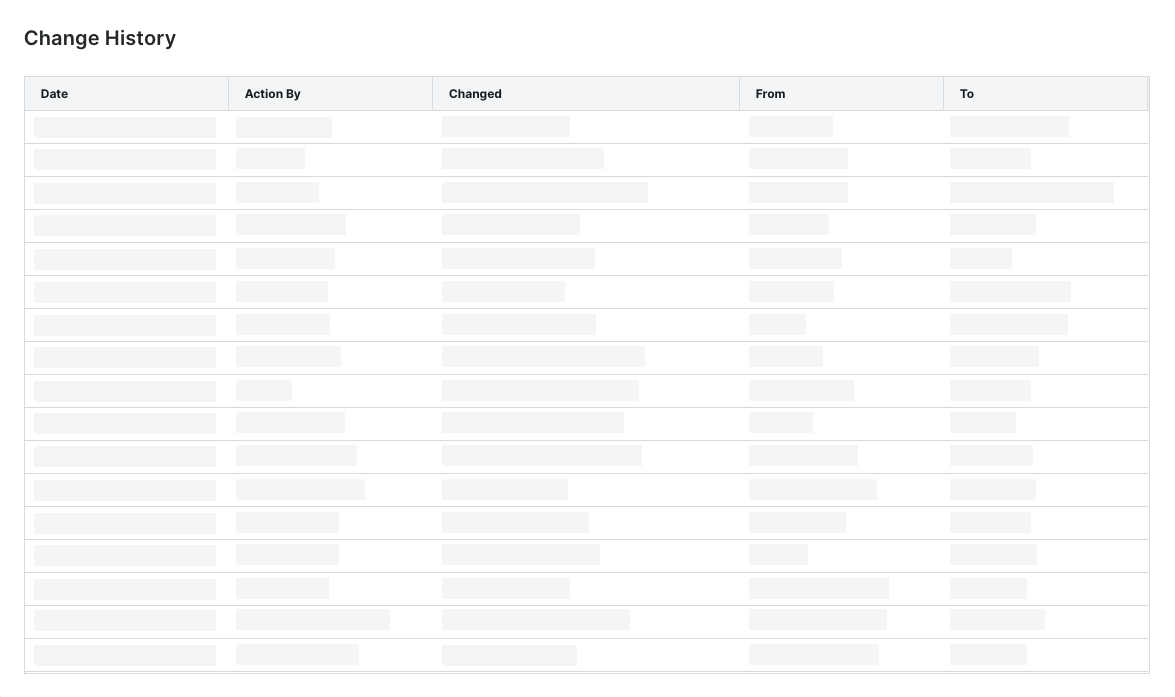
The table below describes the default columns on the Change History page.
| Column | Description |
|---|---|
| Date | Shows the date and timestamp of the action. |
| Action By | Shows the first and last name of the Payments Admin as it appears in the Company level Directory in Procore. Note: Only a member of Procore's Payments Operations Team can add Payments Admins to your account. This requires an authorized user at your company to complete and sign Procore's Payment Administrator Designation Form. Once added, this entry indicates the user was added by 'Procore Support'. For details, see Add or Remove Payments Admins as a Payor. |
| Changed | Provides a brief description of the action. |
| From | Shows the value that the action changed from. Note: If the action originated from a setting with a blank or null value, Procore shows the double dash symbol (--). |
| To | Shows the To value that the action changed to. Note: If the action resulted in a setting with a blank or null value, Procore shows the double dash symbol (--). |