

Mass Review Submittals in a Package
| PREVIOUS | CURRENT LESSON (32 of 48) | NEXT |
- Navigate to the project's Submittals tool.
This reveals the Submittals page. - Click Packages.
This reveals the Packages view. - Locate the desired submittal package and click View.
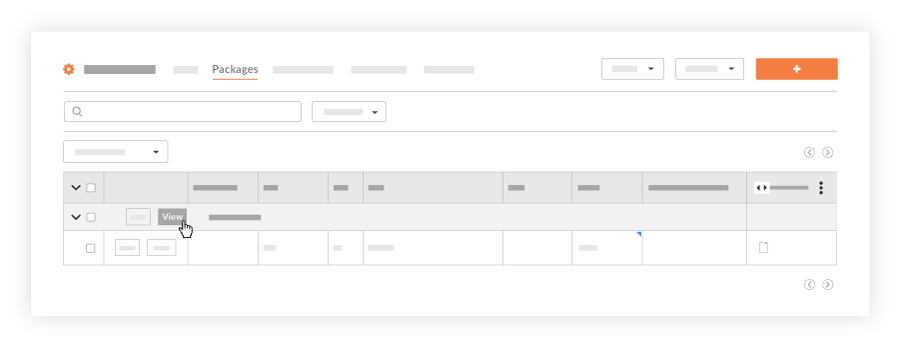
This opens the Submittal Package in view mode. - Click Review Submittals.
Note: This button is only visible if you are the Ball In Court person on all the submittals in the package.
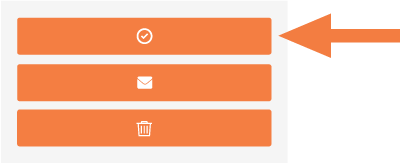
This places the submittal package into review mode. - Under 'Submittal Items', click the Review button next to the first submittal in the list.
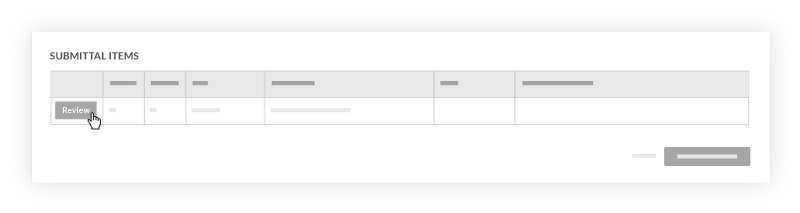
This places the selected submittal into review mode and the 'Provide Your Response' area appears. - In the 'Provide Your Response' area, do the following:
- Response. Select a response for the submittal item from this list. See What are the default submittal responses in Procore? and Create Custom Submittal Responses.
- Comments. Enter any helpful text or instructions in the text box.
- Attach File(s) Click Attach File(s) or use move files from your computer into the Drag and Drop File(s) area.
- Repeat steps 5 and 6 above for each submittal item.
Note: For each submittal, Procore sends an automated email notification to:- If using sequential approval, the next reviewer assigned to the submittal workflow. This notifies the user that their action is required. See Respond to a Submittal as a Reviewer. (Note: Procore also designates this individual as the 'Ball In Court' person).
- When you have reviewed all of the submittals in the package, click Finish Reviewing.
The system records your response and you are returned to the View Package page.