The email functionality on the Submittals tool allows you to send an email outside of the emails that are automatically generated from the Submittals tool. Automatic emails are sent out to approvers and members of the distribution list when the email is created, when an approver responds, when an approver's response is edited, and when any changes are made to the submittal (attachments are attached, the submittal status is changed, etc).
- Navigate to the project's Submittals tool.
This reveals the Submittals page.
- Locate the desired submittal.
- Click View.
This opens the submittal in view mode.
- Click Email.
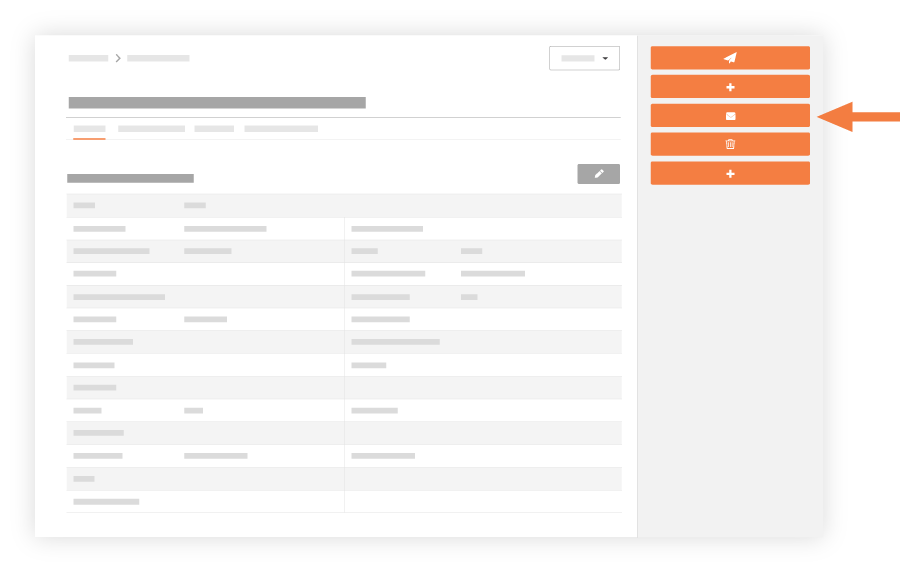
This reveals the Emails subtab for the submittal.
- Under the 'Forward Submittal' area, do the following:
- To. Select the desired recipient(s) from the drop-down list.
- Cc. Select any desired recipient(2) to receive a carbon copy of the email.
- If a person is missing from the list, ask your project administrator (i.e. a user with 'Admin' permissions on the project's Directory tool) to add the user.
-
-
Title. The descriptive name that best summarizes the information in the submittal.
-
Attachments. Attach any relevant files. You have these options:
- Click Attach File(s) and then choose the appropriate option from the shortcut menu that appears.
OR
- Use a drag-and-drop operation to move files from your computer into the grey Drag and Drop File(s) box.
- Message: Enter the body of your email message.
- Click Send.
The system sends the email to all of the recipients. A copy of the email and any replies are stored as a communication thread in the Emails subtab of the submittal.

