

Add or Delete a Related Item to a Daily Log Entry
| Previous | Current Lesson - 6/25 | Next |
-
Navigate to your project's Daily Log tool.
-
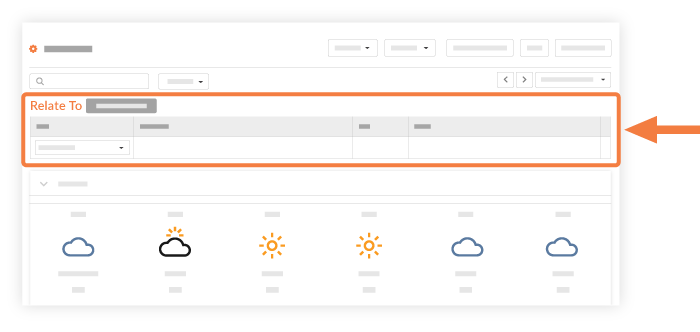
There will be a new "Relate To" field at the top of the page. Select the Type and Description from the drop-down menu, and add any additional notes.
-
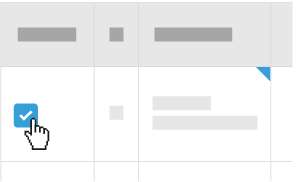
Scroll through your log. Select the checkbox next to any entries you want to relate to the items. Or, click Select/Deselect All in the "Relate To" field.
-
Scroll back to the top of the log, and click Relate in the "Relate To" field.
Note: This will attach the item to your entry. -
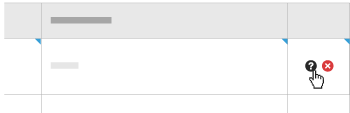
View the related item attached to the entry by clicking on the question mark
 for the entry.
Delete a Related Item
- Navigate to your project's Daily Log tool.
- Scroll to the daily log entry that has the related item attached.
- Click the icon on the right to view the daily log's related item.
Note: Do not click the X next to the daily log entry. This will delete the entry instead of the related item. - In the related item viewer, click the
 next to the related item.
 - Close the window to return to your Daily Log.