

Configure Advanced Settings: RFIs (Okland)
Objective
To configure the settings and preferences for Procore's RFI tool.
Things to Consider
- Required User Permissions: 'Admin' level permissions on the project's RFI tool.
Steps
- Navigate to the project's RFI tool.
- Click Configure RFI Settings in the right pane to open the RFI Settings page.
- Set your project preferences as detailed below:

Note: Preferences you set for Allow Private RFIs, members of the default distribution list, and the labels for both Custom Fields are reflected in all RFIs. If you enable all of these fields, your RFIs will have the following settings:

- Allow Private RFIs: Mark this checkbox to give users with 'Standard' and 'Admin' level permission to the RFIs tool the ability to set the RFIs they create to private (Note: Private RFIs are only be visible to distribution list members and users with 'Admin' level permission to the RFI tool).
- RFIs Private By Default: (Note: This is marked by default for all new Okland projects.) Mark this checkbox so that the default setting for new RFIs is private. (Note: Users will still be able to remove the checkbox when they create or edit an RFI).
- Show Questions & Responses In RFI Log PDF: Mark this checkbox to enable your RFI Log PDFs to show RFI questions and all responses (labeling any official responses) along with the subject of the RFI, the assignee, the date the RFI was initiated, the due date, the closed date, the ball in court, the schedule impact, the cost impact, and the status of the RFI.
- Answers To New RFI Questions Will Be Due: Set how many days after the creation date you would like RFIs to be due.
- Enable Email Reminders For Overdue RFIs: Mark this checkbox if you would like to the system to send daily reminder emails to the assignee on the RFI when the RFI is overdue.
- Only Allow Standard Level Users to Create Draft RFIs: (Note: This is default for all new Okland projects.) Mark this checkbox if you want to limit the ability of users with 'Standard' level permission so they can only create RFIs in the 'Draft' status (Note: This is a common setting when users with 'Admin' level permission to the RFIs tool want to review 'Draft' RFIs that are created before distributing them to the assignee and distribution list members).
- Label For Custom Field 1 and 2: If you would like to add in any extra fields to your RFI form in Procore, you may add them in these custom fields. They appear as 'Custom Field 1' and 'Custom Field 2' in the screenshot above.
Note: There is a character-limit of 255 characters on each of the fields.
Procore has the following fields that you can fill out when creating an RFI:- RFI #
- Subject
- Assigned To
- Responsible Contractor
- Distribution [List]
- Drawing Number
- Spec Section
- Schedule Impact
- Cost Impact
- Draft (if the RFI is a draft and shouldn't be sent out to members of the distribution list yet)
- Due date
- Question Received From
- Location
- Cost Code
- Reference
- Private
- Overdue Notifications
- Attachments
- Question
- Default Distribution: Add in members of the project who should be sent notification emails on every or most RFIs generated in your project in Procore.
- Only Show Official Responses: Mark this checkbox to hide the "All Replies" section of an RFI by default, thus only showing selected official responses, unless you click "All Replies".


- RFI Emails: Members of the distribution list (above), as well as the RFI creator, will receive update emails when certain actions are performed on the RFIs they are a part of. Enable (
 ) or disable (
 ) actions that will trigger these RFI notification emails.
- When the draft RFI email is enabled, it will send a notification email to the assignee and the creator when a 'Standard' level user creates a draft RFI.
Custom Reports
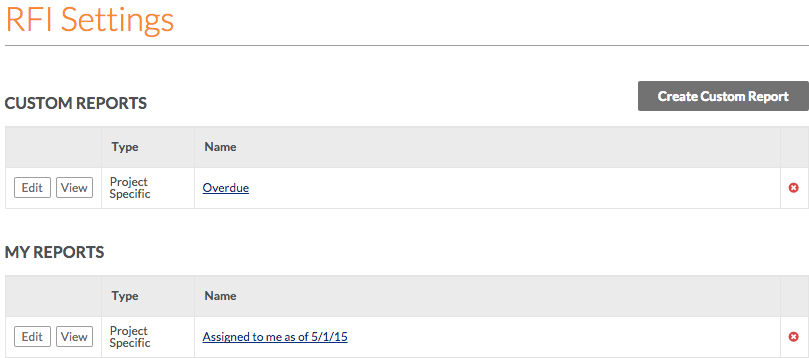
- Click on the Custom Reports sub tab on the right hand side of the page. This page will allow you to create, edit, and view custom RFI reports.
- Project Specific and Company Wide reports will appear under the "Custom Reports" section. Any reports marked as "Private" only to you will appear under the "My Reports" section.
- Delete any reports by clicking the red 'x'.
- Edit a report by clicking the blue Edit button. See Edit a Custom RFI Report for more information.
- View a report by clicking the grey View button.
- Create a new custom report by clicking Create Custom Report. See Create/View a Custom RFI Report for more information.
- Access your Custom RFI Reports in the 'RFI Reports' section on the right of your RFI log page.
