

About Pinning and Connected Items in the Document Management Tool
Background
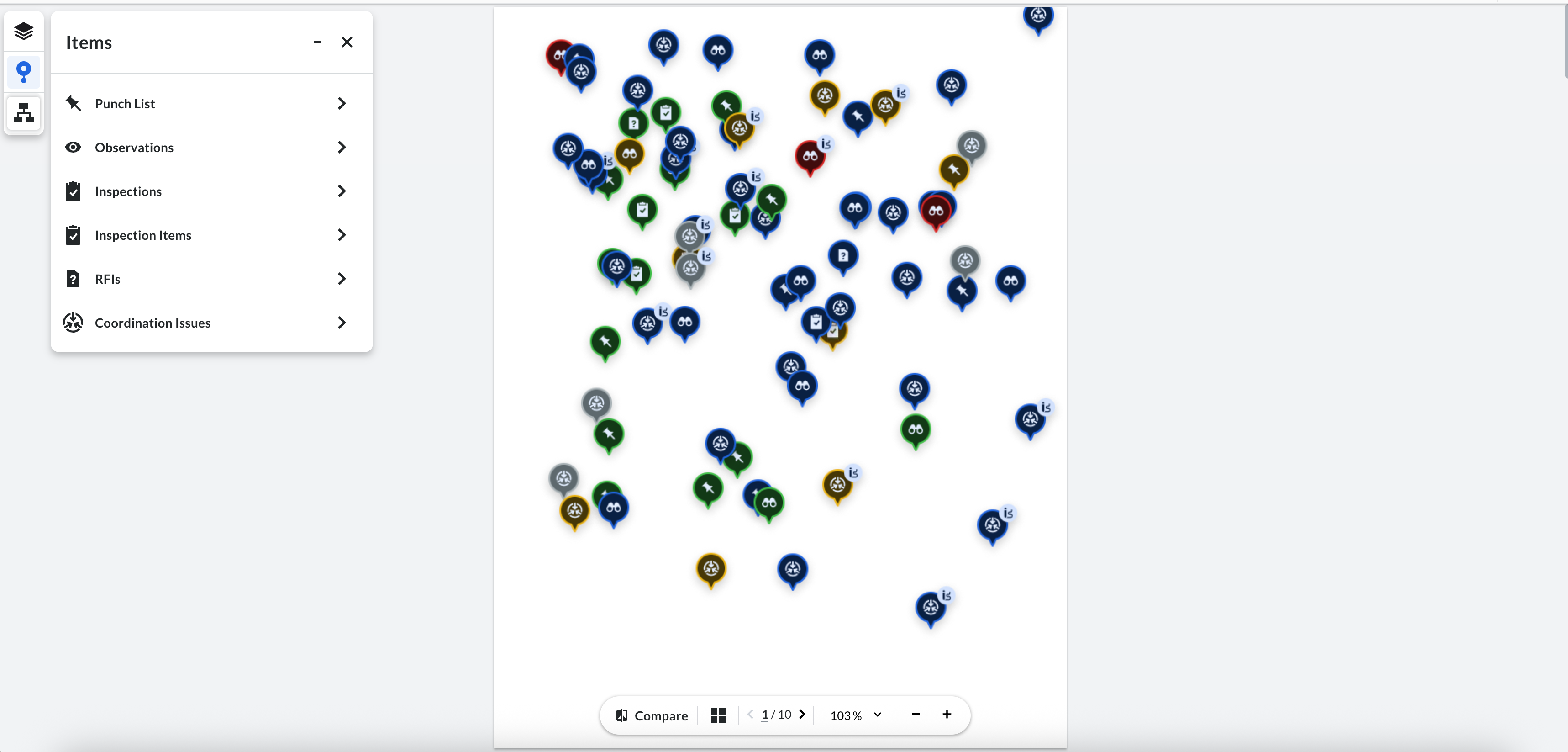
On complex project drawings, team members often need to track specific issues or site observations that do not require a structured review process. The Connected Items feature allows you to pin items to a precise location on a 2D document, ensuring that everyone with access can see the associated status, markups, and details in one centralized view. Pinning is supported for Coordination Issues, Observations, RFIs, Inspections, Inspection Items, and Punch/Snag items.
Things to Consider
-
Required User Permissions: Must have the ability to add markups to Document Management workflows to utilize grouping features for more organized and efficient reviews.
-
Workflow Independence: Pins created via the Connected Items tab are independent and do not interact with pins or issues created within the Comment Register workflow.
-
Functional Limits: While you can link existing or create new items, certain tools (like Observations) do not currently support a details panel within the viewer.
-
Item Creation Limits: While you can create brand-new Coordination Issues and Observations directly from the Connected Items panel, the ability to 'Create New' is not supported for RFIs, Inspections, Inspection Items, or Punch/Snag items. These four item types must already exist in their respective tools to be pinned and linked.
Steps
To pin an existing or new item to a document, perform the following steps:
-
Open the Connected Items Tab
-
Link an Existing Item
-
Create a New Pinned Item (Coordination Issues & Observations only)
-
Pinning Capability Table
To pin an item to a document, perform the following steps:
Open the Connected Items Tab:
-
Navigate to the project’s Document Management tool.
-
Make sure you are in the Documents tab and open your 2D document.
-
Click the Connected Items
 icon on the viewer's navigation bar.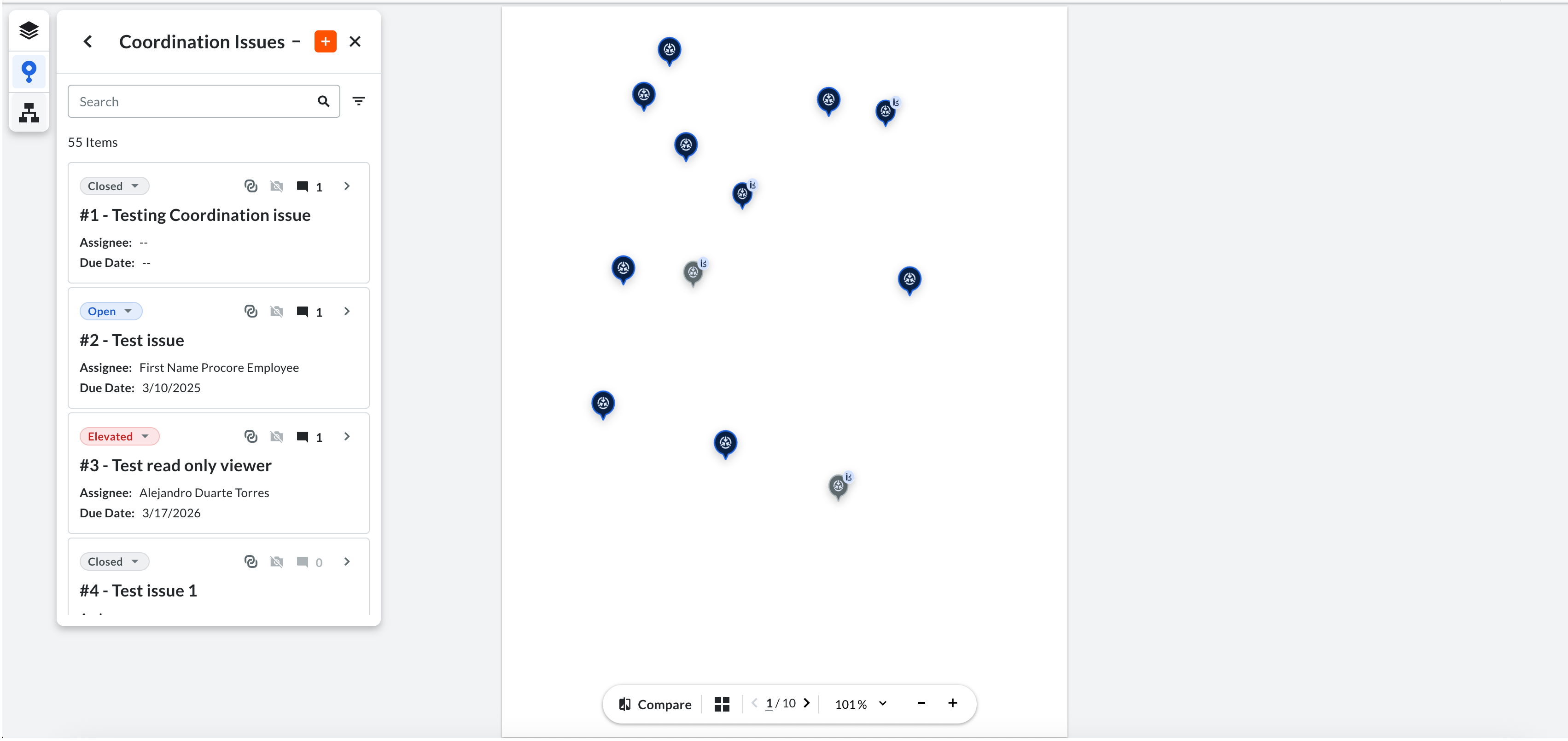
Link an Existing Item:
-
Navigate to the project’s Document Management tool.
-
Make sure you are in the Documents tab.
-
Click the Connected Items
icon on the viewer's navigation bar. -
Select a tool from the list, such as, Coordination Issues, Observations, RFIs, Inspections, Inspection Items, or Punch/Snag items to see items correlated to the document.
-
On the desired item card, click + Pin.
-
Click the location on the document to drop the pin.
-
(Optional) Use the markup tools to add a drawing. This markup is now attributed specifically to this pin and is only visible when the pin is selected.
Create a New Pinned Item:
Note
Creating a brand-new item directly from the document viewer is only supported for Coordination Issues and Observations. For RFIs, Inspections, Inspection Items, and Punch/Snag items, you must link an existing item using the steps above.
-
Within the Connected Items tab, click the plus (+) icon.
-
Click the document to drop the pin.
-
Fill out the required fields in the creation form and click Create.
Pinning Capability Table:
|
Feature/Tool |
Link Existing |
Create New |
View All Items |
Details Panel (in viewer) |
|---|---|---|---|---|
|
Coordination Issues |
Yes |
Yes |
Yes |
Yes |
|
Observations |
Yes |
Yes |
Yes |
No |
|
RFIs |
Yes |
No |
Yes |
No |
|
Inspections |
Yes |
No |
Yes |
No |
|
Inspection Items |
No |
No |
Yes |
No |
|
Punch List |
Yes |
Yes |
Yes |
No |