

Use the Comment Register in a Document Workflow in the Document Management Tool
Background
On complex drawings, documents can quickly become cluttered with overlapping markups, making it difficult to distinguish which note belongs to a specific discussion point. The Comment Register solves this by allowing reviewers to thread their feedback; grouping multiple markups, measurements, and shapes under a single comment or coordination issue. This ensures that every visual annotation is contextually linked to a specific item in the register, reducing noise and ensuring that the exact intent of the feedback is easy for everyone to follow.
Things to Consider
-
Required User Permissions: Must have the ability to add markups to Document Management workflows to utilize grouping features for more organized and efficient reviews.
-
Access & Visibility:
-
Watchers and assignees have access to the Coordination Issues created, as well as anyone currently in the workflow.
-
If additional team members need access, you can add them as a Watcher to the issue.
-
-
Management & Rules:
-
Bulk editing and management of these items are handled via the Workflow tab within the Coordination Issues tool.
-
Added specific location for management.
-
Action on these tickets follows standard Coordination Issue (CI) rules.
-
-
Availability: The Comment Register and its pinning functionality are only visible while a document is in an active Review Workflow.
-
Markup Visibility: Markups grouped under a comment are only highlighted when that specific comment or its associated pin is selected.
-
Data Isolation: Coordination issues created in the Comment Register are stored in a separate bucket and do not interact with general Connected Items pins.
Note
To learn how to pin items outside of a formal workflow, see About Pinning and Connected Items in the Document Management Tool.
Steps
-
Navigate to the project’s Document Management tool.
-
Make sure you are in the Documents tab.
-
Access the Comment Register
 panel while a document is in an active workflow.
 -
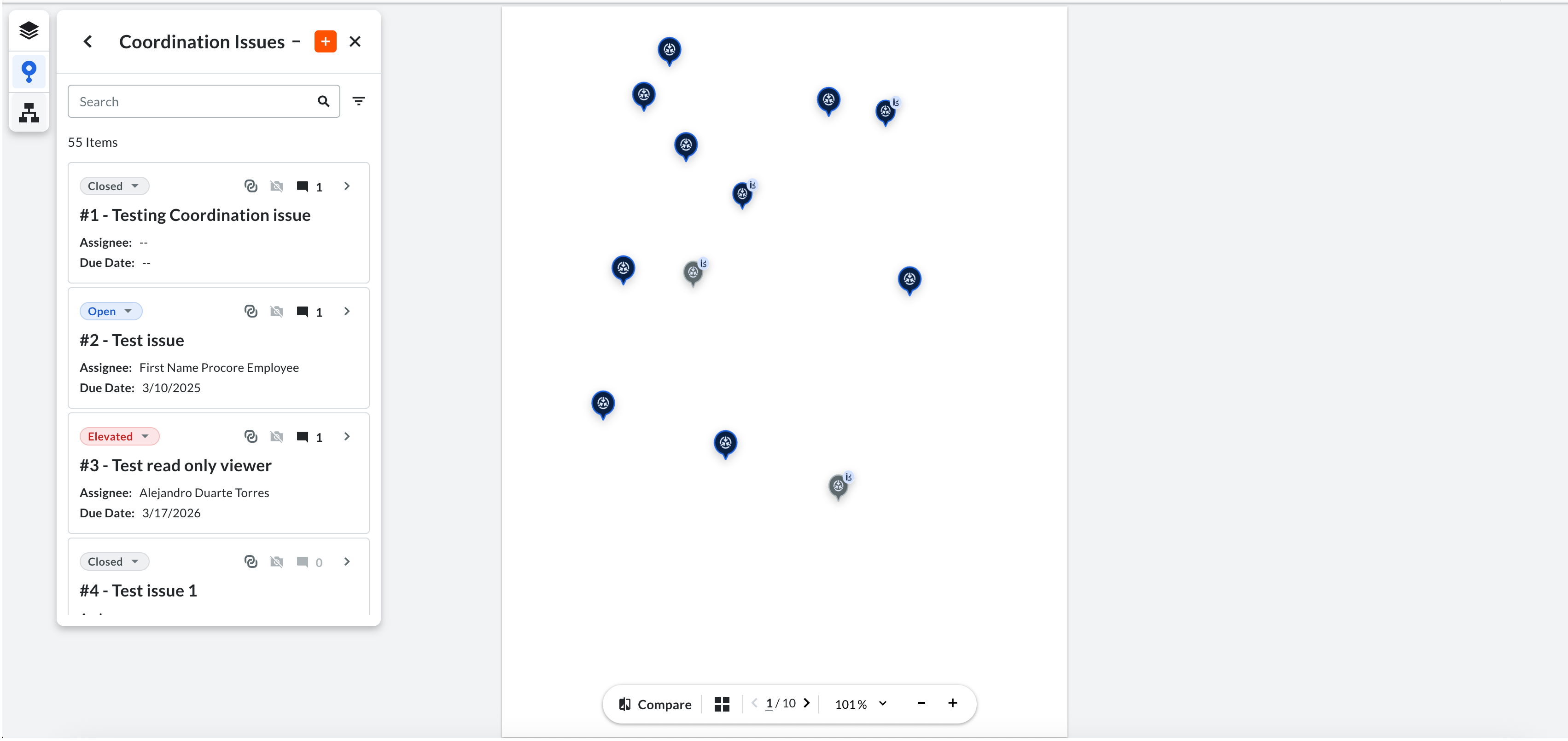
Click the plus (+) button to create an issue and place a pin on the document.
-
Note: An auto-captured snapshot of the pin location is automatically saved to the issue for visual context.
-
-
Navigate to an Issue:
-
Click a Pin
 icon on the document to navigate directly to the associated issue.
 -
Alternatively, click the caret
 icon in the register list to navigate to a specific issue card.
Note: When an issue is selected, all other pins are filtered out to focus on the active item.
-
-
Group Markups:
-
Select a comment or issue in the register list.
-
Draw a markup on the document.
These markups are now contextually grouped under that specific comment.
-
-
Filter and Highlight Feedback:
-
Click a Comment in the register list to highlight its associated markups while dimming unrelated ones.
-
Click the caret
icon to return to the list view and see all pins again.
-
-
Manage Workflow Issues
-
To manage, bulk edit, or close issues created during a review, navigate to the Coordination Issues tool.
-
Click the Workflow Issues tab to view only those issues generated from document review workflows.
-

