

Manage Your Inbox for Resource Planning
Prerequisites
-
Messages sent in Resource Planning do NOT appear in Emails in Procore.
-
Deleted messages are permanently removed from Resource Planning and cannot be recovered.
-
Messages that are only visible to you have a lock
 icon.
icon. -
People receiving messages via SMS cannot reply via SMS.
-
Message and data rates may apply when receiving SMS messages.
-
-
People receiving messages via email can reply from their own email client. Emailed replies appear in your inbox.
Prerequisites
Steps
-
Reply
-
Star
-
View
Reply to a Message
-
Navigate to the company's Resource Planning tool.
-
Click the Communications (Beta) tab.
-
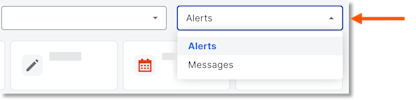
Click Messages from the drop-down menu.
-
Click Inbox.
-
In the 'Date/Time Sent' column, select the envelope
 icon for the message.
 -
Enter your reply.
-
Optional: Mark the checkbox to include your signature.
-
Click Reply.
Star a Message
-
Navigate to the company's Resource Planning tool.
-
Click the Communications (Beta) tab.
-
Click Messages from the drop-down menu.
-
Click the star
 icon for the message you want to favorite.
View a Message
-
Navigate to the company's Resource Planning tool.
-
Click the Communications (Beta) tab.
-
Click Messages from the drop-down menu.
-
Click Inbox.
-
In the 'Date/Time Sent' column, select the envelope
icon for the message to view the details.