

View My Open Items
Background
My Open Items lists all actionable tasks—such as submittals, RFIs, and inspections—assigned to you.
The items you see depend on your view. At the project level, My Open Items displays tasks exclusive to that specific project. At the company level—via the Consolidated My Open Items Workspace beta (US 2 | UK)—the list dynamically aggregates open items from across all projects and companies.
Things to Consider
-
Required User Permissions on the company's Procore Home tool.
Note
- During the Consolidated My Open Items Workspace Beta phase, you will only see cross-company items that originate from companies within the same data zone as your company (e.g., if your company is in the USO1 zone, you will only see cross-company items from other USO1 companies).
- General Availability (GA) Scope: The full release will expand to show cross-company items from both US data zones (USO1 and USO2).
- Users who have a large number of open items across many projects may notice longer-than-expected loading times for the My Open Items page. We are working to improve the response time for this page before the general availability (GA) release.
Steps
-
Navigate to My Open Items.
-
From the My Open Items
 icon in the navigation bar: Show / Hide Steps
-
-
-
-
-
Optional: Search and Filter Open Items.
-
Click the title of any open item to view it.
Company Portfolio (Legacy)
-
Navigate to your company's Portfolio tool.
The Portfolio page appears. After you create a project, this page lists all the projects in your company's Procore account. -
Click My Open Items.
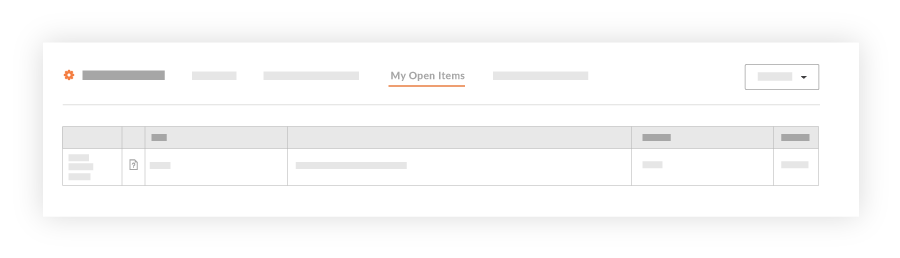
This reveals the My Open Items page, which lists your open items by Project Name, Item Type, Details, and Status. This list is also sorted by Due Date.
-
Choose from these options:
-
To navigate to the project's Home page, click the Project Name link.
-
To open the project item, click the Details link.
-
-
