

Upload an Updated Analytics Report to the Power BI Service
Background
This tutorial provides instructions for downloading an updated version of an Analytics report from the Analytics tool and replacing the existing version in your Power BI Workspace. Replacing a report ensures that your existing configurations, such as data refresh schedules and embedment links, remain active for the new version.
If your company has not uploaded an Analytics report yet and would like to upload the first version, see Upload Reports to the Power BI Service.
Things to Consider
-
Prerequisites:
-
Before downloading the updated Analytics report, delete any old out-of-the-box report files from the location where they are stored on your computer, such as the 'Downloads' folder.
-
Download the updated Analytics report. See Download an Analytics Report.
Note: Verify that the out-of-the-box Analytics report in your 'Downloads' folder has the correct name without any number appended.
-
-
Things to Know:
-
To replace an existing Analytics report in the Power BI service, the updated filename must exactly match the existing filename. Any change to the name, such as an appended '(1)' when downloading the same file multiple times, means your updated file will not replace the existing file, but will instead be uploaded as a new file.
-
Any changes made to a previous version of an Analytics report, such as adding or hiding pages, altering text, or modifying visuals, must also be applied to the newly downloaded out-of-the-box report file before you replace the file on the Power BI Web service.
-
Steps
-
Log in to the Power BI service using your Power BI login credentials.
-
Click Workspaces from the left-hand navigation menu.
-
Select the specific workspace where your company's out-of-the-box Analytics reports are stored.
-
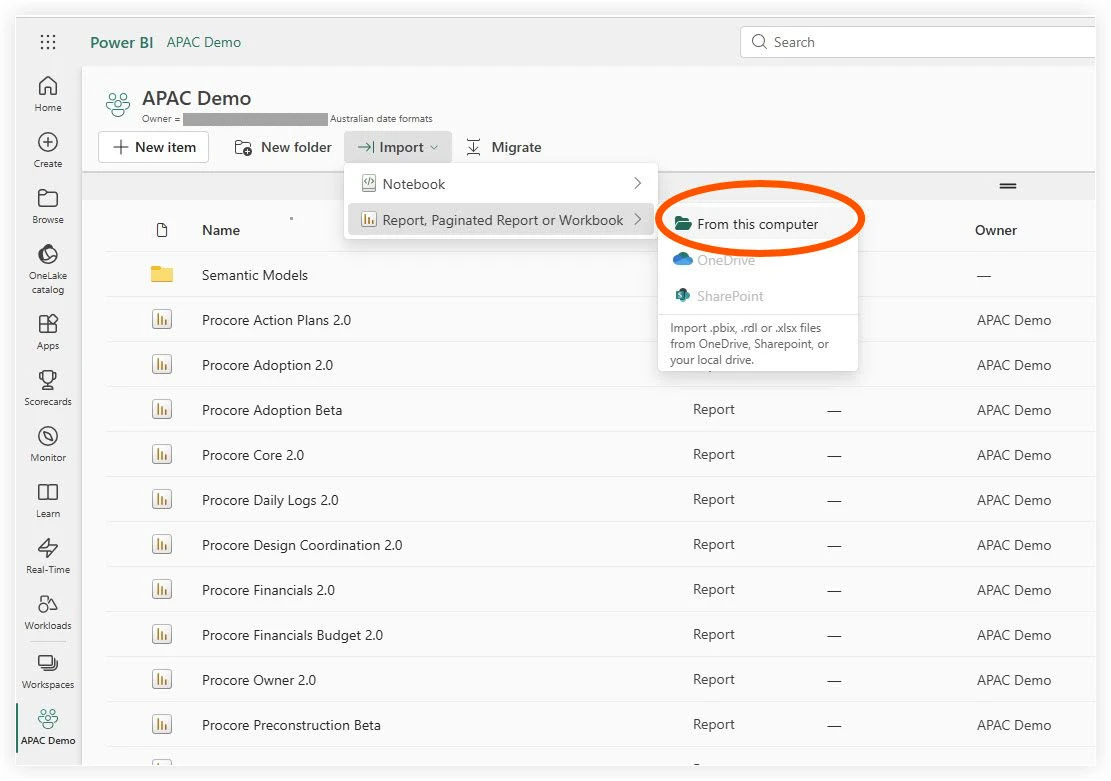
Click the Import drop-down menu at the top of the workspace.
-
Select Report, Paginated Report or Workbook.
-
Select From this computer.
-
Select the downloaded
.pbixfile with the matching name, then click Open. -
When the pop-up window appears stating a report/dataset with that name already exists, click Replace.
-
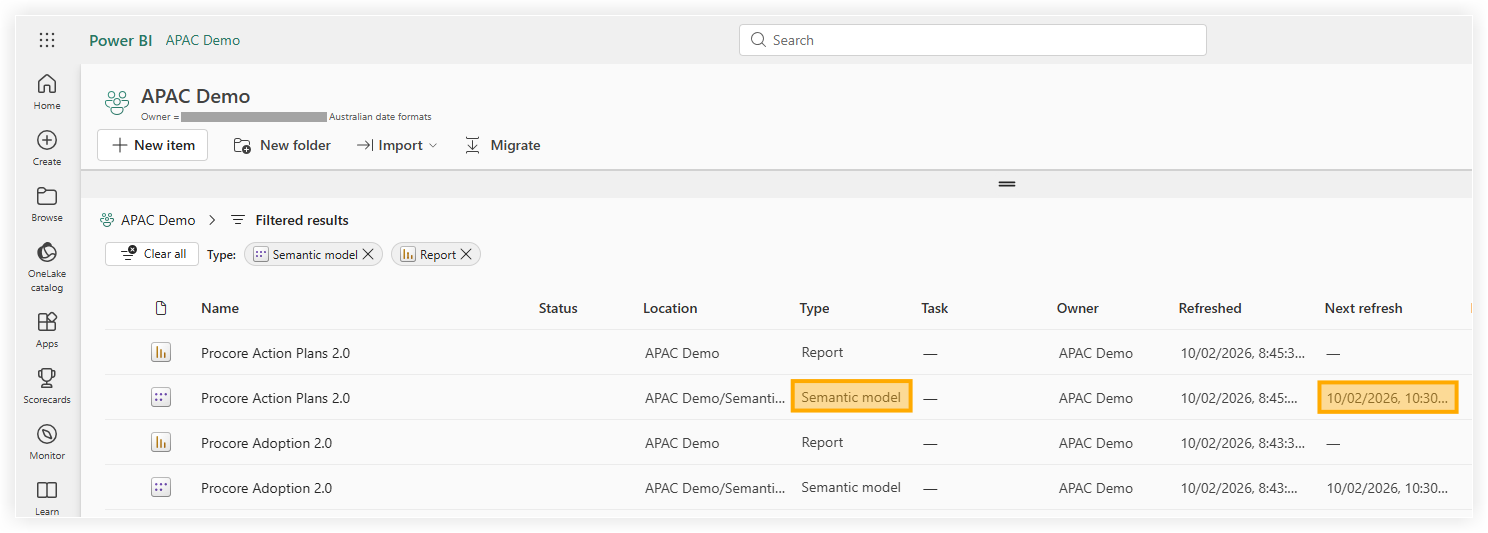
Locate the Semantic model associated with the report in your workspace list.
-
Check the Next refresh column.
Note: If the replacement was successful, the column will still show your previously configured schedule, confirming that the updated report inherited the existing settings.
Tip
Procore recommends verifying the refresh schedule immediately after replacement to ensure the 'Semantic model' has correctly inherited your previous settings.
-
To verify that the updated report's data refreshes properly as scheduled, hover your cursor over the row with the report's name and click the circular arrow icon to refresh the data manually.
-
Check the 'Refreshed' column to see if there is a warning icon:
-
If no warning icon displays, the report's data was successfully refreshed.
-
If a warning icon displays, an error has occurred. Click on the icon to see more information about the error.
-
-
To verify that the report renders properly, navigate to the 'All' or 'Content' page, then click the report's name to view the report in the Power BI service.
Note: Check the Type column to ensure you are selecting the report and not a different asset.
See Also
- Connect Analytics Reports for Non-US Data Zones
- Update Analytics Reports for the Line Items (JSON) Column
- Set Up Row-Level Security for Analytics 2.0