

Update the Row Limit for Delta Sharing in Power BI Desktop
Background
When connecting to a Delta Sharing data source in Power BI Desktop, there is a default row limit of 1 million rows. If your dataset exceeds this limit, Power BI will retrieve only a partial dataset, which may lead to incomplete reports.
Things to Consider
-
Prerequisites:
-
Delta Sharing credentials. Access to config.share file containing the Delta Sharing credentials.
-
-
Additional Information:
-
If the Row Limit field is left blank, Power BI defaults to a limit of 1 million rows.
-
Setting an excessively high row limit may impact the performance of your Power BI Desktop application or increase load times.
-
After updating the row limit, you must refresh your Analytics report to import the additional data.
-
Steps
-
Open Power BI Desktop.
-
From the Home ribbon, click Get data.
-
Click More... to open the Get Data window.
-
Search for and select Delta Sharing, then click Connect.
-
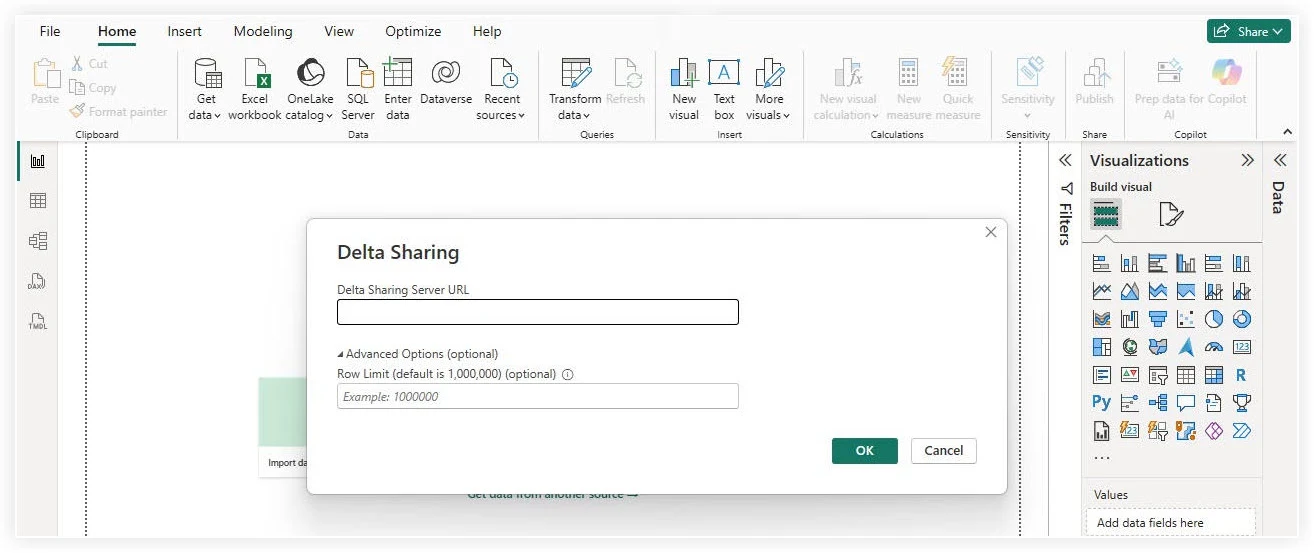
In the 'Delta Sharing' window, configure the following:
-
Enter your Delta Sharing Server URL.
-
Click Advanced Options (optional) to expand the section.
-
In the Row Limit field, enter a value higher than your current dataset's row count. For example, 5,000,000.
Note: Procore recommends increasing this limit to 5,000,000 or 10,000,000 if your data exceeds the default value of 1,000,000 rows. -
Click OK.
-
-
Complete the connection process and refresh your Analytics report to view the full dataset. See Connect to Power BI Desktop.
Tip
-
Check your Procore table sizes periodically to ensure your defined Row Limit remains higher than your actual record count.
-
If you have large datasets, consider using Power BI filters or parameters to limit the data to specific timeframes or projects, rather than simply increasing the row limit to extreme numbers.