Connect Analytics Reports for Non-US Data Zones
Background
This workflow applies to your account if you are hosted on a non-US data zone. You can check this by looking at the web address you use to log into Procore:
-
If your URL is https://app.uk01.procore.com or any address other than the standard US zones (US01/US02), you must follow the steps below.
-
For details on how Procore provisions these zones, see Where and how does Procore store customer information?
Things to Consider
-
Prerequisites:
-
Delta Share Credentials. Access to config.share file containing the Delta Sharing credentials.
-
Power BI Desktop
-
Open the Analytics report in Power BI Desktop.
-
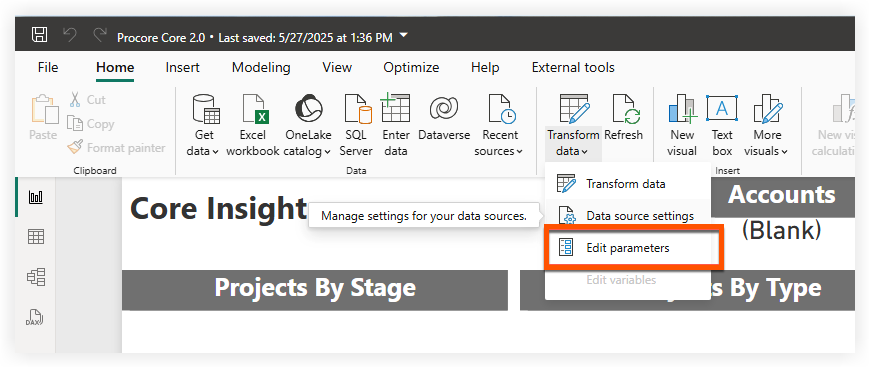
In the Home ribbon, click Transform data and select Edit parameters.
-
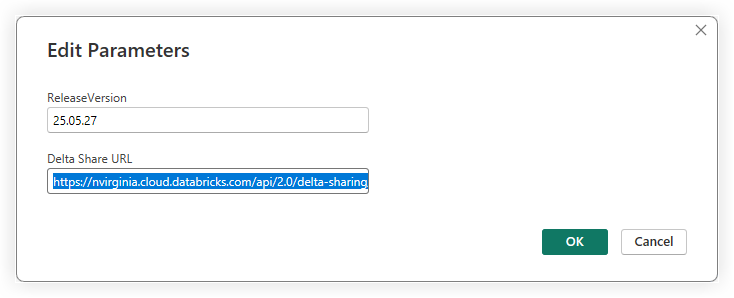
Enter the Delta Share URL, and click OK.
-
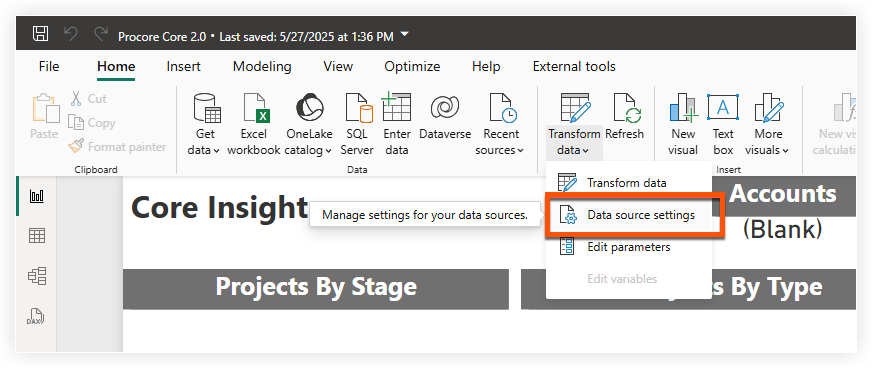
In the Home ribbon, click Transform data and select Data source settings.
-
Click Edit Permissions.
-
Under the Credentials section, click Edit.
-
Enter the Bearer Token.
-
Click Save > OK > Close.
-
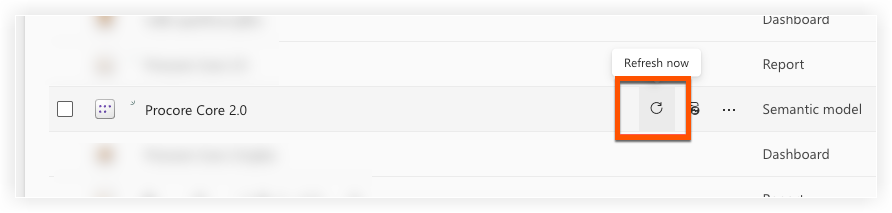
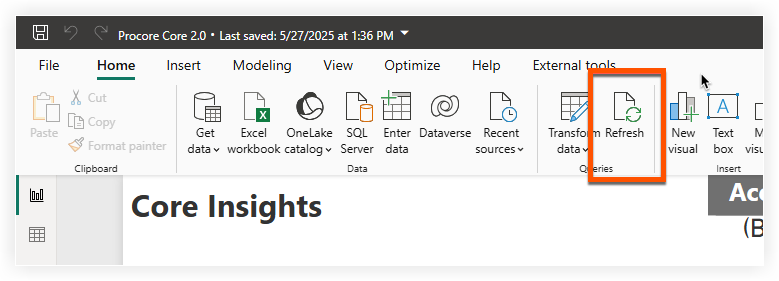
Click Refresh on the Home ribbon.
Power BI Service
-
Navigate to the Power BI service.
-
Upload your Analytics report to your desired workspace:
-
Navigate to the workspace.
-
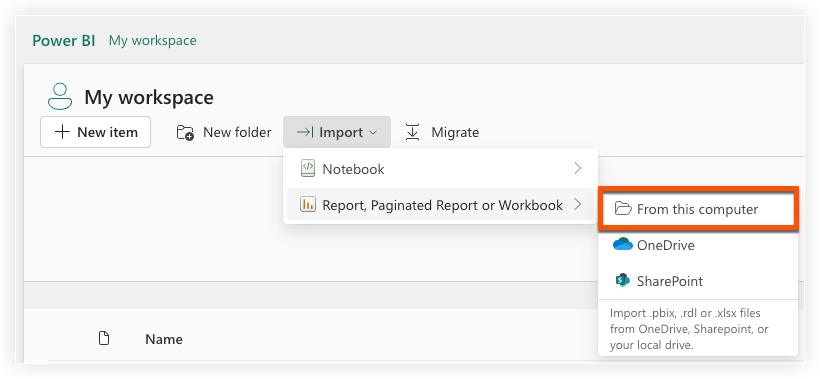
Click Import.
-
Select Report, Paginated Report, or Workbook.
-
Select From this computer.
-
-
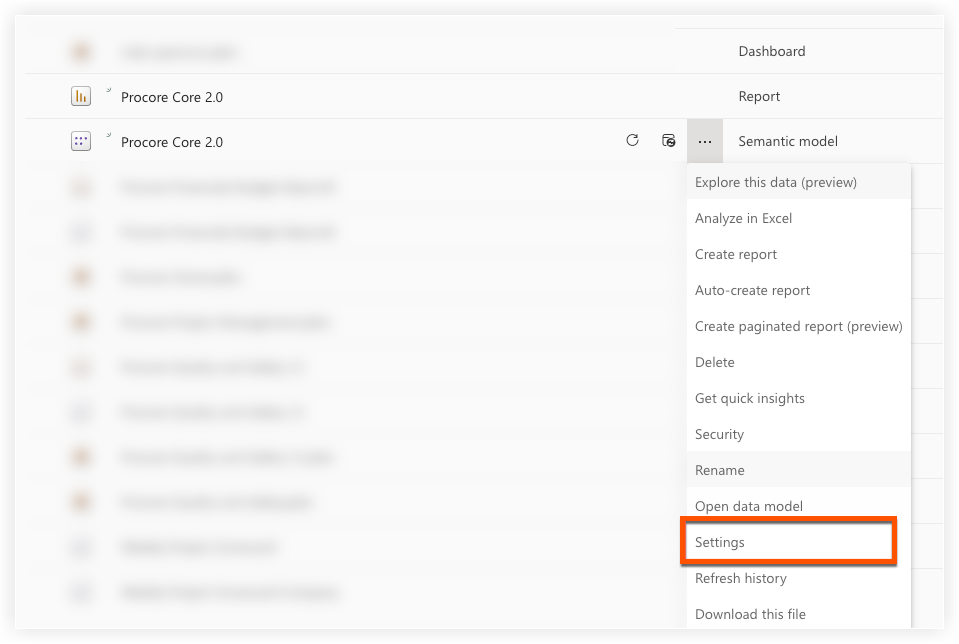
Go to the settings of the semantic model for the report you just uploaded.
-
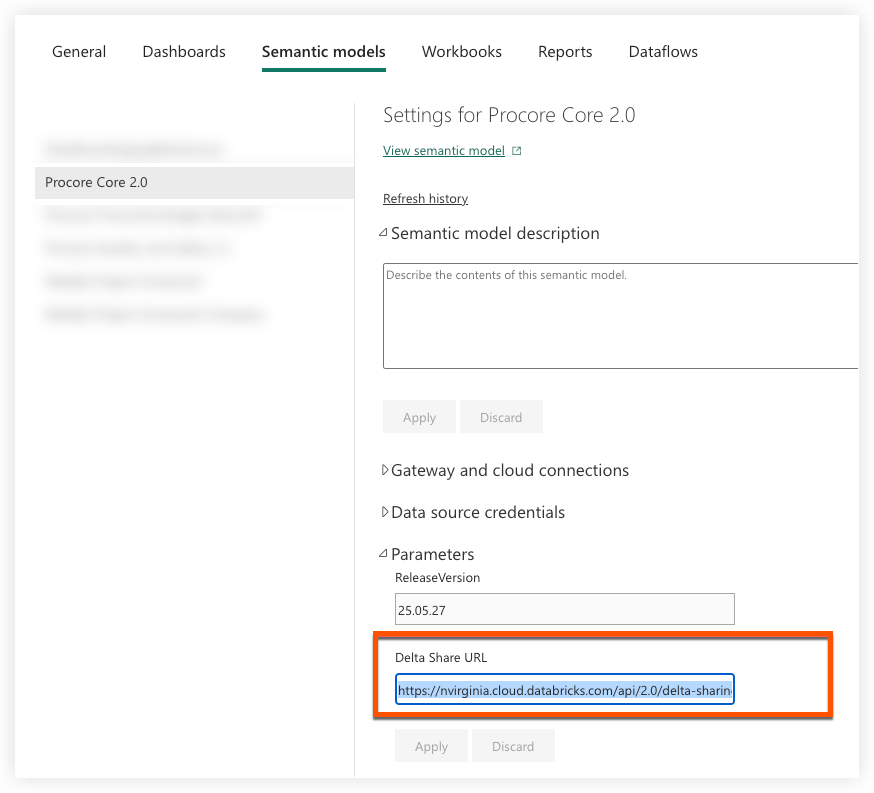
Navigate to the Parameters section in the settings.
-
Enter the Delta Share URL, and click Apply.
-
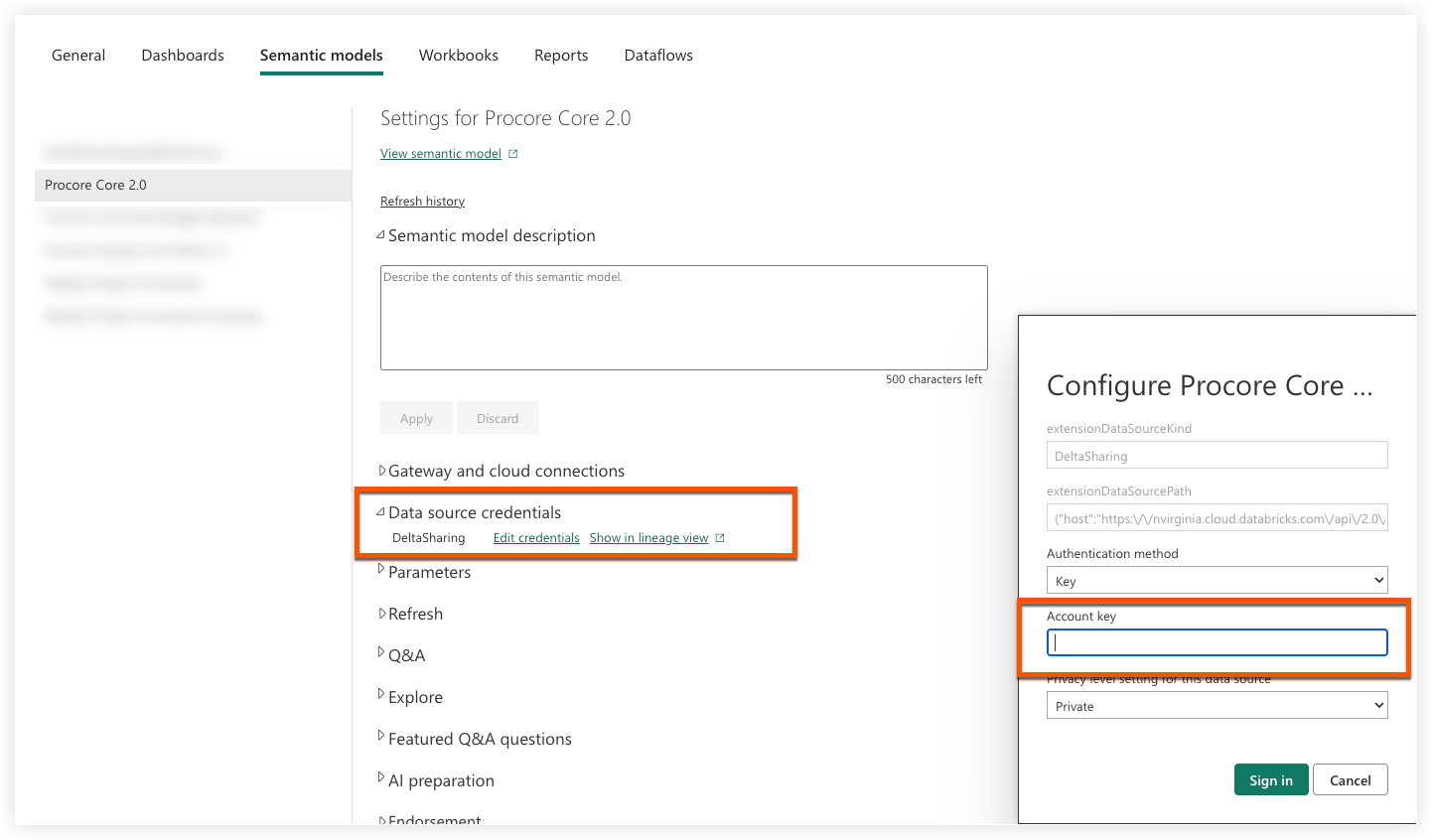
In the Data source credentials section, click Edit Credentials.
-
Enter your bearer token in the Account Key field.
-
Click Sign In.
-
Navigate back to the workspace. You can now manually refresh the report or wait until your next scheduled refresh, if one is configured.