Link a Sub-Tier to a Directory Entry
Background
To facilitate the distribution of funds to the correct entity, you must first associate your sub-tier's billing information with a verified entry in the Procore Directory. This step uses an EIN-based confirmation system to validate the sub-tier’s identity. Establishing this link is a one-time requirement per commitment that is designed to help the General Contractor (GC) to replace manual check issuance with verified electronic transfers.
Things to Consider
-
Required User Permissions:
-
To link a Sub-tier to a Directory record.
-
'Read Only' or higher permissions on the project's Directory tool.
AND -
'Admin' level permissions on the project's Commitments tool.
-
-
Sub-tier linking to a Directory entry is required only once per commitment.
-
Confirm the sub-tier’s name in the Directory matches the business name on their W-9 to avoid verification delays.
-
Enter only in numbers (no dash) in the EIN field.
Prerequisites
-
Ensure sub-tiers are in your company Directory with an EIN and at least one user email address (no collaborator permissions required).
Steps
-
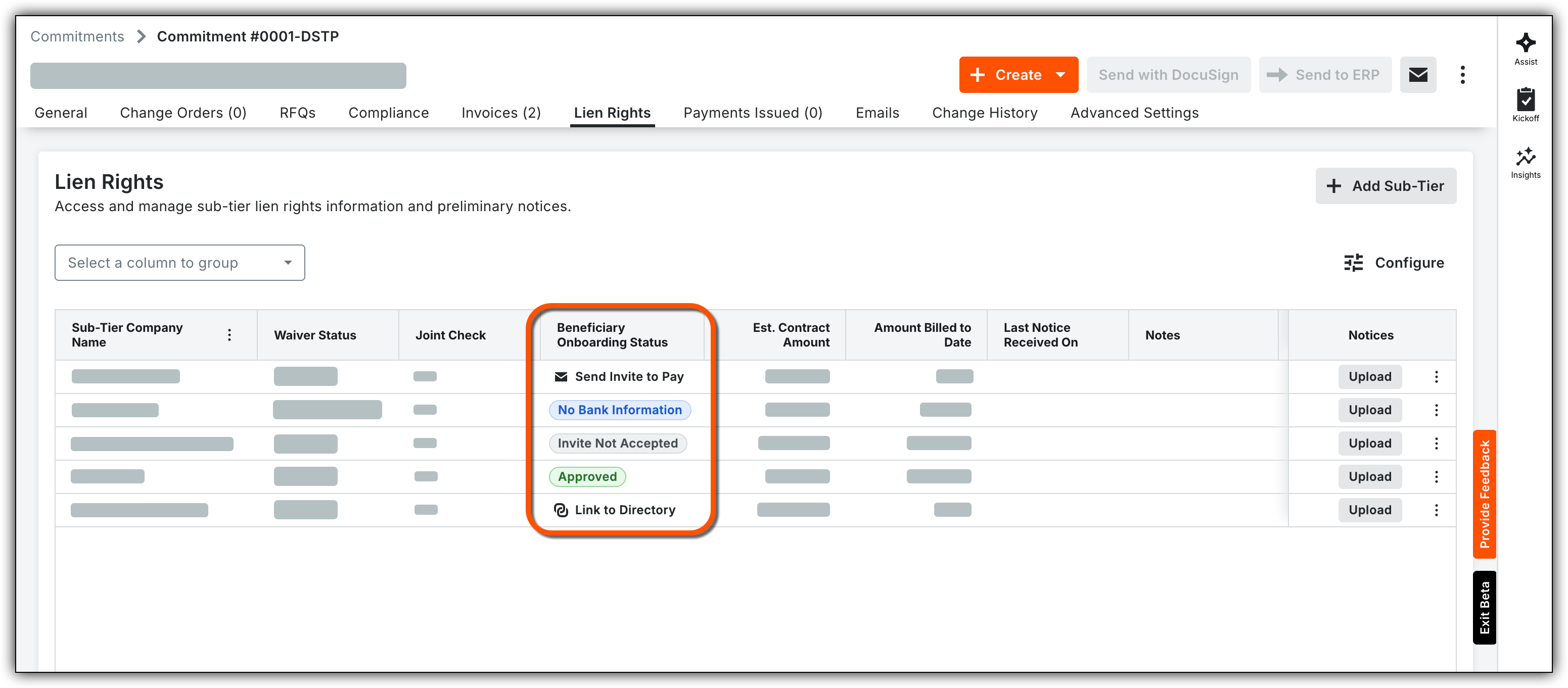
Locate and open the Commitment’s Lien Rights tab.
-
In the Beneficiary Onboarding Status column, select Link to Directory.
-
Enter the sub-tier’s EIN and select the appropriate company Directory entry.
-
Click Link.
Note: This is typically required once per commitment. -
Monitor the Beneficiary Onboarding Status column to track invited subcontractors, or select Invite to Pay if the subcontractor is not yet in the system to initiate their onboarding.