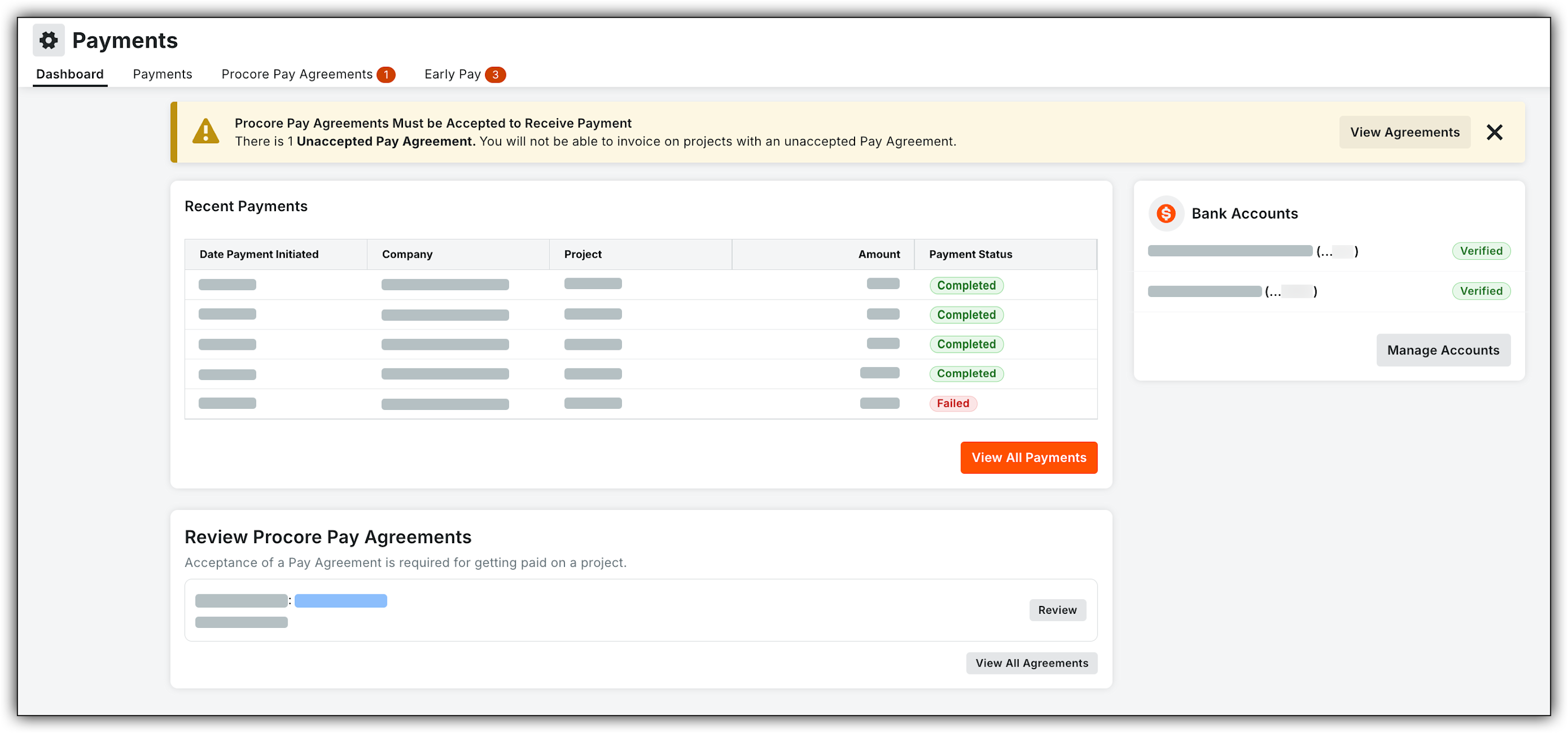
About Direct Sub-Tier Payments with Procore Pay
Table of Contents
- Overview
- General Contractors
- Subcontractors
- Sub-tiers / Vendors
Overview
Regional Availability
 Procore Pay
  is available in the United States. It is designed for General Contractors and Owner-Builders who act as their own General Contractors on a job. Procore Pay extends the Invoice Management functionality in the Procore web application to handle the payment process between general and specialty contractors.
Things to Consider
-
Two-Way Identity Verification: The system utilizes a "handshake" process based on the Employer Identification Number (EIN). Subcontractors must confirm the identity of their sub-tiers to help verify funds are directed to the correct legal entity.
-
Authorization Specificity: Authorizations are not blanket approvals; they are tied to the specific dollar amount on an invoice. If a GC modifies the payment amount after a subcontractor has authorized it, the authorization is voided to prompt the subcontractor to review and approve the modified amount.
-
Integration with Manual Payments: The system allows users to manually record and reconcile "offline" payments. To help mitigate the risk of duplicate payments, users can explicitly allocate manual check amounts against joint check obligations within the disbursement screen.
Link a Sub-Tier to a Directory Entry
Background
To facilitate the distribution of funds to the correct entity, you must first associate your sub-tier's billing information with a verified entry in the Procore Directory. This step uses an EIN-based confirmation system to validate the sub-tier’s identity. Establishing this link is a one-time requirement per commitment that is designed to help the General Contractor (GC) to replace manual check issuance with verified electronic transfers.
Things to Consider
-
Required User Permissions:
-
To link a Sub-tier to a Directory record.
-
'Read Only' or higher permissions on the project's Directory tool.
AND -
'Admin' level permissions on the project's Commitments tool.
-
-
Sub-tier linking to a Directory entry is required only once per commitment.
-
Confirm the sub-tier’s name in the Directory matches the business name on their W-9 to avoid verification delays.
-
Enter only in numbers (no dash) in the EIN field.
Prerequisites
-
Ensure sub-tiers are in your company Directory with an EIN and at least one user email address (no collaborator permissions required).
Steps
-
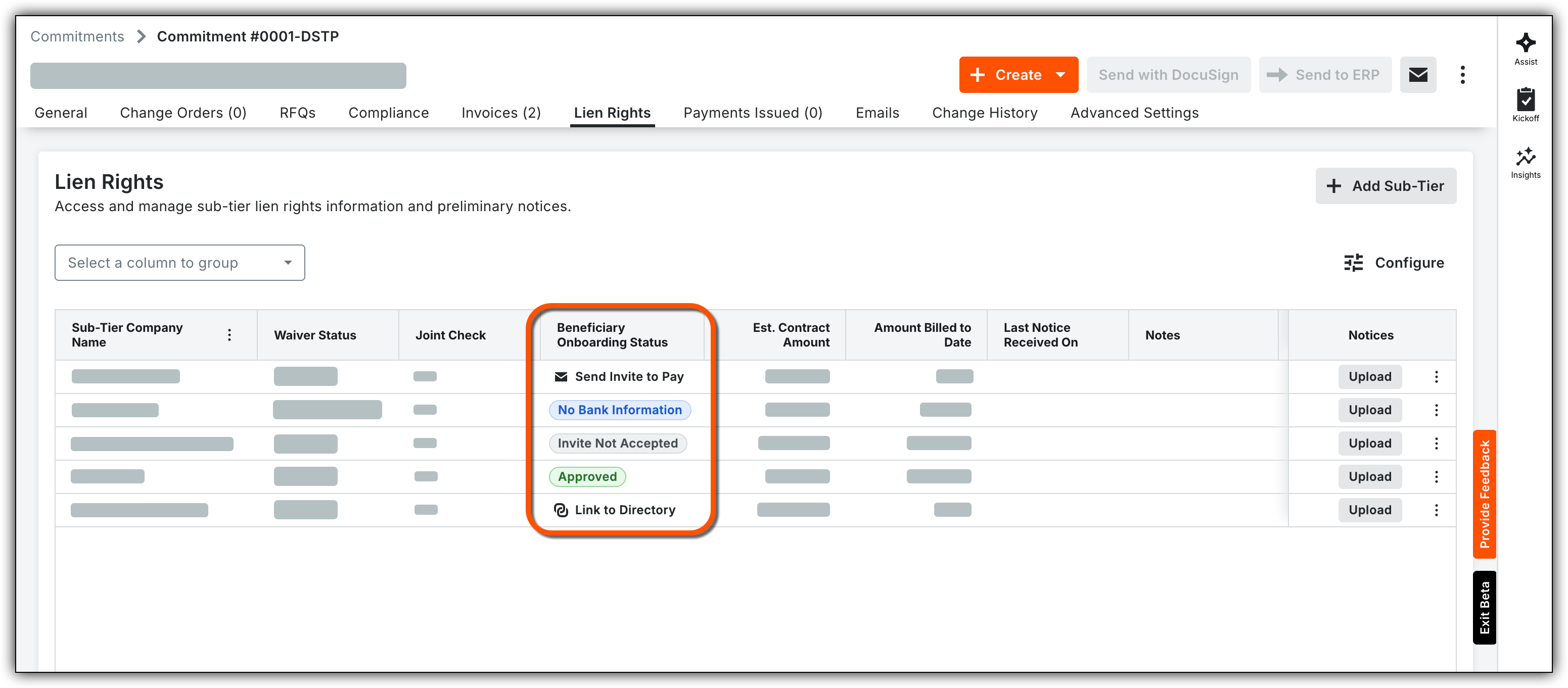
Locate and open the Commitment’s Lien Rights tab.
-
In the Beneficiary Onboarding Status column, select Link to Directory.
-
Enter the sub-tier’s EIN and select the appropriate company Directory entry.
-
Click Link.
Note: This is typically required once per commitment. -
Monitor the Beneficiary Onboarding Status column to track invited subcontractors, or select Invite to Pay if the subcontractor is not yet in the system to initiate their onboarding.
Disbursements with Sub-Tier Payments
Background
When an invoice includes "off-platform" payment logs—such as a manual check recorded in an integrated ERP like Sage Intacct—Procore Pay must account for these amounts before completing a disbursement. This process is designed to help users reconcile manual payments and reduce the risk of duplicate payments through the Procore Pay platform.
Things to Consider
-
Required User Permissions:
-
To add invoices to a disbursement and allocate manual offline payments, users must hold one of the following Payments roles:
-
Payments Admin
-
Payments Disburser OR
-
Disbursement Contributor
-
-
-
Eligibility for Electronic Payment: Onboarded and approved sub-tiers are eligible for electronic payment after the subcontractor provides authorization.
-
Sub-Tier Visibility: Sub-tiers marked as recipients of a joint check on an invoice appear under the first-tier subcontractor during the disbursement process.
-
Payment Methods:
-
ACH Requirements: Only sub-tiers that have successfully onboarded to Procore Pay, reached 'Approved' status, confirmed their EIN, and received subcontractor authorization for specific amounts are payable via ACH.
-
Manual Payment Marking: Sub-tiers not meeting all ACH requirements are automatically marked for "manual" payment in the system.
-
-
Off-Platform Allocations: If funds were paid outside of Procore Pay, the GC (payor) must confirm and allocate those funds within the platform.
-
Non-Editable Transactions: Any ACH payments processed through Procore Pay against an invoice cannot be edited once initiated.
-
This process only applies to invoices where Joint Check is set to "Yes" within the Authorize Direct Sub-Tier Payments section.
Steps
best practice for offline payments
Any payments made outside of the platform should be recorded in Procore Pay before issuing electronic payments to facilitate accurate application.
-
Navigate to the Payments tool and select the Disbursements tab.
-
Locate and select the invoice(s) you intend to pay.
-
Click the Add to Disbursement dropdown and make the appropriate selection:
-
Select an existing Disbursement. Choose a disbursement from the list to include the invoice(s) in a payment run you have already started.
-
Create Disbursement. Start a new payment run for the selected invoice(s).
-
-
In the Review Invoices page, select the specific sub-tier portions you intend to pay.
-
Click Apply Paid Amount to allocate the remaining balance.
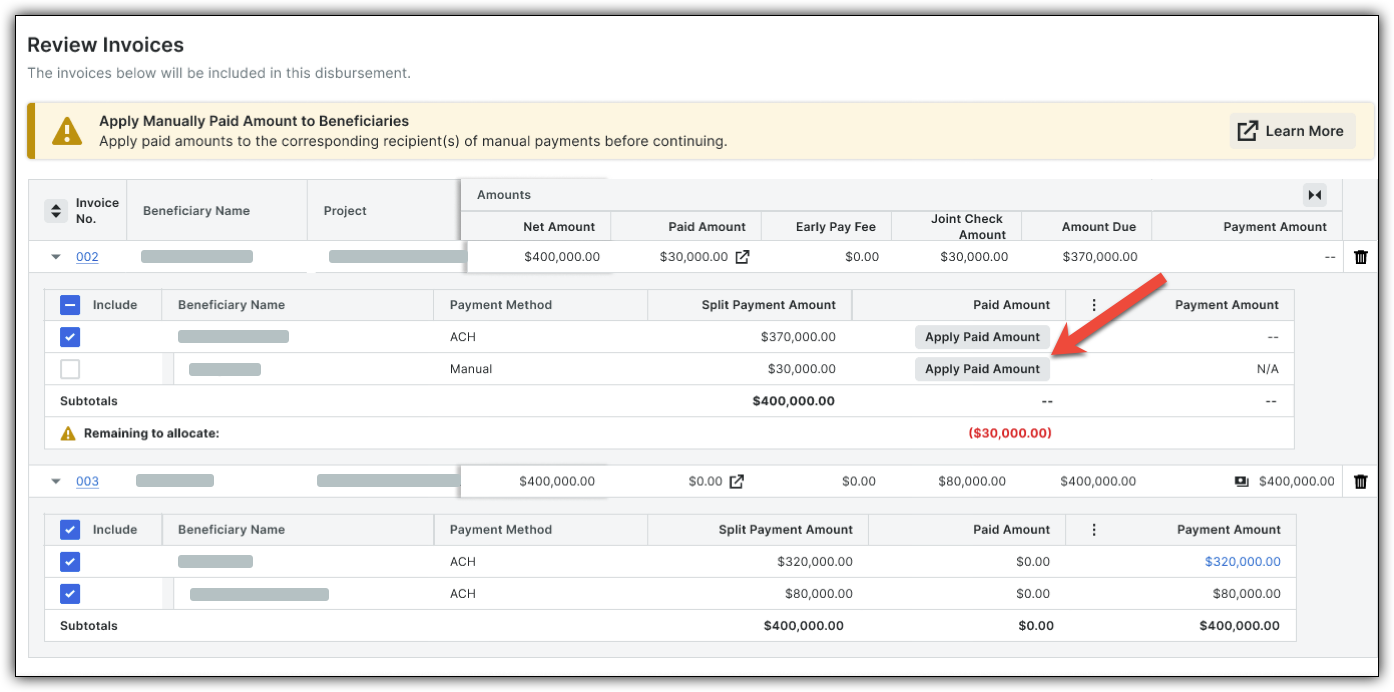
Example: If a $500 manual check was cut, specify how much of that went to the first-tier subcontractor vs. specific sub-tier suppliers.
-
Verify that the Remaining to Allocate field has reached $0.

-
Note: Once this balance is cleared, the is designed to mark those sub-tier portions as 'Satisfied' for accounting purposes within the platform, removing them from the ACH payment run, so you only pay the net difference.
-
Click Next.
Direct Sub-Tier Payment Authorizations
Authorize Direct Sub-Tier Payments
Background
Direct Sub-Tier Payments is a feature that simplifies your billing process by allowing General Contractors (GCs) to pay suppliers or sub-tier contractors electronically. This digital alternative to manual joint checks is designed to help streamline payments to your project partners.
Things to Consider
-
Required User Permissions:
-
The person providing the authorization must be listed as an Invoice Contact.
-
-
Each authorization is tied strictly to the dollar amount listed on the sub-tier waiver.
-
If the billed amount is modified—due to a dispute or correction—the previous authorization is automatically voided.
-
Any new amounts must be re-authorized before Procore Pay can process the sub-tier's payment.
-
-
Funds cannot be disbursed through Procore Pay until the sub-tier's EIN is confirmed. If you encounter an error when inputting the EIN, contact your GC to resolve the discrepancy.
Prerequisites
-
Your General Contractor must have Procore Pay and the Direct Sub-tier Payments features enabled.
-
The GC must mark a sub-tier on your current invoice as a recipient of a joint check. See About Joint Checks with Procore Pay for more information.
-
You must have a billed amount entered for the sub-tier for the current billing period.
Steps
Authorize the Payment Amount
-
Navigate to the specific invoice containing the sub-tiers you want to authorize for direct payment.
-
Click the Lien Rights tab and scroll to the Sub-Tier Payments for This Invoice section.
-
Locate the specific sub-tier receiving payment.
-
If the Amount Billed This Invoice is empty, enter the amount while requesting or uploading their lien waiver.
-
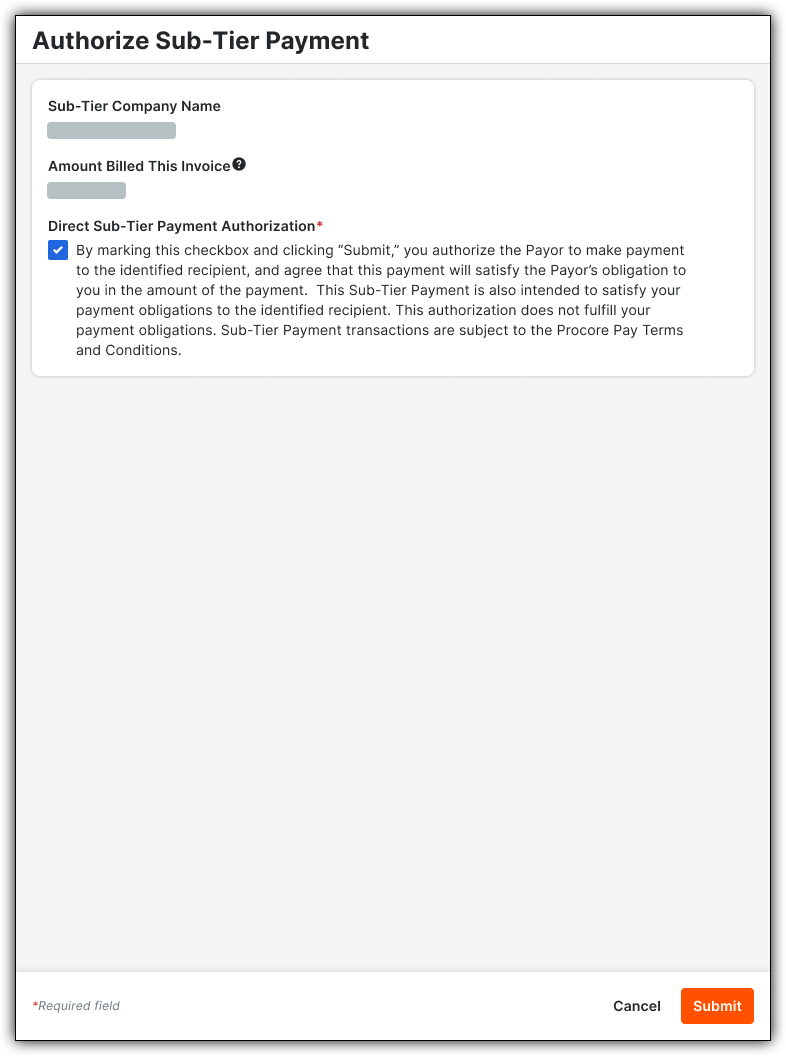
Click Authorize.

-
In the panel that appears, mark the checkbox to confirm you authorize the GC to pay the listed amount.
-
Click Submit.
Confirm Sub-Tier EIN
To help verify that the correct entity receives the funds, you will be prompted to confirm the sub-tier's Employer Identification Number (EIN). You only need to confirm the EIN once per sub-tier on each commitment.
-
When prompted after clicking Authorize, enter the sub-tier's EIN.
Note: You can typically find this on their W-9 form.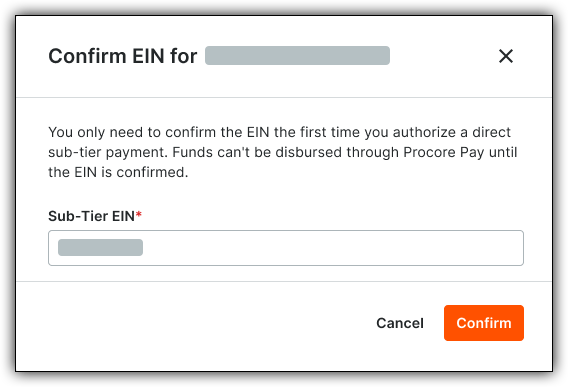
-
Click Confirm.
Onboarding and Tracking Payments
Getting Started
You will receive an email invitation to join Procore Pay. Procore Pay centralizes the payment process for general contractors (payors) and allows subcontractors and sub-tier vendors to link bank accounts for payment processing, reducing manual entry and help streamline cash flow. You will onboard to Pay just as other vendors to receive Payments.
If you have questions during the setup process, refer to the Payee Setup Guide or contact your project’s General Contractor for assistance.
Receiving Payments
Once you are linked to a commitment, the payment process is system-driven and transparent.
-
Email Notifications: You will receive an automated email notification promptly after a payment is successfully issued to your account.
-
Payment Tracking: You can log in to your Procore account at any time to see your payments received and manage banking details.