

Disbursements with Sub-Tier Payments
Background
When an invoice includes "off-platform" payment logs—such as a manual check recorded in an integrated ERP like Sage Intacct—Procore Pay must account for these amounts before completing a disbursement. This process is designed to help users reconcile manual payments and reduce the risk of duplicate payments through the Procore Pay platform.
Things to Consider
-
Required User Permissions:
-
To add invoices to a disbursement and allocate manual offline payments, users must hold one of the following Payments roles:
-
Payments Admin
-
Payments Disburser OR
-
Disbursement Contributor
-
-
-
Eligibility for Electronic Payment: Onboarded and approved sub-tiers are eligible for electronic payment after the subcontractor provides authorization.
-
Sub-Tier Visibility: Sub-tiers marked as recipients of a joint check on an invoice appear under the first-tier subcontractor during the disbursement process.
-
Payment Methods:
-
ACH Requirements: Only sub-tiers that have successfully onboarded to Procore Pay, reached 'Approved' status, confirmed their EIN, and received subcontractor authorization for specific amounts are payable via ACH.
-
Manual Payment Marking: Sub-tiers not meeting all ACH requirements are automatically marked for "manual" payment in the system.
-
-
Off-Platform Allocations: If funds were paid outside of Procore Pay, the GC (payor) must confirm and allocate those funds within the platform.
-
Non-Editable Transactions: Any ACH payments processed through Procore Pay against an invoice cannot be edited once initiated.
-
This process only applies to invoices where Joint Check is set to "Yes" within the Authorize Direct Sub-Tier Payments section.
Steps
best practice for offline payments
Any payments made outside of the platform should be recorded in Procore Pay before issuing electronic payments to facilitate accurate application.
-
Navigate to the Payments tool and select the Disbursements tab.
-
Locate and select the invoice(s) you intend to pay.
-
Click the Add to Disbursement dropdown and make the appropriate selection:
-
Select an existing Disbursement. Choose a disbursement from the list to include the invoice(s) in a payment run you have already started.
-
Create Disbursement. Start a new payment run for the selected invoice(s).
-
-
In the Review Invoices page, select the specific sub-tier portions you intend to pay.
-
Click Apply Paid Amount to allocate the remaining balance.
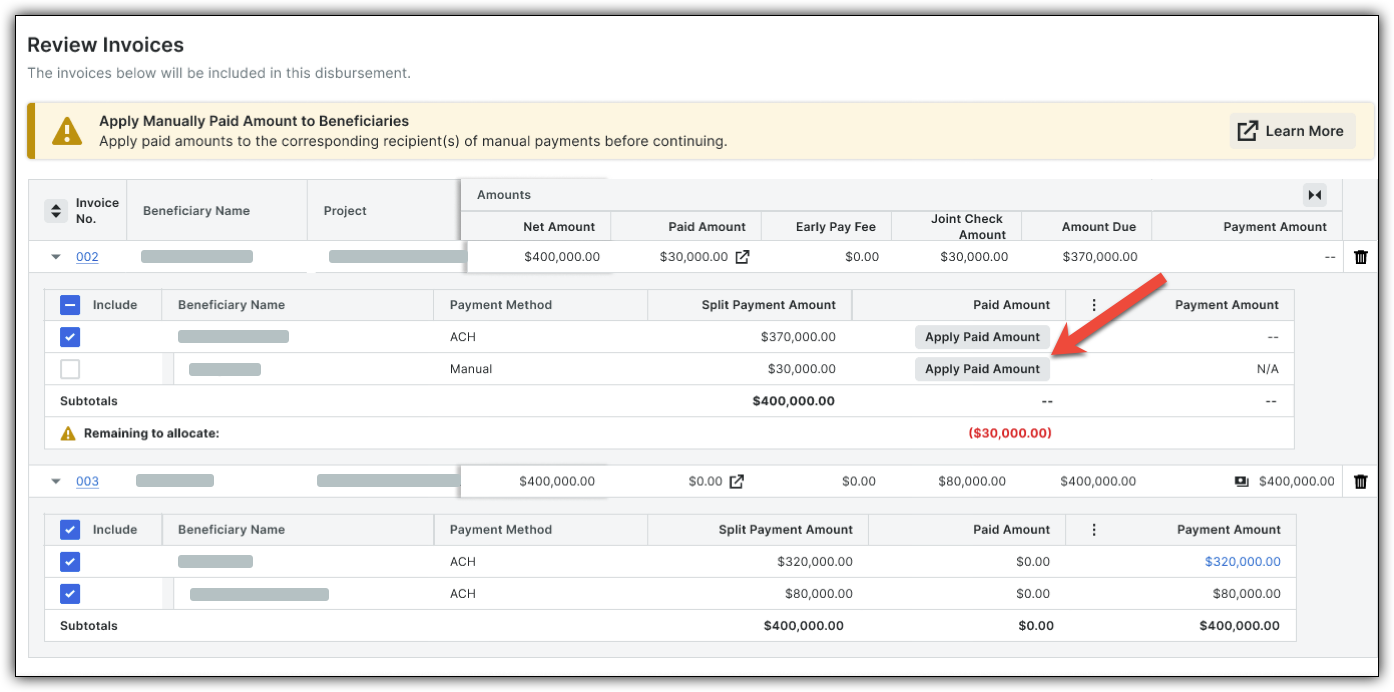
Example: If a $500 manual check was cut, specify how much of that went to the first-tier subcontractor vs. specific sub-tier suppliers.
-
Verify that the Remaining to Allocate field has reached $0.

-
Note: Once this balance is cleared, the is designed to mark those sub-tier portions as 'Satisfied' for accounting purposes within the platform, removing them from the ACH payment run, so you only pay the net difference.
-
Click Next.