

Approve a Timesheet (Android)
Background
Field workers can submit their own timecards or foremen can submit time for their crews. All timecards are added to a timesheet. A foreman or superintendent typically reviews the timesheet for accuracy, changing the status to 'Reviewed'.
Next, a responsible party 'approves' the entries for payroll. This check ensures hours are accurate, overtime is applied correctly, and costs are logged to the right code, before they are marked as 'complete' in the Company's Timesheets tool.
Things to Consider
-
'Approved' timecard entries:
-
Cannot be deleted.
-
Can only be marked as 'Completed' in the Company level Timesheets tool.
-
-
'Completed' timecard entries:
-
Cannot be edited at the project level. See Edit a Time Entry in the Company Level Timesheets Tool.
-
-
The 'Individual Entries' section shows time logged via Company Timecard, Daily Log, or My Time. You can approve these entries in the Timesheets tool at the company or project level.
Tip
For a detailed explanation about user permissions and multi-tier approvals, see How do I configure user permissions for multi-tier approvals with timekeeping?Prerequisites
Steps
-
Approve a Timecard Entry
-
Approve a Timesheet
Approve an Individual Timecard Entry
-
Navigate to the project's Timesheets tool.
-
Tap the timesheet with the the timecard entry that you want to review.
-
Tap the timecard entry and review it.
-
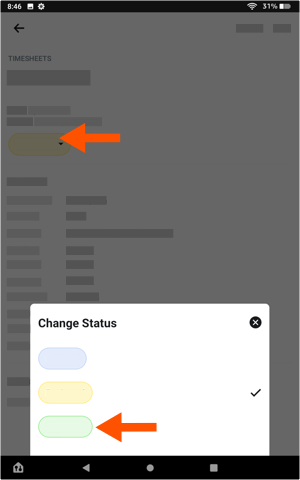
Tap the status and tap Approved.
-
Repeat the steps above for each timecard entry on the timesheet until you've approved all of the entries on the timesheet.
-
Continue with Approve a Timesheet below.
Approve a Timesheet
-
Navigate to the project's Timesheets tool.
-
Navigate to the timesheet that you want to review.
-
Tap the timesheet that you want to approve.
-
When all timecard entries on the timesheet are accurate and complete, tap the status and tap Approved.
-
Repeat the steps above for each timesheet.
Tip
If you need to edit the timesheet at a later time, you must change its status to 'Reviewed' or 'Pending'. If you are collecting employee signatures on your mobile device, you will need to collect those signatures again.