

MFA: Standard Procore (Users) - Log in to Procore with MFA
Prerequisites
-
Valid Login Credentials: You need a Procore user account with valid login credentials (Email and Password). If you lose your credentials, click the Forgot Password link on the login page or contact your Procore Administrator.
-
Administrator Setup: Your company's Procore Administrator must first Enable MFA for Your Company and configure your company's enforcement deadline.
-
Early Enrollment Option: Once an enforcement deadline is set, you can enroll in MFA prior to that date. See Early Enrollment in MFA.
-
Additional Set Up for Authenticator Apps: When using Authenticator app, you must also complete the steps in How do I set the clock on my mobile device to automatic for MFA Authenticator App Codes?
-
If your specific facility or job site prohibits mobile devices on-premises, the Procore MFA solution also supports desktop- or web-based authenticators. To learn more, see How can I log in with Multi-Factor Authentication if I cannot use a mobile device at work?
Steps
-
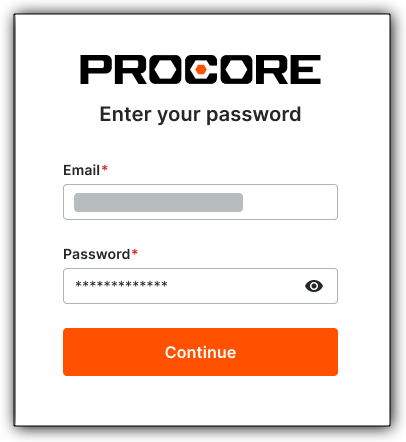
Go to the Procore web application at https://login.procore.com.
-
Enter your Procore Email and Password. Then click Continue.
-
Complete your Multi-Factor Authentication (MFA) based on your enrollment:
-
To log in with MFA using an Authenticator app Show/Hide
-
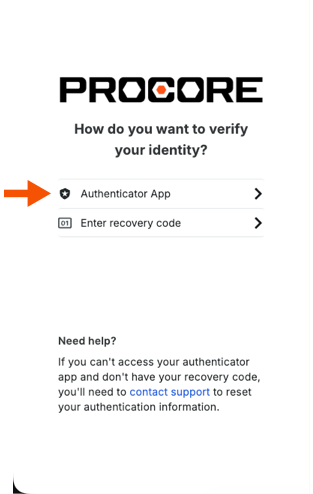
At the How Do You Want to Verify Your Identity page, click Authenticator App.
-
Open your preferred Authenticator App on your mobile device and look for your 6-digit verification code.
-
Type the code in the Enter Your 6-digit Verification Code box. Then click Continue. If you successfully pass this MFA challenge, you are logged into your company's Procore account.
-
-
To log in with MFA using SMS Verification Show/Hide
-
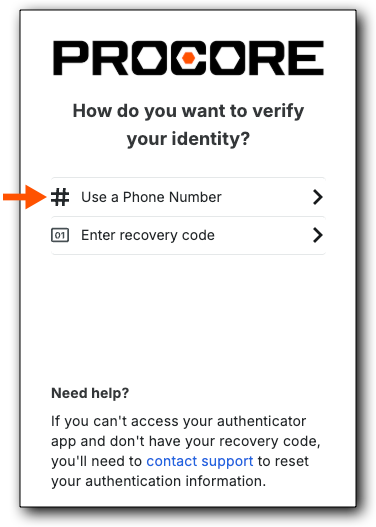
At the How Do You Want to Verify Your Identity page, click Use a Phone Number.
-
Check your mobile device for the 6-digit code delivered via SMS text message.
-
Type the code in the Enter Your 6-digit Verification Code box. Then click Continue.
If you successfully pass this MFA challenge, you are logged into your company's Procore account.
-
-
To log in to with MFA using a Recovery Code Show/Hide
-
At the How Do You Want to Verify Your Identity page, click Enter Recovery Code.
Tip
This is the 32-digit recovery code that you were asked to store in a safe place during the final step of your MFA setup process. To protect your security, Procore does not know or store your recovery code for you.-
Copy and paste or type your code in the Enter Recovery Code box. Then click Continue.
If you successfully pass the MFA challenge, you are logged into your company's Procore account.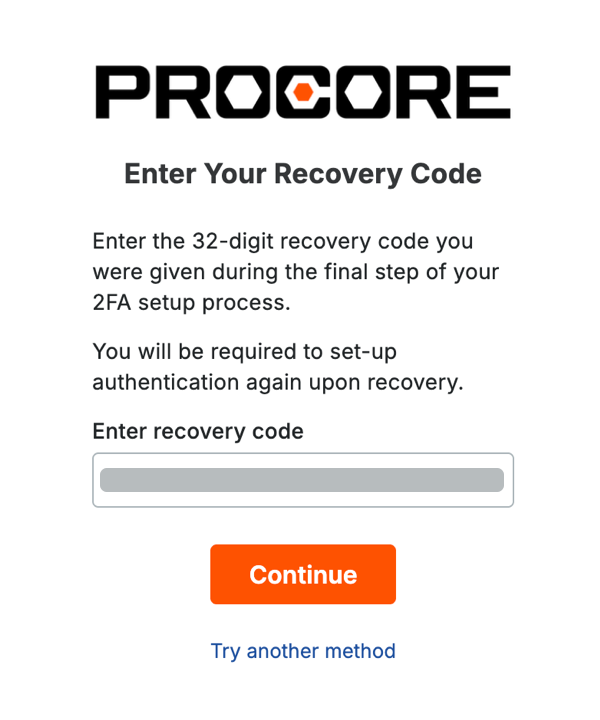
-
-


