

Export a Submittal
| PREVIOUS | CURRENT LESSON (38 of 48) | NEXT |
- Navigate to the project's Submittals tool.
- Locate the desired submittal and click View.
- Click Export.
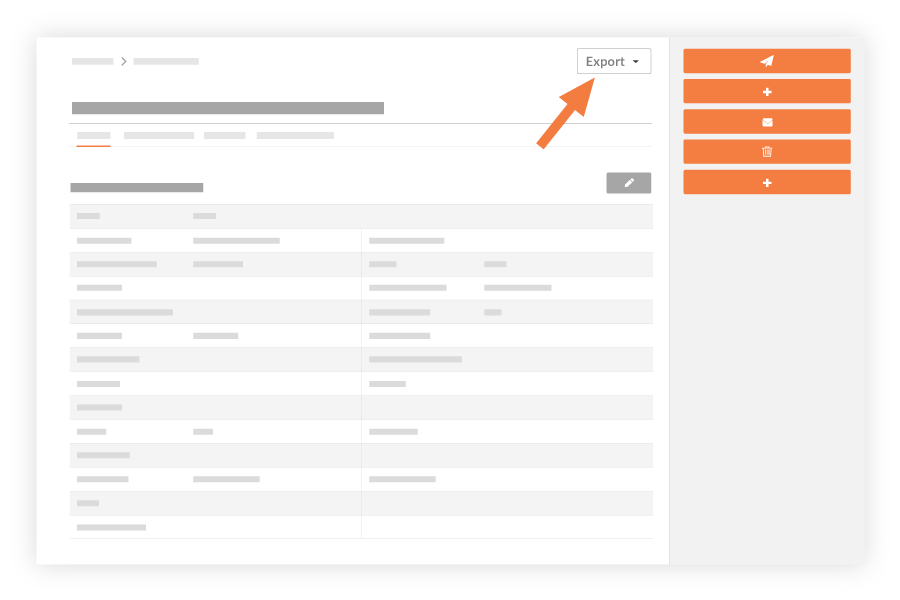
- Choose one of the following options:
- PDF. Select this option to generate a PDF summary of the submittal. The PDF will open in a separate tab in your web browser.
- PDF with Attachments. Select this option to export a PDF that combines one or more attachments from the submittal.
- Mark the checkboxes next to the files you want to combine together or click Select All.
Note: You can only add up to 40 attachments. - Rearrange the files by clicking the vertical grip (⋮⋮) icons and using a drag-and-drop operation.
- Click Single PDF or .zip.
- Mark the checkboxes next to the files you want to combine together or click Select All.
A 'Success' banner displays to confirm the export has started. The system will send you an email to notify you when the export is complete and will include a link to the exported file.