

Export the Submittals Log
| PREVIOUS | CURRENT LESSON (40 of 48) | NEXT |
- Navigate to the project's Submittals tool.
- Click the desired view at the top of the page: Items, Packages, Spec Sections, Ball in Court, or Recycle Bin.
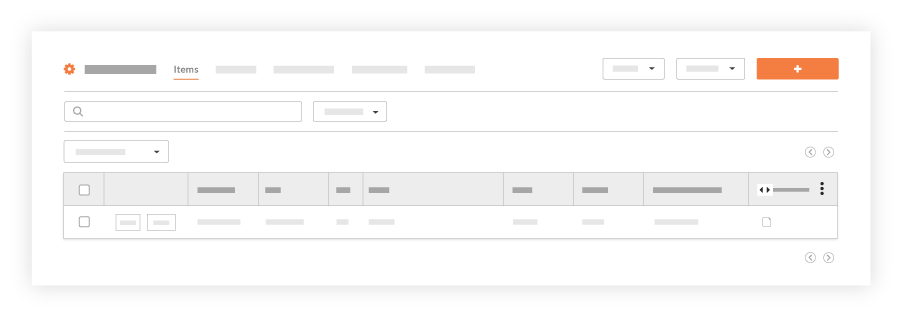
- Choose one of these options:
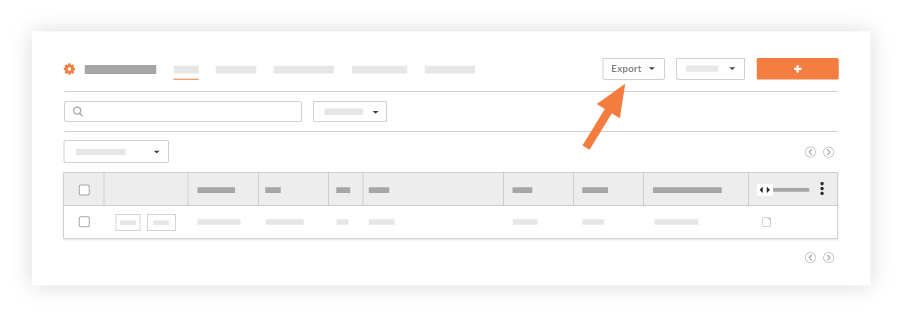
- Export > PDF. Exports data to the Portable Document Format (PDF). For an example, see PDF Export File below.
- Export > CSV. Exports data to the Comma Separated Values (CSV) format. For an example, see CSV Export File below.
- Export > Excel. Exports data to the open XML spreadsheet file format (XLSX) used by Microsoft Excel. For an example, see CSV Export File below. This is only available the List view. It is not supported when viewing the Packages, Spec Section, or Recycle Bin pages.
- (Note: The exported data exactly matches what is visible on the page. You can use the Sort & Filter options on the page to determine which submittals are included in the exported file. See Search and Filter for Submittals.)
- Depending on the number of records in the data export, you have these options:
- For 150 submittals or fewer, Procore exports the data to the specified file format and saves the file your computer's Downloads folder (or to the location that is specified as your computer's download location).
OR - For greater than 150 submittals, Procore exports the data and sends you an email notification when the export is complete. To download the submittal log, click the link in the email message.
- For 150 submittals or fewer, Procore exports the data to the specified file format and saves the file your computer's Downloads folder (or to the location that is specified as your computer's download location).
Example Download Files
The following illustrations are examples of the exported files in the supported file formats.
CSV Export File

Excel Export File

