

Add the Project Team to the Project Home Page
| Back | Current Lesson - 4/14 | Lesson 5 - Next |
On a project's Home page, the 'Project Team' area lets you create an informational listing of key project team members. Because many of your Procore users are not provided with read access to your Company or Project level Directory for security reasons, its helpful to create the 'Project Team' list on the project Home page to keep your Procore users apprised of which people and companies are responsible for performing key project roles.
Before you can populate the 'Project Team' area with contact information, a user with 'Admin' level permission to the Company Admin tool must first add a list of custom project roles (see What are custom project roles? and Add Custom Project Roles). A user with 'Admin' level permission to the Project Directory should ensure that all the required people and companies have been added to the Project Directory (see Add a Company to the Project Directory or Add a User Account to the Project Directory). After those two (2) prerequisites are complete, you can then use the steps below.
- Navigate to the project's Home page.
- Under 'Project Team', hover over the top corner of the page until the Edit icon appears.
Tip
Users without 'Admin' level permissions on the Project level Directory tool can only see the 'Project Team' table when one or more members have already been added to the project team. - Click Edit.
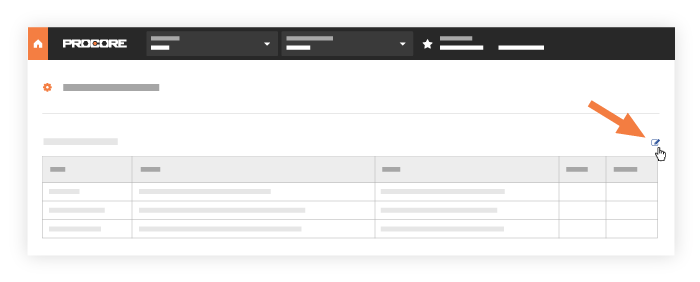
- Under 'Project Roles', review the Role, Type, and Members list.
Note: To add project roles, see Add Custom Project Roles. - Complete the following for each role:
- If the required 'Type' is a 'Person', designate one (1) or more people to the Members list.
OR - If the required 'Type' is a 'Company', designate the responsible company.
Note:- To add a user or company to the list, see Add a User Account to the Project Directory or Add a Company to the Project Directory.
- If the required 'Type' is a 'Person', designate one (1) or more people to the Members list.
- Click Update.
You are redirected to the Project level Directory tool. - Navigate to the project's Home page to see your updates.