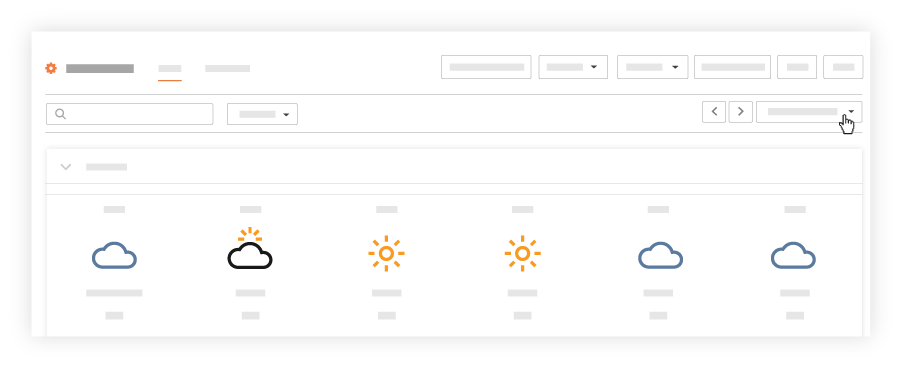
Today's daily log automatically loads. Existing entries are organized in sections for each log type.
Optional: Sections of the daily log (such as Observed Weather Conditions) can be expanded or collapsed by clicking the arrow next to the section's name.
Click the right arrow icon to show the section's entries.
Click the down arrow icon to hide the section's entries.
View Multiple Days
Click the [Date] drop-down menu. Note: This opens a calendar date selector.
Click Date Range.
Enter a date in the 'From' and 'To' fields, or click two dates on the calendar to specify a range: Note: After the dates are entered, click out of the calendar, and Procore will automatically refresh and display the Daily Log for the specified dates.
View Daily Log Reports
Click the Reports drop-down menu.
A list of available Daily Log reports are shown.
Click the report you want to view. Note: You will be redirected to the project's Reports tool.


 icon to show the section's entries.
  icon to hide the section's entries.