

Export a Daily Log as PDF
| Previous | Current Lesson - 19/25 | Next |
You can either export a single day's daily log as a PDF, or you can download a .zip file of multiple days' daily logs.
Export a Single Day as a PDF
- Navigate to the Daily Log tool.
- From the List view, select the date of the log you want to export.
- Click Export.
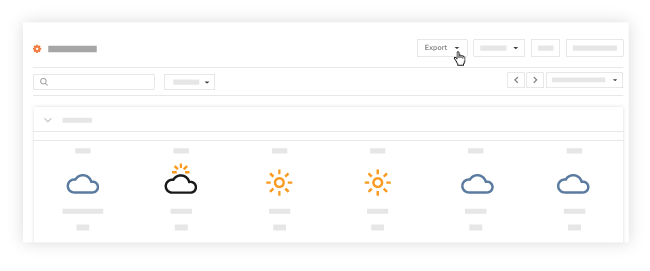
- Click the PDF button.
Note: A PDF of your daily log for that specific date will download to your computer.
Export Multiple Days as PDF in .zip File
- Navigate to the Daily Log tool.
- From the List view, click the Date drop-down menu.
- Click Date Range.
- Select the dates to designate the start and end of the date range you want to view.
Note: You will be shown the Daily Log for those days. - Click Export.
- Click Zip.
Note: A .zip file containing the PDFs for those days will be emailed to your email address.