

Add a Partial Budget Line Item
| Back | Current Lesson - 6/19 | Next |
A partial budget line item is a new budget line item that includes only a budget code. It is sometimes referred to as an 'unbudgeted' or 'missing' line item, because it was NOT included on the original budget. To see an example and learn more, see What is a partial budget line item?
Add Line Items Individually
- Navigate to the project's Budget tool
- However the mouse cursor over the unbudgeted line item.
Note: Procore displays a question mark (?) next to line items that are associated with unbudgeted cost code/cost type/sub job combinations. - Hover the mouse cursor over the left column until a check box appears. Then place checkmark in the box.
Note: You may select as many line items as necessary.
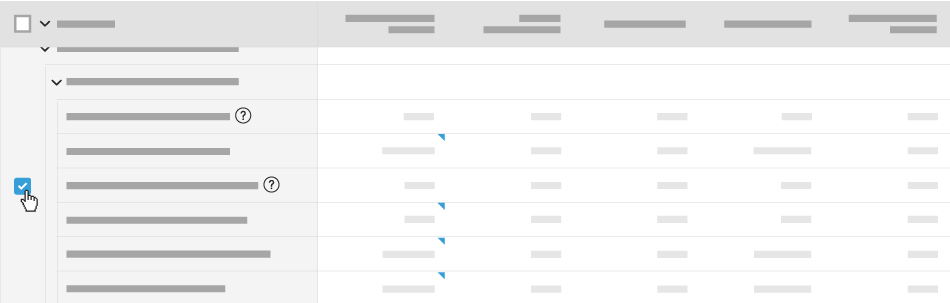
- Click Add Line Items to Budget.
Tip
- If the Budget is unlocked (see Unlock a Budget), edit the Original Budget Amount inline to assign it a value.
- If the Budget is locked (see Lock a Budget), you can transfer funds from another line item into this one by creating a budget modification. See Create a Budget Modification.
Add Line Items in Bulk
- Navigate to the project's Budget tool.
- To the left of the Description header, place a checkmark in the box. This will select all the line items that can be added to the budget.
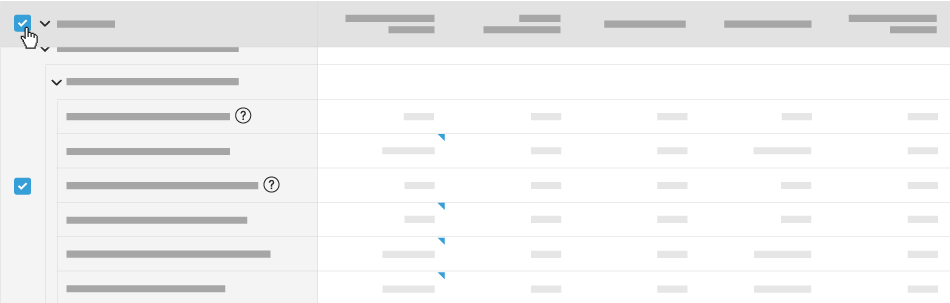
- Click Add Line Items to Budget.
Tips
- If the Budget is unlocked (see Unlock a Budget), edit the Original Budget Amount inline to assign it a value.
- If the Budget is locked (see Lock a Budget), you can transfer funds from another line item into this one by creating a budget modification. See Create a Budget Modification.