

Project Deliverables
Standard Operating Procedure
SOP-15
Standard Proposal Deliverable
OBJECTIVE
- This standard operating procedure explains the process of a "Standard Proposal Deliverable" when submitting an estimate to a client. This will allow consistency and professional-looking deliverables.
PROCESS
- Expectations
- Determine the expectations. The deliverable will vary depending on the type of proposal being submitted.
- A Cost Summary is required when submitting a detailed estimate. Check the following items.
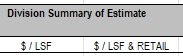
- The column labels should have the correct title, SSF or LSF.
 or
or 
- If the project does not have retail, hide the column showing the "$/LSF & RETAIL."
- Insert Project Rendering/Plan and complete systems information below, then remove pink shading. See example below:

- The header should indicate what type of estimate it is ("Schematic Estimate Summary," "GMP Estimate Summary," etc.).
- Detailed Budget Sheet:
- Items listed above for the Cost Summary sheet apply to the Detail Budget sheet
- Adjust the columns where the Blue titles of the subcategories do not cross the Notes column.

- Run Spell Check
- Check Div. 50% is correct; if not sure, check with management.
- Check the "Notes" columns to make sure they are filled out.
- Make sure there are no added blank rows; there should be only one at the top and bottom of each category and one above sub-section titles.
- Always print and review how it looks before sending (PDF or Paper version).
- When printing, print the summary page and detailed page together. In order to get page numbering correct, click on the summary tab, then hold the "shift" button, and click on the detail tab. Once they are both selected, print and page numbers will be sequentially ordered.
- Squarefoot Data Sheet:
- Remove all pink shading on the table.
- Hide lines are not used.
- Hide the floor level columns when the levels are repeating. This will help with margins so that the table will fit on an 8-1/2 x11 sheet of paper.
- Staffing Chart:
- Remove the Pink shading.
- Check that the number of months matches the months of the Gantt bar. If they do not match up, there is #1 missing in the Gantt bar.
- Make sure to input the anticipated start date, which will affect the cost.
- GC/GR:
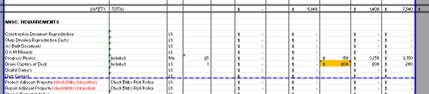
- For WPB, you can hide the following columns on the General Conditions:

Change to portrait orientation if the layout is narrow.
- Once the General Requirements are complete and hidden lines are not used, do a Page Break Preview in the bottom right-hand corner of Excel. In this view, you can move the breaks to where they fall at the bottom of the category.

Folder Structure
- Project Main Folder Directory
- Labeling the Project folders 01,02,03. Each number correlates with the Smartsheet Preconstruction effort. We are using two folder structures; one contains an entire tree structure for a complete Precon effort with subcontractors and operations. The second is for high-level conceptual and schematic budgets. The second option has a limited folder structure since no folders are used. The labeling should be as follows:
- 01 – then follow with one of the following: Concept, SD, DD, or CD.
- A description after the plan status would need to be short; see example:
- 01 – Concept Esti
- 02 – SD Esti
- 03 – DD Analysis
- Labeling the Project folders 01,02,03. Each number correlates with the Smartsheet Preconstruction effort. We are using two folder structures; one contains an entire tree structure for a complete Precon effort with subcontractors and operations. The second is for high-level conceptual and schematic budgets. The second option has a limited folder structure since no folders are used. The labeling should be as follows:
- Owner Presentation Folder
- Initial Budget: There is already a folder saved with a date for the Initial Budget; there is no need to make a new folder. Use this folder; you only need to change the date and title if required. If changing the title of the folder, you must keep it short.
- "_Individual Files" subfolder: This folder is used to save all the individual PDF files of the submission.
- Location of the submission template Y:\Shared\Precon\Forms\Owner Presentation: Word Doc Coversheet_Toc_Dividers
- Saving the Submission: The only files that should be saved under the initial budget folder are the email to the client and the files attached to the email.

CLOSEOUT
- This section is to guide the format to save files after the Preconstruction Manager sends in the deliverable
- Excel Estimate File:
- The format for saving the estimate Excel file:
- YYMMDD_Project Name (abbreviated)-WF
- Once the project has been submitted, change from WF (Working File) to Submitted. YYMMDD_Project Name (abbreviated)- Submitted. Move a copy of the submitted estimate into the "_History" folder and keep one in the main folder.
- The above information applies to the Q&A.
- YYMMDD_Project Name (abbreviated) Q&A -WF
- The format for saving the estimate Excel file:
- Smartsheets
- Once a proposal is submitted, the Precon Manager is required to update the project in Smartsheets, which includes cost, duration, SF data, GC/GR cost, etc...
- Change the status from Active to Tracking.
- Attached is a summary sheet for Smartsheet: Go to Precon, log in to Smartsheet, and go to the project. On the left-hand side, hover the mouse over this area, and a paperclip appears with a +;

Click on it, and a window on the right side of the sheet opens called Attachments.
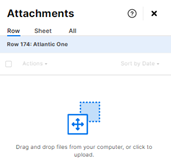
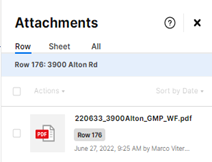
Drag and drop the Summary PDF from the Owner Presentation folder.