

Show or Hide Project Weather on the Project Home Page
nEw Version Available
The Project Overview has replaced the legacy Project Home page and is enabled by default. Learn more about the difference between the legacy Project Home page and the new Project Overview.
To return to the legacy Project Home, Company Administrators can navigate to the Company Portfolio / Procore Home tool, click Manage Settings and toggle Project Overview  OFF.
OFF.
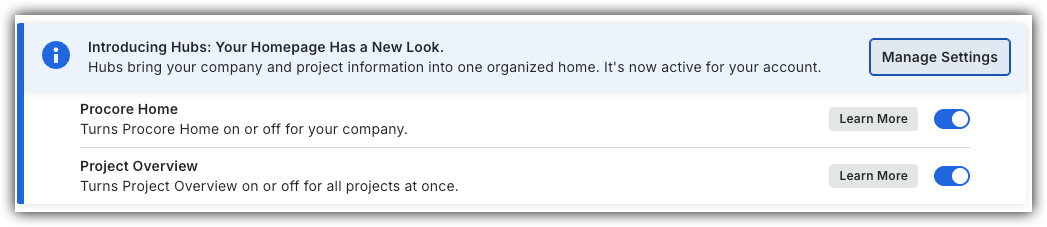
However, later this year it will be sunset and will no longer be available. If your company reverted to the legacy Project Home experience, Company Administrators can re-enable the Project Overview experience in Procore Explore. (US 2 | UK)
Background
You can turn the display of the Project Weather widget on the sidebar of the Project Home page ON or OFF.
Things to Consider
-
Required User Permission:
-
'Admin' level permission on the project's Home page.
-
Steps
-
Navigate to the Project Overview.
-
Click the Overview tab's vertical ellipsis
 .
.

-
Move and Resize Information Cards
-
Click Edit View.
-
Click and hold the information card and drag it to the location that you want on the page.
-
Click and hold the resize
 icon in the information card's corner and drag the card until it's the size you want.
-
-
Remove Card
-
Click the delete
 icon.
icon. -
Click Remove Card to confirm.
-
-
Rename Overview Tab
-
Click the Overview tab's vertical ellipsis
and click Rename.
-
-
-
Click Save.
Reset Project Overview to Default Display
- Navigate to the Project Overview.
- Click the Overview tab's vertical ellipsis .
3. Click Actions and select Reset.
Project Home (Legacy)
- Navigate to the project's Home page.
- Click Configure Settings
 .
. - Choose from these options:
- To show the Project Weather widget on the Home page, place a checkmark in the Show Current Weather Conditions box.
- To hide the Project Weather widget from the Home page, remove the checkmark.
4. Click Update.