

Manage the Project Message for the Project Home Page
nEw Version Available
The Project Overview has replaced the legacy Project Home page and is enabled by default. Learn more about the difference between the legacy Project Home page and the new Project Overview.
To return to the legacy Project Home, Company Administrators can navigate to the Company Portfolio / Procore Home tool, click Manage Settings and toggle Project Overview  OFF.
OFF.
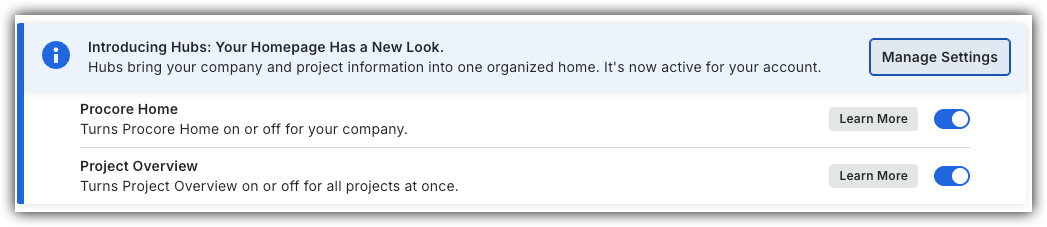
However, later this year it will be sunset and will no longer be available. If your company reverted to the legacy Project Home experience, Company Administrators can re-enable the Project Overview experience in Procore Explore. (US 2 | UK)
Background
If you are a user with 'Admin' level permissions to a project's Home page, you can set up a project message that displays on the Home tab for the project. This message is visible to all Procore users with permission to the project.
Things to Consider
-
Required User Permissions:
-
To update the message: 'Admin' level permissions on the project's Home tool.
-
To view the message: 'Read Only' level permissions or higher on the project's Home tool.
-
Steps
Add or Edit Project Message
-
Navigate to the Project Overview.
-
Navigate to the project's Home to be redirected to the Project Overview.
-
Click Menu and select Project Overview.
-
-
Locate the 'Project Message' section.
-
Click the vertical ellipsis
 and select Edit Message to edit.
-
Add or Edit
-
Enter the title and message.
-
-
Delete
-
Delete the title and message.
-
-
-
Click Save.
Project Home (Legacy)
- Navigate to the project's Home page.
- Click the Configure Settings
 icon.
icon. - Update the fields in the Persistent Project Message area as follows:

- Title. Type the message title that you want to appear on the Project Home page.
- Persistent Project Message. The body of the message. You can also apply any of the options in the formatting toolbar to the message text.
4. Click Update to publish.