Delete a Company Level Equipment Make or Model
PRIVATE ARTICLE
This page is set to 'Private' and is only visible to members of the PC-Internal group (a.k.a., Procore Employees).
The content on the United States (English) page below is exported as source content when publishing target content on the Australia (English) instance of the Procore Support Site at this link:  Delete a Company Level Equipment Make or Model
Note
The (Legacy) Equipment tool was developed specifically for use by Procore customers in Australia and New Zealand. For documentation, visit the Company Level Equipment page and Project Level Equipment page on the Australia (English) instance of the Procore Support Site.
Objective
To delete the make and/or model for a piece of equipment so it no longer appears as a selection in the 'Make' drop-down list.
Things to Consider
- Required User Permissions:
- 'Admin' level permissions on the company’s Equipment (Legacy) tool.
- Additional Information:
- An equipment model cannot be deleted if it is tied to a company or project level equipment entry.
Note: See Search and Filter Company Level Equipment Entries to learn how to locate equipment entries. - A piece of equipment make cannot be deleted until all models tied to it have been deleted.
- You will be able to edit a make and/or model at any time.
- An equipment model cannot be deleted if it is tied to a company or project level equipment entry.
Prerequisites
Steps
- Navigate to the company’s Equipment (Legacy) tool.
- Click the Configure Settings
 icon.
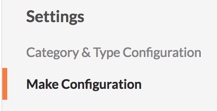
icon. - Under “Settings” click Make Configuration.
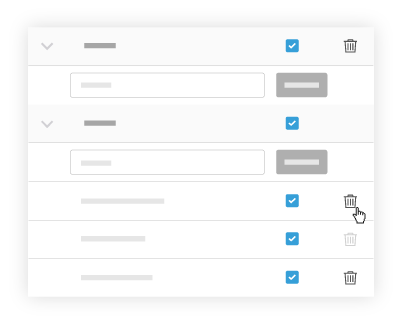
- Click the trash can icon next to the make and/or model you would like to delete.
Note: If the trash can icon is grayed out, find and remove the associated equipment item(s). See Search and Filter Company Level Equipment Entries to learn how to locate equipment entries.