

Locations (Web)
Table of Contents
Overview
Construction teams build by location (floor, zone, pipeline segment, or tract), but location data has historically been hard to visualize and disconnected from the work happening on site. The standalone Locations tool brings location management into a dedicated tool with its own permissions, so teams know what's happening and where on every project.
Key Features
-
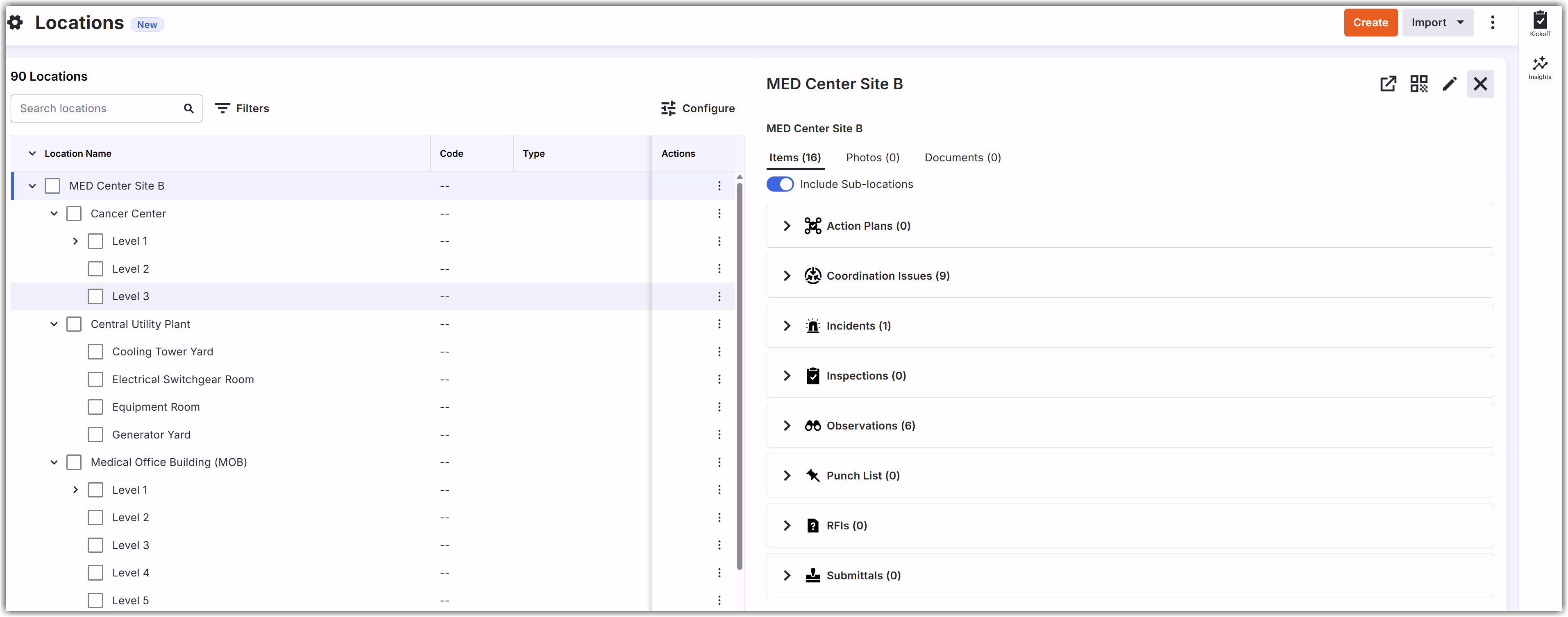
Location Details: Select any location to see its associated items in one place, including Action Plans, Coordination Issues, Incidents, Inspections, Observations, PDM (tagged documents), Photos, Punch List, RFIs, and Submittals. See View Location Details and Associated Tool Items for more information.
-
Location Mapping: Draw locations as points, paths, or polygons on the project map. This requires a package that includes the Maps tool.
-
Granular Permissions for Secure Access Control:
Teams can configure fine-grained access control across key location actions:-
Create Locations: Create new location entities (Web, iOS, Android).
-
Import Locations: Import location from external sources such as Revit (Web).
-
Edit Locations: Reparent, merge, edit, and perform bulk edits or deletions (Web).
-
Delete Locations: Delete individual location items (Web).
-
Add Location Geometry: Draw, add, or remove physical geometry on the project map (Web) for rich visual context.
-
Print QR Codes: Generate and print QR codes directly for physical jobsite posting (Web).
-
Export Locations: Export location hierarchies and data (Web).
-
Benefits
-
The Locations tool gives project teams a single place to find, track, and act on project records tied to physical jobsite spaces, such as a floor, zone, pipeline segment, or tract.
-
The Locations tool lets teams draw locations as points, paths, or polygons on an interactive map, so a location is more than a name in a list. Mapped locations appear on the Project Map alongside other pinned items, giving teams a clear view of where each location is on the jobsite.
-
Location-specific permissions control who can create, edit, map, or delete locations, so every team works from one consistent location hierarchy instead of second-guessing which location is which.
Tutorials
FAQ/Troubleshooting
Permissions
Learn which user permissions are required to take the described actions in this tool.
Important
Some actions that impact this tool are done in other Procore tools.Note
-
Only Project Admins can manage Locations Permissions.
-
To map locations, the Maps tool must be active on your project. You must have the necessary permissions for the Maps tool to be able to visualize locations on the map.
 Users can take the action with this permission level.
 Users can take this action with this permission level AND one or more additional requirements, like granular permissions.
|
Action |
None |
Read Only |
Standard |
Admin |
Notes |
|---|---|---|---|---|---|
|
Add Locations to Map Web |
|
||||
|
Manage Location Geometry Web |
|
|
|
Users can add, edit, or remove location geometry on the map. |
|
|
Configure Locations Settings Web |
|
|
|
|
|
|
Create Locations Web |
|
|
|
||
|
Delete Locations Web |
|
|
|
||
|
Download BIM Plugin Web |
|
||||
|
Download Procore Imports and Template Web |
|
||||
|
Edit Locations Web |
|
|
|
This includes reparent, merge, bulk edit (bulk edit type), and bulk delete actions. |
|
|
Export Locations Web |
|
|
|
Users can export Locations in CSV or PDF file format. |
|
|
Import Locations Web |
|
To import Locations from Revit, you must have the necessary permissions for the Models tool. |
|||
|
Perform Bulk Actions on Locations Web |
|
||||
|
Print Location QR Codes Web |
|
|
|
||
|
Resize the Column Width in the Locations Table Web |
|
|
|
||
|
View Locations Web iOS Android |
|
|
|
||
|
View the Map of Locations Web |
|
|
|
||
|
View Locations on Map Web iOS Android |
|
|
|
Users can see the Location geometry on Maps. |
|
|
View Location Details Web |
|
|
|