

Set Saved View as Default View in Capital Planning
Background
Set a saved view as your default view in Capital Planning to automatically display your preferred table layout whenever you open the tool. Designating a default view bypasses repetitive view selection and highlights critical portfolio metrics immediately.
Things to Consider
-
Required User Permissions:
-
'Admin' level permissions to create 'Company Views'.
-
'Standard' level permissions or higher to create 'Personal Views'.
-
-
Additional Information:
-
You can set either a Personal View or an accessible Company View as your default starting view.
-
Steps
-
Navigate to the company's Capital Planning tool.
-
Click the
 Views button.
-
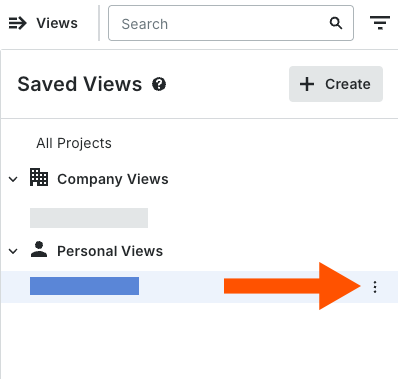
Select the Saved View you want to update.
-
Click the vertical ellipsis
 icon next to the relevant saved view.
-
Select Set as Default View.