

Add QuickBooks® Online Standard Cost Codes to a Project
Objective
To add QuickBooks® Online Standard Cost Codes at the Company level to a 'Project Cost Codes' list in Procore.
Background
During the course of a construction project, users may need to add new cost codes to a Procore project. Adding new codes is a multi-step process:
- Create the new cost codes in Procore by adding them to the Company QuickBooks® Online ERP Integration Standard Cost Codes list.
- Select default cost types for the QuickBooks® Online Standard Cost Codes in the Company ERP Integration Tool.
- Follow the Steps below to copy the cost codes from the Company level Admin tool to the 'Project Cost Codes' list in the Project level Admin tool.
Things to Consider
- Required User Permissions:
- To add or edit project cost codes, 'Admin' on the project's Admin tool.
OR - To add or edit project cost codes as a user with 'Standard' or 'Read Only' level permission to the project's Admin tool, the 'Manage Cost Codes' granular permission must be enabled on the permission template associated with your user account on the project. See Grant Granular Permissions in a Project Permissions Template.
- To add or edit project cost codes, 'Admin' on the project's Admin tool.
- Prerequisites:
- The ERP Integrations tool must be enabled. See Request to Enable ERP Integrations for QuickBooks® Online.
- The Job from the integrated ERP system must be added as a Procore project. See Add a QuickBooks® Online Job to Procore.
Steps
- Navigate to the Project level Admin tool.
- Under 'Project Settings', click the Work Breakdown Structure link.
- In the 'Segments' list, click the Cost Codes link.
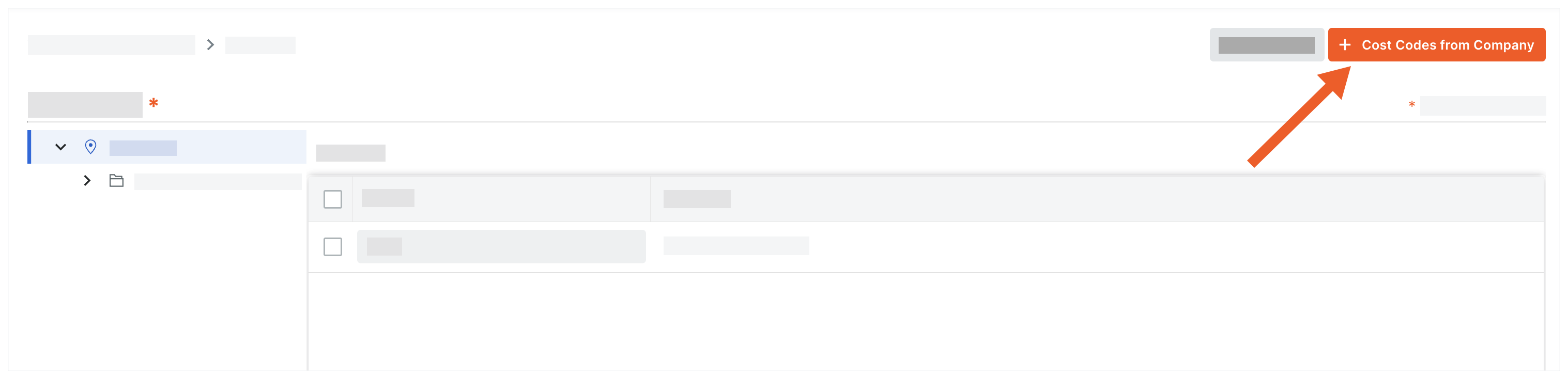
- Click Cost Codes from Company.
- In the 'Add Cost Codes to this Project' window, choose from these options:

- To copy all company cost codes to the project, click Select All.
- To select specific cost codes, type a code in the Search Cost Codes box and highlight the codes to add.
- To choose cost codes, expand the desired segment items and highlight the segment items to copy.
- Click Add.