

Send a New Correspondence in the Bidding Tool
| PREVIOUS | CURRENT LESSON (8 of 28) | NEXT |
To send a new correspondence from your Bidding tool to notify your bidders of addendums or other changes to the bid package's information.
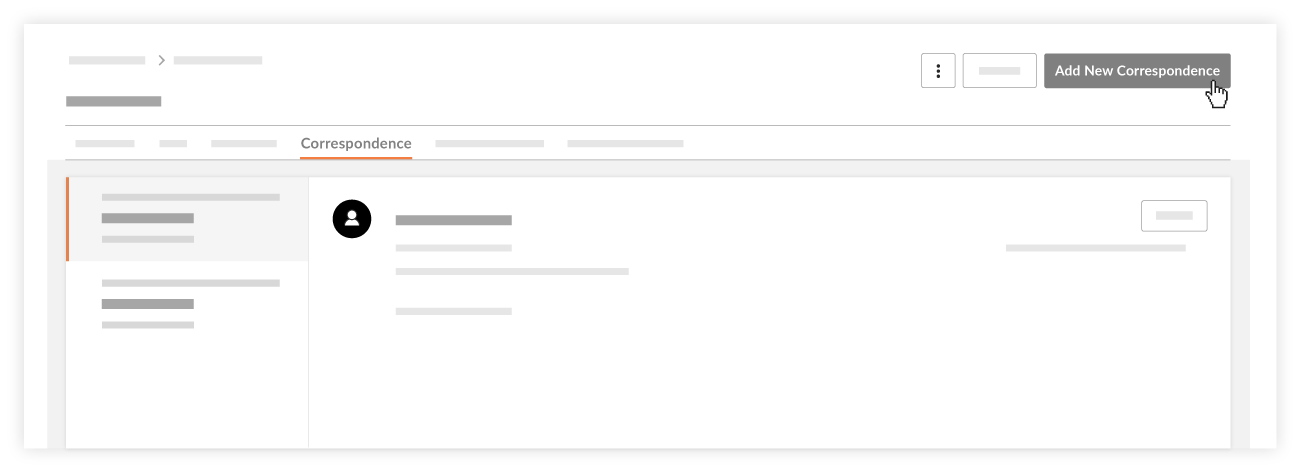
- Navigate to the project's Bidding tool.
- Click View next to the bid package you want to send a new correspondence for.
- Navigate to the Correspondence subtab.
- Click Add New Correspondence.
- Fill out the fields described below.
- BCC: This section will automatically populate with all invited bidders who are on the 'Recipient List' unless they have indicated that they "Will Not Bid". You can delete any users by clicking on the red X icon. However, you can only add contacts who have been invited to bid on this bid package.
- Subject: This will be in the subject of the email.
- Attachments: Attach any relevant files to this correspondence by clicking Attach File(s), or by dragging and dropping from your computer.
Note: The bid package's Bid documents will be automatically attached to every correspondence. - Message: Include a message for the correspondence
- Review your correspondence, and click Send.
Notes:- This will send an email with your message, attachments, and subject to the users in the BCC list.
- Any users you send this message to will not see the other contacts you've sent the correspondence to.
- Any users you send this message to will not be able to reply to the correspondence email.